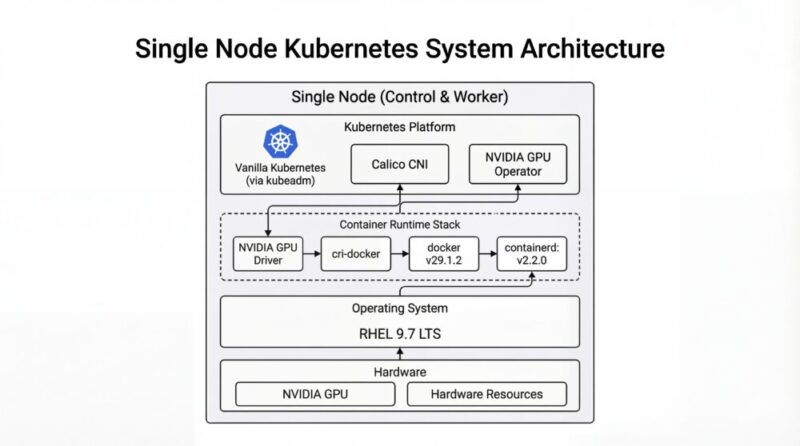

當 Kubernetes (K8s) 遇到 GPU 詳細裝機筆記 – Redhat 篇

會寫這一個主題,大概就是這步驟實在又多又複雜,
細節很多、然後軟體更新很快,步驟文章很容易失效

想必很有可能這篇沒多久就失效了,
至少可以給初學者一個概念,
就算其中步驟有變化,但一定只會變得更方便、更直覺

這種從頭開始、包含 GPU 的安裝,應該這個經驗不會太多人有。

不囉唆,我們開始吧

關閉 Nouveau 驅動

在安裝 GPU 之前,需關閉 Nouveau 驅動,不然會安裝失敗

新增一個 /etc/modprobe.d/blacklist-nouveau.conf 檔案
(這檔案預設系統沒有,需要自行創立)

sudo vi /etc/modprobe.d/blacklist-nouveau.conf

內容為

blacklist nouveau
options nouveau modeset=0

:wq 存檔

然後輸入以下指令,讓核心 Kernel 以重新載入 initramfs

sudo dracut --force

查看 Nouveau 狀態

lsmod | grep -i nouveau

安裝 NVIDIA 驅動

這邊使用 Redhat 系列做範例, Rocky Linux, Fedora 是同家族的,
理論上都可以使用

安裝 kernel-devel 套件

sudo yum install -y gcc kernel-devel-$(uname -r)

到 NVIDIA 官網來下載驅動程式

https://www.nvidia.com/en-us/drivers/

打入你型號的 GPU 卡,就可以搜尋到 Linux 版本的驅動程式
筆者當時寫文的時候,拿到的檔名是 NVIDIA-Linux-x86_64-550.142.run

我們就執行該程式

chmod +x NVIDIA-Linux-x86_64-550.142.run
./NVIDIA-Linux-x86_64-550.142.run

他會跑一連串互動式安裝

  1. Nouveau 停用選項
Nouveau can usually be disabled by adding files to the modprobe configuration
  directories and rebuilding the initramfs.

  Would you like nvidia-installer to attempt to create these modprobe configuration
  files for you?

Nouveau 通常可以透過在 modprobe 設定目錄中新增檔案並重建 initramfs 來停用。
您希望 NVIDIA 安裝程式嘗試為您建立這些 modprobe 設定檔嗎?

這邊選擇 YES

  1. Nouveau 停用檔已建立
 One or more modprobe configuration files to disable Nouveau have been written.
  You will need to reboot your system and possibly rebuild the initramfs before
  these changes can take effect.  Note if you later wish to reenable Nouveau, you
  will need to delete these files:
  /usr/lib/modprobe.d/nvidia-installer-disable-nouveau.conf,
  /etc/modprobe.d/nvidia-installer-disable-nouveau.conf

NVIDIA 安裝程式已建立一個或多個 modprobe 設定檔來停用 Nouveau。
您需要重新啟動系統,並可能需要重建 initramfs,這些變更才會生效。
請注意,如果您之後希望重新啟用 Nouveau,需要刪除以下檔案:

  • /usr/lib/modprobe.d/nvidia-installer-disable-nouveau.conf
  • /etc/modprobe.d/nvidia-installer-disable-nouveau.conf

OK 繼續

  1. 警告:NVIDIA 安裝程式無法確定 X 函式庫路徑
WARNING: nvidia-installer was forced to guess the X library path '/usr/lib64' and X module path '/usr/lib64/xorg/modules'; these paths were not queryable from the system.  If X fails to find the NVIDIA X driver module,
please install the `pkg-config` utility and the X.Org SDK/development package for your distribution and reinstall the driver.

警告: NVIDIA 安裝程式猜測 X 函式庫路徑為 /usr/lib64 且 X 模組路徑為 /usr/lib64/xorg/modules;這些路徑無法從系統中查詢到。
如果 X 無法找到 NVIDIA X 驅動程式模組,請安裝 pkg-config 工具以及適用於您發行版的 X.Org SDK/開發套件,然後重新安裝驅動程式。

這個警告可以忽略

OK 繼續

  1. 安裝 NVIDIA 32 位元相容性函式庫?
Install NVIDIA's 32-bit compatibility libraries?

您要安裝 NVIDIA 的 32 位元相容性函式庫嗎?

這邊選擇 NO

  1. 警告:未偵測到 Vulkan ICD 載入器
WARNING: This NVIDIA driver package includes Vulkan components, but no Vulkan ICD loader was detected on this system. The NVIDIA Vulkan ICD will not function without the loader. Most distributions package the Vulkan loader;
try installing the "vulkan-loader", "vulkan-icd-loader", or "libvulkan1" package.

這個 NVIDIA 驅動程式套件雖然包含了 Vulkan 元件,但系統並未偵測到 Vulkan ICD 載入器。如果沒有這個載入器,NVIDIA Vulkan ICD 將無法正常運作。

這邊選擇 OK

  1. 自動執行 nvidia-xconfig 更新 X 設定檔
Would you like to run the nvidia-xconfig utility to automatically update your X configuration file so that the NVIDIA X driver will be used when you restart X?  Any pre-existing X configuration file will be backed up.

您希望執行 nvidia-xconfig 工具來自動更新您的 X 設定檔嗎?這樣,當您重新啟動 X 時,就會使用 NVIDIA X 驅動程式。任何現有的 X 設定檔都會被備份。

這邊選擇 YES

  1. 完成
Installation of the NVIDIA Accelerated Graphics Driver for Linux-x86_64 (version: 550.142) is now complete.  Please update your xorg.conf file as appropriate; see the file /usr/share/doc/NVIDIA_GLX-1.0/README.txt for
details.

NVIDIA Linux-x86_64 加速顯示驅動程式(版本:550.142)已經安裝完成。
請您根據需求更新 xorg.conf 檔案;詳細資訊請參考 /usr/share/doc/NVIDIA_GLX-1.0/README.txt 這個檔案。

最後按 OK 完成安裝

顯示目前使用的顯示器

lshw -c video

鎖定 Kernel 核心 (Optional)

因為 NVIDIA 驅動程式跟 Linux Kernel (核心,內核) 有強相關,
為避免 Linux Kernel 不小心被更新而導致 NVIDIA 驅動程式壞掉
導致一直要反覆安裝 NVIDIA 驅動程式修復環境問題

可以用 yum versionlock 鎖定 Kernel 版本,讓它不被自動更新
若無安裝 yum versionlock 可以用這指令安裝

sudo yum install python3-dnf-plugin-versionlock

yum versionlock 鎖定 Kernel 版本

sudo yum versionlock kernel kernel-devel kernel-core kernel-modules kernel-modules-core kernel-headers kernel-tools kernel-tools-libs

安裝 nvidia-container-toolkit (nvidia-ctk)

註:nvidia-docker 已經 Deprecated 了,它已經用 nvidia-container-toolkit 取代了
有些舊文就不要參考了

nvidia-container-toolkit 文件
https://docs.nvidia.com/datacenter/cloud-native/container-toolkit/latest/install-guide.html

加入 yum repo 路徑

curl -s -L https://nvidia.github.io/libnvidia-container/stable/rpm/nvidia-container-toolkit.repo | \
sudo tee /etc/yum.repos.d/nvidia-container-toolkit.repo

安裝 nvidia-container-toolkit

sudo yum install -y nvidia-container-toolkit

裝完會得到 nvidia-ctk 指令

使用 nvidia-ctk 指令來設定 docker

sudo nvidia-ctk runtime configure --runtime=docker

它會直接修改 /etc/docker/daemon.json 檔案,加上 NVIDIA Container Runtime 支援

重開 Docker daemon

sudo systemctl restart docker

使用 nvidia-ctk 指令來設定 containerd (用於 K8s)

sudo nvidia-ctk runtime configure --runtime=containerd

重開 containerd daemon

sudo systemctl restart containerd

執行測試程式

這邊範例會開一個 ubuntu image 然後把 gpu 掛進去容器 (所有的 GPU)
並在容器裡面嘗試呼叫 nvidia-smi 指令

sudo docker run --rm --runtime=nvidia --gpus all ubuntu nvidia-smi

成功的話會看到 GPU 顯卡的資訊

安裝 CUDA Toolkit

文件
https://developer.nvidia.com/cuda-downloads?target_os=Linux&target_arch=x86_64&Distribution=RHEL&target_version=9&target_type=rpm_local

CUDA Toolkit Installer
Installation Instructions:

wget https://developer.download.nvidia.com/compute/cuda/12.6.2/local_installers/cuda-repo-rhel9-12-6-local-12.6.2_560.35.03-1.x86_64.rpm
sudo rpm -i cuda-repo-rhel9-12-6-local-12.6.2_560.35.03-1.x86_64.rpm
sudo dnf clean all
sudo dnf -y install cuda-toolkit-12-6

到目前為止,docker 就已經可以取用 GPU 了

docker 測試

測試一:docker 跑一個測試容器

這邊「隨意的」跑一個一個容器,甚至沒有 nvidia 相關指令都沒關係
像是最原始標準乾淨的 alpine image

docker run --rm --runtime=nvidia --gpus all alpine:3.22.0 nvidia-smi

這邊範例直接跑一個 nvidia-smi 指令,
這很明顯標準 alpine image 是沒有這個指令的

重點在於這二個參數 --runtime=nvidia --gpus all
說明如下:

  • --runtime=nvidia 把 NVIDIA 相關基礎驅動程式放進去容器
    包含 nvidia-smi 等相關指令
  • --gpus all 是使用全部的

若正常執行的話,會得到 GPU 卡的資料
若無法正常執行,可能依序排查:

主機上是否可以執行 nvidia-smi

若不行,請檢查 Kernel 與 NVIDIA 驅動程式是否有正確安裝

註:NVIDIA 驅動程式 跟 Linux Kernel (核心) 有強關聯,安裝時要注意。
建議要鎖定 Kernel 版本,避免 Kernel 不小心被更新,然後 NVIDIA 驅動程式壞掉,
導致一直要反覆安裝 NVIDIA 驅動程式修復環境問題
方法詳見上方 [鎖定 Kernel 核心]

若主機上可以執行 nvidia-smi,但 container 不能執行 nvidia-smi
理應是 nvidia-container-toolkit 的問題

測試二:docker 跑 vectoradd 測試容器

如果覺得這個測試太無聊,可以跑一個 VectorAdd image
他會用 GPU 反覆的開始跑向量加總,真的讓 GPU 有負載,
你可以藉由此來確定 GPU 是否運作正常

sudo docker run --rm --runtime=nvidia --gpus all nvcr.io/nvidia/k8s/cuda-sample:vectoradd-cuda11.6.0-ubi8

執行紀錄

# sudo docker run --rm --runtime=nvidia --gpus all nvcr.io/nvidia/k8s/cuda-sample:vectoradd-cuda11.6.0-ubi8
[Vector addition of 50000 elements]
Copy input data from the host memory to the CUDA device
CUDA kernel launch with 196 blocks of 256 threads
Copy output data from the CUDA device to the host memory
Test PASSED
Done

安裝 Kubernetes (K8s)

這段的步驟就跟標準 Kubernetes (K8s) 很接近,
完整可參考這裡
這邊快速節錄

關閉 Swap

sed 指令找尋 swap 片段,並加上註解

sudo sed -i '/ swap /s/^/#/g' /etc/fstab

暫時關閉 Swap

sudo swapoff -a

使用 grubby 指令確認開機參數是否還有 Swap

sudo grubby --info DEFAULT

可能會得到類似的結果(這邊以 RockyLinux 9.5 為例)

index=0
kernel="/boot/vmlinuz-5.14.0-503.14.1.el9_5.x86_64"
args="ro crashkernel=1G-4G:192M,4G-64G:256M,64G-:512M resume=/dev/mapper/rl_rk8--ctrl-swap 
rd.lvm.lv=rl_rk8-ctrl/root rd.lvm.lv=rl_rk8-ctrl/swap"
root="/dev/mapper/rl_rk8--ctrl-root"
initrd="/boot/initramfs-5.14.0-503.14.1.el9_5.x86_64.img"
title="Rocky Linux (5.14.0-503.14.1.el9_5.x86_64) 9.5 (Blue Onyx)"
id="11732e333bc94575b1636210b0a72f03-5.14.0-503.14.1.el9_5.x86_64"

這邊看到 resume=/dev/mapper/rl_rk8--ctrl-swaprd.lvm.lv=rl_rk8-ctrl/swap 就是殘留的 swap 參數,
(Swap 磁區名稱有可能跟我的不同,請依照實際情況調整)

一樣使用 grubby 指令移除

sudo grubby --update-kernel=ALL --remove-args="resume=/dev/mapper/rl_rk8--ctrl-swap rd.lvm.lv=rl_rk8-ctrl/swap"

雖然要移除前後這二個 swap 指令,但 
rd.lvm.lv=rl_rk8-ctrl/root 這個參數是要保留的,
如果誤刪除會「無法開機」要注意。

安裝 kubeletkubeadmkubectl 三兄弟

安裝文件:
https://kubernetes.io/docs/setup/production-environment/tools/kubeadm/install-kubeadm/

小弟整理的安裝指令

sudo setenforce 0 && \
sudo sed -i 's/^SELINUX=enforcing$/SELINUX=permissive/' /etc/selinux/config && \
cat <<EOF | sudo tee /etc/yum.repos.d/kubernetes.repo
[kubernetes]
name=Kubernetes
baseurl=https://pkgs.k8s.io/core:/stable:/v1.34/rpm/
enabled=1
gpgcheck=1
gpgkey=https://pkgs.k8s.io/core:/stable:/v1.34/rpm/repodata/repomd.xml.key
exclude=kubelet kubeadm kubectl cri-tools kubernetes-cni
EOF && \
sudo yum install -y yum-plugin-versionlock && \
sudo yum install -y kubelet-1.28.2 kubeadm-1.34.2 kubectl-1.34.2 --disableexcludes=kubernetes && \
sudo yum versionlock kubectl kubeadm kubelet && \
sudo systemctl enable --now kubelet

(科技發展迅速,整理的安裝文件有可能會過時,如果有更新版,請參考官方文件)

<每台都做> 手動編譯安裝 Container Runtime Interface (CRI) – cri-dockerd

這步驟不分角色,三台都要裝

https://kubernetes.io/docs/setup/production-environment/container-runtimes/

我們用 Docker Engine 推薦的 cri-dockerd

說明文件:
https://kubernetes.io/docs/tasks/administer-cluster/migrating-from-dockershim/migrate-dockershim-dockerd/#what-is-cri-dockerd

從官網手動安裝 Golang

若是 RHEL 9.4 (RockyLinux 9.4) 一樣沒有對應的 rpm 可以裝
然後新版 cri-dockerd 又要求新版 Golang(1.22.0 以上)才能編譯
但 RHEL 9.4 的 golang 套件沒這麼新,才到 go1.21.13 而已,但官網最新版是 1.23.2
所以我們需要岔題一下手動安裝 Golang

到 Golang 的官網下載最新版本的 Golang 例如 1.23.2

wget https://go.dev/dl/go1.23.2.linux-amd64.tar.gz

解壓縮 go1.23.2.linux-amd64.tar.gz 檔案,會得到 go 資料夾,把他搬到對應位置

tar zxvf go1.23.2.linux-amd64.tar.gz
sudo mv go /usr/lib/golang

然後建立捷徑

sudo ln -s /usr/lib/golang/bin/go /usr/bin/go

使用 go version 來確認版本

go version

執行紀錄

$ go version
go version go1.23.2 linux/amd64

手動編譯安裝 cri-dockerd

若是 RHEL 9.4 (RockyLinux 9.4) 沒有對應的 rpm 可以裝
所以用手動編譯的方式進行

以下是官方文件提供的步驟
https://github.com/mirantis/cri-dockerd#build-and-install

先安裝必要套件

sudo yum install -y make go

如果 yum 給的 golang 版本不夠新,需要手動安裝 golang,步驟在上方

git clone 最新的版本

git clone https://github.com/Mirantis/cri-dockerd.git

編譯它 (compile)

cd cri-dockerd && \
make cri-dockerd

安裝

cd cri-dockerd && \
mkdir -p /usr/local/bin && \
install -o root -g root -m 0755 cri-dockerd /usr/local/bin/cri-dockerd && \
install packaging/systemd/* /etc/systemd/system && \
sed -i -e 's,/usr/bin/cri-dockerd,/usr/local/bin/cri-dockerd,' /etc/systemd/system/cri-docker.service

然後請 systemctl 重新載入 daemon
最後啟動服務

sudo systemctl daemon-reload && \
sudo systemctl enable --now cri-docker

裝完就會有 unix:///var/run/cri-dockerd.sock

複製虛擬機 (VM)

這邊步驟就是將單純的將 虛擬機 (VM) 複製二份成三台,並全部啟動。
以下分別闡述複製完要做的事情

重新產生 Machine-id

用以下指令重新產生 Machine-id

sudo rm /etc/machine-id && \
sudo systemd-machine-id-setup

修改 Hostname (主機名稱)

sudo vi /etc/hostname

分別改成對應的主機名稱

重新設定 ssh,產生全新的 known-host

sudo rm -f /etc/ssh/ssh_host_* && sudo ssh-keygen -A

(這個部分的指令跟 Ubuntu 不一樣)

<每台都做> 設定主機對應

叢集的三台機器做出來,還不知道彼此,
這邊用 /etc/hosts 檔案來讓主機們各自找到彼此

sudo vi /etc/hosts

根據每台主機的 IP 位址與主機名稱

192.168.1.100   k8s-ctrl
192.168.1.101   k8s-node1
192.168.1.102   k8s-node2

IP 位址在前,主機名稱在後,用 tab 分隔。

先整理好內容,再各自寫在每一台上面,每一台主機都會看到同一份資料。

<每台都做> 設定網路雜項值

根據文件:
https://kubernetes.io/docs/setup/production-environment/container-runtimes/#forwarding-ipv4-and-letting-iptables-see-bridged-traffic

這邊設定網路連線轉發 IPv4 位址並讓 iptables 查看橋接器的流量

用文件提供的指令操作,等等一句一句解釋:

cat <<EOF | sudo tee /etc/modules-load.d/k8s.conf
overlay
br_netfilter
EOF

請 Kubernetes (K8s) 引用載入 br_netfilteroverlay 二個核心模組

sudo modprobe overlay && \
sudo modprobe br_netfilter

啟用 br_netfilteroverlay 二個核心模組

cat <<EOF | sudo tee /etc/sysctl.d/k8s.conf
net.bridge.bridge-nf-call-iptables  = 1
net.bridge.bridge-nf-call-ip6tables = 1
net.ipv4.ip_forward                 = 1
EOF

設定轉發 IPv4 位址,讓 iptables 查看橋接器的流量

sudo sysctl --system

再不起重新啟動電腦情況下,套用設定值

設定 Control plane node(控制平台)

利用 kubeadm init 指令來初始化,並代入這些參數:

sudo kubeadm init \
    --kubernetes-version 1.34.2 \
    --control-plane-endpoint=192.168.1.100 \
    --apiserver-advertise-address=192.168.1.100 \
    --node-name k8s-ctrl \
    --apiserver-bind-port=6443 \
    --pod-network-cidr=10.244.0.0/16 \
    --cri-socket unix:///var/run/cri-dockerd.sock

如果沒意外的話,完成之後會看到

Your Kubernetes control-plane has initialized successfully!

然後依照步驟,
若是 root 使用者,

.bash_profile 或者 .zsh_profile 設定環境變數

export KUBECONFIG=/etc/kubernetes/admin.conf

若是一般使用者,請依照指令依序設定

mkdir -p $HOME/.kube && \
sudo cp -i /etc/kubernetes/admin.conf $HOME/.kube/config && \
sudo chown $(id -u):$(id -g) $HOME/.kube/config

註:加入 token 是有期限的,如果隔太久沒有整個步驟做完,
或者忘記了、被洗掉了,可以用指令重新生成加入指令

kubeadm token create --print-join-command

\<Control plane 做> 安裝 Helm 套件管理程式

安裝文件
https://helm.sh/docs/intro/install/

從執行檔直接複製

wget https://get.helm.sh/helm-v3.13.1-linux-amd64.tar.gz
tar zxvf helm-v3.13.1-linux-amd64.tar.gz
cp linux-amd64/helm /usr/local/bin/helm

(科技發展迅速,整理的安裝文件有可能會過時,如果有更新版,請參考官方文件)

也可從 Script 安裝

curl -fsSL -o get_helm.sh https://raw.githubusercontent.com/helm/helm/main/scripts/get-helm-3 && \
chmod 700 get_helm.sh && \
./get_helm.sh

(科技發展迅速,整理的安裝文件有可能會過時,如果有更新版,請參考官方文件)

二者效果相同,擇一安裝即可。

設定 Worker node

用指令重新生成加入指令

kubeadm token create --print-join-command

出現 kubeadm join 指令之後,加上指明 cri-socket 就可以執行了

意指加上這行

--cri-socket unix:///var/run/cri-dockerd.sock

變成這樣

sudo kubeadm join 192.168.1.100:6443 
    --token cxxxxs.c4xxxxxxxxxxxxd0 \
    --discovery-token-ca-cert-hash sha256:103d7xxxxxxxxxxxxxxxxxxxxxxxxxxxxxxxxxxxxxxxxxxxxxxxxxxxxxx5b1b6 \
    --cri-socket unix:///var/run/cri-dockerd.sock

這樣就加入叢集了

設定 Calico CNI 網路

參考文件
https://docs.tigera.io/calico/latest/getting-started/kubernetes/quickstart

註:這邊 Calico CNI 也不停的一直在更新版本,步驟會略有一些差異,這邊本就文字記錄,
請時時刻刻查詢官方文件,實際以官方文件撰寫的為主

根據文件,第一步要建立 tigera-operator.yaml 的內容

kubectl create -f https://raw.githubusercontent.com/projectcalico/calico/v3.29.2/manifests/tigera-operator.yaml

要注意 calico 的版本號
另一個要注意,這指令一定要使用 kubectl create,不能使用 kubectl apply 指令替代
不然會有錯誤

第二步要建立 custom-resources.yaml 的內容
這邊我們修改一下,先把檔案抓下來

wget https://raw.githubusercontent.com/projectcalico/calico/v3.29.2/manifests/custom-resources.yaml

然後修改 custom-resources.yaml 的內容

vi custom-resources.yaml
apiVersion: operator.tigera.io/v1
kind: Installation
metadata:
  name: default
spec:
  # Configures Calico networking.
  calicoNetwork:
    ipPools:
    - name: default-ipv4-ippool
      blockSize: 26
      cidr: 10.244.0.0/16
      encapsulation: VXLANCrossSubnet
      natOutgoing: Enabled
      nodeSelector: all()

---

apiVersion: operator.tigera.io/v1
kind: APIServer
metadata:
  name: default
spec: {}

cidr 的值,原本是 192.168.0.0/16,改成我們使用 --pod-network-cidr 參數的值:10.244.0.0/16
其實也只是因為我們外面主機已經使用 192.168.0.0/16 的網段了,所以內部 K8s 跑的網段改成跟主機不一樣的 10.244.0.0/16

然後執行建立指令

kubectl create -f custom-resources.yaml

設定 Control node 兼 Worker node (Optional)

如果你需要 Control node 兼 Worker node 校長兼撞鐘,
你可以使用這個指令移除 taint,讓 control-plane 也能跑 Pod

(如有需求再使用)

kubectl taint nodes --all node-role.kubernetes.io/control-plane:NoSchedule-

安裝 gpu-operator

這邊是 GPU 的重點了,我們要安裝 gpu-operator,
讓 GPU 支援進入每一個 K8s node

註:舊版文件會教你安裝 k8s-device-plugin 元件,現直接使用 gpu-operator 元件即可
因為 gpu-operator 裡面已經包含了 k8s-device-plugin 元件
別的文件會教你安裝 DCGM-Exporter 元件,而它也一併納入 gpu-operator 元件裡了

GPU 切割分享方式有四種:

  • Time slicing (分時多工)
  • MPS (Multi-Process Service)
  • MIG (Multi-Instance GPU)
  • vGPU

這次使用 Time slicing(分時多工) 的方式來共享 GPU

加入 helm repo

helm repo add gpu-operator https://helm.ngc.nvidia.com/nvidia && \
helm repo update

顯示 helm charts 參數

helm show values gpu-operator/gpu-operator --version 24.6.2 > gpu-values.yaml

helm 安裝 gpu-operator

helm install gpu gpu-operator/gpu-operator -n gpu-operator --version 24.6.2 -f gpu-values.yaml

gpu-values.yaml 基本上不需要改什麼東西,除非你有其他需求

其他指令

helm 更新 gpu-operator

helm upgrade gpu-operator gpu-operator/gpu-operator -n gpu --version 24.6.2 -f gpu-values.yaml

helm 刪除 gpu-operator

helm uninstall gpu-operator -n gpu-operator

helm 下載 chart (如果有離線需求的話)

helm pull gpu-operator/gpu-operator --version 24.6.2

顯示 helm charts 參數 (離線檔案)

helm show values gpu-operator-24.6.2.tgz --version 24.6.2 > gpu-values.yaml

helm 安裝 gpu-operator (離線檔案)

helm install gpu gpu-operator-24.6.2.tgz -n gpu --version 24.6.2 -f gpu-values.yaml

GPU 確認 Compute Mode (運算模式)

注意,GPU 的 Compute Mode (運算模式) 是不受上述的 nvidia-container-toolkit, gpu-operator 影響的
是在 NVIDIA GPU 裡獨立運作的模式

模式有四種:

  • O: Default (Compute shared mode)
    預設,一次可以執行多個程式
  • 1: Exclusive Thread
    (deprecated) 作用與 Exclusive Process 相同
  • 2: Prohibited
    禁止在該卡執行任何計算程式
  • 3: Exclusive Process
    獨佔模式,該卡只能一次執行一個程式

通常設定在 DEFAULT 但一些特殊情況會「被」設定成別的

例如:使用 MPS (Multi-Process Service) 模式,
Compute Mode 會被設定成 EXCLUSIVE_PROCESS
EXCLUSIVE_PROCESS 在 Time slicing 運作模式底下,
無法將多個程式掛在同一張卡上,造成問題。

設定第一張卡的 Compute Mode 為 Default
通常預設為這個模式,在 Docker、在 K8s 使用 Time slicing(分時多工)
也是依賴這個模式

nvidia-smi -i 0 -c DEFAULT

設定第一張卡的 Compute Mode 為 Exclusive Process

nvidia-smi -i 0 -c EXCLUSIVE_PROCESS

如果你在 K8s 使用 MPS (Multi-Process Service) 模式,
因為 MPS 是一個服務程式獨佔整張 GPU 再軟體切割,
gpu-operator 會幫你切成這個模式(但不會幫你切回去)

那就先這樣啦!祝安裝愉快!

標準配置 Kubernetes (K8s) 叢集安裝筆記 – Ubuntu 篇

後來做了很多研究,分享我的 Kubernetes (K8s) 標準架設方式。

因為 Kubernetes (K8s) 套件一直更新,步驟已經有一點不太一樣了,
再加上我有小小更換一些元件,感覺值得再寫一次
沒意外的話,會來個大改版,到時候可能又要再寫一次(笑)
這次一樣分二個版本 Ubuntu 版本跟 Redhat 版本

如果想要參考以前的文章可以參考這裡:

廢話不多說,我們開始

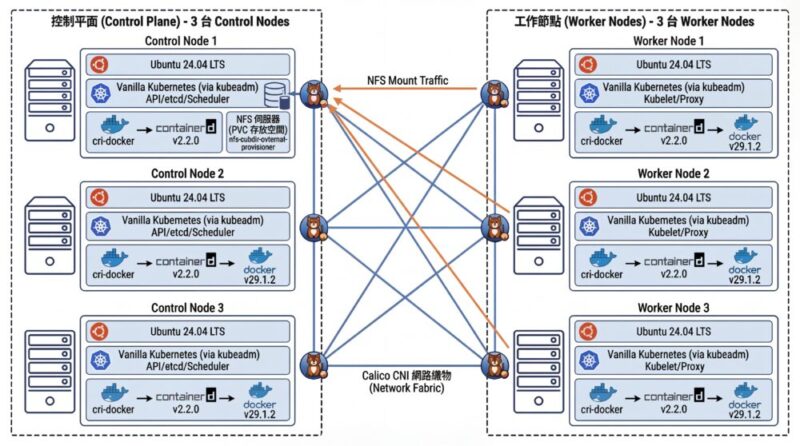
預期得到的成果

  • Ubuntu 24.04 LTS
  • Vanilla Kubernetes (via kubeadm) 1.34.2
  • docker v29.1.2 (containerd: v2.2.0)
  • cri-docker 0.3.20 (b11203a)
  • calico v3.29.2
  • 三台 Control node 與 三台 Worker Node 標準配置
  • 使用 NFS 存放 PVC 空間 (nfs-subdir-external-provisioner)
  • Metrics Server

Kubernetes 安裝步驟

Step 0. 虛擬機硬體建置

這邊是我 虛擬機 (VM) 的硬體部分建置設定
(最小實驗性質的資源規格,正式機不建議使用這個規格)

  • 2 CPU
  • 4GB Ram
  • 10GB Disk 以上,建議 30GB 較穩定

到時候要建立六台 VM,三台 Control Node 跟三台 Worker Node ,這是標準叢集的配置。
如果你要把三台 Control Node 兼用 Worker Node 校長兼撞鐘,也可以,但不建議,後面會告訴你怎麼設定。

Step 1. <每台都做> 安裝 Docker

Docker 不分角色,三台都要裝

安裝文件:
https://docs.docker.com/engine/install/ubuntu/

小弟整理的一鍵安裝指令
(科技發展迅速,整理的安裝文件有可能會過時,如果有更新版,請參考官方文件)

apt-get update -m -y && \
apt-get install -y ca-certificates curl && \
install -m 0755 -d /etc/apt/keyrings && \
curl -fsSL https://download.docker.com/linux/ubuntu/gpg -o /etc/apt/keyrings/docker.asc && \
chmod a+r /etc/apt/keyrings/docker.asc && \
echo \
  "deb [arch=$(dpkg --print-architecture) signed-by=/etc/apt/keyrings/docker.asc] https://download.docker.com/linux/ubuntu \
  $(. /etc/os-release && echo "${UBUNTU_CODENAME:-$VERSION_CODENAME}") stable" | \
  tee /etc/apt/sources.list.d/docker.list > /dev/null && \
apt-get update -y && \
apt-get install -y docker-ce docker-ce-cli containerd.io docker-buildx-plugin docker-compose-plugin

修改 daemon.json 讓跳開預設網段
(如果沒有該檔案請自行新增之)

sudo vi /etc/docker/daemon.json

內容為

{
  "log-driver": "json-file",
  "log-opts": {
    "tag": "{{.Name}}",
    "max-size": "2m",
    "max-file": "2"
  },
  "default-address-pools": [
    {
      "base": "172.31.0.0/16",
      "size": 24
    }
  ],
  "bip": "172.7.0.1/16"
}

設定 docker 預設開機啟動

sudo systemctl enable --now docker

驗證 Docker

可用 systemctl 指令查看是否有正常執行

sudo systemctl status docker

看看是否有 Running

可以用 docker ps 查看目前所有運行中的 container

docker ps

是否能夠正常顯示列表,若是初次安裝,列表是空的很正常。

Step 2. <每台都做> 關掉 swap

這步驟不分角色,六台都要做,雖然最新版本有(有限度的)支援 Swap
但我還是先建議把 Swap 關掉,以確保叢集的穩定性。

我們用以下步驟永久關閉 Swap:

  1. sed 指令找尋 swap 片段,並加上註解
sudo sed -i '/ swap /s/^/#/g' /etc/fstab
  1. 然後重新載入磁區
sudo mount -a

暫時關閉 swap 可以用 swapoff 指令

sudo swapoff -a

確認 swap

我們用 free 指令就可以看到 Swap 有沒有啟用了

free

Step 3. <每台都做> 安裝 kubeletkubeadmkubectl 三兄弟

安裝文件:
https://kubernetes.io/docs/setup/production-environment/tools/kubeadm/install-kubeadm/

加入 K8s 套件參考
安裝 kubelet kubeadm kubectl
(指定版本 1.34.2)

sudo apt update -y && \
sudo apt-get install -y apt-transport-https ca-certificates curl && \
curl -fsSL https://pkgs.k8s.io/core:/stable:/v1.32/deb/Release.key | sudo gpg --dearmor -o /etc/apt/keyrings/kubernetes-apt-keyring.gpg && \
echo 'deb [signed-by=/etc/apt/keyrings/kubernetes-apt-keyring.gpg] https://pkgs.k8s.io/core:/stable:/v1.32/deb/ /' | sudo tee /etc/apt/sources.list.d/kubernetes.list && \
sudo apt-get update -y && \
sudo apt-get install -y kubelet=1.34.2-1.1 kubeadm=1.34.2-1.1 kubectl=1.34.2-1.1 && \
sudo apt-mark hold kubelet kubeadm kubectl

(科技發展迅速,整理的安裝文件有可能會過時,如果有更新版,請參考官方文件)

這邊我有修改指定版本號

若你想查詢所有的版本,可以用以下指令

顯示所有版號

apt show kubelet -a | less

再修改指令上去

Step 4. <每台都做> 安裝 Container Runtime Interface (CRI) – cri-dockerd

這步驟不分角色,三台都要裝

https://kubernetes.io/docs/setup/production-environment/container-runtimes/

我們用 Docker Engine 推薦的 cri-dockerd

說明文件:
https://kubernetes.io/docs/tasks/administer-cluster/migrating-from-dockershim/migrate-dockershim-dockerd/#what-is-cri-dockerd

查看最新版本一樣沒有 24.04 (noble)

從官網手動安裝 Golang

如果你的 apt-get 套件庫的 Golang 不夠新的話
我在 Redhat 那邊有遇到這情況,我把說明文件先放在這裡

到 Golang 的官網下載最新版本的 Golang 例如 1.23.2

wget https://go.dev/dl/go1.23.2.linux-amd64.tar.gz

解壓縮 go1.23.2.linux-amd64.tar.gz 檔案,會得到 go 資料夾,把他搬到對應位置

tar zxvf go1.23.2.linux-amd64.tar.gz
sudo mv go /usr/lib/golang

然後建立捷徑

sudo ln -s /usr/lib/golang/bin/go /usr/bin/go

使用 go version 來確認版本

go version

內容如下

$ go version
go version go1.23.2 linux/amd64

手動編譯安裝 cri-dockerd

如果是 Ubuntu 24.04.1 LTS (Noble Numbat)
如果找不到你的版本,可能要手動編譯並安裝

以下是官方文件提供的步驟
https://github.com/mirantis/cri-dockerd#build-and-install
https://mirantis.github.io/cri-dockerd/usage/install-manually/

安裝 make 與 golang 套件

sudo apt install -y make golang

git clone 最新的版本

git clone https://github.com/Mirantis/cri-dockerd.git

編譯它 (compile)

cd cri-dockerd && \
make cri-dockerd

安裝

cd cri-dockerd && \
mkdir -p /usr/local/bin && \
install -o root -g root -m 0755 cri-dockerd /usr/local/bin/cri-dockerd && \
install packaging/systemd/* /etc/systemd/system && \
sed -i -e 's,/usr/bin/cri-dockerd,/usr/local/bin/cri-dockerd,' /etc/systemd/system/cri-docker.service

然後請 systemctl 重新載入 daemon
最後啟動服務

sudo systemctl daemon-reload && \
sudo systemctl enable --now cri-docker

如果是服務更新版本,需要重啟服務

sudo systemctl restart cri-docker

驗證 cri-docker

可用 systemctl 指令確認是否有正常運行

sudo systemctl status cri-docker

確認有 Running

確認版本號

cri-dockerd --version

執行紀錄

$ cri-dockerd --version
cri-dockerd 0.3.12-16-gebd9de06 (ebd9de06)

裝完就會有 unix:///var/run/cri-dockerd.sock

註:之前社群一直有人討論是否要編譯 ubuntu 24.04 (noble)
但我看下一版,應該就不使用 cri-dockerd 了
就沒繼續追蹤進度了

Step 5. 複製虛擬機 (VM)

這邊步驟就是將單純的將 虛擬機 (VM) 複製二份成三台,並全部啟動。
以下分別闡述複製完要做的事情

重新產生 Machine-id

用以下指令重新產生 Machine-id

sudo rm /etc/machine-id && \
sudo systemd-machine-id-setup

修改 Hostname (主機名稱)

sudo hostnamectl set-hostname k8s-node1

分別改成對應的主機名稱

重新設定 ssh,產生全新的 known-host

sudo ssh-keygen -A && \
sudo dpkg-reconfigure openssh-server

確認 Machine-id

sudo cat /sys/class/dmi/id/product_uuid

確認 Hostname

hostname

確認網卡 Mac address 位址

ip link

或者

ifconfig

都可以,如果沒有 ifconfig 指令要安裝 net-tools

sudo apt install -y net-tools

https://superuser.com/questions/636924/regenerate-linux-host-fingerprint

如果有需要的話,可以用 dhclient 指令重新取 DHCP 的 IP
(基本上你重新產生 Machine-id 的話,就會視為別台電腦了)

sudo dhclient -r

Step 6. <每台都做> 設定主機對應

叢集的三台機器做出來,還不知道彼此,
這邊用 /etc/hosts 檔案來讓主機們各自找到彼此

sudo vi /etc/hosts

根據每台主機的 IP 位址與主機名稱

192.168.1.100   ubuntu2404-k8s-ctrl1
192.168.1.101   ubuntu2404-k8s-ctrl2
192.168.1.102   ubuntu2404-k8s-ctrl3
192.168.1.103   ubuntu2404-k8s-worker1
192.168.1.104   ubuntu2404-k8s-worker2
192.168.1.105   ubuntu2404-k8s-worker3

IP 位址在前,主機名稱在後,用 tab 分隔。

先整理好內容,再各自寫在每一台上面,每一台主機都會看到同一份資料。

Step 7. <每台都做> 設定網路雜項值

根據文件:
https://kubernetes.io/docs/setup/production-environment/container-runtimes/#forwarding-ipv4-and-letting-iptables-see-bridged-traffic

這邊設定網路連線轉發 IPv4 位址並讓 iptables 查看橋接器的流量

用文件提供的指令操作,等等一句一句解釋:

cat <<EOF | sudo tee /etc/modules-load.d/k8s.conf
overlay
br_netfilter
EOF

請 Kubernetes (K8s) 引用載入 br_netfilteroverlay 二個核心模組

sudo modprobe overlay && \
sudo modprobe br_netfilter

啟用 br_netfilteroverlay 二個核心模組

cat <<EOF | sudo tee /etc/sysctl.d/k8s.conf
net.bridge.bridge-nf-call-iptables  = 1
net.bridge.bridge-nf-call-ip6tables = 1
net.ipv4.ip_forward                 = 1
EOF

設定轉發 IPv4 位址,讓 iptables 查看橋接器的流量

sudo sysctl --system

再不起重新啟動電腦情況下,套用設定值

檢查驗證

檢查 br_netfilteroverlay 二個核心模組有沒有被正確載入可以用以下二個指令

lsmod | grep br_netfilter
lsmod | grep overlay

檢查

  • net.bridge.bridge-nf-call-iptables
  • net.bridge.bridge-nf-call-ip6tables
  • net.ipv4.ip_forward 

這幾個系統變數是否有設定為 1,可以用 sysctl 指令來檢查:

sysctl net.bridge.bridge-nf-call-iptables net.bridge.bridge-nf-call-ip6tables net.ipv4.ip_forward

Step 8. 設定第一台 Control plane node(控制平台)

終於要來設定 Control plane (控制平台) 了,如果有其他教學看到 Master node 的話,
別擔心,指的是同一件事情。

利用 kubeadm init 指令來初始化,並代入這些參數:

sudo kubeadm init \
    --kubernetes-version 1.34.2 \
    --control-plane-endpoint=192.168.1.100 \
    --apiserver-advertise-address=192.168.1.100 \
    --node-name k8s-ctrl \
    --pod-network-cidr=10.244.0.0/16 \
    --cri-socket unix:///var/run/cri-dockerd.sock

參數說明

  • control-plane-endpoint
    指明 Control plane (控制平台) 是哪個網址,這邊設定好目前這台 IP 位址即可,假設為 192.168.1.100
    (這設定值可省略)
  • apiserver-advertise-address
    指明 API server 的廣播地址,預設就是 Control plane (控制平台) IP 位址,假設為 192.168.1.100
    (這設定值可省略)
  • node-name
    指明 Control plane (控制平台) 的名字,這裡跟主機名稱一致即可,注意大小寫底線,有些字元是不允許的。
  • pod-network-cidr
    指明 pod 內部網路使用的網段,這邊因為配合 Flannel CNI,請保留 10.244.0.0/16 先不要修改,除非你知道在做什麼。
  • cri-socket
    指明使用的 CRI 使用 unix:///var/run/cri-dockerd.sock 這設定值 請不要修改

會一路安裝第一台設定好為 control node

註:如果有需要,可以事先先下載 image
使用這指令

kubeadm config images pull --cri-socket unix:///var/run/cri-dockerd.sock --kubernetes-version 1.34.2

如果沒意外的話,完成之後會看到

Your Kubernetes control-plane has initialized successfully!

才成功三成而已,還沒完成!後續還要接續設定

Step 9. <在第一台 Control-node 做> 複製金鑰與證書

資料準備

在第一台 Control node 做操作

建立資料夾,假設路徑在 /tmp/k8s-certs 底下

mkdir -p /tmp/k8s-certs && \
mkdir -p /tmp/k8s-certs/etcd

我們需要複製以下檔案

.
├── ca.crt
├── ca.key
├── etcd
│   ├── ca.crt
│   └── ca.key
├── front-proxy-ca.crt
├── front-proxy-ca.key
├── sa.key
└── sa.pub

1 directory, 8 files

所以指令如下

sudo cp -r /etc/kubernetes/pki/{ca.*,sa.*,front-proxy-ca.*} /tmp/k8s-certs/ && \
sudo cp -r /etc/kubernetes/pki/etcd/ca.* /tmp/k8s-certs/etcd/

注意不要多複製其他檔案,不然到時候建立會有問題

複製到其他節點

我們就假設你都在第一台 Control node 做操作
我們把 /tmp/k8s-certs 資料夾複製到其他節點

scp -r /tmp/k8s-certs [email protected]:/tmp/

然後 ssh 分別登入到另外二個節點

ssh [email protected]

在另外兩個節點中,建立資料夾,並複製檔案
把剛剛的那幾個金鑰複製到指定 K8s 位置 /etc/kubernetes/pki/

mkdir -p /etc/kubernetes/pki/ && \
cp -R /tmp/k8s-certs/* /etc/kubernetes/pki/

注意如果做錯了需要下 kubeadm reset 重來的時候, /etc/kubernetes/pki/ 金鑰也會被清空掉,所以要再複製一次

kubeadm reset -f --cri-socket unix:///var/run/cri-dockerd.sock

Step 10. <在另外二台 Control node 做> 加入成爲 Control node

這邊就比較特別,因為剛剛的金鑰複製步驟做完之後,
就可以用指令重新生成加入指令

kubeadm token create --print-join-command

然後你就會得到一串加入指令,假設長這樣

kubeadm join 192.168.1.100:6443 --token 2xxxxc.6bxxxxxxxxxxxx96 \
      --discovery-token-ca-cert-hash sha256:b84fxxxxxxxxxxxxxxxxxxxxxxxxxxxxxxxxxxxxxxxxxxxxxxxxxxxxxxxxc6b4

這時候你就可以在第二台與第三台 Control node 上執行類似這樣的指令

kubeadm join 192.168.1.100:6443 --token 2xxxxc.6bxxxxxxxxxxxx96 \
      --discovery-token-ca-cert-hash sha256:b84fxxxxxxxxxxxxxxxxxxxxxxxxxxxxxxxxxxxxxxxxxxxxxxxxxxxxxxxxc6b4 \
      --control-plane --cri-socket unix:///var/run/cri-dockerd.sock

加上 --control-plane 參數,讓這台節點成為 Control node
還有加上 --cri-socket unix:///var/run/cri-dockerd.sock 參數,讓 kubeadm 知道你使用的是 cri-dockerd

這樣就完成了

你可以用 kubectl get node 查看一下

# kubectl get node node
NAME                   STATUS     ROLES           AGE     VERSION
ubuntu2404-k8s-ctrl1   NotReady   control-plane   3m22s   v1.34.2
ubuntu2404-k8s-ctrl2   NotReady   control-plane   9s      v1.34.2
ubuntu2404-k8s-ctrl3   NotReady   control-plane   5s      v1.34.2

這邊因為還沒有設定 CNI,所以 STATUS 為 NotReady 是 正常現象
(叢集才設定一半,還沒設定網路,當然顯示 K8s 叢集不可用)

Step 11. <在 Worker node 做> 加入 Worker node

如果要加入 Worker node,可以使用 kubeadm join 指令

可以在其中一台 Control code 用指令重新生成加入指令

kubeadm token create --print-join-command

然後你就會得到一串加入指令,假設長這樣

kubeadm join 192.168.1.100:6443 --token 2xxxxc.6bxxxxxxxxxxxx96 \
      --discovery-token-ca-cert-hash sha256:b84fxxxxxxxxxxxxxxxxxxxxxxxxxxxxxxxxxxxxxxxxxxxxxxxxxxxxxxxxc6b4

這時候你就可以在 Worker node 上執行類似這樣的指令

kubeadm join 192.168.1.100:6443 --token 2xxxxc.6bxxxxxxxxxxxx96 \
      --discovery-token-ca-cert-hash sha256:b84fxxxxxxxxxxxxxxxxxxxxxxxxxxxxxxxxxxxxxxxxxxxxxxxxxxxxxxxxc6b4 \
      --cri-socket unix:///var/run/cri-dockerd.sock

沒有意外的話,就可以正常加入了
其他台 Worker node 也是一樣的操作

Step 12. 設定 Calico CNI 網路

參考文件
https://docs.tigera.io/calico/latest/getting-started/kubernetes/quickstart

註:這邊 Calico CNI 也不停的一直在更新版本,步驟會略有一些差異,這邊本就文字記錄,
請時時刻刻查詢官方文件,實際以官方文件撰寫的為主

筆者撰文的時候 calico v3.29.2

文件在此
https://docs.tigera.io/calico/3.29/getting-started/kubernetes/quickstart

Murmur: 以前 v3.14 版本之前本來只有 calico.yaml 一個檔案,
後來改成 tigera-operator.yamlcustom-resources.yaml 二個檔案了,不影響操作

根據文件,第一步要建立 tigera-operator.yaml 的內容

kubectl create -f https://raw.githubusercontent.com/projectcalico/calico/v3.29.2/manifests/tigera-operator.yaml

要注意 calico 的版本號
另一個要注意,這指令一定要使用 kubectl create,不能使用 kubectl apply 指令替代
不然會有錯誤

第二步要建立 custom-resources.yaml 的內容
這邊我們修改一下,先把檔案抓下來

wget https://raw.githubusercontent.com/projectcalico/calico/v3.29.2/manifests/custom-resources.yaml

然後修改 custom-resources.yaml 的內容

vi custom-resources.yaml
apiVersion: operator.tigera.io/v1
kind: Installation
metadata:
  name: default
spec:
  # Configures Calico networking.
  calicoNetwork:
    ipPools:
    - name: default-ipv4-ippool
      blockSize: 26
      cidr: 10.244.0.0/16
      encapsulation: VXLANCrossSubnet
      natOutgoing: Enabled
      nodeSelector: all()

---

apiVersion: operator.tigera.io/v1
kind: APIServer
metadata:
  name: default
spec: {}

cidr 的值,原本是 192.168.0.0/16,改成我們使用 --pod-network-cidr 參數的值:10.244.0.0/16
其實也只是因為我們外面主機已經使用 192.168.0.0/16 的網段了,所以內部 K8s 跑的網段改成跟主機不一樣的 10.244.0.0/16

然後執行建立指令

kubectl create -f custom-resources.yaml

我這邊也列一下 calico v3.29.2 會用到的 image,供參考
(每一個版本可能用的 image 版號也會不同)

quay.io/tigera/operator:v1.36.5
docker.io/calico/typha:v3.29.2
docker.io/calico/node-driver-registrar:v3.29.2
docker.io/calico/csi:v3.29.2
docker.io/calico/pod2daemon-flexvol:v3.29.2
docker.io/calico/node:v3.29.2
docker.io/calico/kube-controllers:v3.29.2
docker.io/calico/cni:v3.29.2
docker.io/calico/apiserver:v3.29.2

Step 13. 設定 Control node 兼 Worker node (選擇性)

如果你需要 Control node 兼 Worker node 校長兼撞鐘,
你可以使用這個指令移除 taint

(如有需求再使用)

kubectl taint nodes --all node-role.kubernetes.io/control-plane:NoSchedule-

筆記一下,舊版指令如下

kubectl taint nodes --all node-role.kubernetes.io/master-

測試驗證

驗證

kubectl get pods -A

全部都要是 Running 的狀態

像這樣

# kubectl get pods -A
NAMESPACE         NAME                                           READY   STATUS    RESTARTS   AGE
calico-system     calico-node-nzl6r                              0/1     Running   0          37s
calico-system     calico-node-xp467                              1/1     Running   0          39s
calico-system     calico-node-xt9xg                              1/1     Running   0          39s
calico-system     calico-typha-6b99cb568-d8t92                   1/1     Running   0          102s
calico-system     calico-typha-6b99cb568-xsq5f                   1/1     Running   0          101s
kube-system       coredns-66bc5c9577-556g8                       1/1     Running   0          44m
kube-system       coredns-66bc5c9577-vwh6x                       1/1     Running   0          44m
kube-system       etcd-ubuntu2404-k8s-ctrl1                      1/1     Running   0          44m
kube-system       etcd-ubuntu2404-k8s-ctrl2                      1/1     Running   0          41m
kube-system       etcd-ubuntu2404-k8s-ctrl3                      1/1     Running   0          41m
kube-system       kube-apiserver-ubuntu2404-k8s-ctrl1            1/1     Running   0          44m
kube-system       kube-apiserver-ubuntu2404-k8s-ctrl2            1/1     Running   0          41m
kube-system       kube-apiserver-ubuntu2404-k8s-ctrl3            1/1     Running   0          41m
kube-system       kube-controller-manager-ubuntu2404-k8s-ctrl1   1/1     Running   0          44m
kube-system       kube-controller-manager-ubuntu2404-k8s-ctrl2   1/1     Running   0          41m
kube-system       kube-controller-manager-ubuntu2404-k8s-ctrl3   1/1     Running   0          41m
kube-system       kube-proxy-gssk9                               1/1     Running   0          44m
kube-system       kube-proxy-shls8                               1/1     Running   0          41m
kube-system       kube-proxy-xtsfw                               1/1     Running   0          41m
kube-system       kube-scheduler-ubuntu2404-k8s-ctrl1            1/1     Running   0          44m
kube-system       kube-scheduler-ubuntu2404-k8s-ctrl2            1/1     Running   0          41m
kube-system       kube-scheduler-ubuntu2404-k8s-ctrl3            1/1     Running   0          41m
tigera-operator   tigera-operator-6dc5767955-cfshr               1/1     Running   0          2m58s
kubectl get nodes -o wide

要看到所有節點都有 Ready 的狀態

像這樣

# kubectl get nodes -o wide
NAME                   STATUS   ROLES           AGE   VERSION   INTERNAL-IP     EXTERNAL-IP   OS-IMAGE             KERNEL-VERSION     CONTAINER-RUNTIME
ubuntu2404-k8s-ctrl1   Ready    control-plane   46m   v1.34.2   192.168.1.100   <none>        Ubuntu 24.04.3 LTS   6.8.0-88-generic   docker://29.1.2
ubuntu2404-k8s-ctrl2   Ready    control-plane   43m   v1.34.2   192.168.1.101   <none>        Ubuntu 24.04.3 LTS   6.8.0-88-generic   docker://29.1.2
ubuntu2404-k8s-ctrl3   Ready    control-plane   43m   v1.34.2   192.168.1.102   <none>        Ubuntu 24.04.3 LTS   6.8.0-88-generic   docker://29.1.2
ubuntu2404-k8s-worker1 Ready    None            43m   v1.34.2   192.168.1.103   <none>        Ubuntu 24.04.3 LTS   6.8.0-88-generic   docker://29.1.2
ubuntu2404-k8s-worker1 Ready    None            43m   v1.34.2   192.168.1.104   <none>        Ubuntu 24.04.3 LTS   6.8.0-88-generic   docker://29.1.2
ubuntu2404-k8s-worker1 Ready    None            43m   v1.34.2   192.168.1.105   <none>        Ubuntu 24.04.3 LTS   6.8.0-88-generic   docker://29.1.2

版本資訊

只是做個紀錄

# docker version
Client: Docker Engine - Community
 Version:           29.1.2
 API version:       1.52
 Go version:        go1.25.5
 Git commit:        890dcca
 Built:             Tue Dec  2 21:55:14 2025
 OS/Arch:           linux/amd64
 Context:           default

Server: Docker Engine - Community
 Engine:
  Version:          29.1.2
  API version:      1.52 (minimum version 1.44)
  Go version:       go1.25.5
  Git commit:       de45c2a
  Built:            Tue Dec  2 21:55:14 2025
  OS/Arch:          linux/amd64
  Experimental:     false
 containerd:
  Version:          v2.2.0
  GitCommit:        1c4457e00facac03ce1d75f7b6777a7a851e5c41
 runc:
  Version:          1.3.4
  GitCommit:        v1.3.4-0-gd6d73eb8
 docker-init:
  Version:          0.19.0
  GitCommit:        de40ad0
# kubeadm version
kubeadm version: &version.Info{Major:"1", Minor:"34", EmulationMajor:"", EmulationMinor:"", MinCompatibilityMajor:"", MinCompatibilityMinor:"", GitVersion:"v1.34.2", GitCommit:"8cc511e399b929453cd98ae65b419c3cc227ec79", GitTreeState:"clean", BuildDate:"2025-11-11T19:08:36Z", GoVersion:"go1.24.9", Compiler:"gc", Platform:"linux/amd64"}
# kubectl version
Client Version: v1.34.2
Kustomize Version: v5.7.1
Server Version: v1.34.2
# cri-dockerd --version
cri-dockerd 0.3.20 (b11203a)

Troubleshooting 疑難排解

如果你遇到類似的錯誤

# kubeadm join 192.168.1.100:6443 --token kkxxxx.xxxxxxxxxxxxxdl2      --discovery-token-ca-cert-hash sha256:bdfxxxxxxxxxxxxxxxxxxxxxxxxxxxxxxxxxxxxxxxxxxxxxxxxxxxxxxxxxx19c         --control-plane --cri-socket unix:///var/run/cri-dockerd.sock

[preflight] Running pre-flight checks
[preflight] Reading configuration from the "kubeadm-config" ConfigMap in namespace "kube-system"...
[preflight] Use 'kubeadm init phase upload-config --config your-config.yaml' to re-upload it.
error execution phase preflight: 
One or more conditions for hosting a new control plane instance is not satisfied.

[failure loading certificate for CA: couldn't load the certificate file /etc/kubernetes/pki/ca.crt: open /etc/kubernetes/pki/ca.crt: no such file or directory, failure loading key for service account: couldn't load the private key file /etc/kubernetes/pki/sa.key: open /etc/kubernetes/pki/sa.key: no such file or directory, failure loading certificate for front-proxy CA: couldn't load the certificate file /etc/kubernetes/pki/front-proxy-ca.crt: open /etc/kubernetes/pki/front-proxy-ca.crt: no such file or directory, failure loading certificate for etcd CA: couldn't load the certificate file /etc/kubernetes/pki/etcd/ca.crt: open /etc/kubernetes/pki/etcd/ca.crt: no such file or directory]

Please ensure that:
* The cluster has a stable controlPlaneEndpoint address.
* The certificates that must be shared among control plane instances are provided.

To see the stack trace of this error execute with --v=5 or higher

遇到這段

failure loading certificate for CA: couldn't load the certificate file

應該是沒有正確複製金鑰

除錯

如果有遇到問題,可以這樣觀察

查看 kubelet 的狀態

systemctl status kubelet

查看 kubelet 的 Log

journalctl -xeu kubelet

這樣最基礎的 K8s 加上網路就完成了

Persistent Volumes (PV) 磁碟相關設定

基本上會需要一個共用空間來配置 Persistent Volumes (PV)
我們可以用 NFS 來做為該共用空間
這邊可能就比較雜項一點,但如果沒有設定好,
應用程式設定 Persistent Volume Claim (PVC) 是不會有動作的,
狀態會卡住無法正確部署

安裝 nfs-server (Optional)

剛剛有提到,我們使用 NFS 來作為存放 Persistent Volumes (PV) 的地方,
需要一個 NFS 的位置,這個可以是你的 NAS,也可以是台電腦,
也可以是 TrueNAS 或者 OpenMediaVault (OMV),總之做法很多,
這邊示範如果你什麼都沒有,只有 Ubuntu 主機,如何直接在上面裝一個 NFS 伺服器。

安裝 nfs-server

sudo apt install nfs-kernel-server nfs-common -y

假設我們要共用的資料夾路徑為 /export/k8s-space
所以我們來開 /export/k8s-space 資料夾

mkdir -p /export && \
mkdir -p /export/k8s-space

編輯 /etc/exports 設定檔

vi /etc/exports

內容為

/export/k8s-space 192.168.1.0/24(rw,subtree_check,insecure)
/export 192.168.1.0/24(rw,root_squash,no_subtree_check,hide)

這邊 IP 設定可存取的網段,假設為 192.168.1.0/24,請依需求修改

啟動 nfs 服務

sudo systemctl start --now nfs-kernel-server.service

如果 /etc/exports 設定檔有更新,記得用指令更新 nfs 檔案清單

exportfs -a

設定與安裝 nfs-subdir-external-provisioner

這塊就是 K8s 的範疇,
使用 helm 來安裝 nfs-subdir-external-provisioner
他會做一件事情,持續偵測 K8s 狀態,
當收到 PVC 請求的時候,在 nfs 開一個指定的資料夾,當成 PV
然後掛載在 PVC 上

加入 helm repo 參考

helm repo add nfs-subdir-external-provisioner https://kubernetes-sigs.github.io/nfs-subdir-external-provisioner
helm repo update

產生 helm charts 參數

helm show values nfs-subdir-external-provisioner/nfs-subdir-external-provisioner \
  --version 4.0.18 > nfs-values.yaml

它會產生一個預設的 nfs-values.yaml 供你修改

修改 nfs-values.yaml

這就是重頭戲,修改 nfs-values.yaml

vi nfs-values.yaml

修改的片段如下,請依需求修改

image:
  repository: registry.k8s.io/sig-storage/nfs-subdir-external-provisioner
  tag: v4.0.2
  pullPolicy: IfNotPresent
#imagePullSecrets:
#- name: regcred

設定值說明

  • image.repositoryimage.tag: image 的位址,通常情況私有部署時,
    會把 image 放進私有的 Registry,所以會對應修改這些值
  • image.pullPolicy:部署時拉取的策略,常用值可以是 IfNotPresent (如果沒有的話才從遠端下載) 或 Always (總是每次都從遠端下載)
  • imagePullSecrets.name:私有 Registry 的登入資訊
nfs:
  server: 192.168.1.2
  path: /export/k8s-space
  mountOptions:
  volumeName: nfs-subdir-external-provisioner-root
  # Reclaim policy for the main nfs volume
  reclaimPolicy: Delete

設定值說明

  • nfs.server:NFS 伺服器位址,請依需求修改
  • nfs.path:NFS 的遠端路徑,請依需求修改
  • nfs.reclaimPolicy: 如果 PVC 刪除之後的該空間的預設動作處理,
    常用值為 Retain (保留) 與 Delete (刪除),
    若是 Retain 的話,要記得 定時進來手動清理空間
    因為 PVC 刪除時,不會連動被刪除,但也不會掛回同一個 PVC,
    重新部署時就會開一個新的空間,久而久之就變成莫名的占空間

修改完成之後,就可以將它安裝起來

安裝部署 nfs-subdir-external-provisioner

helm install nfs-subdir-external-provisioner nfs-subdir-external-provisioner/nfs-subdir-external-provisioner \
  -n nfs-subdir-external-provisioner --version 4.0.18 -f nfs-values.yaml

其他相關指令

更新 nfs-subdir-external-provisioner 部署

helm upgrade nfs-subdir-external-provisioner nfs-subdir-external-provisioner/nfs-subdir-external-provisioner \
  -n nfs-subdir-external-provisioner --version 4.0.18 -f nfs-values.yaml

如果有參數有弄錯,可以用指令刪除部署,然後再重新部署

helm uninstall nfs-subdir-external-provisioner -n nfs-subdir-external-provisioner

如果不知道 nfs-values.yaml 合併回 yaml 會長什麼樣子,
我會用 helm templatenfs-values.yaml 合併回 template 輸出原始 yaml,
來做比對與比較。

產生 nfs-subdir-external-provisioner templeate

helm template nfs-subdir-external-provisioner nfs-subdir-external-provisioner/nfs-subdir-external-provisioner \
  -n nfs-subdir-external-provisioner --version 4.0.18 -f nfs-values.yaml --output-dir ./nfs-yamls

正常情況會有一個 Pod 在 K8s 叢集中常駐執行

安裝 metrics-server

在自行安裝的 Vanilla Kubernetes 預設是不會安裝 metrics-server 的
換言之,你無法使用 kubectl top nodekubectl top pod 等指令,
部署 Horizontal Pod Autoscaling (HPA) 也會失效,
因為他抓不到叢集 CPU、記憶體…等資訊。

所以我們讓補上 metrics-server 讓功能完整。

安裝指令也蠻簡單的,不需什麼額外設定

kubectl apply -f https://github.com/kubernetes-sigs/metrics-server/releases/latest/download/components.yaml

測試 metrics-server

測試 metrics-server 的方式很簡單

打上常用的這個指令可以測試

顯示每個 node 的資源使用狀況

kubectl top node

顯示每個 Pod 的資源使用狀況

kubectl top pod -A

就先分享到這,希望有幫助到你。
祝架設愉快!

[Linux] Linux LVM 磁區擴增 disk extending (以 Redhat 為例)

在 Linux 系統中,監控磁碟空間是系統管理員的日常任務之一。
當面臨需要增加磁碟空間的情況時,Linux 的 LVM(Logical Volume Manager)磁碟機制可能會讓初學者感到困惑。
但實際上,LVM 是一個強大的工具,它允許我們在不影響現有資料的情況下靈活地調整磁碟分區。
透過 LVM,我們可以動態地擴展或縮小邏輯卷的大小,輕鬆應對磁碟空間需求的變化。
本教學將詳細介紹如何使用 LVM 擴增 Linux 系統中的磁區,幫助您更有效地管理系統資源。

磁區擴增指令快速指南

以下提供相關磁區擴增指令,
磁碟有磁區,
LVM 磁區裡面有 PV 跟 LV,最後才是磁區,四者皆要配合才會擴增容量

查看磁碟用量

# df -h | less

查看 VG LV 的容量

# vgdisplay -v

雖然還有 vgdisplaylvdisplay 指令可以用,只是記一個指令比較方便

重新調整磁碟磁區,調整 LVM 那個 (注意磁區的數字)

# parted
(parted) print
(parted) resizepart 2 100%
(parted) quit

擴增 PV

# pvresize /dev/sda2

擴增 LV

# lvextend -l +100%FREE /dev/rhel/root

擴增磁區

# xfs_growfs /dev/rhel/root

實際情境題

假設我們有一台 RHEL Linux 或者 Rocky Linux 系統,硬碟當初容量寫 20GB
如今想要擴增成為 60GB,我們該如何操作?
請看以下步驟

Step1. 查看硬碟容量

首先先用 df -h 查看容量

# df -h

你會看到類似這樣的結果

# df -h
Filesystem             Size  Used Avail Use% Mounted on
devtmpfs               3.8G     0  3.8G   0% /dev
tmpfs                  3.9G     0  3.9G   0% /dev/shm
tmpfs                  3.9G  362M  3.5G  10% /run
tmpfs                  3.9G     0  3.9G   0% /sys/fs/cgroup
/dev/mapper/rhel-root   17G   14G  3.7G  79% /                ### 真的只有 17G
/dev/sda1             1014M  150M  865M  15% /boot

你可以看到 /dev/mapper/rhel-root 只有 17GB,而且可用容量只有 3.7GB,硬碟快滿了

vgdisplay -v 查看 LVM 的 Volume group (VG) 與 Logical volume (LV) 的狀態

# vgdisplay -v
  --- Volume group ---
  VG Name               rhel
  System ID
  Format                lvm2
  Metadata Areas        1
  Metadata Sequence No  3
  VG Access             read/write
  VG Status             resizable
  MAX LV                0
  Cur LV                2
  Open LV               2
  Max PV                0
  Cur PV                1
  Act PV                1
  VG Size               <19.00 GiB                         ### VG 容量只有 19GB
  PE Size               4.00 MiB
  Total PE              4863
  Alloc PE / Size       4863 / <19.00 GiB
  Free  PE / Size       0 / 0
  VG UUID               edb3Hx-xxxx-xxxx-xxxx-xxxx-xxxx-iiOyAf

  --- Logical volume ---
  LV Path                /dev/rhel/swap
  LV Name                swap
  VG Name                rhel
  LV UUID                ocf2IU-xxxx-xxxx-xxxx-xxxx-xxxx-BoYp70
  LV Write Access        read/write
  LV Creation host, time uatgit, 2023-08-21 18:06:42 +0800
  LV Status              available
  # open                 2
  LV Size                2.00 GiB
  Current LE             512
  Segments               1
  Allocation             inherit
  Read ahead sectors     auto
  - currently set to     8192
  Block device           253:1

  --- Logical volume ---
  LV Path                /dev/rhel/root
  LV Name                root
  VG Name                rhel
  LV UUID                5mZgRT-xxxx-xxxx-xxxx-xxxx-xxxx-0KHlI7
  LV Write Access        read/write
  LV Creation host, time uatgit, 2023-08-21 18:06:42 +0800
  LV Status              available
  # open                 1
  LV Size                <17.00 GiB                        ### LV 容量只有 17GB,前面有 2GB 是 Swap
  Current LE             4351
  Segments               1
  Allocation             inherit
  Read ahead sectors     auto
  - currently set to     8192
  Block device           253:0

  --- Physical volumes ---
  PV Name               /dev/sda2
  PV UUID               86HkpN-xxxx-xxxx-xxxx-xxxx-xxxx-Z6DNv4
  PV Status             allocatable
  Total PE / Free PE    4863 / 0

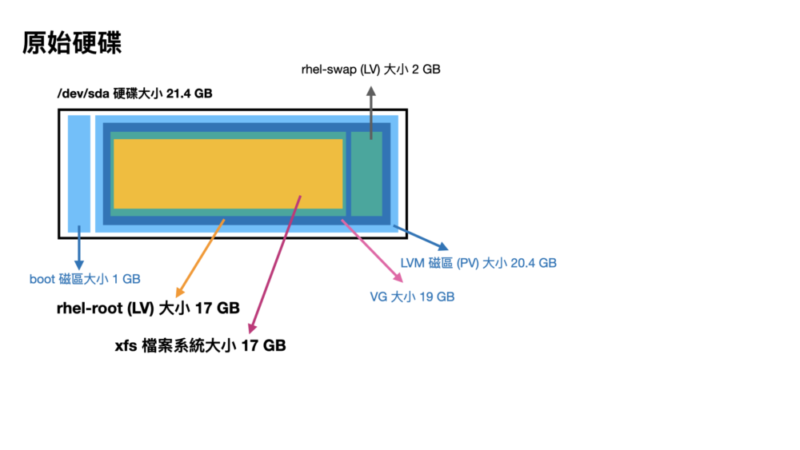
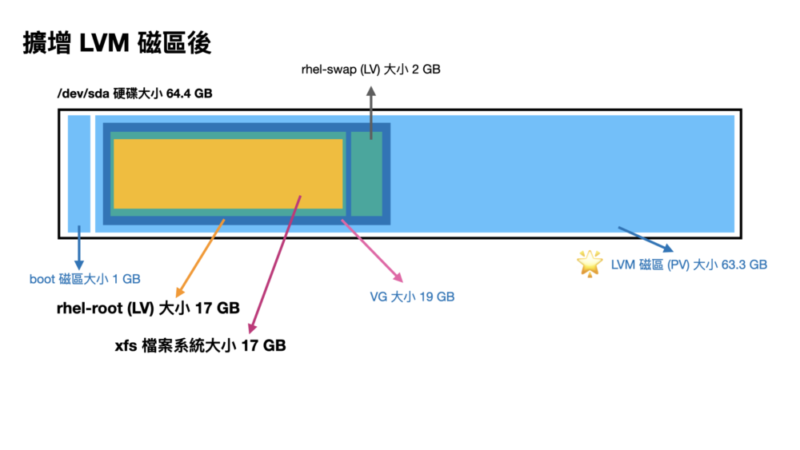
這邊列出一個示意圖:


Step2. 調整虛擬機(VM)硬碟大小

在 VMWare ESXi 或者 Promox VE 設定虛擬機(VM)硬碟大小(20GB -> 60GB)
虛擬機(VM) 重開機後我們觀察一下

這裡很重要,再次提醒

VM一定要重開機
VM一定要重開機
VM一定要重開機

很重要講三次,
因為硬碟大小是在開機時讀取的,不重開機是看不到變化的

fdisk -l 查看硬碟大小

# fdisk -l

Disk /dev/sda: 64.4 GB, 64424509440 bytes, 125829120 sectors                ### 可以看到硬碟大小變成 64.4GB 了
Units = sectors of 1 * 512 = 512 bytes
Sector size (logical/physical): 512 bytes / 512 bytes
I/O size (minimum/optimal): 512 bytes / 512 bytes
Disk label type: dos
Disk identifier: 0x000ca3fa

   Device Boot      Start         End      Blocks   Id  System
/dev/sda1   *        2048     2099199     1048576   83  Linux
/dev/sda2         2099200    41943039    19921920   8e  Linux LVM

Disk /dev/mapper/rhel-root: 18.2 GB, 18249416704 bytes, 35643392 sectors    ### 但掛載 root 的硬碟還是 18.2GB
Units = sectors of 1 * 512 = 512 bytes
Sector size (logical/physical): 512 bytes / 512 bytes
I/O size (minimum/optimal): 512 bytes / 512 bytes

Disk /dev/mapper/rhel-swap: 2147 MB, 2147483648 bytes, 4194304 sectors
Units = sectors of 1 * 512 = 512 bytes
Sector size (logical/physical): 512 bytes / 512 bytes
I/O size (minimum/optimal): 512 bytes / 512 bytes

你會看到硬碟總容量大小變成 64.4GB 了
但是掛載的 /dev/mapper/rhel-root 還是 18.2GB,容量沒變

LVM 資訊也看一下

# vgdisplay -v
  --- Volume group ---
  VG Name               rhel
  System ID
  Format                lvm2
  Metadata Areas        1
  Metadata Sequence No  3
  VG Access             read/write
  VG Status             resizable
  MAX LV                0
  Cur LV                2
  Open LV               2
  Max PV                0
  Cur PV                1
  Act PV                1
  VG Size               <19.00 GiB                         ### VG 容量還是沒變,只有 19GB
  PE Size               4.00 MiB
  Total PE              4863
  Alloc PE / Size       4863 / <19.00 GiB
  Free  PE / Size       0 / 0
  VG UUID               edb3Hx-xxxx-xxxx-xxxx-xxxx-xxxx-iiOyAf

  --- Logical volume ---
  LV Path                /dev/rhel/swap
  LV Name                swap
  VG Name                rhel
  LV UUID                ocf2IU-xxxx-xxxx-xxxx-xxxx-xxxx-BoYp70
  LV Write Access        read/write
  LV Creation host, time uatgit, 2023-08-21 18:06:42 +0800
  LV Status              available
  # open                 2
  LV Size                2.00 GiB
  Current LE             512
  Segments               1
  Allocation             inherit
  Read ahead sectors     auto
  - currently set to     8192
  Block device           253:1

  --- Logical volume ---
  LV Path                /dev/rhel/root
  LV Name                root
  VG Name                rhel
  LV UUID                5mZgRT-xxxx-xxxx-xxxx-xxxx-xxxx-0KHlI7
  LV Write Access        read/write
  LV Creation host, time uatgit, 2023-08-21 18:06:42 +0800
  LV Status              available
  # open                 1
  LV Size                <17.00 GiB                         ### LV 容量也沒變,只有 17GB
  Current LE             4351
  Segments               1
  Allocation             inherit
  Read ahead sectors     auto
  - currently set to     8192
  Block device           253:0

  --- Physical volumes ---
  PV Name               /dev/sda2
  PV UUID               86HkpN-xxxx-xxxx-xxxx-xxxx-xxxx-Z6DNv4
  PV Status             allocatable
  Total PE / Free PE    4863 / 0

你也會發現 df -h 還是沒變

# df -h
Filesystem             Size  Used Avail Use% Mounted on
devtmpfs               3.8G     0  3.8G   0% /dev
tmpfs                  3.9G     0  3.9G   0% /dev/shm
tmpfs                  3.9G   12M  3.8G   1% /run
tmpfs                  3.9G     0  3.9G   0% /sys/fs/cgroup
/dev/mapper/rhel-root   17G   15G  2.5G  86% /                              ### 掛載 root 的磁區還是 17GB
/dev/sda1             1014M  150M  865M  15% /boot

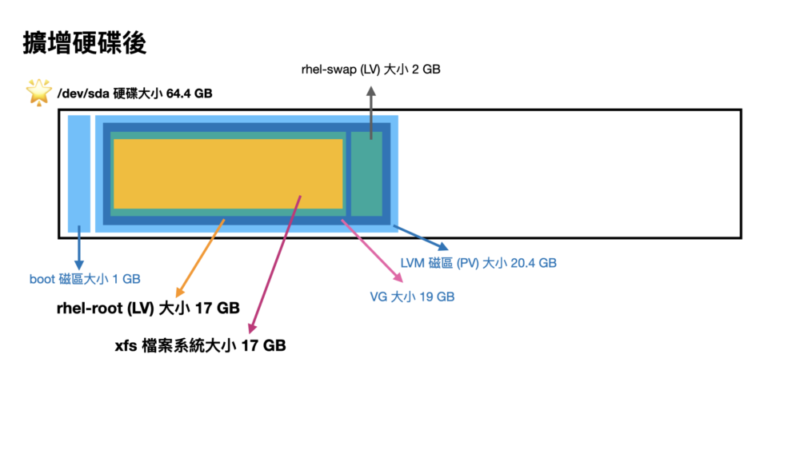
你會發現

  1. 磁碟容量變大了
  2. LVM 的 VG 沒變大
  3. LVM 的 LV 也沒變大
  4. 檔案系統也沒變大

示意圖:

所以接下來我們要來做一些步驟來擴增硬碟容量

Step3. 擴增分割區

使用 parted 指令進入 gparted 互動式介面,將其調整變大

# parted
GNU Parted 3.1
Using /dev/sda
Welcome to GNU Parted! Type 'help' to view a list of commands.
(parted) 

你可以在 parted 裡面輸入需要的指令,打 quit 離開互動式介面

先打 print 印出磁區列表,

(parted) print
Model: VMware Virtual disk (scsi)
Disk /dev/sda: 64.4GB                                        ### 可以看到硬碟大小變成 64.4GB 了
Sector size (logical/physical): 512B/512B
Partition Table: msdos
Disk Flags:

Number  Start   End     Size    Type     File system  Flags
 1      1049kB  1075MB  1074MB  primary  xfs          boot
 2      1075MB  21.5GB  20.4GB  primary               lvm    ### 但 LVM 磁區只有 20.4GB

使用 resizepart 指令調整分割區大小

(parted) resizepart 2 100%

記得這個 2 要換成對應的數字

再印一次看看

(parted) print
Model: VMware Virtual disk (scsi)
Disk /dev/sda: 64.4GB
Sector size (logical/physical): 512B/512B
Partition Table: msdos
Disk Flags:

Number  Start   End     Size    Type     File system  Flags
 1      1049kB  1075MB  1074MB  primary  xfs          boot
 2      1075MB  64.4GB  63.3GB  primary               lvm    ### LVM 磁區擴增變成新的大小 63.3GB

quit 離開互動式介面

(parted) quit
Information: You may need to update /etc/fstab.

LVM 資訊看一下

# vgdisplay -v
  --- Volume group ---
  VG Name               rhel
  System ID
  Format                lvm2
  Metadata Areas        1
  Metadata Sequence No  3
  VG Access             read/write
  VG Status             resizable
  MAX LV                0
  Cur LV                2
  Open LV               2
  Max PV                0
  Cur PV                1
  Act PV                1
  VG Size               <19.00 GiB                         ### VG 容量還是沒變,只有 19GB
  PE Size               4.00 MiB
  Total PE              4863
  Alloc PE / Size       4863 / <19.00 GiB
  Free  PE / Size       0 / 0
  VG UUID               edb3Hx-xxxx-xxxx-xxxx-xxxx-xxxx-iiOyAf

  --- Logical volume ---
  LV Path                /dev/rhel/swap
  LV Name                swap
  VG Name                rhel
  LV UUID                ocf2IU-xxxx-xxxx-xxxx-xxxx-xxxx-BoYp70
  LV Write Access        read/write
  LV Creation host, time uatgit, 2023-08-21 18:06:42 +0800
  LV Status              available
  # open                 2
  LV Size                2.00 GiB
  Current LE             512
  Segments               1
  Allocation             inherit
  Read ahead sectors     auto
  - currently set to     8192
  Block device           253:1

  --- Logical volume ---
  LV Path                /dev/rhel/root
  LV Name                root
  VG Name                rhel
  LV UUID                5mZgRT-xxxx-xxxx-xxxx-xxxx-xxxx-0KHlI7
  LV Write Access        read/write
  LV Creation host, time uatgit, 2023-08-21 18:06:42 +0800
  LV Status              available
  # open                 1
  LV Size                <17.00 GiB                         ### LV 容量也沒變,只有 17GB
  Current LE             4351
  Segments               1
  Allocation             inherit
  Read ahead sectors     auto
  - currently set to     8192
  Block device           253:0

  --- Physical volumes ---
  PV Name               /dev/sda2
  PV UUID               86HkpN-xxxx-xxxx-xxxx-xxxx-xxxx-Z6DNv4
  PV Status             allocatable
  Total PE / Free PE    4863 / 0

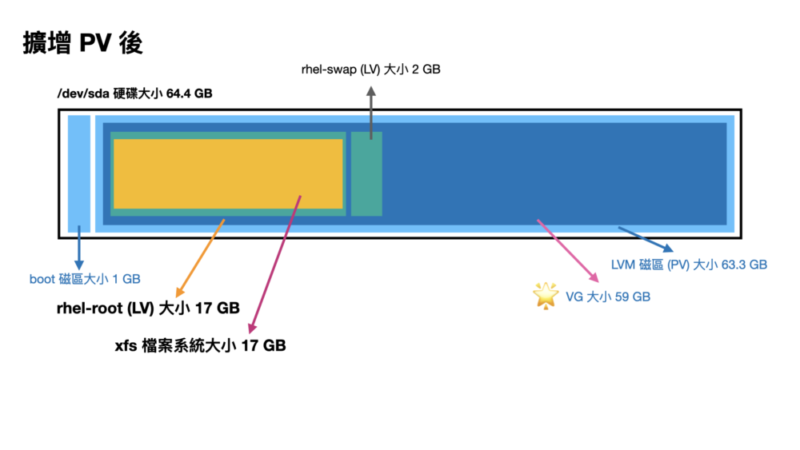
Step4. 擴增 PV

我們用 pvresize 調整 PV 的大小

# pvresize /dev/sda2
  Physical volume "/dev/sda2" changed
  1 physical volume(s) resized or updated / 0 physical volume(s) not resized

再次印一次 LVM 資訊看看

# vgdisplay -v
  --- Volume group ---
  VG Name               rhel
  System ID
  Format                lvm2
  Metadata Areas        1
  Metadata Sequence No  4
  VG Access             read/write
  VG Status             resizable
  MAX LV                0
  Cur LV                2
  Open LV               2
  Max PV                0
  Cur PV                1
  Act PV                1
  VG Size               <59.00 GiB                         ### VG 容量變大了 59GB
  PE Size               4.00 MiB
  Total PE              15103
  Alloc PE / Size       4863 / <19.00 GiB
  Free  PE / Size       10240 / 40.00 GiB                  ### 跑出了一些 PE 大小
  VG UUID               edb3Hx-xxxx-xxxx-xxxx-xxxx-xxxx-iiOyAf

  --- Logical volume ---
  LV Path                /dev/rhel/swap
  LV Name                swap
  VG Name                rhel
  LV UUID                ocf2IU-xxxx-xxxx-xxxx-xxxx-xxxx-BoYp70
  LV Write Access        read/write
  LV Creation host, time uatgit, 2023-08-21 18:06:42 +0800
  LV Status              available
  # open                 2
  LV Size                2.00 GiB
  Current LE             512
  Segments               1
  Allocation             inherit
  Read ahead sectors     auto
  - currently set to     8192
  Block device           253:1

  --- Logical volume ---
  LV Path                /dev/rhel/root
  LV Name                root
  VG Name                rhel
  LV UUID                5mZgRT-xxxx-xxxx-xxxx-xxxx-xxxx-0KHlI7
  LV Write Access        read/write
  LV Creation host, time uatgit, 2023-08-21 18:06:42 +0800
  LV Status              available
  # open                 1
  LV Size                <17.00 GiB                       ### LV 容量沒變,還是 17GB
  Current LE             4351
  Segments               1
  Allocation             inherit
  Read ahead sectors     auto
  - currently set to     8192
  Block device           253:0

  --- Physical volumes ---
  PV Name               /dev/sda2
  PV UUID               86HkpN-xxxx-xxxx-xxxx-xxxx-xxxx-Z6DNv4
  PV Status             allocatable
  Total PE / Free PE    15103 / 10240                  ### 跑出了一些 Free PE 出來(因為我們還沒調整)

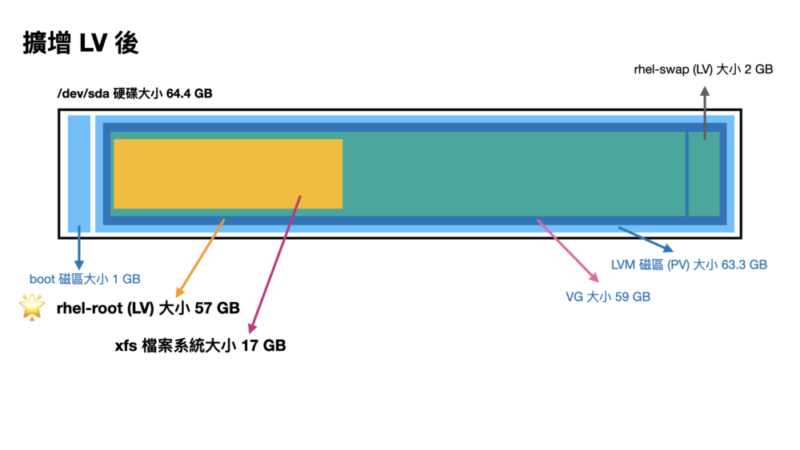
Step5. 擴增 LV

我們使用 lvextend 擴大 LV 大小

# lvextend -l +100%FREE /dev/rhel/root
  Size of logical volume rhel/root changed from <17.00 GiB (4351 extents) to <57.00 GiB (14591 extents).
  Logical volume rhel/root successfully resized.

再次印一次 LVM 資訊看看

# vgdisplay -v
  --- Volume group ---
  VG Name               rhel
  System ID
  Format                lvm2
  Metadata Areas        1
  Metadata Sequence No  5
  VG Access             read/write
  VG Status             resizable
  MAX LV                0
  Cur LV                2
  Open LV               2
  Max PV                0
  Cur PV                1
  Act PV                1
  VG Size               <59.00 GiB                         ### VG 容量沒問題 59GB
  PE Size               4.00 MiB
  Total PE              15103
  Alloc PE / Size       15103 / <59.00 GiB
  Free  PE / Size       0 / 0
  VG UUID               edb3Hx-xxxx-xxxx-xxxx-xxxx-xxxx-iiOyAf

  --- Logical volume ---
  LV Path                /dev/rhel/swap
  LV Name                swap
  VG Name                rhel
  LV UUID                ocf2IU-xxxx-xxxx-xxxx-xxxx-xxxx-BoYp70
  LV Write Access        read/write
  LV Creation host, time uatgit, 2023-08-21 18:06:42 +0800
  LV Status              available
  # open                 2
  LV Size                2.00 GiB
  Current LE             512
  Segments               1
  Allocation             inherit
  Read ahead sectors     auto
  - currently set to     8192
  Block device           253:1

  --- Logical volume ---
  LV Path                /dev/rhel/root
  LV Name                root
  VG Name                rhel
  LV UUID                5mZgRT-xxxx-xxxx-xxxx-xxxx-xxxx-0KHlI7
  LV Write Access        read/write
  LV Creation host, time uatgit, 2023-08-21 18:06:42 +0800
  LV Status              available
  # open                 1
  LV Size                <57.00 GiB                         ### LV 容量變大了 57GB
  Current LE             14591
  Segments               1
  Allocation             inherit
  Read ahead sectors     auto
  - currently set to     8192
  Block device           253:0

  --- Physical volumes ---
  PV Name               /dev/sda2
  PV UUID               86HkpN-xxxx-xxxx-xxxx-xxxx-xxxx-Z6DNv4
  PV Status             allocatable
  Total PE / Free PE    15103 / 0                           ### 沒有 Free PE 了 

檔案系統看一下

# df -h
Filesystem             Size  Used Avail Use% Mounted on
devtmpfs               3.8G     0  3.8G   0% /dev
tmpfs                  3.9G     0  3.9G   0% /dev/shm
tmpfs                  3.9G   12M  3.8G   1% /run
tmpfs                  3.9G     0  3.9G   0% /sys/fs/cgroup
/dev/mapper/rhel-root   17G   15G  2.5G  86% /               ### 仍然沒變,還是 17G
/dev/sda1             1014M  150M  865M  15% /boot

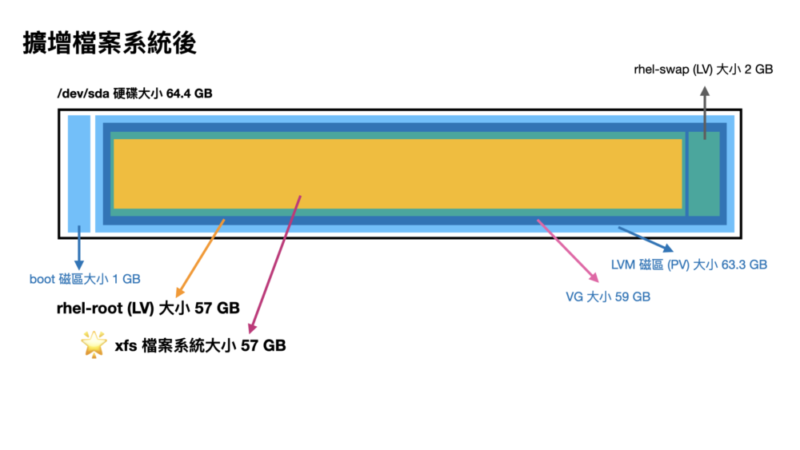
Step6. 擴增檔案系統

使用 xfs_growfs 來做線上容量擴增
(註:不要用 resizefs 指令)

# xfs_growfs /dev/rhel/root
meta-data=/dev/mapper/rhel-root  isize=512    agcount=4, agsize=1113856 blks
         =                       sectsz=512   attr=2, projid32bit=1
         =                       crc=1        finobt=0 spinodes=0
data     =                       bsize=4096   blocks=4455424, imaxpct=25
         =                       sunit=0      swidth=0 blks
naming   =version 2              bsize=4096   ascii-ci=0 ftype=1
log      =internal               bsize=4096   blocks=2560, version=2
         =                       sectsz=512   sunit=0 blks, lazy-count=1
realtime =none                   extsz=4096   blocks=0, rtextents=0
data blocks changed from 4455424 to 14941184

再次查看情況

# df -h
Filesystem             Size  Used Avail Use% Mounted on
devtmpfs               3.8G     0  3.8G   0% /dev
tmpfs                  3.9G     0  3.9G   0% /dev/shm
tmpfs                  3.9G   12M  3.8G   1% /run
tmpfs                  3.9G     0  3.9G   0% /sys/fs/cgroup
/dev/mapper/rhel-root   57G   15G   43G  26% /
/dev/sda1             1014M  150M  865M  15% /boot

應該就能完整看到系統了

列出示意圖,讓大家容易瞭解
希望這個流程對 LVM 的操作與學習有幫助

參考資料

[Kubernetes] Helm chart 的匯出匯入 (helm export import) 與離線安裝 (docker offline install)

Kubernetes (K8s) 已成為容器編排和管理的標準,Helm 作為 Kubernetes 的設定檔的套件管理器,可以簡化應用程式在 Kubernetes 叢集上的部署和設定檔的管理。然而,在某些場景下,我們可能需要在離線的 Kubernetes 環境中安裝或升級 Helm chart。本文將介紹如何使用 Helm 匯出和匯入 Chart 並進行離線安裝的步驟,給自己一個筆記也給想學習 K8s 的朋友一個指引。

Helm Chart 的安裝步驟與常用操作

我們就以 Flannel CNI 為例,講述一下 Helm Chart 的安裝步驟

文件裡安裝方式

$ helm repo add flannel https://flannel-io.github.io/flannel/

首先,先列出已下載的 Repo 有哪些,確定目標

$ helm repo list

你就會得到類似以下的列表

$ helm repo list
NAME                            URL
flannel                         https://flannel-io.github.io/flannel/

然後搜尋(列出)repo 裡面的內容

$ helm search repo flannel

列出一下當時寫文的搜尋結果

$ helm search repo flannel
NAME            CHART VERSION   APP VERSION     DESCRIPTION
flannel/flannel v0.25.1         v0.25.1         Install Flannel Network Plugin.

Step1. 〔有網路的下載主機〕下載相關檔案

helm 的匯出 (export) 是用 helm pull 的方式
它會在你當下的資料夾上面儲存一個 .tgz 檔案(就是 .tar.gz 啦)

$ helm pull <倉庫名稱>/<套件名稱>

例如

$ helm pull flannel/flannel --version v0.25.1

helm 的指令的設計跟別人比較不一樣
git pull 是從遠端 repository 倉庫拉取,更新本地 repository 整個線圖
docker pull 也是從 registry 倉庫拉取,更新本地的 image 版本
但 helm pull 是從遠端倉庫下載檔案回來,
它不是用 export 這個關鍵字而是用 pull 這是我覺得比較特別的地方

然後你就會得到一個 flannel.tgz 檔案,這個就是下載的內容了
但要注意,Helm 只儲存「設定檔模板」,也就是 Deployment, Service…等內容模板,
並沒有實際的 docker image,所以光只有 Helm Chart 沒有 image 是沒辦法在離線環境部署的。

Step2. 〔有網路的下載主機〕找尋 image

這個時候可以用兩種思路來找尋 image

  1. 實際找一個有網路的 K8s 叢集部署起來,再觀察會用到的 image
    這方式比較直接但也比較麻煩,但是需要有一個有網路的 K8s 叢集

  2. 拆開 Helm Chart 與 Values 找尋有關 image 記載的片段(這方式較推薦,以下也主要講這點)
    記載 image 的地方通常記載在 Deployment, DaemonSet 的地方
    而通常都會被拉成 Values 參數,這時候搜尋就可以了,也比較不會有遺漏

我們用 helm show values 匯出 values.yaml 設定檔,來找尋有關 image 的片段

# helm show values flannel/flannel > flannel-values.yaml

我們用 vi 打開該檔案 flannel-values.yaml

# vi flannel-values.yaml

在一般模式下打斜線 / 做搜尋,搜尋 image 關鍵字
就會找到類似的片段

flannel:
  image:
    repository: docker.io/flannel/flannel
    tag: v0.25.1
  image_cni:
    repository: docker.io/flannel/flannel-cni-plugin
    tag: v1.4.0-flannel1

然後稍加整理,就可以整理出

  • docker.io/flannel/flannel:v0.25.1
  • docker.io/flannel/flannel-cni-plugin:v1.4.0-flannel1

這二個 image

Step3. 〔有網路的下載主機〕下載 image

找到了 image 的 repository 跟 tag,就可以下載這個 image 了

$ docker pull flannel/flannel:v0.25.1
$ docker pull flannel/flannel-cni-plugin:v1.4.0-flannel1

註: docker.io 是 Docker Hub 的預設會帶的網址,所以可以省略

然後再用 docker savegzip 將 image 壓縮並儲存成 tar.gz 檔案

$ docker save flannel/flannel:v0.25.1 | gzip > image_flannel-v0.25.1.tar.gz
$ docker save flannel/flannel-cni-plugin:v1.4.0-flannel1 | gzip > image_flannel-cni-plugin-v1.4.0-flannel1.tar.gz

這樣就完成下載 image 的步驟了。
我是個人習慣會把 image 前面加上 image_ 的前綴,
避免跟其他備份檔,或者 Helm chart 搞混(因為結尾都是 .tar.gz

Step4. 〔無網路的目標主機〕載入 image

來到無網路的目標主機,這時候就可以將剛剛下載的 flannel.tgzimage_flannel-v0.25.1.tar.gzimage_flannel-cni-plugin-v1.4.0-flannel1.tar.gz 拷貝到目標主機上

4a. 有 Registry 的做法

我們先將 image 載入目標主機,我這邊是建議建一個私有的 Registry 來存放這些 image,這樣比較好管理
你可以用 Harbor, Nexus, Gitlab…等等來建立一個私有的 Registry

這邊假設 192.168.1.2 是你的私有 Registry 的 IP,請依照你的環境自行替換

$ docker load -i image_flannel-v0.25.1.tar.gz
$ docker tag flannel/flannel:v0.25.1 192.168.1.2/library/flannel:v0.25.1
$ docker push 192.168.1.2/library/flannel:v0.25.1

$ docker load -i image_flannel-cni-plugin-v1.4.0-flannel1.tar.gz
$ docker tag flannel/flannel-cni-plugin:v1.4.0-flannel1 192.168.1.2/library/flannel-cni-plugin:v1.4.0-flannel1
$ docker push 192.168.1.2/library/flannel-cni-plugin:v1.4.0-flannel1

這樣就把 image 推送到私有的 Registry 了。

替換掉 values 的內容

找尋 flannel-values.yaml 找到上次的片段

flannel:
  image:
    repository: docker.io/flannel/flannel
    tag: v0.25.1
  image_cni:
    repository: docker.io/flannel/flannel-cni-plugin
    tag: v1.4.0-flannel1

將它換成私有的 Registry

flannel:
  image:
    repository: 192.168.1.2/library/flannel
    tag: v0.25.1
  image_cni:
    repository: 192.168.1.2/library/flannel-cni-plugin
    tag: v1.4.0-flannel1

未來 K8s 在部署的時候就會從私有的 Registry 拉取 image 了。

4b. 無 Registry 的做法

如果沒有 Registry 的話,那就要辛苦一點,就只能用 docker load 來載入 image 了

注意,這個動作要在「所有」K8s 叢集的 node 節點上都要做,
因為 K8s 是會自動分配 Pod 到節點上的,所以要確保每個節點都有相同的 image
如果你有六台節點,那就要在六台伺服器主機上都要做這個動作

$ docker load -i image_flannel-v0.25.1.tar.gz
$ docker load -i image_flannel-cni-plugin-v1.4.0-flannel1.tar.gz

個人還是建議做一台私有 Registry 主機,這樣比較好管理

Step5. 〔無網路的目標主機〕安裝 Helm Chart

最後就是安裝 Helm Chart 了

以 Flannel 為例,在線版本的安裝指令是

$ helm install flannel --set podCidr="10.244.0.0/16" --namespace kube-flannel flannel/flannel

我們小小修改一下,改成離線安裝,指定離線 Helm chart 檔案的位置

$ helm install flannel \
--set podCidr="10.244.0.0/16" \
--set flannel.image.repository="docker.io/flannel/flannel" \
--set flannel.image.tag="v0.25.1" \
--set flannel.image_cni.repository="docker.io/flannel/flannel-cni-plugin" \
--set flannel.image_cni.tag="v1.4.0-flannel1" \
--namespace kube-flannel flannel.tgz

這樣可讀性比較差
推薦直接用剛剛修改好的 values.yaml

$ helm install flannel -n kube-flannel flannel.tgz -f flannel-values.yaml

沒意外的話,這樣就安裝成功了

希望這篇文章對你有幫助,謝謝你的閱讀。

使用 LibreNMS 實現 HTTP Health check 健康度檢查,網站監控

監控,是一個很老牙卻也很樸實的問題。網站的健康度已成為維持業務連續性的必要條件。
本文將探討如何使用 LibreNMS 這一強大的網路監控工具來實現網站HTTP 的 Health check 健康度檢查。LibreNMS 不僅在 SNMP 提供豐富的功能,還支援廣泛的設備,但在 HTTP 健康度卻比較少著墨,故整理一個較完整的筆記分享給大家。

背後的實現原理

先說結論,LibreNMS 是使用 Nagios plugins 來實現健康度監控的。
Nagios plugins 是一個很老牌的開源監控服務的程式, 2002 年首次發佈,GPLv2 授權釋出,
它提供了很多的監控服務,例如 HTTP, FTP, SSH, SMTP, POP3, SNMP, DNS, Disk, CPU, Memory…等等,而
LibreNMS 就是使用這些服務來實現健康度監控的。
所以你要先了解 Nagios plugins 的使用方法,才能在 LibreNMS 上面設定,
很剛好的,我們拉取的 jarischaefer/docker-librenms docker image 直接把 Nagios plugins 給包進去了,
我們可以直接拿它來做健康度監控。

我們就舉一些例子來看看怎麼實現 Health check 吧!

建立健康度監控的操作步驟

Step1. 先建立 Device

LibreNMS 的健康度測試是一個一個 Services 要掛在 Device 上面
所以我們要先建立 Device

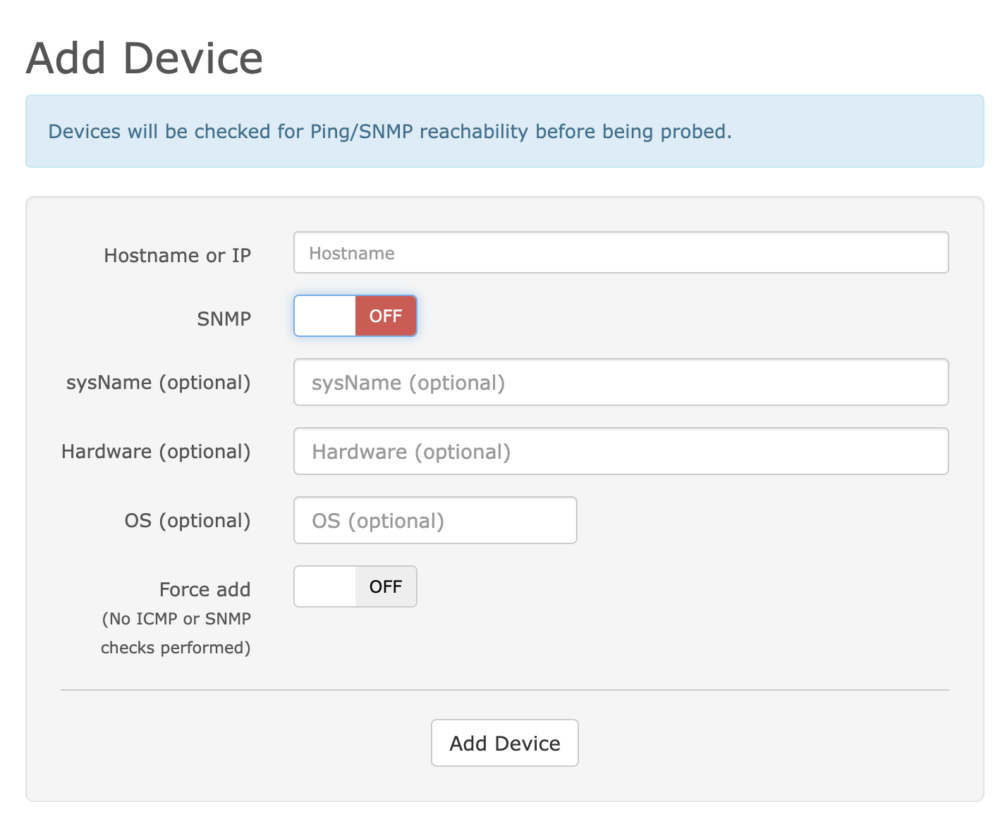
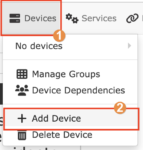
Devices > Add Devices

  • Hostname or IP: 打入一個監控的網址或 IP
  • SNMP: OFF

如果 SNMP 設定是 OFF,會改用 ping 來做測試
如果 SNMP 設定 ON,需要提供 SNMP Version, Community 等資訊

SNMP (Simple Network Management Protocol) 可以視你的情況打開,它會依照協定規範發送 CPU, RAM…等資訊,這部分就不細講了

如果你只需要一個 Device,然後把所有 HTTP 健康度測試,你甚至 IP 用 localhost 都可以。

再建立 Service

這邊就是 Nagios plugins 的重頭戲

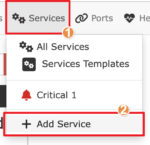
Services > Add Services

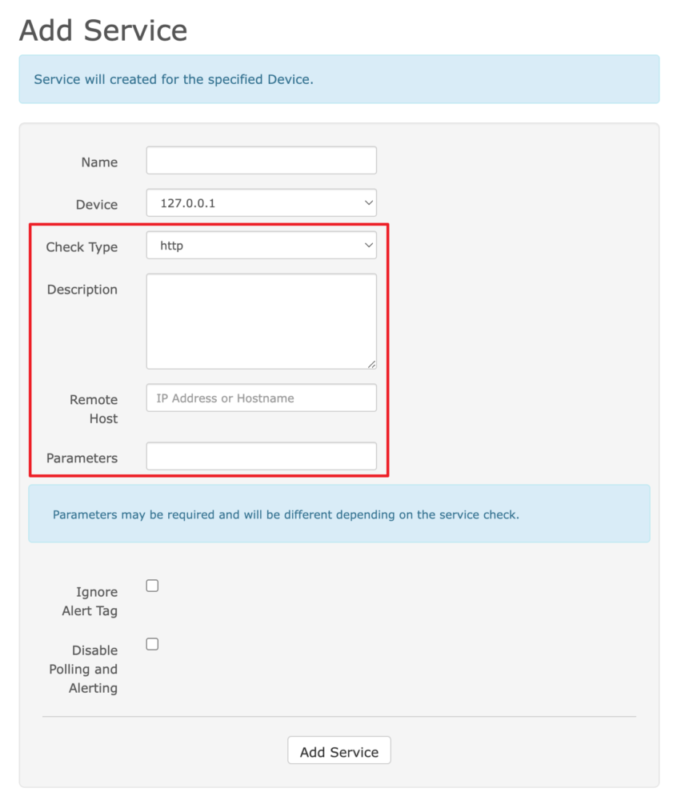
  • Name: 取一個名字
  • Device: 選擇剛剛加入的裝置
  • Check Type: http
  • Description: (可留空)
  • Remote Host: 打入要檢測的網址
  • Parameters: 參數說明,後詳

這邊我覺得就是 LibreNMS 設計不好的地方,出現了一個謎樣的 Parameters 欄位
這個參數格式還要參照另外一個文件知道怎麼使用,很不直覺
(有看到一個討論串,其中之一的作者說要重寫這個部分,可以參與實作

我把文件先放上來
https://nagios-plugins.org/doc/man/check_http.html

列一些比較常用或重要的參數:

  • -p 8080 :設定 連接埠 (port) 號,例如 8080
  • -S :使用 SSL 加密協定 (https) ,若只是 http 不用加此參數
  • --sni:使用 Server Name Indication (SNI) 伺服器名稱指示
    開啟後它才可以正確辨別第二階層的 DNS 位址,例如主域名是 example.com 底下有二個子域名 blogmyhome
    沒有開啟 sni 的時候,blog.example.commyhome.example.com 都會被視為一個 example.com
    而造成不如預期的結果,如果第二層域名,要打開這個選項,個人建議不管有沒有第二層域名,直接打開該選項
  • -u /example/path :如果你有參數需要寫這裡
  • -s "testString" :設定 Response 的關鍵字檢測,有出現該關鍵字才算正確,例如有出現 testString 關鍵字才算正確
  • -f follow :跟隨轉址 (Follow redirect),假設有一個首頁直接呼叫它,會回應 302 Redirect,它會繼續轉址直到停止控制時才會做前者的關鍵字檢測
  • -e 403 :原始 HTTP 封包的關鍵字檢測,例如有個 Endpoint 永遠不會回 200 OK,
    而是回應 403 forbidden,你就可以加 -e 403 設定檢測規則
  • -v:使用 verbose 模式,可以看到更多的訊息,可以看到原始的 HTTP 封包

手動測試步驟

剛剛有提過, LibreNMS 是透過 Nagios plugins 來實現 HTTP 健康度監控的
它安裝在 container 裡面的 /usr/lib/nagios/plugins (可能會依版本不同而路徑不同)
如果你要手動測試,你可以參照以下步驟

  1. 用 docker ps 或者 docker-compose ps 找到你該容器 ID
# docker ps
% docker ps
CONTAINER ID   IMAGE                              COMMAND                  CREATED        STATUS                PORTS                                                                                                                             NAMES
b6064b0ae371   jarischaefer/docker-librenms       "/sbin/my_init"          34 hours ago   Up 34 hours           443/tcp, 0.0.0.0:9001->80/tcp, :::9001->80/tcp                                                                                    librenms-web-1
f7e81da94af5   mariadb:10.5                       "docker-entrypoint.s…"   34 hours ago   Up 34 hours           3306/tcp                                                                                                                          librenms_database

以這個範例來說就是,該 container ID 為 b6064b0ae371

  1. 進入該容器
# docker exec -it b6064b0ae371 /bin/bash

進入容器後,切到 /usr/lib/nagios/plugins 目錄

# cd /usr/lib/nagios/plugins

然後你就會找到 ./check_http 你可以對他做測試
例如以下的幾個實例可以快速進入狀況

附註:在容器內找不到 ./check_http 程式?

如果在容器內找不到 ./check_http 程式
可以找尋看看 /opt/librenms/config.php 這個設定檔

可能會找到這段

$config['nagios_plugins'] = "/usr/lib/nagios/plugins";

這邊就有記載著 nagios_plugins 它的路徑

或者你的 nagios_plugins 沒有安裝,可能要參考文件手動安裝

舉一些範例

我把 LibreNMS 設定參數與測試指令放在一起做對照

檢測 http 連結

檢測 http 連結,例如 http://192.168.1.1:8080/hello ,其中須包含 Hello 字樣

  • Remote Host: 192.168.1.1
  • Parameters: -p 8080 -f follow -s "Hello" -u "/hello"
測試指令

這裡列出前述方法的測試指令與執行結果,供大家參考

./check_http -H 192.168.1.1 -p 8080 -s "Hello" -u "/hello" -f follow
HTTP OK: HTTP/1.1 200 OK - 235 bytes in 0.025 second response time |time=0.024936s;;;0.000000;10.000000 size=235B;;;0
參數說明
  • -H 192.168.1.1:指定 Host name 為 192.168.1.1
  • -p 8080 :設定 連接埠 (port) 號,為 8080
  • -u /hello :指定 Path 為 /hello
  • -f follow :跟隨轉址 (Follow redirect)
  • -s "hello" :有出現 hello 關鍵字才算成功

檢測 https 連結

檢測 https 連結,例如 https://google.com/ ,其中須包含 Google 字樣

  • Remote Host: google.com
  • Parameters: -S --sni -f follow -u "/" -s "Google"
測試指令

這裡列出前述方法的測試指令與執行結果,供大家參考

./check_http -H google.com -S --sni -f follow -u "/" -s "Google"
HTTP OK: HTTP/1.1 200 OK - 21613 bytes in 0.555 second response time |time=0.555301s;;;0.000000;10.000000 size=21613B;;;0
參數說明
  • -H google.com:指定 Host name 為 google.com
  • -S :使用 SSL 加密協定 (https)
  • --sni:使用 Server Name Indication (SNI) 伺服器名稱指示
  • -f follow :跟隨轉址 (Follow redirect)
  • -u / :指定 Path 為 / (在這個範例可省略)
  • -s "Google" :有出現 Google 關鍵字才算成功

檢查 POST API (x-www-form-urlencoded)

這個範例可能比較少用,但還是附上來

檢查 POST API,例如 POST 到 https://httpbin.org/post ,參數為 aaa=bbb (x-www-form-urlencoded) ,其中須包含 origin 字樣

  • Remote Host: httpbin.org
  • Parameters: -S --sni -f follow -u "/post" -P "aaa=bbb" -s "origin"
測試指令
./check_http -H httpbin.org -S --sni -f follow -u "/post" -P "aaa=bbb" -s "origin"
HTTP OK: HTTP/1.1 200 OK - 662 bytes in 3.446 second response time |time=3.446157s;;;0.000000;10.000000 size=662B;;;0
參數說明
  • -H httpbin.org:指定 Host name 為 httpbin.org
  • -S :使用 SSL 加密協定 (https)
  • --sni:使用 Server Name Indication (SNI) 伺服器名稱指示
  • -f follow :跟隨轉址 (Follow redirect)
  • -u /post :指定 Path 為 /post
  • -P "aaa=bbb" :設定 POST 參數,aaa=bbb (x-www-form-urlencoded)
  • -s "origin" :有出現 origin 關鍵字才算成功

檢查 POST API (json)

檢查 POST API,例如 POST 到 https://httpbin.org/post ,參數為 {"aaa":"bbb"} (application/json) ,其中須包含 origin 字樣

  • Remote Host: httpbin.org
  • Parameters: -S --sni -f follow -u "/post" -T "Content-Type:application/json" -P "{\"aaa\": \"bbb\"}" -s "origin"
測試指令
./check_http -H httpbin.org -S --sni -f follow -u "/post" -T "Content-Type:application/json" -P "{\"aaa\": \"bbb\"}" -s "origin"
HTTP OK: HTTP/1.1 200 OK - 676 bytes in 1.333 second response time |time=1.332586s;;;0.000000;10.000000 size=676B;;;0
參數說明
  • -H httpbin.org:指定 Host name 為 httpbin.org
  • -S :使用 SSL 加密協定 (https)
  • --sni:使用 Server Name Indication (SNI) 伺服器名稱指示
  • -f follow :跟隨轉址 (Follow redirect)
  • -u /post :指定 Path 為 /post
  • -T "Content-Type:application/json" :設定 POST 參數的 Content-Type 為 application/json
  • -P "{\"aaa\": \"bbb\"}" :設定 POST 參數,{"aaa": "bbb"} (application/json)
  • -s "origin" :有出現 origin 關鍵字才算成功

檢查 HTTP 狀態碼

在有些時候,別的團隊沒有特別做出 health check API,但我們還是可以做檢查
例如我們可以找一個 API 可能會回應 404 not found
我們就拿這個方式來檢查

註: 404 不等於網路接不上,404 是網路「有接上」,但是沒有這個頁面
如果是網路接不上,會是 timeout,而這就是我們要檢查的

檢查 HTTP 狀態碼,例如 https://httpbin.org/status/404 ,狀態碼為 404

  • Remote Host: httpbin.org
  • Parameters: -S --sni -f follow -u "/status/404" -e 404
測試指令

這裡列出前述方法的測試指令與執行結果,供大家參考

./check_http -H httpbin.org -S --sni -f follow -u "/status/404" -e 404
HTTP OK: Status line output matched "404" - 238 bytes in 2.494 second response time |time=2.493861s;;;0.000000;10.000000 size=238B;;;0
參數說明
  • -H httpbin.org:指定 Host name 為 httpbin.org
  • -S :使用 SSL 加密協定 (https)
  • --sni:使用 Server Name Indication (SNI) 伺服器名稱指示
  • -f follow :跟隨轉址 (Follow redirect)
  • -u /status/404 :指定 Path 為 /status/404
  • -e 404 :狀態碼有出現 404 關鍵字才算成功

檢查 SSL 憑證期限

檢查 SSL 憑證是否有到期,例如 https://example.com/ 的憑證期限

  • Remote Host: example.com
  • Parameters: --sni -S -C 30,10
測試指令

這裡列出前述方法的測試指令與執行結果,供大家參考

./check_http -H example.com --sni -S -C 30,10
OK - Certificate 'www.example.org' will expire on Sat Mar  1 23:59:59 2025 +0000.
參數說明
  • -H example.com:指定 Host name 為 example.com
  • --sni:使用 Server Name Indication (SNI) 伺服器名稱指示
  • -S :使用 SSL 加密協定 (https) 
  • -C 30,10 :設定過期時限通知,30 天標黃色,10 天標紅色

個人小結

這邊做一個小總結與加上一點個人建議
關於 HTTP 健康度測量這部分,我覺得 LibreNMS 設定上比較沒那麼直覺,
可能等待有緣人來修改這段的程式碼

個人可以給出一些設定上的小建議

  • 測試指令原本寫 -H 的地方,在 LibreNMS 中就寫在 Remote Host 的地方
  • 使用 -u 參數指令後續的路徑
  • 建議不管有沒有第二層子網域都加上 --sni 參數,避免網域被合併而測不到的情境
  • 建議可以加上 -f follow 參數,自動做頁面轉導,避免頁面需要轉導跳出 301 moved permanently 造成不預期的情境
  • 有 https 請加上 -S 參數
  • 如果回應不是 200 OK,使用 -e 參數指定 Response 應看到的 http status code
    例如 -e 404 代表瀏覽該頁面應該要看到 404 not found
    (網路不通等待到 timeout 跟看到 404 有所不同,前者網路不通,後者網路有通但無此頁面)
  • 如果有特定的關鍵字,可以使用 -s 參數指定,例如 -s "Hello" 代表要看到 Hello 字樣才算成功
  • 如果要測試語法,可以用 ./check_http -v 使用 verbose 模式,可以看到更多的訊息,還可以看到原始的 HTTP 封包

希望這篇文章能有所幫助,祝大家設定愉快!

參考資料

Kubernetes (K8s) 地端伺服器建置實錄 – RedHat 篇

在當今的雲端時代,Kubernetes(簡稱 K8s)作為 Open source 的 container (容器) 編排平台,已經成為許多企業和開發者的首選。它為應用程式的部署、擴展和管理提供了一個強大且靈活的解決方案。
本篇文章將詳細介紹如何在地端 (On-premise, self-host) 伺服器上搭建 Kubernetes 環境,我們將介紹所有必要的步驟,包括環境設置、安裝必要的套件、建立節點與部署應用程式。這將是一個完整的實錄,讓讀者能夠透過這篇文章深入瞭解 K8s 的建置與運作。


為何會再次寫這篇文章?

後來發現 RedHat ( RHEL / RockyLinux ) 的指令跟 Ubuntu 有一些差異,
遇到的情況也略為不同,我覺得蠻值得再寫一次的。

當然,還是推薦使用 虛擬機 (Virtual machine, VM) 來建置,
你可以用你喜歡的虛擬機程式來架設,例如 VMWare Workstation, VirtualBox 都可以,我是使用 Promox VE 裡面的 VM 功能來完成。

如果有看過前一篇的話,這個方式安裝方式為 Bare-metal (裸金屬、裸機)的安裝方式。
這個也叫做 Vanilla Kubernetes (翻譯:單純的 Kubernetes 安裝)。

安裝地圖

Docker 跟 Kubernetes (K8s) 發展至今,百家爭鳴,門派也很多,
安裝部署方式也不盡相同,為了避免初學者混肴,
先幫你預先選好各種所需要的元件:

示範的作業系統

  • RockyLinux 9.2 對應到 RHEL (Redhat Enterprise Linux) 9.2

    服務們

  • kubelet

  • Container 運行環境 (Container Runtime):docker

  • cgroup drivers: 確認為 systemd (cgroup drivers v2)

  • CRI (Container Runtime Interface):使用 cri-dockerd

  • CNI (Container Network Interface):使用 Flannel

指令們

  • kubectl
  • kubeadm

這篇主要關注在如何架設 Kubernetes 叢集,
除此之外,你還需要一個配合的共用儲存空間,叢集都可以存取到的儲存空間(檔案伺服器)
可以用 TrueNAS 架設一個。

虛擬機硬體建置

這邊是我 虛擬機 (VM) 的硬體部分建置設定

  • 2 CPU
  • 4GB Ram
  • 8GB Disk 以上,建議 10GB 較穩定

註1:經過測試,不要用 Proxmox VE 裡的 LXC Container 功能架設,
會有非常多的問題,包含權限切不乾淨等。

註2:使用 Proxmox VE 預設參數會遇到 Kernel panic 問題,
進入虛擬機 Hardware > Processors 選項,將 Type 改為 host 就會正常。

到時候要建立三台 VM,一台 Control Node 跟二台 Worker Node ,這是最小叢集的配置。
可以先安裝一個母版,到時候用複製 VM 的方式來達成。

虛擬機作業系統 – RockyLinux

示範使用的 RedHat 版本為社群版的 RockyLinux 9.2
使用 minimal 最小安裝

安裝細節就不贅述。

<每台都做> 關掉 swap

這步驟不分角色,三台都要做

https://kubernetes.io/docs/setup/production-environment/tools/kubeadm/install-kubeadm/

根據 kubeadm 的安裝文件,他有特別指示

MUST disable swap in order for the kubelet to work properly.

必須要關掉 swap 才能正確運作。
(K8s 新版 1.28 更新後,可以在有限制的情況下使用 swap,個人還是建議把它關掉)

所以我們用以下步驟永久關閉 Swap

  1. sed 指令找尋 swap 片段,並加上註解
sudo sed -i '/ swap /s/^/#/g' /etc/fstab
  1. 然後重新載入磁區
sudo mount -a

暫時關閉 swap 可以用 swapoff 指令

sudo swapoff -a

⭐️ 後記:調整 vm.swappiness 的值為零只能降低 swap 使用優先權,並不能完全關閉 swap 故移除該指令

sudo sysctl -w vm.swappiness=0

⭐️ 注意:如果您把 swap 磁區完全刪除的話,注意 GRUB 開機參數中是否殘留 swap 參數。

可用 grubby 指令來查看目前的開機參數

sudo grubby --info DEFAULT

可能會得到類似的結果(這邊以 RockyLinux 9.5 為例)

index=0
kernel="/boot/vmlinuz-5.14.0-503.14.1.el9_5.x86_64"
args="ro crashkernel=1G-4G:192M,4G-64G:256M,64G-:512M resume=/dev/mapper/rl_rk8--ctrl-swap 
rd.lvm.lv=rl_rk8-ctrl/root rd.lvm.lv=rl_rk8-ctrl/swap"
root="/dev/mapper/rl_rk8--ctrl-root"
initrd="/boot/initramfs-5.14.0-503.14.1.el9_5.x86_64.img"
title="Rocky Linux (5.14.0-503.14.1.el9_5.x86_64) 9.5 (Blue Onyx)"
id="11732e333bc94575b1636210b0a72f03-5.14.0-503.14.1.el9_5.x86_64"

這邊看到 resume=/dev/mapper/rl_rk8--ctrl-swaprd.lvm.lv=rl_rk8-ctrl/swap 就是殘留的 swap 參數,( swap 磁區名稱有可能跟我的不同,請依照實際情況調整)

一樣使用 grubby 指令移除

sudo grubby --update-kernel=ALL --remove-args="resume=/dev/mapper/rl_rk8--ctrl-swap rd.lvm.lv=rl_rk8-ctrl/swap"

雖然要移除前後這二個 swap 指令,但 
rd.lvm.lv=rl_rk8-ctrl/root 這個參數是要保留的,
如果誤刪除會「無法開機」要注意。

如果來不及移除該參數,已經進入救援模式 (rescue mode) 的話,也不要著急,
重新開機,在 GRUB 開機選單中,按 e 做臨時開機參數修改,找到上述二個參數刪除後,
按下 F10 繼續開機,就可以執行上述的 grubby 指令了。

確認 swap

可以用以下指令查看 swap

free

或者

cat /proc/swaps

應該要找不到 swap 才正確

<每台都做> 安裝 Docker

Docker 不分角色,三台都要裝

安裝文件:
https://docs.docker.com/engine/install/centos/
https://docs.docker.com/engine/install/rhel/

小弟整理的一鍵安裝指令
(科技發展迅速,整理的安裝文件有可能會過時,如果有更新版,請參考官方文件)

sudo yum install -y yum-utils && \
sudo yum-config-manager --add-repo https://download.docker.com/linux/rhel/docker-ce.repo && \
sudo yum install -y docker-ce docker-ce-cli containerd.io docker-buildx-plugin docker-compose-plugin

(這個部分的指令跟 Ubuntu 不一樣)

修改 daemon.json 讓跳開預設網段
(如果沒有該檔案請自行新增之)

sudo vi /etc/docker/daemon.json

內容為

{
  "log-driver": "json-file",
  "log-opts": {
    "tag": "{{.Name}}",
    "max-size": "2m",
    "max-file": "2"
  }
}

設定預設開機啟動,並立即啟動

sudo systemctl enable --now docker

驗證 Docker

可用 systemctl 指令查看是否有正常執行

sudo systemctl status docker

看看是否有 Running

可以用 docker ps 查看目前所有運行中的 container

docker ps

是否能夠正常顯示列表,若是初次安裝,列表是空的很正常。

Docker 版本

留下當時截稿的 Docker 版本給大家參考

# docker version
Client: Docker Engine - Community
 Version:           24.0.6
 API version:       1.43
 Go version:        go1.20.7
 Git commit:        ed223bc
 Built:             Mon Sep  4 12:33:18 2023
 OS/Arch:           linux/amd64
 Context:           default

Server: Docker Engine - Community
 Engine:
  Version:          24.0.6
  API version:      1.43 (minimum version 1.12)
  Go version:       go1.20.7
  Git commit:       1a79695
  Built:            Mon Sep  4 12:31:49 2023
  OS/Arch:          linux/amd64
  Experimental:     false
 containerd:
  Version:          1.6.24
  GitCommit:        61f9fd88f79f081d64d6fa3bb1a0dc71ec870523
 runc:
  Version:          1.1.9
  GitCommit:        v1.1.9-0-gccaecfc
 docker-init:
  Version:          0.19.0
  GitCommit:        de40ad0

<每台都做> 安裝 kubeletkubeadmkubectl 三兄弟

安裝文件:
https://kubernetes.io/docs/setup/production-environment/tools/kubeadm/install-kubeadm/

小弟整理的安裝指令

sudo setenforce 0 && \
sudo sed -i 's/^SELINUX=enforcing$/SELINUX=permissive/' /etc/selinux/config && \
cat <<EOF | sudo tee /etc/yum.repos.d/kubernetes.repo
[kubernetes]
name=Kubernetes
baseurl=https://pkgs.k8s.io/core:/stable:/v1.28/rpm/
enabled=1
gpgcheck=1
gpgkey=https://pkgs.k8s.io/core:/stable:/v1.28/rpm/repodata/repomd.xml.key
exclude=kubelet kubeadm kubectl cri-tools kubernetes-cni
EOF && \
sudo yum install -y yum-plugin-versionlock && \
sudo yum install -y kubelet-1.28.2 kubeadm-1.28.2 kubectl-1.28.2 --disableexcludes=kubernetes && \
sudo yum versionlock kubectl kubeadm kubelet && \
sudo systemctl enable --now kubelet

(科技發展迅速,整理的安裝文件有可能會過時,如果有更新版,請參考官方文件)

(這個部分跟 Ubuntu 不一樣)

目前安裝的版本是 kubelet v1.28.2

⭐️ 後記:因為有遇到雷,
不小心升級了 kubelet & kubeadm & kubectl 但 image 沒有升級,
所以一鍵安裝指令有小修改,加上 yum-plugin-versionlock 套件,與使用 yum versionlock 的擴充指令來鎖住版本(跟官網不一樣)

sudo yum install -y yum-plugin-versionlock && \
sudo yum install -y kubelet-1.28.2 kubeadm-1.28.2 kubectl-1.28.2
sudo yum versionlock kubectl kubeadm kubelet

解除版本鎖定也很簡單

sudo yum versionlock delete kubelet-1.28.2 kubeadm-1.28.2 kubectl-1.28.2

就跟以前一樣了。

<每台都做> 手動編譯安裝 Container Runtime Interface (CRI) – cri-dockerd

這步驟不分角色,三台都要裝

https://kubernetes.io/docs/setup/production-environment/container-runtimes/

我們用 Docker Engine 推薦的 cri-dockerd

說明文件:
https://kubernetes.io/docs/tasks/administer-cluster/migrating-from-dockershim/migrate-dockershim-dockerd/#what-is-cri-dockerd

用 rpm 檔案安裝

若是 RHEL 7.9 (CentOS 7-2009) 可以使用 cri-dockerd-0.3.6.20231018204925.877dc6a4-0.el7.x86_64.rpm若是 RHEL 8.8 (RockyLinux 8.8) 可以使用 cri-dockerd-0.3.6.20231018204925.877dc6a4-0.el8.x86_64.rpm

wget https://github.com/Mirantis/cri-dockerd/releases/download/v0.3.6/cri-dockerd-0.3.6.20231018204925.877dc6a4-0.el8.x86_64.rpm
sudo rpm -ivh cri-dockerd-0.3.6.20231018204925.877dc6a4-0.el8.x86_64.rpm

若是 RHEL 9.2 (RockyLinux 9.2) 沒有對應的 rpm 可以裝
所以用手動編譯的方式進行

從官網手動安裝 Golang

若是 RHEL 9.4 (RockyLinux 9.4) 一樣沒有對應的 rpm 可以裝
然後新版 cri-dockerd 又要求新版 Golang(1.22.0 以上)才能編譯
但 RHEL 9.4 的 golang 套件沒這麼新,才到 go1.21.13 而已,但官網最新版是 1.23.2
所以我們需要岔題一下手動安裝 Golang

到 Golang 的官網下載最新版本的 Golang 例如 1.23.2

wget https://go.dev/dl/go1.23.2.linux-amd64.tar.gz

解壓縮 go1.23.2.linux-amd64.tar.gz 檔案,會得到 go 資料夾,把他搬到對應位置

tar zxvf go1.23.2.linux-amd64.tar.gz
sudo mv go /usr/lib/golang

然後建立捷徑

sudo ln -s /usr/lib/golang/bin/go /usr/bin/go

使用 go version 來確認版本

go version

執行紀錄

$ go version
go version go1.23.2 linux/amd64

手動編譯安裝 cri-dockerd

若是 RHEL 9.2 (RockyLinux 9.2), RHEL 9.4 (RockyLinux 9.4) 沒有對應的 rpm 可以裝
所以用手動編譯的方式進行

以下是官方文件提供的步驟
https://github.com/mirantis/cri-dockerd#build-and-install

先安裝必要套件

sudo yum install -y make go

如果 yum 給的 golang 版本不夠新,需要手動安裝 golang,步驟在上方

git clone 最新的版本

git clone https://github.com/Mirantis/cri-dockerd.git

編譯它 (compile)

cd cri-dockerd && \
make cri-dockerd

安裝

cd cri-dockerd && \
mkdir -p /usr/local/bin && \
install -o root -g root -m 0755 cri-dockerd /usr/local/bin/cri-dockerd && \
install packaging/systemd/* /etc/systemd/system && \
sed -i -e 's,/usr/bin/cri-dockerd,/usr/local/bin/cri-dockerd,' /etc/systemd/system/cri-docker.service

然後請 systemctl 重新載入 daemon
最後啟動服務

sudo systemctl daemon-reload && \
sudo systemctl enable --now cri-docker

如果是服務更新版本,需要重啟服務

sudo systemctl restart cri-docker

驗證 cri-docker

可用 systemctl 指令確認是否有正常運行

sudo systemctl status cri-docker

確認有 Running

確認版本號

cri-dockerd --version

執行結果

$ cri-dockerd --version
cri-dockerd 0.3.12-16-gebd9de06 (ebd9de06)

裝完就會有 unix:///var/run/cri-dockerd.sock


這邊補充,其實有網友發了 Pull request,但一直沒過
https://github.com/Mirantis/cri-dockerd/pull/394
也有網友詢問 RHEL 9.4 與 Ubuntu 24.04 的做法
RHEL 9.4
https://github.com/Mirantis/cri-dockerd/issues/368
Ubuntu 24.04
https://github.com/Mirantis/cri-dockerd/issues/361

複製虛擬機 (VM)

這邊步驟就是將單純的將 虛擬機 (VM) 複製二份成三台,並全部啟動。
以下分別闡述複製完要做的事情

重新產生 Machine-id

用以下指令重新產生 Machine-id

sudo rm /etc/machine-id && \
sudo systemd-machine-id-setup

修改 Hostname (主機名稱)

sudo vi /etc/hostname

分別改成對應的主機名稱

重新設定 ssh,產生全新的 known-host

sudo rm -f /etc/ssh/ssh_host_* && sudo ssh-keygen -A

(這個部分的指令跟 Ubuntu 不一樣)

確認 Machine-id

sudo cat /sys/class/dmi/id/product_uuid

確認 Hostname

hostname

確認網卡 Mac address 位址

ip link

如果是有 DHCP 的話,可以用路由器 dhcp static lease (固定分配 IP)

然後可以用 dhclient 指令重新取 DHCP 的 IP

sudo dhclient -r

用 verbose 來看細節

sudo dhclient -v

註:RockyLinux 9.2 預設沒有安裝 dhclient 指令
需要另外用 yum 安裝

sudo yum install -y dhcp-client

<每台都做> 設定主機對應

叢集的三台機器做出來,還不知道彼此,
這邊用 /etc/hosts 檔案來讓主機們各自找到彼此

sudo vi /etc/hosts

根據每台主機的 IP 位址與主機名稱

192.168.1.100   k8s-ctrl
192.168.1.101   k8s-node1
192.168.1.102   k8s-node2

IP 位址在前,主機名稱在後,用 tab 分隔。

先整理好內容,再各自寫在每一台上面,每一台主機都會看到同一份資料。

確認 cgroup drivers 為 systemd

(這整個段落可以跳過,因為 cgroup drivers 預設已經是 systemd 了)

https://stackoverflow.com/questions/45708175/kubelet-failed-with-kubelet-cgroup-driver-cgroupfs-is-different-from-docker-c

直接講結論,目前最新使用的是 systemd (cgroup Version: 2)

查看 docker 的 cgroup

docker info | grep -i cgroup

執行結果

# docker info | grep -i cgroup

 Cgroup Driver: systemd
 Cgroup Version: 2
  cgroupns

查看 kubelet 的 cgroup

sudo cat /var/lib/kubelet/config.yaml | grep cgroup

執行結果

$ sudo cat /var/lib/kubelet/config.yaml | grep cgroup

cgroupDriver: systemd

可以確認是否為 systemd (cgroup Version: 2)

如果 docker 不為 systemd

可以在 daemon.json手動加上

sudo vi /etc/docker/daemon.json

這個段落

 "exec-opts": [
    "native.cgroupdriver=systemd"
  ],

重啟 docker

sudo systemctl restart docker

如果 kubelet 不為 systemd 就手動修改之

sudo vi /var/lib/kubelet/config.yaml

重啟 kubelet

sudo systemctl restart kubelet

<每台都做> 設定網路雜項值

根據文件:
https://kubernetes.io/docs/setup/production-environment/container-runtimes/#forwarding-ipv4-and-letting-iptables-see-bridged-traffic

這邊設定網路連線轉發 IPv4 位址並讓 iptables 查看橋接器的流量

用文件提供的指令操作,等等一句一句解釋:

cat <<EOF | sudo tee /etc/modules-load.d/k8s.conf
overlay
br_netfilter
EOF

請 Kubernetes (K8s) 引用載入 br_netfilteroverlay 二個核心模組

sudo modprobe overlay && \
sudo modprobe br_netfilter

啟用 br_netfilteroverlay 二個核心模組

cat <<EOF | sudo tee /etc/sysctl.d/k8s.conf
net.bridge.bridge-nf-call-iptables  = 1
net.bridge.bridge-nf-call-ip6tables = 1
net.ipv4.ip_forward                 = 1
EOF

設定轉發 IPv4 位址,讓 iptables 查看橋接器的流量

sudo sysctl --system

再不起重新啟動電腦情況下,套用設定值

檢查驗證

檢查 br_netfilteroverlay 二個核心模組有沒有被正確載入可以用以下二個指令

lsmod | grep br_netfilter && \
lsmod | grep overlay

檢查

  • net.bridge.bridge-nf-call-iptables
  • net.bridge.bridge-nf-call-ip6tables
  • net.ipv4.ip_forward 

這幾個系統變數是否有設定為 1,可以用 sysctl 指令來檢查:

sysctl net.bridge.bridge-nf-call-iptables net.bridge.bridge-nf-call-ip6tables net.ipv4.ip_forward

設定 Control plane node(控制平台) (舊名 Master node)

終於要來設定 Control plane (控制平台) 了,如果有其他教學看到 Master node 的話,
別擔心,指的是同一件事情。

利用 kubeadm init 指令來初始化,並代入這些參數:

sudo kubeadm init \
    --kubernetes-version 1.28.2 \
    --control-plane-endpoint=192.168.1.100 \
    --apiserver-advertise-address=192.168.1.100 \
    --node-name k8s-ctrl \
    --apiserver-bind-port=6443 \
    --pod-network-cidr=10.244.0.0/16 \
    --cri-socket unix:///var/run/cri-dockerd.sock

參數說明

  • control-plane-endpoint
    指明 Control plane (控制平台) 是哪個網址,這邊設定好目前這台 IP 位址即可,假設為 192.168.1.100
    (這設定值可省略)
  • apiserver-advertise-address
    指明 API server 的廣播地址,預設就是 Control plane (控制平台) IP 位址,假設為 192.168.1.100
    (這設定值可省略)
  • node-name
    指明 Control plane (控制平台) 的名字,這裡跟主機名稱一致即可。
  • apiserver-bind-port
    指明 Kubernetes API server 的連接埠 (port) 號,預設是 6443,可以依需求變更。
  • pod-network-cidr
    指明 pod 內部網路使用的網段,這邊因為配合 Flannel CNI,請保留 10.244.0.0/16 請不要修改
  • cri-socket
    指明使用的 CRI 使用 unix:///var/run/cri-dockerd.sock 這設定值 請不要修改

記錄一下運作的樣子

# kubeadm init \
    --control-plane-endpoint=192.168.1.100 \
    --apiserver-advertise-address=192.168.1.100 \
    --node-name k8s-ctrl \
    --apiserver-bind-port=6443 \
    --pod-network-cidr=10.244.0.0/16 \
    --cri-socket unix:///var/run/cri-dockerd.sock

[[init] Using Kubernetes version: v1.28.2
[preflight] Running pre-flight checks
        [WARNING Firewalld]: firewalld is active, please ensure ports [6443 10250] are open or your cluster may not function correctly
        [WARNING Service-Kubelet]: kubelet service is not enabled, please run 'systemctl enable kubelet.service'
[preflight] Pulling images required for setting up a Kubernetes cluster
[preflight] This might take a minute or two, depending on the speed of your internet connection
[preflight] You can also perform this action in beforehand using 'kubeadm config images pull'
W1019 08:18:09.599064    3875 checks.go:835] detected that the sandbox image "registry.k8s.io/pause:3.6" of the container runtime is inconsistent with that used by kubeadm. It is recommended that using "registry.k8s.io/pause:3.9" as the CRI sandbox image.
[certs] Using certificateDir folder "/etc/kubernetes/pki"
[certs] Generating "ca" certificate and key
[certs] Generating "apiserver" certificate and key
[certs] apiserver serving cert is signed for DNS names [kubernetes kubernetes.default kubernetes.default.svc kubernetes.default.svc.cluster.local rk8-ctrl] and IPs [10.96.0.1 192.168.1.100]
[certs] Generating "apiserver-kubelet-client" certificate and key
[certs] Generating "front-proxy-ca" certificate and key
[certs] Generating "front-proxy-client" certificate and key
[certs] Generating "etcd/ca" certificate and key
[certs] Generating "etcd/server" certificate and key
[certs] etcd/server serving cert is signed for DNS names [localhost rk8-ctrl] and IPs [192.168.1.100 127.0.0.1 ::1]
[certs] Generating "etcd/peer" certificate and key
[certs] etcd/peer serving cert is signed for DNS names [localhost rk8-ctrl] and IPs [192.168.1.100 127.0.0.1 ::1]
[certs] Generating "etcd/healthcheck-client" certificate and key
[certs] Generating "apiserver-etcd-client" certificate and key
[certs] Generating "sa" key and public key
[kubeconfig] Using kubeconfig folder "/etc/kubernetes"
[kubeconfig] Writing "admin.conf" kubeconfig file
[kubeconfig] Writing "kubelet.conf" kubeconfig file
[kubeconfig] Writing "controller-manager.conf" kubeconfig file
[kubeconfig] Writing "scheduler.conf" kubeconfig file
[etcd] Creating static Pod manifest for local etcd in "/etc/kubernetes/manifests"
[control-plane] Using manifest folder "/etc/kubernetes/manifests"
[control-plane] Creating static Pod manifest for "kube-apiserver"
[control-plane] Creating static Pod manifest for "kube-controller-manager"
[control-plane] Creating static Pod manifest for "kube-scheduler"
[kubelet-start] Writing kubelet environment file with flags to file "/var/lib/kubelet/kubeadm-flags.env"
[kubelet-start] Writing kubelet configuration to file "/var/lib/kubelet/config.yaml"
[kubelet-start] Starting the kubelet
[wait-control-plane] Waiting for the kubelet to boot up the control plane as static Pods from directory "/etc/kubernetes/manifests". This can take up to 4m0s
[apiclient] All control plane components are healthy after 6.504831 seconds
[upload-config] Storing the configuration used in ConfigMap "kubeadm-config" in the "kube-system" Namespace
[kubelet] Creating a ConfigMap "kubelet-config" in namespace kube-system with the configuration for the kubelets in the cluster
[upload-certs] Skipping phase. Please see --upload-certs
[mark-control-plane] Marking the node rk8-ctrl as control-plane by adding the labels: [node-role.kubernetes.io/control-plane node.kubernetes.io/exclude-from-external-load-balancers]
[mark-control-plane] Marking the node rk8-ctrl as control-plane by adding the taints [node-role.kubernetes.io/control-plane:NoSchedule]
[bootstrap-token] Using token: ktwf96.9mhdqldhpu3ema54
[bootstrap-token] Configuring bootstrap tokens, cluster-info ConfigMap, RBAC Roles
[bootstrap-token] Configured RBAC rules to allow Node Bootstrap tokens to get nodes
[bootstrap-token] Configured RBAC rules to allow Node Bootstrap tokens to post CSRs in order for nodes to get long term certificate credentials
[bootstrap-token] Configured RBAC rules to allow the csrapprover controller automatically approve CSRs from a Node Bootstrap Token
[bootstrap-token] Configured RBAC rules to allow certificate rotation for all node client certificates in the cluster
[bootstrap-token] Creating the "cluster-info" ConfigMap in the "kube-public" namespace
[kubelet-finalize] Updating "/etc/kubernetes/kubelet.conf" to point to a rotatable kubelet client certificate and key
[addons] Applied essential addon: CoreDNS
[addons] Applied essential addon: kube-proxy

Your Kubernetes control-plane has initialized successfully!

To start using your cluster, you need to run the following as a regular user:

  mkdir -p $HOME/.kube
  sudo cp -i /etc/kubernetes/admin.conf $HOME/.kube/config
  sudo chown $(id -u):$(id -g) $HOME/.kube/config

Alternatively, if you are the root user, you can run:

  export KUBECONFIG=/etc/kubernetes/admin.conf

You should now deploy a pod network to the cluster.
Run "kubectl apply -f [podnetwork].yaml" with one of the options listed at:
  https://kubernetes.io/docs/concepts/cluster-administration/addons/

You can now join any number of control-plane nodes by copying certificate authorities
and service account keys on each node and then running the following as root:

  kubeadm join 192.168.1.100:6443 --token cxxxxs.c4xxxxxxxxxxxxd0 \
        --discovery-token-ca-cert-hash sha256:103d7xxxxxxxxxxxxxxxxxxxxxxxxxxxxxxxxxxxxxxxxxxxxxxxxxxxxxx5b1b6 \
        --control-plane

Then you can join any number of worker nodes by running the following on each as root:

kubeadm join 192.168.1.100:6443 --token cxxxxs.c4xxxxxxxxxxxxd0 \
        --discovery-token-ca-cert-hash sha256:103d7xxxxxxxxxxxxxxxxxxxxxxxxxxxxxxxxxxxxxxxxxxxxxxxxxxxxxx5b1b6

開立防火牆 (TCP 6443, TCP 10250)

你會注意到這次有一些警告需要處理

警告訊息: firewalld 有啟動,請記得開 6443, 10250 連接埠 (port)

[WARNING Firewalld]: firewalld is active, please ensure ports [6443 10250] are open or your cluster may not function correctly

我們就來做開防火牆這件事情

sudo firewall-cmd --permanent --zone=public --add-port=6443/tcp && \
sudo firewall-cmd --permanent --zone=public --add-port=10250/tcp

如果前述 Kubernetes API server 的連接埠 (port) 號有修改的話(也就是 --apiserver-bind-port 參數),
這邊也要同步修改。

記得重新載入它

sudo firewall-cmd --reload

確認防火牆

sudo firewall-cmd --list-all-zones

執行 kubelet 服務

有收到一個警告消息:kubelet 服務沒有啟動

[WARNING Service-Kubelet]: kubelet service is not enabled, please run 'systemctl enable kubelet.service'

執行它即可消除

sudo systemctl enable kubelet.service && \
sudo systemctl start kubelet.service

設定 kubectrl 連結

如果沒意外的話,完成之後會看到

Your Kubernetes control-plane has initialized successfully!

別太高興,設定還沒完,先把 kubeadm join 語句先存起來備用

kubeadm join 192.168.1.100:6443 --token cxxxxs.c4xxxxxxxxxxxxd0 \
        --discovery-token-ca-cert-hash sha256:103d7xxxxxxxxxxxxxxxxxxxxxxxxxxxxxxxxxxxxxxxxxxxxxxxxxxxxxx5b1b6

然後依照步驟,
若是 root 使用者,

.bash_profile 或者 .zsh_profile 設定環境變數

export KUBECONFIG=/etc/kubernetes/admin.conf

若是一般使用者,請依照指令依序設定

mkdir -p $HOME/.kube && \
sudo cp -i /etc/kubernetes/admin.conf $HOME/.kube/config && \
sudo chown $(id -u):$(id -g) $HOME/.kube/config

註:加入 token 是有期限的,如果隔太久沒有整個步驟做完,
或者忘記了、被洗掉了,可以用指令重新生成加入指令

kubeadm token create --print-join-command

\<Control plane 做> 安裝 Helm 套件管理程式

Helm 是 Kubernetes (K8s) 所使用的套件管理程式,
類似 apt-get 可以方便我們安裝元件,免去一點設定的雷

Helm 只要裝在 Control plane (舊名 Master node) 就可以了

安裝文件
https://helm.sh/docs/intro/install/

從執行檔直接複製

wget https://get.helm.sh/helm-v3.13.1-linux-amd64.tar.gz
tar zxvf helm-v3.13.1-linux-amd64.tar.gz
cp linux-amd64/helm /usr/local/bin/helm

(科技發展迅速,整理的安裝文件有可能會過時,如果有更新版,請參考官方文件)

也可從 Script 安裝

curl -fsSL -o get_helm.sh https://raw.githubusercontent.com/helm/helm/main/scripts/get-helm-3 && \
chmod 700 get_helm.sh && \
./get_helm.sh

(科技發展迅速,整理的安裝文件有可能會過時,如果有更新版,請參考官方文件)

二者效果相同,擇一安裝即可。

\<Control plane 做> 安裝 Flannel CNI

https://github.com/flannel-io/flannel

使用 Helm 安裝 Flannel,將之安裝在 kube-flannel 的 namespace,可用小弟整理之一鍵安裝指令

Flannel 只要在 Control plane (舊名 Master node) 上面下指令,就會部署到整個叢集。

可以使用以下整理之指令一鍵安裝

kubectl create ns kube-flannel && \
kubectl label --overwrite ns kube-flannel pod-security.kubernetes.io/enforce=privileged && \
helm repo add flannel https://flannel-io.github.io/flannel/ && \
helm install flannel --set podCidr="10.244.0.0/16" --namespace kube-flannel flannel/flannel

(科技發展迅速,整理的安裝文件有可能會過時,如果有更新版,請參考官方文件)

指令意思大致為:

  1. 建立一個 namespace (命名空間)名叫 kube-flannel
  2. 給定 kube-flannel 特權的權限
  3. 加入 repo 網址
  4. 用 helm 安裝 Flannel

設定 Worker node

這下終於可以設定 Worker node 了

還記得剛剛留下來的指令

kubeadm join 192.168.1.100:6443 --token cxxxxs.c4xxxxxxxxxxxxd0 \
    --discovery-token-ca-cert-hash sha256:103d7xxxxxxxxxxxxxxxxxxxxxxxxxxxxxxxxxxxxxxxxxxxxxxxxxxxxxx5b1b6

什麼?忘記了?

可以用指令重新生成加入指令

kubeadm token create --print-join-command

出現 kubeadm join 指令之後,加上指明 cri-socket 就可以執行了

意指加上這行

--cri-socket unix:///var/run/cri-dockerd.sock

變成這樣

sudo kubeadm join 192.168.1.100:6443 
    --token cxxxxs.c4xxxxxxxxxxxxd0 \
    --discovery-token-ca-cert-hash sha256:103d7xxxxxxxxxxxxxxxxxxxxxxxxxxxxxxxxxxxxxxxxxxxxxxxxxxxxxx5b1b6 \
    --cri-socket unix:///var/run/cri-dockerd.sock

記錄一下運作情形

$ kubeadm join 192.168.1.100:6443 
    --token cxxxxs.c4xxxxxxxxxxxxd0 \
    --discovery-token-ca-cert-hash sha256:103d7xxxxxxxxxxxxxxxxxxxxxxxxxxxxxxxxxxxxxxxxxxxxxxxxxxxxxx5b1b6 \
    --cri-socket unix:///var/run/cri-dockerd.sock

[preflight] Running pre-flight checks
[preflight] Reading configuration from the cluster...
[preflight] FYI: You can look at this config file with 'kubectl -n kube-system get cm kubeadm-config -o yaml'
[kubelet-start] Writing kubelet configuration to file "/var/lib/kubelet/config.yaml"
[kubelet-start] Writing kubelet environment file with flags to file "/var/lib/kubelet/kubeadm-flags.env"
[kubelet-start] Starting the kubelet
[kubelet-start] Waiting for the kubelet to perform the TLS Bootstrap...

This node has joined the cluster:
* Certificate signing request was sent to apiserver and a response was received.
* The Kubelet was informed of the new secure connection details.

Run 'kubectl get nodes' on the control-plane to see this node join the cluster.

這樣就加入叢集了

Troubleshoting

若你看到

[preflight] Running pre-flight checks

然後卡住的話,可以加上 -v=5 得到更 verbose 的內容

$ kubeadm join 192.168.1.100:6443 
    --token cxxxxs.c4xxxxxxxxxxxxd0 \
    --discovery-token-ca-cert-hash sha256:103d7xxxxxxxxxxxxxxxxxxxxxxxxxxxxxxxxxxxxxxxxxxxxxxxxxxxxxx5b1b6 \
    --cri-socket unix:///var/run/cri-dockerd.sock -v=5

I1019 08:29:40.569229    2362 join.go:412] [preflight] found NodeName empty; using OS hostname as NodeName
[preflight] Running pre-flight checks
I1019 08:29:40.569740    2362 preflight.go:93] [preflight] Running general checks
I1019 08:29:40.569938    2362 checks.go:280] validating the existence of file /etc/kubernetes/kubelet.conf
I1019 08:29:40.570190    2362 checks.go:280] validating the existence of file /etc/kubernetes/bootstrap-kubelet.conf
I1019 08:29:40.570330    2362 checks.go:104] validating the container runtime
I1019 08:29:40.628420    2362 checks.go:639] validating whether swap is enabled or not
I1019 08:29:40.628538    2362 checks.go:370] validating the presence of executable crictl
I1019 08:29:40.628603    2362 checks.go:370] validating the presence of executable conntrack
I1019 08:29:40.628770    2362 checks.go:370] validating the presence of executable ip
I1019 08:29:40.628809    2362 checks.go:370] validating the presence of executable iptables
I1019 08:29:40.628865    2362 checks.go:370] validating the presence of executable mount
I1019 08:29:40.628925    2362 checks.go:370] validating the presence of executable nsenter
I1019 08:29:40.628980    2362 checks.go:370] validating the presence of executable ebtables
I1019 08:29:40.629025    2362 checks.go:370] validating the presence of executable ethtool
I1019 08:29:40.629060    2362 checks.go:370] validating the presence of executable socat
I1019 08:29:40.629099    2362 checks.go:370] validating the presence of executable tc
I1019 08:29:40.629150    2362 checks.go:370] validating the presence of executable touch
I1019 08:29:40.629212    2362 checks.go:516] running all checks
I1019 08:29:40.639498    2362 checks.go:401] checking whether the given node name is valid and reachable using net.LookupHost
I1019 08:29:40.639703    2362 checks.go:605] validating kubelet version
I1019 08:29:40.704380    2362 checks.go:130] validating if the "kubelet" service is enabled and active
I1019 08:29:40.721619    2362 checks.go:203] validating availability of port 10250
I1019 08:29:40.722091    2362 checks.go:280] validating the existence of file /etc/kubernetes/pki/ca.crt
I1019 08:29:40.722136    2362 checks.go:430] validating if the connectivity type is via proxy or direct
I1019 08:29:40.722196    2362 checks.go:329] validating the contents of file /proc/sys/net/bridge/bridge-nf-call-iptables
I1019 08:29:40.722316    2362 checks.go:329] validating the contents of file /proc/sys/net/ipv4/ip_forward
I1019 08:29:40.722358    2362 join.go:529] [preflight] Discovering cluster-info
I1019 08:29:40.722412    2362 token.go:80] [discovery] Created cluster-info discovery client, requesting info from "192.168.1.100:6443"
I1019 08:29:40.723841    2362 token.go:217] [discovery] Failed to request cluster-info, will try again: Get "https://192.168.1.100:6443/api/v1/namespaces/kube-public/configmaps/cluster-info?timeout=10s": dial tcp 192.168.1.100:6443: connect: no route to host

你會看到類似問題字眼

[discovery] Failed to request cluster-info, will try again: Get "https://192.168.1.100:6443/api/v1/namespaces/kube-public/configmaps/cluster-info?timeout=10s": dial tcp 192.168.1.100:6443: connect: no route to host

就是找不到 192.168.1.100:6443,除了 ping 會通之外,可能檢查防火牆有沒有正確開啟。

查看 kubelet Log

另外這二個指令,對於 kubelet 的啟動不了的問題,也會有一些方向

查看 kubelet 狀態

systemctl status kubelet

查看 kubelet 的 Log

journalctl -xeu kubelet

最後,一個小小經驗談,
--control-plane-endpoint--apiserver-advertise-address 的 IP 可以再次確認是否有打錯字,這也會造成錯誤

重設整個叢集

如果整個叢集有其他問題,做爛了,可以用以下方法重新設定

進到每一台 node 裡面,利用 kubeadm reset 重置,記得代入 cri-socket

如下:

kubeadm reset -f --cri-socket unix:///var/run/cri-dockerd.sock

記錄一下運作情形

$ kubeadm reset -f --cri-socket unix:///var/run/cri-dockerd.sock

[preflight] Running pre-flight checks
W1019 08:24:38.813576    2256 removeetcdmember.go:106] [reset] No kubeadm config, using etcd pod spec to get data directory
[reset] Deleted contents of the etcd data directory: /var/lib/etcd
[reset] Stopping the kubelet service
[reset] Unmounting mounted directories in "/var/lib/kubelet"
[reset] Deleting contents of directories: [/etc/kubernetes/manifests /var/lib/kubelet /etc/kubernetes/pki]
[reset] Deleting files: [/etc/kubernetes/admin.conf /etc/kubernetes/kubelet.conf /etc/kubernetes/bootstrap-kubelet.conf /etc/kubernetes/controller-manager.conf /etc/kubernetes/scheduler.conf]

The reset process does not clean CNI configuration. To do so, you must remove /etc/cni/net.d

The reset process does not reset or clean up iptables rules or IPVS tables.
If you wish to reset iptables, you must do so manually by using the "iptables" command.

If your cluster was setup to utilize IPVS, run ipvsadm --clear (or similar)
to reset your system's IPVS tables.

The reset process does not clean your kubeconfig files and you must remove them manually.
Please, check the contents of the $HOME/.kube/config file.

它會提示你,有些防火牆規則並不會完全刪掉

可以刪掉 cni 資料夾來重置

rm -rf /etc/cni/net.d

對應文件:
https://kubernetes.io/docs/reference/setup-tools/kubeadm/kubeadm-reset/

\<Control plane 做> 測試檢查叢集

測試 Kubernetes 是否正常運作,
在 Control plane (控制平台) 裡可以用二個指令觀察一下:

取得所有的 Pods

kubectl get pods 指令取得 Pod,加上 -A 代表包含所有 namespace (命名空間)

以下指令就是取得所有的 Pods

$ kubectl get pods -A

取得所有的 pods

$ kubectl get pods -A

NAMESPACE      NAME                               READY   STATUS    RESTARTS   AGE
kube-flannel   kube-flannel-ds-8rtvc              1/1     Running   0          30s
kube-flannel   kube-flannel-ds-9w2vw              1/1     Running   0          30s
kube-flannel   kube-flannel-ds-jdndp              1/1     Running   0          30s
kube-system    coredns-5d78c9869d-df989           1/1     Running   0          4m20s
kube-system    coredns-5d78c9869d-s8ftg           1/1     Running   0          4m19s
kube-system    etcd-k8s-ctrl                      1/1     Running   0          4m35s
kube-system    kube-apiserver-k8s-ctrl            1/1     Running   0          4m33s
kube-system    kube-controller-manager-k8s-ctrl   1/1     Running   0          4m35s
kube-system    kube-proxy-2qrjj                   1/1     Running   0          4m19s
kube-system    kube-proxy-bpk94                   1/1     Running   0          3m51s
kube-system    kube-proxy-mgrjn                   1/1     Running   0          3m57s
kube-system    kube-scheduler-k8s-ctrl            1/1     Running   0          4m36s

你應該要看到:

  • kube-flannel 的若干個 Pod 為 Running
    (若是 Pending 或者 CrashLoopBackOff 可能要除錯)
  • kube-system (K8s 核心元件) 的二個 coredns 的 Pod 為 Running
    (若是 Pending 或者 CrashLoopBackOff 可能要除錯)
  • kube-system (K8s 核心元件) 的 etcdRunning
  • kube-system (K8s 核心元件) 的 kube-controller-manager 的 Pod 為 Running
  • kube-system (K8s 核心元件) 的 kube-apiserver 的 Pod 為 Running
  • kube-system (K8s 核心元件) 的 kube-scheduler 的 Pod 為 Running
  • kube-system (K8s 核心元件) 的若干個 kube-proxy 的 Pod 為 Running

當然,放在 kube-system 裡面的 Pod 屬於系統保留的,請勿更動修改。

取得所有 nodes (主機節點)

你可以用 kubectl get nodes -A 指令來取得所有運作的 nodes

$ kubectl get nodes -A

NAME        STATUS   ROLES           AGE     VERSION
k8s-ctrl    Ready    control-plane   4m40s   v1.28.2
k8s-node1   Ready    <none>          3m59s   v1.28.2
k8s-node2   Ready    <none>          3m53s   v1.28.2

你應該要看到你的叢集,三台都是 Ready

Trobleshoting

若你可能看到這樣的錯誤

# kubectl get node -A

E1019 08:31:28.269393    5101 memcache.go:265] couldn't get current server API group list: Get "http://localhost:8080/api?timeout=32s": dial tcp [::1]:8080: connect: connection refused
E1019 08:31:28.270061    5101 memcache.go:265] couldn't get current server API group list: Get "http://localhost:8080/api?timeout=32s": dial tcp [::1]:8080: connect: connection refused
E1019 08:31:28.271897    5101 memcache.go:265] couldn't get current server API group list: Get "http://localhost:8080/api?timeout=32s": dial tcp [::1]:8080: connect: connection refused
E1019 08:31:28.272478    5101 memcache.go:265] couldn't get current server API group list: Get "http://localhost:8080/api?timeout=32s": dial tcp [::1]:8080: connect: connection refused
E1019 08:31:28.273617    5101 memcache.go:265] couldn't get current server API group list: Get "http://localhost:8080/api?timeout=32s": dial tcp [::1]:8080: connect: connection refused
The connection to the server localhost:8080 was refused - did you specify the right host or port?

有可能是

  1. 真的連不上,檢查防火牆 control panel 有沒有開
  2. 沒有設定好 kubectl 連線 config
  3. kubelet 沒有正確啟動

可以用以下指令查看每台 kubelet 的細節 log

journalctl -f -u kubelet

最後貼一下所有看得到的 images

control panel

# docker image ls
REPOSITORY                                TAG       IMAGE ID       CREATED         SIZE
flannel/flannel                           v0.22.3   e23f7ca36333   4 weeks ago     70.2MB
registry.k8s.io/kube-apiserver            v1.28.2   cdcab12b2dd1   5 weeks ago     126MB
registry.k8s.io/kube-controller-manager   v1.28.2   55f13c92defb   5 weeks ago     122MB
registry.k8s.io/kube-proxy                v1.28.2   c120fed2beb8   5 weeks ago     73.1MB
registry.k8s.io/kube-scheduler            v1.28.2   7a5d9d67a13f   5 weeks ago     60.1MB
flannel/flannel-cni-plugin                v1.2.0    a55d1bad692b   2 months ago    8.04MB
registry.k8s.io/etcd                      3.5.9-0   73deb9a3f702   5 months ago    294MB
registry.k8s.io/coredns/coredns           v1.10.1   ead0a4a53df8   8 months ago    53.6MB
registry.k8s.io/pause                     3.9       e6f181688397   12 months ago   744kB
registry.k8s.io/pause                     3.6       6270bb605e12   2 years ago     683kB

worker node

# docker image ls
REPOSITORY                   TAG       IMAGE ID       CREATED        SIZE
flannel/flannel              v0.22.3   e23f7ca36333   4 weeks ago    70.2MB
registry.k8s.io/kube-proxy   v1.28.2   c120fed2beb8   5 weeks ago    73.1MB
flannel/flannel-cni-plugin   v1.2.0    a55d1bad692b   2 months ago   8.04MB
registry.k8s.io/pause        3.6       6270bb605e12   2 years ago    683kB

先預祝大家設定順利!

參考資料

Red hat Linux 使用 yum 離線安裝套件 (RHEL / CentOS / Rocky Linux)

情境是這樣的,因為一些特殊需求與限制,你需要在一台沒有網際網路連線的 Linux 主機上面安裝軟體,離線安裝 (offline install),
本來單純的以為只要把 rpm 檔案複製好就好,但發現事情並不想像中的那麼簡單,
所以筆記一下操作方式,以及需要注意的地方。

材料準備

講一下我們需要準備的材料:

  • 一台離線要安裝的目標主機(它沒有對外網路)
  • 一台能連網的主機,安裝對應版本的 VM (虛擬機)
  • 與目標主機對應版本的安裝 ISO 映象檔

操作步驟

你需要利用 yum 這個強大的套件管理工具,解析套件間的依賴 (dependency),
做自己所需要的套件庫,然後整個複製到目標機器,最後安裝它。

首先,調查清楚目標離線主機要安裝的 Linux 版本
整理出以下對照表:

  • RHEL 7.9 對應 CentOS 7-2009
  • RHEL 8.8 對應 Rocky Linux 8.8
  • RHEL 9.2 對應 Rocky Linux 9.2

然後下載對應的 ISO 映象檔:

Step 1. 準備一台可連網的虛擬機

在能連網的電腦上,
準備好虛擬機環境(例如:VMware、Hyper-V、VirtualBox)
找到對應版本的 minimal iso 來安裝系統(越小越好)

新增一個,規格小小的 VM,例如:

  • CPU: 2 core
  • RAM: 2GB
  • Disk: 20GB

掛載指定版本 ISO 來安裝 VM
Linux 的安裝過程就暫時跳過

重點是要「最小安裝」
到時候在循環檢查套件依賴的時候,
才可以抓得比較完整

確認網路

RHEL 預設網路不會開,你可能會遇到沒有網路可用的情況
需要自行設定網路與開啟網路

先用 ip a 找到所有的網卡裝置

# ip a

檢查網路卡名稱,然後編輯對應的網路卡設定檔

編輯 ifcfg-XXX 檔案

$ sudo vi /etc/sysconfig/network-scripts/ifcfg-eth0

(假設你的網卡叫做 eth0

設定靜態 IP 位址

DEVICE=eth0
BOOTPROTO=none
IPADDR=192.168.1.2     # 修改 IP 位址
NETMASK=255.255.255.0  # 子網路遮罩
GATEWAY=192.168.2.254  # 網路閘道
DNS1=192.168.1.1
DNS2=8.8.8.8
DNS3=8.8.4.4
DEFROUTE=yes

ONBOOT=yes

或者 DHCP

DEVICE=eth0
BOOTPROTO=dhcp
ONBOOT=yes

最重要的就是修改 ONBOOT 區段,要設定成 yes

ONBOOT=yes

然後 :wq 存檔

最後重啟網路服務

$ sudo systemctl restart NetworkManager

因版本不同,也有可能是這樣,看發行版本

$ sudo systemctl restart network

或者可以用新版 nmcli 指令

$ sudo nmcli con mod "eth0" \
  ipv4.method "manual" \
  ipv4.addresses "192.168.1.2/24" \
  ipv4.gateway "10.200.1.1" \
  ipv4.dns "8.8.8.8,1.1.1.1"

或者修改 XXX.nmconnection 檔案

$ sudo vi /etc/NetworkManager/system-connections/eth0.nmconnection

修改 [ipv4] 段落

[ipv4]
method=manual
dns=8.8.8.8,1.1.1.1;
address1=192.168.1.2/24,192.168.1.1

最後存檔

Step 2. 安裝套件

首先在 root 身份下,
執行 yum update 指令,將套件清單更新一下

# yum update -y  

在這台能連網的電腦裝一下套件

# yum install -y tar yum-utils createrepo

然後建立一個資料夾,
前者存放所有套件,後者存放其暫存檔

# mkdir -p /tmp/yumrepo
# mkdir -p /tmp/yumrepo-installroot

Step 3. 加入你需要的來源庫 (Optional)

這裡看你的需要加入你所需要的來源庫,
例如我需要加入 docker 與 kubernetes (k8s) 的來源庫

這裡要參考 docker 安裝說明kubernetes 安裝說明 文件

加入 docker 參考
(指令僅供參考,來源庫可能隨時會更新)

# yum-config-manager --add-repo https://download.docker.com/linux/centos/docker-ce.repo

加入 kubeernetes 參考
(指令僅供參考,來源庫可能隨時會更新)

# cat <<EOF | sudo tee /etc/yum.repos.d/kubernetes.repo
[kubernetes]
name=Kubernetes
baseurl=https://pkgs.k8s.io/core:/stable:/v1.28/rpm/
enabled=1
gpgcheck=1
gpgkey=https://pkgs.k8s.io/core:/stable:/v1.28/rpm/repodata/repomd.xml.key
exclude=kubelet kubeadm kubectl cri-tools kubernetes-cni
EOF

Step 4. 下載你所需的套件

萬事俱備!用 yum install --downloadonly 來下載所有你所需要的套件
注意 releasever 要根據你的版本做修改,
RHEL 7.9 就用 7,RHEL 8.8 就用 8,RHEL 9.2 就用 9,以此類推

# yum install --downloadonly --releasever=7 
--installroot=/var/tmp/yumrepo-installroot 
--downloaddir=/var/tmp/yumrepo -y
docker-ce docker-ce-cli containerd.io docker-buildx-plugin docker-compose-plugin sudo openssh-clients openssh-server tmux python3 vim net-tools tar yum-utils createrepo

它會很神奇的全自動去解析相依性的套件,並全部下載下來

Step 5. 建立離線 yum 來源庫

最後這邊是關鍵ㄧ步,
我們使用 createrepo 指令,將剛剛下載的一堆 rpm 建立成 yum 來源庫

# createrepo --database /var/tmp/yumrepo

不然只是散的一堆 rpm 而已

Step 6. 打包並複製到目標機

你可以用 tar 指令整個資料夾打包成 tar.gz 檔案

# tar zcvf yumrepo.tar.gz /var/tmp/yumrepo

唯有要注意的是,
RHEL 8.8/9.2 的最小安裝可能並不包含 tar 指令,
記得去資料夾找到 tar 的 rpm 多複製一份出來
(我的版本與檔案叫 tar-1.34-6.el9_1.x86_64.rpm 供參考)

至於怎麼複製到目標機?方式很多種,就不多做介紹了


Step 7. 目標機解壓縮並安裝

這裡來到離線無網路的目標機
假設你準備的檔案,一樣複製到了 /var/tmp 底下

剛剛提到 RHEL 8.8/9.2 的最小安裝可能並不包含 tar 指令,
rpm 指令安裝一下(檔名請換成你當下的)

# rpm -ivh tar-1.34-6.el9_1.x86_64.rpm

然後解壓縮

# tar zxvf yumrepo.tar.gz

Step 8. 製作來源庫描述檔

我們在離線目標機上面,直接用 cat 指令,製作一個來源庫描述檔

# cat <<EOF | sudo tee /etc/yum.repos.d/offline-yumrepo.repo
[offline-yumrepo]
name=CentOS-$releasever - yumrepo
baseurl=file:///var/tmp/yumrepo
enabled=1
gpgcheck=0
EOF

注意 baseurl 為到時候放入離線目標機的檔案路徑,可能要依據情境來修改

(其實也可以在前面的連網的虛擬機先做好一起打包,再複製到指定位置也可以)

這下你已經設定好離線的 yum 來源了

Step 9. 離線安裝

接下來的步驟就跟一般 yum 一樣了,安裝你需要的套件即可

# yum --disablerepo=\* --enablerepo=offline-yumrepo -y docker-ce docker-ce-cli containerd.io docker-buildx-plugin docker-compose-plugin docker-compose vim net-tools yum-utils python3 sudo kubelet kubeadm kubectl --disableexcludes=kubernetes

這邊多了二個參數 --disablerepo=\*--enablerepo=offline-yumrepo
意思就是,關掉全部的來源,只開我們指定的 offline-yumrepo 來源

這樣子就完成了。
咦?我剛剛不小心幫你裝了 docker 跟 kubeadm 嗎?

參考資料

Docker image 映像檔的匯入與匯出:容器化離線部署的關鍵步驟

Docker 是一個 Open source 的容器化平台,可以輕鬆地打包、部署和運行你的應用程式。
Docker image (映像檔) 是該平台重要元件,它是一個輕量級、可執行、可快速打包的軟體包,不只是應用程式所需的執行檔,還包含運作環境和環境設定。

因為一些特殊需求,需要離線安裝 (offline install) 或者是有些時候你可能沒有一個可以使用私有 docker registry,
你可能會需要這些指令,因有常常忘記故筆記一下。

docker image 匯出

首先,先列出有什麼 images

$ docker image ls

這指令會列出所有你曾經用過的 images

找到你要的 images

然後用 docker save 來匯出 image

$ docker save myimage:latest | gzip > myimage_latest.tar.gz

docker image 匯入

在別台機器,使用 docker load 來匯入 image

docker load --input myimage_latest.tar.gz

備註:官方文件有說 docker load 除了可以直接輸入

  • *.tar 打包檔案(未壓縮)
  • *.tar.gz 壓縮檔案( gzip 壓縮格式)
  • *.tar.bz2 壓縮檔案( bzip2 壓縮格式)
  • *.tar.xz 壓縮檔案( xz 壓縮格式)

當然還是建議放在類似 Docker hub 這樣的 registry 比較好,
如果 docker hub 私有 registry 方案不符合需求,
三大雲端也有提供對應的服務,
有地端 (on-premise) 伺服器自建 docker registry 的方式
不過這個就是另外一個故事了

另外, Kubernetes (k8s) 就非常不建議用匯出匯入這種方式來做,
因為它是叢集自動部署的,你不知道它每次會部署在哪一台機器(除非你有特別指定),
如果你要做類似這樣匯入匯出,你需要在每一個 Node 都做匯出匯入,曠日費時,
建議還是架一個 docker registry 比較理想。

參考資料

關於 Kubernetes (K8s) 二個 Pod 與 Service 連線的一些細節

在 Kubernetes (K8s) 的微服務架構中,了解 Pod 之間的連線細節是至關重要的一環。透過這篇文章的例子,深度探討 Kubernetes 的工作原理,讓讀者不僅理解 Pod 與 Service 之間的基本關聯,還能掌握其背後的機制與細節。我們將從 Pod 的概念和建立開始,進一步講解 Service 的角色和功能,並討論如何實現兩者間的連線。希望通過這篇文章,讀者能夠更具信心地運用 Kubernetes,無論是管理現有的微服務,還是設計新的應用架構。我們將嘗試將這些概念以最簡潔明了的方式呈現,使初學者和專業人士都能從中獲益。本文章帶你深入淺出,一窺 Kubernetes 的核心,理解與掌握 Pod 連線的關鍵知識。

範例需求

  • 建置二個 Deployment 而讓他們能夠內網互相溝通
  • 用一個 LoadBalancer 對應到其中一個 Deployment

配置範例

以下是一個 Kubernetes 配置範例,建立兩個 Deployment 並讓它們能夠內網互相溝通,以及一個 LoadBalancer 服務對應到其中一個 Deployment:

deployment.yml

apiVersion: apps/v1
kind: Deployment
metadata:
  name: deployment-1
spec:
  replicas: 2
  selector:
    matchLabels:
      app: app-1
  template:
    metadata:
      labels:
        app: app-1
    spec:
      containers:
      - name: container-1
        image: j796160836/simple-test-http:latest
        ports:
        - containerPort: 80
---
apiVersion: apps/v1
kind: Deployment
metadata:
  name: deployment-2
spec:
  replicas: 2
  selector:
    matchLabels:
      app: app-2
  template:
    metadata:
      labels:
        app: app-2
    spec:
      containers:
      - name: container-2
        image: j796160836/simple-test-http:latest
        ports:
        - containerPort: 80

service.yml

apiVersion: v1
kind: Service
metadata:
  name: service-1
spec:
  selector:
    app: app-1
  ports:
    - protocol: TCP
      port: 80
      targetPort: 80
  type: ClusterIP
---
apiVersion: v1
kind: Service
metadata:
  name: service-2
spec:
  selector:
    app: app-2
  ports:
    - protocol: TCP
      port: 80
      targetPort: 80
  type: LoadBalancer

這個範例中:

  1. 建立了兩個 Deployment,分別名為 deployment-1deployment-2。每個 Deployment 都有 2 個副本,分別使用標籤 app: app-1app: app-2

  2. deployment-1deployment-2 建立了兩個對應的 ClusterIP 服務,分別名為 service-1service-2。這兩個 ClusterIP 服務會將流量轉發到標籤為 app: app-1app: app-2 的 Pod。

  3. deployment-2 建立了一個名為 service-2 的 LoadBalancer 服務,將外部流量轉發到標籤為 app: app-2 的 Pod。

通過這個配置,兩個 Deployment 的 Pod 可以通過 ClusterIP 服務在內網進行通信,而 LoadBalancer 服務則允許外部流量來存取其中一個 Deployment 的 Pod。

備註:type: LoadBalancer 這個設定值只會在雲端服務
(例如:GCP (Google Cloud Platform) 裡面的 Google Kubernetes Engine (GKE) 、
AWS (Amazon Web Services) 的 Amazon Elastic Kubernetes Service (EKS)、
Microsoft 的 Azure Kubernetes Service (AKS))才會生效,
自行架設 on-premise 的 Kubernetes 叢集不會有動作,除非有另外做一些設定。

準備就緒,我們把它部署上來

$ kubectl apply -f deployment.yaml 

然後可以用 kubectl get pods 來查看 Pod 運作情形

$ kubectl get pods -n default
NAME                            READY   STATUS    RESTARTS   AGE
deployment-1-79c659f4ff-kkvgx   1/1     Running   0          112s
deployment-1-79c659f4ff-wf4kk   1/1     Running   0          112s
deployment-2-76d567869f-cgts7   1/1     Running   0          112s
deployment-2-76d567869f-fpqsm   1/1     Running   0          111s

別忘記部署 service

$ kubectl apply -f service.yaml 

我們使用 kubectl get services 來查看 services 的運作情況

$ kubectl get services -n default
NAME         TYPE           CLUSTER-IP    EXTERNAL-IP     PORT(S)          AGE
service-1    ClusterIP      10.54.3.115   <none>          80/TCP           48s
service-2    LoadBalancer   10.54.3.33    34.xxx.xxx.123   80:32103/TCP     48s

筆記備註:
deployment 為一個部署計劃,裡面定義了 Pod spec,意指這個 Pod 樣板裡面有什麼 container。
replicas 標籤來定義這個樣板要跑幾個副本

通常一個 Pod 裡面只會有一個 container,在其他情況(例如需要 sidecar 的時候)才會一個 Pod 裡面有不只一個 container。


我的 app-2 要怎麼 ping 到 app-1 ?

想必你也跟我有一樣的問題, app-2 要怎麼 ping 到 app-1?讓我們一一解釋。

在 Kubernetes 集群中,你可以使用內部的 Service DNS 名稱來讓 app-2 的 Pod 連接到 app-1 的 Pod。在本例中,app-2 可以透過 service-1 服務名稱來存取 app-1

假設你的應用程式支持從環境變數讀取目標服務的 DNS 名稱,你可以在 deployment-2 的 Pod 模板中添加一個環境變數,指向 service-1 的 DNS 名稱,例如:

apiVersion: apps/v1
kind: Deployment
metadata:
  name: deployment-2
spec:
  replicas: 2
  selector:
    matchLabels:
      app: app-2
  template:
    metadata:
      labels:
        app: app-2
    spec:
      containers:
      - name: container-2
        image: your-image-repo/image-2:latest
        ports:
        - containerPort: 80
        env:
        - name: APP_1_SERVICE_URL
          value: "http://service-1.default.svc.cluster.local:80"

這裡,我們為 container-2 添加了一個環境變數 APP_1_SERVICE_URL,其值為 http://service-1.default.svc.cluster.local:80。這個環境變數將被傳遞給 app-2 的應用程式,讓它可以連接到 app-1

在你的 app-2 應用程式中,你需要使用這個環境變數(例如,APP_1_SERVICE_URL)作為 app-1 服務的基礎 URL 進行連接。根據你的應用程式語言和框架,讀取環境變數的方法可能會有所不同。

例如,如果你的應用程式是用 Python 編寫的,你可以使用以下方式讀取環境變數:

import os

app_1_service_url = os.environ['APP_1_SERVICE_URL']

之後,你可以使用 app_1_service_url 作為 app-1 服務的基礎 URL 進行連接。

我們來做一個測試,嘗試把 container 裡面 console 掛進去看看

先列出 Pod,找到你要的 Pod

$ kubectl get pods -n default
NAME                            READY   STATUS    RESTARTS   AGE
deployment-1-79c659f4ff-kkvgx   1/1     Running   0          112s
deployment-1-79c659f4ff-wf4kk   1/1     Running   0          112s
deployment-2-76d567869f-cgts7   1/1     Running   0          112s
deployment-2-76d567869f-fpqsm   1/1     Running   0          111s

將 console 掛進去

$ kubectl exec -it -n my-namespace deployment-1-79c659f4ff-kkvgx -- /bin/bash

然後做 curl 瀏覽看看

root@deployment-1-79c659f4ff-kkvgx:/# curl service-2.my-namespace.svc.cluster.local
<!DOCTYPE html>
<html>
<head>
....(後略)

可以成功連線!

關於內部 DNS 名稱

你或許會問: service-1.default.svc.cluster.local 是固定值嗎? 每次 deploy 會不會變更呢?

service-1.default.svc.cluster.local 是一個 Kubernetes 服務的內部 DNS 名稱。這個名稱是根據你的服務名稱和命名空間生成的。在本例中,服務名稱是 service-1,命名空間是 default

DNS 名稱的規則為 <service-name>.<namespace>.svc.cluster.local

這個 DNS 名稱在 Kubernetes 集群中是固定的,只要你不更改相應的服務名稱和命名空間。每次部署時,只要保持相同的服務名稱和命名空間,這個 DNS 名稱就不會變更。

在本例中,每次部署時,只要你保持服務名稱為 service-1 和命名空間為 default
那這個 service-1.default.svc.cluster.local 的 DNS 名稱就不會變更。

當然,如果你將服務名稱或命名空間更改為其他值,則對應的 DNS 名稱也會相應更改。在這種情況下,你需要在應用程式配置或部署文件中更新相應的 DNS 名稱。


Cleanup

做完實驗了,我們把剛剛建的這些東西都清掉(刪除),避免在雲端服務產生不必要的費用,這一步是很重要的。

$ kubectl delete deployments -n my-namespace deployment-1
deployment.apps "deployment-1" deleted

$ kubectl delete deployments -n my-namespace deployment-2
deployment.apps "deployment-2" deleted

$ kubectl delete services -n my-namespace service-1
service "service-1" deleted

$ kubectl delete services -n my-namespace service-2
service "service-2" deleted

依序把建立出來的 deployment、 service 給刪除

kubectl delete deployments <deployment>
kubectl delete services <services>
kubectl delete pods <pods>
kubectl delete daemonset <daemonset>

參考資料

https://sharegpt.com/c/feBhUAr

Kubernetes (K8s) 自建地端伺服器 (on-premise) 建置實錄 – Ubuntu 篇

在當今的雲端時代,Kubernetes(簡稱 K8s)作為 Open source 的 container (容器) 編排平台,已經成為許多企業和開發者的首選。它為應用程式的部署、擴展和管理提供了一個強大且靈活的解決方案。
本篇文章將詳細介紹如何在地端 (On-premise, self-host) 伺服器上搭建 Kubernetes 環境,我們將介紹所有必要的步驟,包括環境設置、安裝必要的套件、建立節點與部署應用程式。這將是一個完整的實錄,讓讀者能夠透過這篇文章深入瞭解 K8s 的建置與運作。


若是測試環境,請使用 虛擬機 (Virtual machine, VM) 來建置,
你可以用你喜歡的虛擬機程式來架設,例如 VMWare Workstation, VirtualBox 都可以,我是使用 Promox VE 裡面的 VM 功能來完成。
測試穩定再架設實體機也不遲。

順帶一提,以下這個方式安裝方式為 Bare-metal (裸金屬、裸機)的安裝方式,
這個也叫做 Vanilla Kubernetes (翻譯:單純的 Kubernetes 安裝),
如果在其他教學有看到這樣的詞彙的話,可以意識過來。

安裝地圖

Docker 跟 Kubernetes (K8s) 發展至今,百家爭鳴,門派也很多,
安裝部署方式也不盡相同,為了避免初學者混肴,
先幫你預先選好各種所需要的元件:

作業系統

  • Ubuntu Linux 22.04.2 LTS (Jammy Jellyfish)

服務們

  • kubelet
  • Container 運行環境 (Container Runtime):docker
  • cgroup drivers: 確認為 systemd (cgroup drivers v2)
  • CRI (Container Runtime Interface):使用 cri-dockerd
  • CNI (Container Network Interface):使用 Flannel

指令們

  • kubectl
  • kubeadm

這篇主要關注在如何架設 Kubernetes 叢集,
除此之外,你還需要一個配合的共用儲存空間,叢集都可以存取到的儲存空間(檔案伺服器)
可以用 TrueNAS 架設一個。

虛擬機硬體建置

這邊是我 虛擬機 (VM) 的硬體部分建置設定

  • 2 CPU
  • 4GB Ram
  • 8GB Disk 以上,建議 10GB 較穩定

註:經過測試,不要用 Promox VE 裡的 LXC Container 功能架設,
會有非常多的問題,包含權限切不乾淨等。

到時候要建立三台 VM,一台 Control Node 跟二台 Worker Node ,這是最小叢集的配置。
可以先安裝一個母版,到時候用複製 VM 的方式來達成。

虛擬機作業系統 – Ubuntu

作業系統可以是不同的發行版,我這邊用 Ubuntu 來做三台虛擬機的作業系統。

Ubuntu 可從官網下載
https://releases.ubuntu.com/

截稿時的最新 LTS 版本為 Ubuntu 22.04.2 LTS (Jammy Jellyfish)

使用 Server install image (檔名:ubuntu-22.04.2-live-server-amd64.iso) 來安裝

只安裝 SSH Server 就好,其他都先不要。
然後選項裡面有個 docker 實測發現在後續的步驟會有一些問題,請不要偷懶勾上。

<每台都做> 關掉 swap

這步驟不分角色,三台都要做

https://kubernetes.io/docs/setup/production-environment/tools/kubeadm/install-kubeadm/

根據 kubeadm 的安裝文件,他有特別指示

MUST disable swap in order for the kubelet to work properly.

必須要關掉 swap 才能正確運作。

我們用以下步驟永久關閉 Swap

  1. sed 指令找尋 swap 片段,並加上註解
sudo sed -i '/ swap /s/^/#/g' /etc/fstab
  1. 然後重新載入磁區
sudo mount -a

暫時關閉 swap 可以用 swapoff 指令

sudo swapoff -a

⭐️ 後記:調整 vm.swappiness 的值為零只能降低 swap 使用優先權,並不能完全關閉 swap 故移除該指令

sudo sysctl -w vm.swappiness=0

確認 swap

sysctl 的方式來列出目前 swppiness 設定值

sysctl vm.swappiness

或者用列檔案方式列出

cat /proc/sys/vm/swappiness

<每台都做> 安裝 Docker

Docker 不分角色,三台都要裝

安裝文件:
https://docs.docker.com/engine/install/ubuntu/

小弟整理的一鍵安裝指令
(科技發展迅速,整理的安裝文件有可能會過時,如果有更新版,請參考官方文件)

sudo apt update -y && \
sudo apt install -y ca-certificates curl gnupg && \
sudo install -m 0755 -d /etc/apt/keyrings && \
curl -fsSL https://download.docker.com/linux/ubuntu/gpg | sudo gpg --dearmor -o /etc/apt/keyrings/docker.gpg && \
sudo chmod a+r /etc/apt/keyrings/docker.gpg && \
echo "deb [arch="$(dpkg --print-architecture)" signed-by=/etc/apt/keyrings/docker.gpg] https://download.docker.com/linux/ubuntu "$(. /etc/os-release && echo "$VERSION_CODENAME")" stable" | sudo tee /etc/apt/sources.list.d/docker.list > /dev/null && \
sudo apt update -y && \
sudo apt install -y docker-ce docker-ce-cli containerd.io docker-buildx-plugin docker-compose-plugin 

修改 daemon.json 讓跳開預設網段
(如果沒有該檔案請自行新增之)

sudo vi /etc/docker/daemon.json

內容為

{
  "log-driver": "json-file",
  "log-opts": {
    "tag": "{{.Name}}",
    "max-size": "2m",
    "max-file": "2"
  },
  "default-address-pools": [
    {
      "base": "172.31.0.0/16",
      "size": 24
    }
  ],
  "bip": "172.7.0.1/16"
}

預設開機啟動

sudo systemctl enable --now docker

驗證 Docker

可用 systemctl 指令查看是否有正常執行

sudo systemctl status docker

看看是否有 Running

可以用 docker ps 查看目前所有運行中的 container

docker ps

是否能夠正常顯示列表,若是初次安裝,列表是空的很正常。

Docker 版本

留下當時截稿的 Docker 版本給大家參考

# docker version
Client: Docker Engine - Community
 Version:           23.0.5
 API version:       1.42
 Go version:        go1.19.8
 Git commit:        bc4487a
 Built:             Wed Apr 26 16:21:07 2023
 OS/Arch:           linux/amd64
 Context:           default

Server: Docker Engine - Community
 Engine:
  Version:          23.0.5
  API version:      1.42 (minimum version 1.12)
  Go version:       go1.19.8
  Git commit:       94d3ad6
  Built:            Wed Apr 26 16:21:07 2023
  OS/Arch:          linux/amd64
  Experimental:     false
 containerd:
  Version:          1.6.20
  GitCommit:        2806fc1057397dbaeefbea0e4e17bddfbd388f38
 runc:
  Version:          1.1.5
  GitCommit:        v1.1.5-0-gf19387a
 docker-init:
  Version:          0.19.0
  GitCommit:        de40ad0

<每台都做> 安裝 kubeletkubeadmkubectl 三兄弟

安裝文件:
https://kubernetes.io/docs/setup/production-environment/tools/kubeadm/install-kubeadm/

小弟整理的安裝指令

sudo apt update -y && \
sudo apt-get install -y apt-transport-https ca-certificates curl && \
curl -fsSL https://pkgs.k8s.io/core:/stable:/v1.28/deb/Release.key | sudo gpg --dearmor -o /etc/apt/keyrings/kubernetes-apt-keyring.gpg && \
echo 'deb [signed-by=/etc/apt/keyrings/kubernetes-apt-keyring.gpg] https://pkgs.k8s.io/core:/stable:/v1.28/deb/ /' | sudo tee /etc/apt/sources.list.d/kubernetes.list && \
sudo apt-get update -y && \
sudo apt-get install -y kubelet kubeadm kubectl && \
sudo apt-mark hold kubelet kubeadm kubectl

(科技發展迅速,整理的安裝文件有可能會過時,如果有更新版,請參考官方文件)

目前安裝的版本是 kubelet 1.28.2

<每台都做> 安裝 Container Runtime Interface (CRI) – cri-dockerd

這步驟不分角色,三台都要裝

https://kubernetes.io/docs/setup/production-environment/container-runtimes/

我們用 Docker Engine 推薦的 cri-dockerd

說明文件:
https://kubernetes.io/docs/tasks/administer-cluster/migrating-from-dockershim/migrate-dockershim-dockerd/#what-is-cri-dockerd

release 頁面找到最新版,並符合您的版本的執行檔,下載並安裝

用 deb 檔案安裝

以筆者為例,筆者用的是 Ubuntu 22.04.1 LTS (Jammy Jellyfish)
代號為 Jammy 當時最新版為 v0.3.0

所以找到了 cri-dockerd_0.3.0.3-0.ubuntu-jammy_amd64.deb
這個檔案

下載安裝檔並解開安裝
(抱歉,這套件目前沒收錄在 apt-get 套件管理程式裡,沒辦法直接 apt install

wget https://github.com/Mirantis/cri-dockerd/releases/download/v0.3.4/cri-dockerd_0.3.4.3-0.ubuntu-jammy_amd64.deb && \
sudo dpkg -i cri-dockerd_0.3.4.3-0.ubuntu-jammy_amd64.deb

然後請 systemctl 重新載入 daemon
最後啟動服務

systemctl daemon-reload && \
systemctl enable --now cri-docker.service

從官網手動安裝 Golang

如果你的 apt-get 套件庫的 Golang 不夠新的話
我在 Redhat 那邊有遇到這情況,我把說明文件先放在這裡

到 Golang 的官網下載最新版本的 Golang 例如 1.23.2

wget https://go.dev/dl/go1.23.2.linux-amd64.tar.gz

解壓縮 go1.23.2.linux-amd64.tar.gz 檔案,會得到 go 資料夾,把他搬到對應位置

tar zxvf go1.23.2.linux-amd64.tar.gz
sudo mv go /usr/lib/golang

然後建立捷徑

sudo ln -s /usr/lib/golang/bin/go /usr/bin/go

使用 go version 來確認版本

go version

內容如下

$ go version
go version go1.23.2 linux/amd64

手動編譯安裝 cri-dockerd

如果是 Ubuntu 24.04.1 LTS (Noble Numbat)
如果找不到你的版本,可能要手動編譯並安裝

以下是官方文件提供的步驟
https://github.com/mirantis/cri-dockerd#build-and-install
https://mirantis.github.io/cri-dockerd/usage/install-manually/

安裝 make 與 golang 套件

sudo apt install -y make golang

git clone 最新的版本

git clone https://github.com/Mirantis/cri-dockerd.git

編譯它 (compile)

cd cri-dockerd && \
make cri-dockerd

安裝

cd cri-dockerd && \
mkdir -p /usr/local/bin && \
install -o root -g root -m 0755 cri-dockerd /usr/local/bin/cri-dockerd && \
install packaging/systemd/* /etc/systemd/system && \
sed -i -e 's,/usr/bin/cri-dockerd,/usr/local/bin/cri-dockerd,' /etc/systemd/system/cri-docker.service

然後請 systemctl 重新載入 daemon
最後啟動服務

sudo systemctl daemon-reload && \
sudo systemctl enable --now cri-docker

如果是服務更新版本,需要重啟服務

sudo systemctl restart cri-docker

驗證 cri-docker

可用 systemctl 指令確認是否有正常運行

sudo systemctl status cri-docker

確認有 Running

確認版本號

cri-dockerd --version

執行紀錄

$ cri-dockerd --version
cri-dockerd 0.3.12-16-gebd9de06 (ebd9de06)

裝完就會有 unix:///var/run/cri-dockerd.sock


這邊補充,其實有網友發了 Pull request,但一直沒過
https://github.com/Mirantis/cri-dockerd/pull/394
也有網友詢問 RHEL 9.4 與 Ubuntu 24.04 的做法
RHEL 9.4
https://github.com/Mirantis/cri-dockerd/issues/368
Ubuntu 24.04
https://github.com/Mirantis/cri-dockerd/issues/361

複製虛擬機 (VM)

這邊步驟就是將單純的將 虛擬機 (VM) 複製二份成三台,並全部啟動。
以下分別闡述複製完要做的事情

重新產生 Machine-id

用以下指令重新產生 Machine-id

sudo rm /etc/machine-id && \
sudo systemd-machine-id-setup

修改 Hostname (主機名稱)

sudo hostnamectl set-hostname k8s-node1

分別改成對應的主機名稱

重新設定 ssh,產生全新的 known-host

sudo ssh-keygen -A && \
sudo dpkg-reconfigure openssh-server

確認 Machine-id

sudo cat /sys/class/dmi/id/product_uuid

確認 Hostname

hostname

確認網卡 Mac address 位址

ip link

或者

ifconfig

都可以,如果沒有 ifconfig 指令要安裝 net-tools

sudo apt install -y net-tools

https://superuser.com/questions/636924/regenerate-linux-host-fingerprint

如果有需要的話,可以用 dhclient 指令重新取 DHCP 的 IP
(基本上你重新產生 Machine-id 的話,就會視為別台電腦了)

sudo dhclient -r

<每台都做> 設定主機對應

叢集的三台機器做出來,還不知道彼此,
這邊用 /etc/hosts 檔案來讓主機們各自找到彼此

sudo vi /etc/hosts

根據每台主機的 IP 位址與主機名稱

192.168.1.100   k8s-ctrl
192.168.1.101   k8s-node1
192.168.1.102   k8s-node2

IP 位址在前,主機名稱在後,用 tab 分隔。

先整理好內容,再各自寫在每一台上面,每一台主機都會看到同一份資料。

確認 cgroup drivers 為 systemd

https://stackoverflow.com/questions/45708175/kubelet-failed-with-kubelet-cgroup-driver-cgroupfs-is-different-from-docker-c

直接講結論,目前最新使用的是 systemd (cgroup Version: 2)

查看 docker 的 cgroup

docker info | grep -i cgroup

執行結果

# docker info | grep -i cgroup

 Cgroup Driver: systemd
 Cgroup Version: 2
  cgroupns

查看 kubelet 的 cgroup

sudo cat /var/lib/kubelet/config.yaml | grep cgroup

執行結果

$ sudo cat /var/lib/kubelet/config.yaml | grep cgroup

cgroupDriver: systemd

可以確認是否為 systemd (cgroup Version: 2)

如果 docker 不為 systemd

可以在 daemon.json手動加上

sudo vi /etc/docker/daemon.json

這個段落

 "exec-opts": [
    "native.cgroupdriver=systemd"
  ],

重啟 docker

sudo systemctl restart docker

如果 kubelet 不為 systemd 就手動修改之

sudo vi /var/lib/kubelet/config.yaml

重啟 kubelet

sudo systemctl restart kubelet

<每台都做> 設定網路雜項值

根據文件:
https://kubernetes.io/docs/setup/production-environment/container-runtimes/#forwarding-ipv4-and-letting-iptables-see-bridged-traffic

這邊設定網路連線轉發 IPv4 位址並讓 iptables 查看橋接器的流量

用文件提供的指令操作,等等一句一句解釋:

cat <<EOF | sudo tee /etc/modules-load.d/k8s.conf
overlay
br_netfilter
EOF

請 Kubernetes (K8s) 引用載入 br_netfilteroverlay 二個核心模組

sudo modprobe overlay && \
sudo modprobe br_netfilter

啟用 br_netfilteroverlay 二個核心模組

cat <<EOF | sudo tee /etc/sysctl.d/k8s.conf
net.bridge.bridge-nf-call-iptables  = 1
net.bridge.bridge-nf-call-ip6tables = 1
net.ipv4.ip_forward                 = 1
EOF

設定轉發 IPv4 位址,讓 iptables 查看橋接器的流量

sudo sysctl --system

再不起重新啟動電腦情況下,套用設定值

檢查驗證

檢查 br_netfilteroverlay 二個核心模組有沒有被正確載入可以用以下二個指令

lsmod | grep br_netfilter
lsmod | grep overlay

檢查

  • net.bridge.bridge-nf-call-iptables
  • net.bridge.bridge-nf-call-ip6tables
  • net.ipv4.ip_forward 

這幾個系統變數是否有設定為 1,可以用 sysctl 指令來檢查:

sysctl net.bridge.bridge-nf-call-iptables net.bridge.bridge-nf-call-ip6tables net.ipv4.ip_forward

設定 Control plane node(控制平台) (舊名 Master node)

終於要來設定 Control plane (控制平台) 了,如果有其他教學看到 Master node 的話,
別擔心,指的是同一件事情。

利用 kubeadm init 指令來初始化,並代入這些參數:

sudo kubeadm init \
    --kubernetes-version 1.28.2 \
    --control-plane-endpoint=192.168.1.100 \
    --apiserver-advertise-address=192.168.1.100 \
    --node-name k8s-ctrl \
    --pod-network-cidr=10.244.0.0/16 \
    --cri-socket unix:///var/run/cri-dockerd.sock

參數說明

  • control-plane-endpoint
    指明 Control plane (控制平台) 是哪個網址,這邊設定好目前這台 IP 位址即可,假設為 192.168.1.100
    (這設定值可省略)
  • apiserver-advertise-address
    指明 API server 的廣播地址,預設就是 Control plane (控制平台) IP 位址,假設為 192.168.1.100
    (這設定值可省略)
  • node-name
    指明 Control plane (控制平台) 的名字,這裡跟主機名稱一致即可。
  • pod-network-cidr
    指明 pod 內部網路使用的網段,這邊因為配合 Flannel CNI,請保留 10.244.0.0/16 請不要修改
  • cri-socket
    指明使用的 CRI 使用 unix:///var/run/cri-dockerd.sock 這設定值 請不要修改

記錄一下運作的樣子

# kubeadm init --pod-network-cidr=10.244.0.0/16 --cri-socket unix:///var/run/cri-dockerd.sock

[init] Using Kubernetes version: v1.28.2
[preflight] Running pre-flight checks
[preflight] Pulling images required for setting up a Kubernetes cluster
[preflight] This might take a minute or two, depending on the speed of your internet connection
[preflight] You can also perform this action in beforehand using 'kubeadm config images pull'
W0503 18:35:29.693213    1321 images.go:80] could not find officially supported version of etcd for Kubernetes v1.28.2, falling back to the nearest etcd version (3.5.7-0)
W0503 18:35:46.627127    1321 checks.go:835] detected that the sandbox image "registry.k8s.io/pause:3.6" of the container runtime is inconsistent with that used by kubeadm. It is recommended that using "registry.k8s.io/pause:3.9" as the CRI sandbox image.
[certs] Using certificateDir folder "/etc/kubernetes/pki"
[certs] Generating "ca" certificate and key
[certs] Generating "apiserver" certificate and key
[certs] apiserver serving cert is signed for DNS names [k8s-ctrl kubernetes kubernetes.default kubernetes.default.svc kubernetes.default.svc.cluster.local] and IPs [10.96.0.1 192.168.1.100]
[certs] Generating "apiserver-kubelet-client" certificate and key
[certs] Generating "front-proxy-ca" certificate and key
[certs] Generating "front-proxy-client" certificate and key
[certs] Generating "etcd/ca" certificate and key
[certs] Generating "etcd/server" certificate and key
[certs] etcd/server serving cert is signed for DNS names [k8s-ctrl localhost] and IPs [192.168.1.100 127.0.0.1 ::1]
[certs] Generating "etcd/peer" certificate and key
[certs] etcd/peer serving cert is signed for DNS names [k8s-ctrl localhost] and IPs [192.168.1.100 127.0.0.1 ::1]
[certs] Generating "etcd/healthcheck-client" certificate and key
[certs] Generating "apiserver-etcd-client" certificate and key
[certs] Generating "sa" key and public key
[kubeconfig] Using kubeconfig folder "/etc/kubernetes"
[kubeconfig] Writing "admin.conf" kubeconfig file
[kubeconfig] Writing "kubelet.conf" kubeconfig file
[kubeconfig] Writing "controller-manager.conf" kubeconfig file
[kubeconfig] Writing "scheduler.conf" kubeconfig file
[kubelet-start] Writing kubelet environment file with flags to file "/var/lib/kubelet/kubeadm-flags.env"
[kubelet-start] Writing kubelet configuration to file "/var/lib/kubelet/config.yaml"
[kubelet-start] Starting the kubelet
[control-plane] Using manifest folder "/etc/kubernetes/manifests"
[control-plane] Creating static Pod manifest for "kube-apiserver"
[control-plane] Creating static Pod manifest for "kube-controller-manager"
[control-plane] Creating static Pod manifest for "kube-scheduler"
[etcd] Creating static Pod manifest for local etcd in "/etc/kubernetes/manifests"
W0503 18:36:08.496065    1321 images.go:80] could not find officially supported version of etcd for Kubernetes v1.28.2, falling back to the nearest etcd version (3.5.7-0)
[wait-control-plane] Waiting for the kubelet to boot up the control plane as static Pods from directory "/etc/kubernetes/manifests". This can take up to 4m0s
[apiclient] All control plane components are healthy after 8.502958 seconds
[upload-config] Storing the configuration used in ConfigMap "kubeadm-config" in the "kube-system" Namespace
[kubelet] Creating a ConfigMap "kubelet-config" in namespace kube-system with the configuration for the kubelets in the cluster
[upload-certs] Skipping phase. Please see --upload-certs
[mark-control-plane] Marking the node k8s-ctrl as control-plane by adding the labels: [node-role.kubernetes.io/control-plane node.kubernetes.io/exclude-from-external-load-balancers]
[mark-control-plane] Marking the node k8s-ctrl as control-plane by adding the taints [node-role.kubernetes.io/control-plane:NoSchedule]
[bootstrap-token] Using token: c1hnqs.c4imcnzqxqry62d0
[bootstrap-token] Configuring bootstrap tokens, cluster-info ConfigMap, RBAC Roles
[bootstrap-token] Configured RBAC rules to allow Node Bootstrap tokens to get nodes
[bootstrap-token] Configured RBAC rules to allow Node Bootstrap tokens to post CSRs in order for nodes to get long term certificate credentials
[bootstrap-token] Configured RBAC rules to allow the csrapprover controller automatically approve CSRs from a Node Bootstrap Token
[bootstrap-token] Configured RBAC rules to allow certificate rotation for all node client certificates in the cluster
[bootstrap-token] Creating the "cluster-info" ConfigMap in the "kube-public" namespace
[kubelet-finalize] Updating "/etc/kubernetes/kubelet.conf" to point to a rotatable kubelet client certificate and key
[addons] Applied essential addon: CoreDNS
[addons] Applied essential addon: kube-proxy

Your Kubernetes control-plane has initialized successfully!

To start using your cluster, you need to run the following as a regular user:

  mkdir -p $HOME/.kube
  sudo cp -i /etc/kubernetes/admin.conf $HOME/.kube/config
  sudo chown $(id -u):$(id -g) $HOME/.kube/config

Alternatively, if you are the root user, you can run:

  export KUBECONFIG=/etc/kubernetes/admin.conf

You should now deploy a pod network to the cluster.
Run "kubectl apply -f [podnetwork].yaml" with one of the options listed at:
  https://kubernetes.io/docs/concepts/cluster-administration/addons/

Then you can join any number of worker nodes by running the following on each as root:

kubeadm join 192.168.1.100:6443 --token cxxxxs.c4xxxxxxxxxxxxd0 \
    --discovery-token-ca-cert-hash sha256:103d7xxxxxxxxxxxxxxxxxxxxxxxxxxxxxxxxxxxxxxxxxxxxxxxxxxxxxx5b1b6

如果沒意外的話,完成之後會看到

Your Kubernetes control-plane has initialized successfully!

別太高興,設定還沒完,先把 kubeadm join 語句先存起來備用

然後依照步驟,
若是 root 使用者,

.bash_profile 或者 .zsh_profile 設定環境變數

export KUBECONFIG=/etc/kubernetes/admin.conf

若是一般使用者,請依照指令依序設定

mkdir -p $HOME/.kube && \
sudo cp -i /etc/kubernetes/admin.conf $HOME/.kube/config && \
sudo chown $(id -u):$(id -g) $HOME/.kube/config

註:加入 token 是有期限的,如果隔太久沒有整個步驟做完,
或者忘記了、被洗掉了,可以用指令重新生成加入指令

kubeadm token create --print-join-command

\<Control plane 做> 安裝 Helm 套件管理程式

Helm 是 Kubernetes (K8s) 所使用的套件管理程式,
類似 apt-get 可以方便我們安裝元件,免去一點設定的雷

Helm 只要裝在 Control plane (舊名 Master node) 就可以了

安裝文件
https://helm.sh/docs/intro/install/

從 APT 安裝(推薦),可用小弟整理之一鍵安裝指令

curl https://baltocdn.com/helm/signing.asc | gpg --dearmor | sudo tee /usr/share/keyrings/helm.gpg > /dev/null && \
sudo apt install apt-transport-https --yes && \
echo "deb [arch=$(dpkg --print-architecture) signed-by=/usr/share/keyrings/helm.gpg] https://baltocdn.com/helm/stable/debian/ all main" | sudo tee /etc/apt/sources.list.d/helm-stable-debian.list && \
sudo apt update -y && \
sudo apt install -y helm

(科技發展迅速,整理的安裝文件有可能會過時,如果有更新版,請參考官方文件)

也可從 Script 安裝

curl -fsSL -o get_helm.sh https://raw.githubusercontent.com/helm/helm/main/scripts/get-helm-3 && \
chmod 700 get_helm.sh && \
./get_helm.sh

二者效果相同,擇一安裝即可。

\<Control plane 做> 安裝 Flannel CNI

https://github.com/flannel-io/flannel

使用 Helm 安裝 Flannel,將之安裝在 kube-flannel 的 namespace,可用小弟整理之一鍵安裝指令

Flannel 只要在 Control plane (舊名 Master node) 上面下指令,就會部署到整個叢集。

可以使用以下整理之指令一鍵安裝

kubectl create ns kube-flannel && \
kubectl label --overwrite ns kube-flannel pod-security.kubernetes.io/enforce=privileged && \
helm repo add flannel https://flannel-io.github.io/flannel/ && \
helm install flannel --set podCidr="10.244.0.0/16" --namespace kube-flannel flannel/flannel

(科技發展迅速,整理的安裝文件有可能會過時,如果有更新版,請參考官方文件)

指令意思大致為:

  1. 建立一個 namespace (命名空間)名叫 kube-flannel
  2. 給定 kube-flannel 特權的權限
  3. 加入 repo 網址
  4. 用 helm 安裝 Flannel

設定 Worker node

這下終於可以設定 Worker node 了

還記得剛剛留下來的指令

kubeadm join 192.168.1.100:6443 --token cxxxxs.c4xxxxxxxxxxxxd0 \
    --discovery-token-ca-cert-hash sha256:103d7xxxxxxxxxxxxxxxxxxxxxxxxxxxxxxxxxxxxxxxxxxxxxxxxxxxxxx5b1b6

什麼?忘記了?

可以用指令重新生成加入指令

kubeadm token create --print-join-command

出現 kubeadm join 指令之後,加上指明 cri-socket 就可以執行了

變成這樣

sudo kubeadm join 192.168.1.100:6443 
    --token cxxxxs.c4xxxxxxxxxxxxd0 \
    --discovery-token-ca-cert-hash sha256:103d7xxxxxxxxxxxxxxxxxxxxxxxxxxxxxxxxxxxxxxxxxxxxxxxxxxxxxx5b1b6 \
    --cri-socket unix:///var/run/cri-dockerd.sock

記錄一下運作情形

$ kubeadm join 192.168.1.100:6443 
    --token cxxxxs.c4xxxxxxxxxxxxd0 \
    --discovery-token-ca-cert-hash sha256:103d7xxxxxxxxxxxxxxxxxxxxxxxxxxxxxxxxxxxxxxxxxxxxxxxxxxxxxx5b1b6 \
    --cri-socket unix:///var/run/cri-dockerd.sock

[preflight] Running pre-flight checks
[preflight] Reading configuration from the cluster...
[preflight] FYI: You can look at this config file with 'kubectl -n kube-system get cm kubeadm-config -o yaml'
[kubelet-start] Writing kubelet configuration to file "/var/lib/kubelet/config.yaml"
[kubelet-start] Writing kubelet environment file with flags to file "/var/lib/kubelet/kubeadm-flags.env"
[kubelet-start] Starting the kubelet
[kubelet-start] Waiting for the kubelet to perform the TLS Bootstrap...

This node has joined the cluster:
* Certificate signing request was sent to apiserver and a response was received.
* The Kubelet was informed of the new secure connection details.

Run 'kubectl get nodes' on the control-plane to see this node join the cluster.

這樣就加入叢集了

查看 kubelet Log

另外這二個指令,對於 kubelet 的啟動不了的問題,也會有一些方向

查看 kubelet 狀態

systemctl status kubelet

查看 kubelet 的 Log

journalctl -xeu kubelet

最後,一個小小經驗談,
--control-plane-endpoint--apiserver-advertise-address 的 IP 可以再次確認是否有打錯字,這也會造成錯誤

重設整個叢集

如果整個叢集有其他問題,做爛了,可以用以下方法重新設定

進到每一台 node 裡面,利用 kubeadm reset 重置,記得代入 cri-socket

如下:

kubeadm reset -f --cri-socket unix:///var/run/cri-dockerd.sock

記錄一下運作情形

$ kubeadm reset -f --cri-socket unix:///var/run/cri-dockerd.sock

[preflight] Running pre-flight checks
W0507 02:43:32.160215    1264 removeetcdmember.go:106] [reset] No kubeadm config, using etcd pod spec to get data directory
[reset] Deleted contents of the etcd data directory: /var/lib/etcd
[reset] Stopping the kubelet service
[reset] Unmounting mounted directories in "/var/lib/kubelet"
W0507 02:43:32.169757    1264 cleanupnode.go:134] [reset] Failed to evaluate the "/var/lib/kubelet" directory. Skipping its unmount and cleanup: lstat /var/lib/kubelet: no such file or directory
[reset] Deleting contents of directories: [/etc/kubernetes/manifests /etc/kubernetes/pki]
[reset] Deleting files: [/etc/kubernetes/admin.conf /etc/kubernetes/kubelet.conf /etc/kubernetes/bootstrap-kubelet.conf /etc/kubernetes/controller-manager.conf /etc/kubernetes/scheduler.conf]

The reset process does not clean CNI configuration. To do so, you must remove /etc/cni/net.d

The reset process does not reset or clean up iptables rules or IPVS tables.
If you wish to reset iptables, you must do so manually by using the "iptables" command.

If your cluster was setup to utilize IPVS, run ipvsadm --clear (or similar)
to reset your system's IPVS tables.

The reset process does not clean your kubeconfig files and you must remove them manually.
Please, check the contents of the $HOME/.kube/config file.

它會提示你,有些防火牆規則並不會完全刪掉

可以刪掉 cni 資料夾來重置

rm -rf /etc/cni/net.d

對應文件:
https://kubernetes.io/docs/reference/setup-tools/kubeadm/kubeadm-reset/

\<Control plane 做> 測試檢查叢集

測試 Kubernetes 是否正常運作,
在 Control plane (控制平台) 裡可以用二個指令觀察一下:

取得所有的 Pods

kubectl get pods 指令取得 Pod,加上 -A 代表包含所有 namespace (命名空間)

以下指令就是取得所有的 Pods

kubectl get pods -A

取得所有的 pods

$ kubectl get pods -A

NAMESPACE      NAME                               READY   STATUS    RESTARTS   AGE
kube-flannel   kube-flannel-ds-8rtvc              1/1     Running   0          30s
kube-flannel   kube-flannel-ds-9w2vw              1/1     Running   0          30s
kube-flannel   kube-flannel-ds-jdndp              1/1     Running   0          30s
kube-system    coredns-5d78c9869d-df989           1/1     Running   0          4m20s
kube-system    coredns-5d78c9869d-s8ftg           1/1     Running   0          4m19s
kube-system    etcd-k8s-ctrl                      1/1     Running   0          4m35s
kube-system    kube-apiserver-k8s-ctrl            1/1     Running   0          4m33s
kube-system    kube-controller-manager-k8s-ctrl   1/1     Running   0          4m35s
kube-system    kube-proxy-2qrjj                   1/1     Running   0          4m19s
kube-system    kube-proxy-bpk94                   1/1     Running   0          3m51s
kube-system    kube-proxy-mgrjn                   1/1     Running   0          3m57s
kube-system    kube-scheduler-k8s-ctrl            1/1     Running   0          4m36s

你應該要看到:

  • kube-flannel 的若干個 Pod 為 Running
    (若是 Pending 或者 CrashLoopBackOff 可能要除錯)
  • kube-system (K8s 核心元件) 的二個 coredns 的 Pod 為 Running
    (若是 Pending 或者 CrashLoopBackOff 可能要除錯)
  • kube-system (K8s 核心元件) 的 etcdRunning
  • kube-system (K8s 核心元件) 的 kube-controller-manager 的 Pod 為 Running
  • kube-system (K8s 核心元件) 的 kube-apiserver 的 Pod 為 Running
  • kube-system (K8s 核心元件) 的 kube-scheduler 的 Pod 為 Running
  • kube-system (K8s 核心元件) 的若干個 kube-proxy 的 Pod 為 Running

當然,放在 kube-system 裡面的 Pod 屬於系統保留的,請勿更動修改。

取得所有 nodes (主機節點)

你可以用 kubectl get nodes -A 指令來取得所有運作的 nodes

kubectl get nodes -A

NAME        STATUS   ROLES           AGE     VERSION
k8s-ctrl    Ready    control-plane   4m40s   v1.28.2
k8s-node1   Ready    <none>          3m59s   v1.28.2
k8s-node2   Ready    <none>          3m53s   v1.28.2

你應該要看到你的叢集,三台都是 Ready