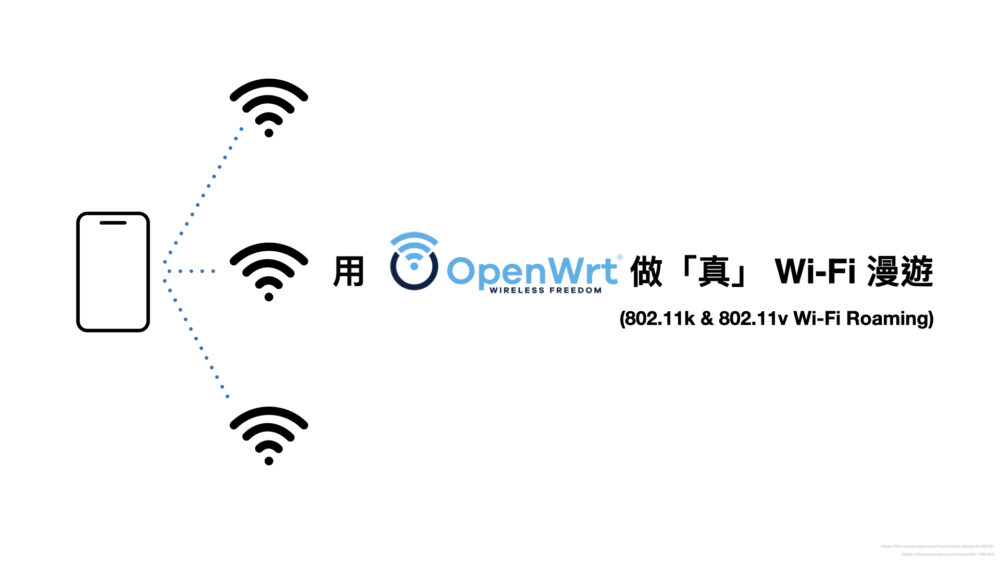
[教學] 用 OpenWRT 做「真」 Wi-Fi 漫遊 (Wi-Fi Roaming)

這個功能屬於偏進階功能,OpenWRT 有一定的專業性,
如果實在不知道怎麼做,請不要貿然嘗試

得利於 OpenWRT 第三方韌體,
可以在家用設備上有做出商用等級才有的功能,
由衷的讚嘆開源的偉大

什麼是 WiFi 漫遊 (Wi-Fi Roaming)?

問題痛點

你可能會遇到類似的情境,
當你有二顆以上的 Wi-Fi AP 路由器,來覆蓋不同的區域,
但你只要一組 SSID 就好(先討論 2.4GHz 與 5GHz 分開的情況)

你可能會先下意識的把主要路由器與子機路由器,設定了同一組 Wi-Fi SSID 與密碼。
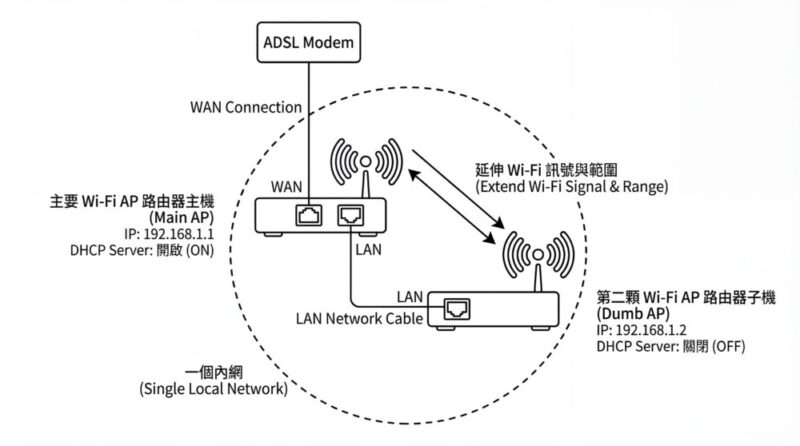
主要 Wi-Fi AP 路由器(下稱主機)連上 ADSL,
其他顆 Wi-Fi AP 路由器(下稱子機)插上 LAN 網路線,關閉 DHCP Server,二台路由器變成一個內網。

但,這樣雖然可以用,但不完美。

假設裝置連接上第一顆 Wi-Fi,
如果裝置移動了,
離開第一顆 Wi-Fi AP 的範圍,進入第二顆 AP 的範圍,
裝置會斷線 AP 再重連接入第二顆 AP 路由器,
雖然接上也是同一個網路,但這會造成有點惱人的小問題。

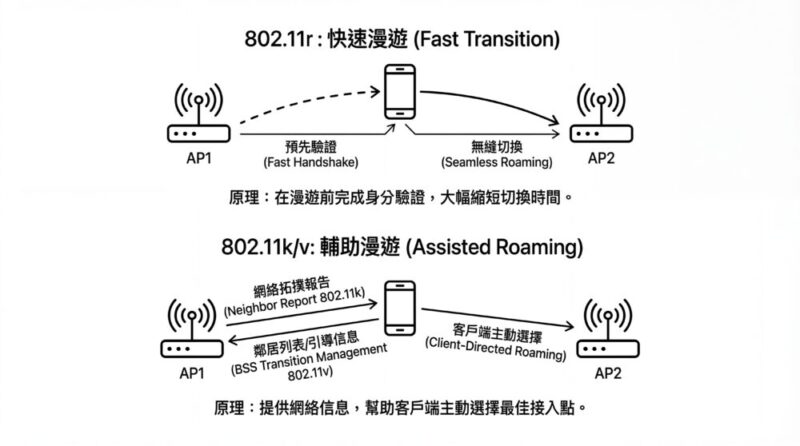
這個時候你就需要 802.11r802.11k/v
Wi-Fi Roaming 技術來「無縫」在不同 Wi-Fi AP 間切換。

802.11r(快速漫遊)

802.11r 又稱為「快速 BSS 轉換」(Fast BSS Transition, FT),主要解決無線裝置在不同存取點(AP)間切換時的延遲問題。傳統漫遊需重新進行完整的 802.1X 認證,可能耗時數百毫秒,導致語音或視訊通話中斷。802.11r 透過預先快取金鑰並簡化握手程序,將漫遊時間縮短至 50 毫秒以下,確保即時應用不受影響。此標準對企業環境中需要無縫移動的 VoIP 電話、視訊會議設備特別重要。

802.11k/v(智慧漫遊輔助)

802.11k(無線資源管理)讓 AP 向用戶端提供鄰近 AP 的資訊清單,使裝置能更快找到最佳切換目標,減少掃描所有頻道的時間與電力消耗。

802.11v(無線網路管理)則允許網路主動建議用戶端切換至負載較輕或訊號更佳的 AP,實現負載平衡並優化整體網路效能。

兩者常搭配 802.11r 共同運作,形成完整的智慧漫遊解決方案,提升大型無線網路的使用體驗。

配置

假設你的 Wi-Fi 路由器配置是這樣

  • 主要 Wi-Fi AP 路由器主機 (192.168.1.1): WAN 孔連接著 ADSL 網路,DHCP Server 開啟
  • 第二顆 Wi-Fi AP 路由器子機 (Dumb AP) (192.168.1.2): 主要延伸 主機 Wi-Fi 的訊號與範圍,
    DHCP Server 關閉(DHCP 純靠主要 AP 路由器)

操作步驟

第一步:更換驅動套件 (一定要做)

這邊我推薦用 ssh 操作,不然在更換套件可能會遇到斷線問題比較麻煩

  • 注意:移除時 WiFi 會斷線,建議使用電腦接網路線操作,或者操作完後重啟路由器。

ssh 的做法

OpenWrt 預設安裝的 wpad-basicwpad-mini
不支援 完整的 802.11r/k/v 功能或 LuCI 選項。
必須先更換套件,換成全功能的版本。

請在「主機」與「子機」上都執行:

電腦分別用 ssh 連接路由器

ssh [email protected]

更新套件清單

opkg update 

查詢套件

opkg list-installed | grep wpad

記錄一下細節

# opkg list-installed | grep wpad
wpad-basic-mbedtls - 2025.08.26~ca266cc2-r1

我們主要目標是要找到 wpad-basicwpad-basic-wolfsslwpad-mini
我這邊是找到 wpad-basic-wolfssl 這個套件,
那我們用 wpad-wolfssl 套件取代它,
二個套件會衝突,不可同時安裝,所以在 ssh 指令列裡面做事比較方便。

我們移除 wpad-basic-mbedtls 套件,改安裝 wpad-wolfssl 套件

opkg remove wpad-basic-mbedtls && opkg install wpad-wolfssl

記錄一下細節

# opkg remove wpad-basic-mbedtls && opkg install wpad-wolfssl
Removing package wpad-basic-mbedtls from root...
Installing wpad-wolfssl (2024.09.15~5ace39b0-r2) to root...
Downloading https://downloads.openwrt.org/releases/24.10.4/packages/mipsel_24kc/base/wpad-wolfssl_2024.09.15~5ace39b0-r2_mipsel_24kc.ipk
Installing libwolfssl5.7.6.e624513f (5.7.6-r1) to root...
Downloading https://downloads.openwrt.org/releases/24.10.4/packages/mipsel_24kc/base/libwolfssl5.7.6.e624513f_5.7.6-r1_mipsel_24kc.ipk
Configuring libwolfssl5.7.6.e624513f.
Configuring wpad-wolfssl.

再查詢一次,就是我們需要的套件了

# opkg list-installed | grep wpad
wpad-wolfssl - 2024.09.15~5ace39b0-r2

備註:新版 24.10 之後與 SNAPSHOTS 版本,
opkg 套件管理器改成用 apk 套件管理器了

查詢套件

apk info | grep wpad

記錄一下細節

# apk info | grep wpad
WARNING: opening from cache https://downloads.openwrt.org/snapshots/targets/mediatek/filogic/packages/packages.adb: No such file or directory
WARNING: opening from cache https://downloads.openwrt.org/snapshots/packages/aarch64_cortex-a53/base/packages.adb: No such file or directory
WARNING: opening from cache https://downloads.openwrt.org/snapshots/targets/mediatek/filogic/kmods/6.12.67-1-aa4948ece684816486d1fa5040ce0bb3/packages.adb: No such file or directory
WARNING: opening from cache https://downloads.openwrt.org/snapshots/packages/aarch64_cortex-a53/luci/packages.adb: No such file or directory
WARNING: opening from cache https://downloads.openwrt.org/snapshots/packages/aarch64_cortex-a53/packages/packages.adb: No such file or directory
WARNING: opening from cache https://downloads.openwrt.org/snapshots/packages/aarch64_cortex-a53/routing/packages.adb: No such file or directory
WARNING: opening from cache https://downloads.openwrt.org/snapshots/packages/aarch64_cortex-a53/telephony/packages.adb: No such file or directory
WARNING: opening from cache https://downloads.openwrt.org/snapshots/packages/aarch64_cortex-a53/video/packages.adb: No such file or directory
wpad-basic-mbedtls

(這些 WARNING 可以先不用理會,關注在搜尋結果即可)

移除wpad-basic-mbedtls 套件,改安裝 wpad-wolfssl 套件

apk del wpad-basic-mbedtls && apk add wpad-wolfssl

記錄一下細節

# apk del wpad-basic-mbedtls && apk add wpad-basic-wolfssl
(1/1) Purging wpad-basic-mbedtls (2025.08.26~ca266cc2-r1)
  Executing wpad-basic-mbedtls-2025.08.26~ca266cc2-r1.pre-deinstall
OK: 22.4 MiB in 159 packages
(1/2) Installing libwolfssl5.8.4.e624513f (5.8.4-r1)
  Executing libwolfssl5.8.4.e624513f-5.8.4-r1.post-install
(2/2) Installing wpad-wolfssl (2025.08.26~ca266cc2-r1)
  Executing wpad-wolfssl-2025.08.26~ca266cc2-r1.post-install
OK: 25.3 MiB in 161 packages

安裝完成後,記得要 重啟路由器
不然新的選單不會出現。

LuCI 網頁管理做法

  1. 登入 LuCI,進入 System (系統) -> Software (軟體)
  2. 點擊 Update lists (更新清單)
  3. 在 Filter 搜尋 wpad
  4. 移除 wpad-basicwpad-basic-wolfsslwpad-mini (看你原本裝哪個)。
    • 注意:移除時 WiFi 會斷線,建議使用電腦接網路線操作,或者操作完後重啟路由器。
  5. 安裝 wpad (通常是指向 wpad-wolfsslwpad-openssl 的完整版)。
    • 推薦安裝 wpad-openssl (或 wpad-wolfssl)。
  6. 安裝完成後,記得要 重啟路由器
    不然新的選單不會出現。

第二步:設定 802.11r (Fast Transition)

現在進入 LuCI 設定漫遊參數。請在「主機」和「子機」的 2.4GHz5GHz 介面都要做一樣的設定。

  1. 進入 Network (網路) -> Wireless (無線)
  2. 對你的 SSID 點擊 Edit (編輯)
  3. 切換到 Wireless Security (無線安全) 分頁。
  4. 確認 Encryption (加密模式)WPA2-PSK (相容性最好) 或 WPA2/WPA3 Mixed(這邊要每台都一致)。

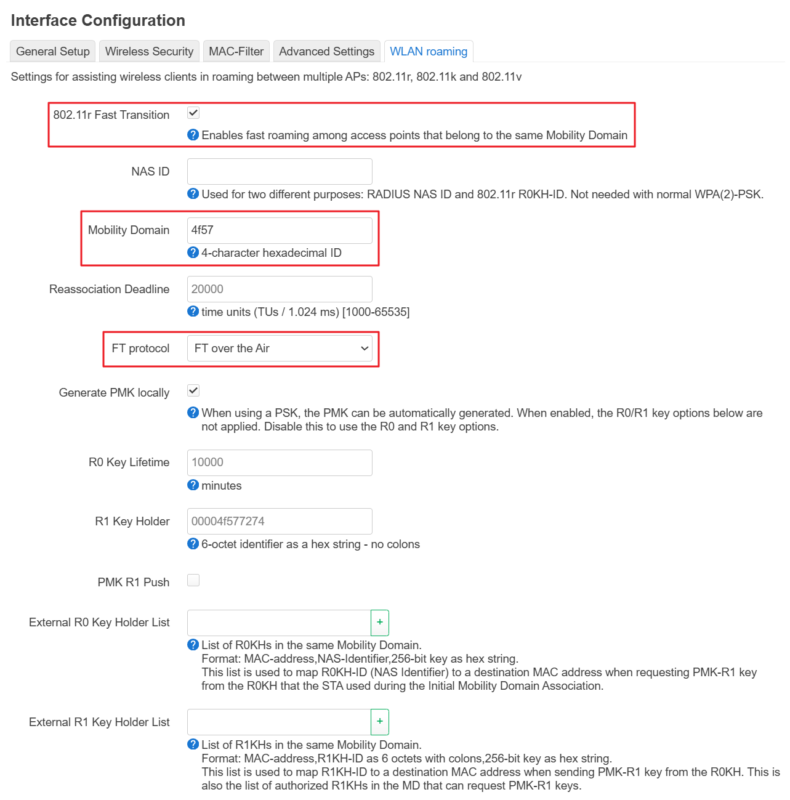
WLAN roaming 頁籤裡

設定以下參數:

  • 勾選 802.11r Fast Transition (啟用快速切換)。
    (Enables fast roaming among access points that belong to the same Mobility Domain)

  • Mobility Domain (行動網域): 輸入一個 4 位數的十六進位碼,例如 4f57
    (4-character hexadecimal ID)
    關鍵點: 主機和子機必須設定 完全一樣 的代碼。

  • Reassociation Deadline: 保持預設值 (通常是 1000) 即可。
    (time units (TUs / 1.024 ms) [1000-65535])

  • FT Protocol (FT 協議): 選擇 FT over the Air (相容性較佳)。

  • 勾選 Generate PMK locally (本地生成 PMK)
    (When using a PSK, the PMK can be automatically generated. When enabled, the R0/R1 key options below are not applied. Disable this to use the R0 and R1 key options.)
    說明:勾選後路由器會自動處理金鑰,不需要手動輸入繁瑣的 R0KH/R1KH 列表。

點擊 Save (儲存)


第三步:啟用 802.11k 與 802.11v (輔助漫遊)

這兩個標準能幫助手機「提早」知道何時該切換,以及該切換到哪裡,避免手機死抓著遠處的訊號不放。

file

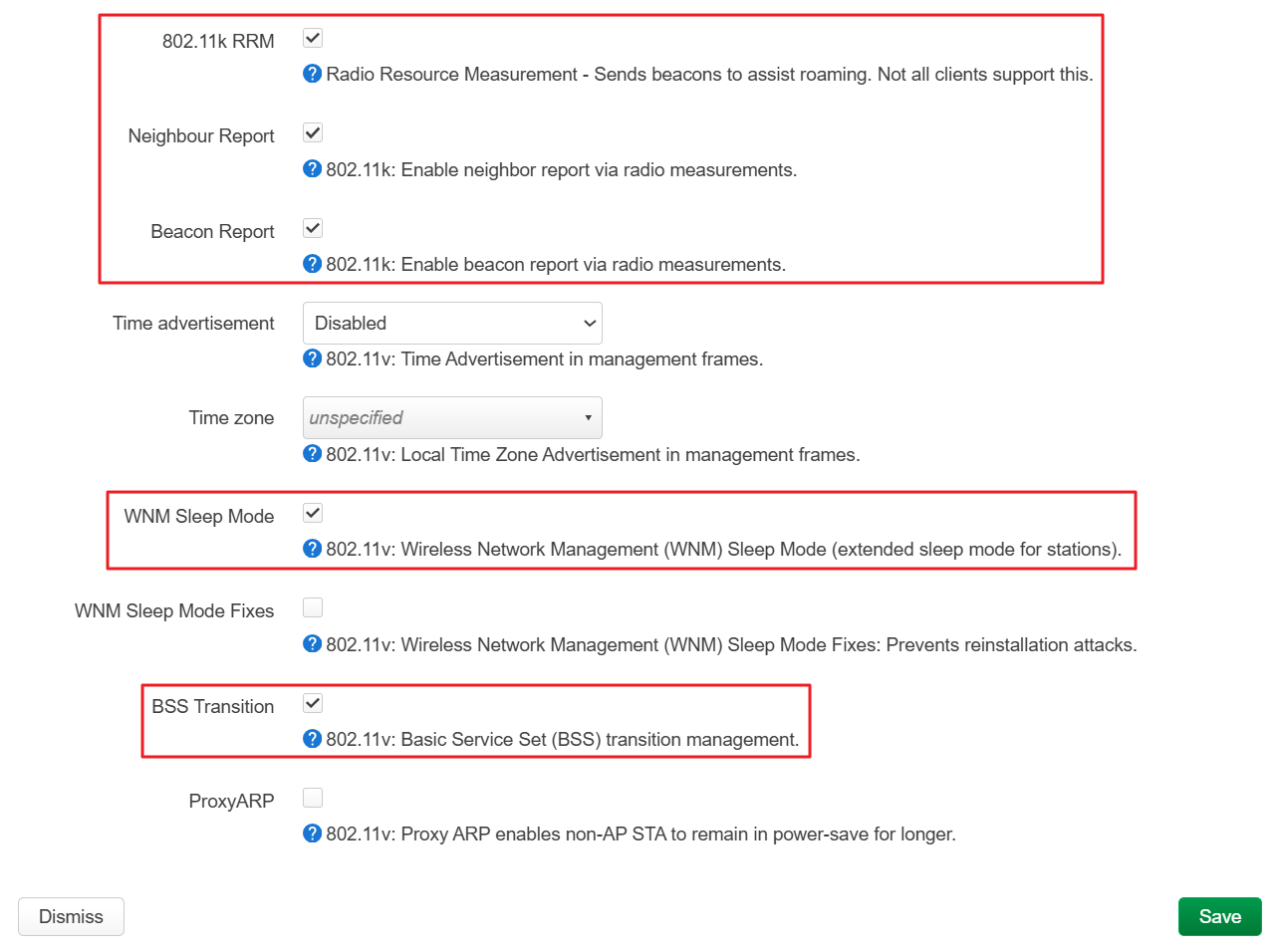
在同一個 在 WLAN roaming 頁籤裡 頁面中:
(需安裝完整版 wpad 才會出現這些選項)

802.11k (RRM) 的部分

  • 勾選 802.11k RRM
    (Radio Resource Measurement – Sends beacons to assist roaming. Not all clients support this.)
  • 勾選 Neighbour Report (預設會勾)
    (802.11k: Enable neighbor report via radio measurements.)
  • 勾選 Beacon Report (預設會勾)
    (802.11k: Enable beacon report via radio measurements.)

802.11v (WNM/BSS Transition) 的部分

  • (選填)勾選 WNM Sleep Mode (省電功能)。
    (802.11v: Wireless Network Management (WNM) Sleep Mode (extended sleep mode for stations).)

  • 勾選 BSS Transition
    (802.11v: Basic Service Set (BSS) transition management.)

最後按 Save & Apply (儲存並套用)


第四步:檢查頻道與功率 (最佳化)

為了避免干擾並讓漫遊更順暢:

  1. 頻道 (Channel):

    • 主機與子機的 SSID、密碼、加密方式、Mobility Domain 都要一樣
    • 但是 頻道 (Channel) 建議錯開
    • 例如:主機 2.4G 設 Ch 1,子機 2.4G 設 Ch 6。主機 5G 設 Ch 36,子機 5G 設 Ch 44。
    • 原因:若頻道相同,重疊區域的訊號會互相干擾,反而影響漫遊體驗。
  2. 發射功率 (Transmit Power):

    • 不要盲目調到最大 (Max)。
    • 適度降低功率(例如設為 20dBm 或 auto),讓兩個 AP 的訊號覆蓋範圍有適當的重疊(約 15-20%),但不要重疊太多,這樣手機才會願意切換。

總結檢查清單

設定項目 主機 (Master) 子機 (Slave) 備註
軟體套件 wpad-wolfssl wpad-wolfssl 必須移除 basic 版,改安裝 full 版
SSID MyWiFi (範例) MyWiFi (範例) 必須相同
密碼 xxxxxxxx xxxxxxxx 必須相同
802.11r 啟用 啟用
Mobility Domain 4f57 (範例) 4f57 (範例) 必須相同
FT Protocol FT over the Air FT over the Air
頻道 (Channel) 1 (範例) 6 (範例) 建議不同

設定完成後,當你在兩個 AP 之間移動時,手機應該會顯示 WiFi 訊號滿格但不會斷線重連(不會出現 4G/5G 圖示),這就代表漫遊成功了。

若不換套件,只有 wpad-basic 套件能做到什麼程度?

簡單來說:只能做到「同名 WiFi」,無法做到「漫遊」。

如果你只保留預設的 wpad-basic,因為它閹割了 802.11r/k/v 協議的支援,你的網路狀況會變成這樣:

  1. 黏滯效應 (Sticky Client): 手機連著客廳的主機,當你走到臥室(子機旁)時,即使客廳訊號只剩一格、臥室訊號滿格,手機依然會死抓著客廳的訊號不放,直到完全斷線才會切換。
  2. 切換會斷線: 當手機終於決定切換時,因為沒有 802.11r 的快速握手協議,手機必須重新執行完整的 4 次握手驗證。這會導致 3~5 秒的網路中斷(Line 通話會斷掉、遊戲會掉線、影片會轉圈圈)。
  3. 若不換 wpad 完整版,你設定相同的 SSID 意義不大,體驗會很差。強烈建議一定要更換。

Troubleshooting:如果路由器無法上網更新套件

如果你的 AP 路由器的症狀是「下面連接的電腦能上網(因為封包透過 Switch 直接轉發給主機),但路由器自己不能上網」。
這是因為你的 缺了「閘道器 (Gateway)」和「DNS」的設定

因為你是用 LAN 接 LAN,OpenWrt 預設認為 LAN 是內部網路,通常不會去設定 Gateway。
你必須手動告訴 AP 路由器:「如果要下載軟體,請找主機幫忙。」

假設你的 主機 (Main Router) 的 LAN IP 是 192.168.1.1

修改子機的 LAN 設定

  1. 登入子機的 LuCI。

  2. 進入 Network (網路) -> Interfaces (介面)

  3. 找到 LAN,點擊 Edit (編輯)

  4. General Settings (一般設定) 頁面中,確認以下設定:

    • IPv4 address (IPv4 位址): 應該已經設為固定 IP (例如 192.168.1.2),這是正確的,不要動它
    • IPv4 gateway (IPv4 閘道器): 這裡目前應該是空的,請填入主機 IP (例如 192.168.1.1)。
    • IPv4 broadcast (IPv4 廣播): 留空即可。
    • Use custom DNS servers (使用自訂 DNS 伺服器): 這裡也很重要。請填入主機 IP (192.168.1.1) 或者 Google DNS (8.8.8.8)。
    • 如果不填 DNS,路由器雖然連得到網路,但無法解析 downloads.openwrt.org 的網址,一樣無法安裝軟體。
  5. (選用檢查) 往下滑到 DHCP Server,確認它是勾選 Ignore interface (忽略介面/停用)

  6. 點擊 Save (儲存)

套用並測試

  1. 點擊右上角的 Save & Apply (儲存並套用)
    • 注意:如果你的子機 IP 和電腦不在同網段,改完可能會連不上管理頁面,請確保電腦 IP 是自動取得或手動設為同網段。
  2. 進入 Network -> Diagnostics (診斷)
  3. 點擊 Ping (預設是 openwrt.org)。
  4. 如果有看到類似 64 bytes from ... 的回應,代表子機已經可以自己上網了!

Troubleshooting:如果路由器跳出 SSL verify error

如果你的 AP 路由器跳出這個錯誤:

SSL verify error: unknown error

這個錯誤在 OpenWrt 的子機(AP 模式)上非常常見。

這通常不是網路不通,而是因為路由器的 「系統時間」跑掉了

原因說明

OpenWrt 路由器通常沒有內建電池,斷電重啟後時間會重置(例如回到 2018 年或 1970 年)。
當你執行 opkg update 時,系統會檢查軟體源伺服器的 SSL 安全憑證。但憑證都有「有效期限」,
如果你的路由器認為現在是 1970 年,它會判定伺服器的憑證「尚未生效」,因此報錯並拒絕連線。

解決方式:透過 LuCI 同步瀏覽器時間

這是最快讓時間恢復正常的方法,不需要打指令。

  1. 登入子機的 LuCI 介面。
  2. 進入 System (系統) -> System (系統)
  3. 找到 System Properties (系統屬性) 區塊。
  4. 你會看到 Local Time (本地時間) 可能顯示一個舊的日期。
  5. 點擊旁邊的 Sync with browser (與瀏覽器同步) 按鈕。
  6. 確認時間變正確後,點擊 Save & Apply
  7. 再次嘗試執行 opkg update,應該就正常了。

解決方式:修正 NTP 設定

為了避免下次重開機又發生一樣的問題,你需要讓子機知道去哪裡自動對時。

  1. 進入 System (系統) -> System (系統) -> Time Synchronization (時間同步)
  2. 勾選 Enable NTP client (啟用 NTP 客戶端)
  3. NTP server candidates (NTP 伺服器候選):
    • 因為 DNS 可能還沒完全穩,建議加入你的 主機 IP (例如 192.168.1.1) 作為第一順位 (前提是主機有開 NTP 服務,OpenWrt 主機預設都有開)。
    • 或者加入 Google 的 NTP IP:216.239.35.0

參考資料

https://openwrt.org/docs/guide-user/network/wifi/roaming

[教學] TOTOLINK X6000R 路由器刷機 OpenWRT 完整指南

之前有寫過一篇 TOTOLINK X5000R 的刷機介紹,
X5000R 刷機幾乎沒有難度可言,原廠網頁管理介面的韌體更新直接上傳 OpenWRT 就可以了。

本來以為一切會跟之前一樣很順利的,
結果還是大意了。
把曲折的過程記錄一下,
這種久久做一次的東西容易忘記。

還是要提醒:

刷機有風險,而且有一定的專業性,而且會有破壞保固的可能,
本文不承擔任何操作的風險。


硬體規格與晶片組資訊

TOTOLINK X6000R 採用 MediaTek 的 Filogic 820 平台,
這是 Wi-Fi 6 AX3000 級別路由器設計的整合型晶片方案。
MT7981B 使用雙核心 ARM Cortex-A53 處理器,運行頻率 1.3GHz
採用 12nm 製程,整合了乙太網路和 WiFi 功能。

組件 規格
SoC/CPU MediaTek MT7981B (Filogic 820),雙核 ARM Cortex-A53 @ 1.3GHz
記憶體 256MB DDR3
快閃記憶體 16MB SPI NOR (EON EN25QX128A)
2.4GHz WiFi MT7981BA + MT7976CN,802.11ax,2×2 MIMO,574Mbps
5GHz WiFi MT7981BA + MT7976CN,802.11ax,2×3 MIMO,2402Mbps
乙太網路交換器 MediaTek MT7531AE,5 埠 Gigabit
網路埠 1 WAN + 4 LAN (全 Gigabit)
電源 12V DC,1A

WiFi 功能方面,X6000R 支援 160MHz 頻寬1024-QAM 調變、MU-MIMO、OFDMA、Beamforming 和 TWT 節能技術。四根外接天線(1 雙頻 + 1 2.4GHz + 2 5GHz)提供 TOTOLINK 所謂的「Xtra Range Technology」延伸覆蓋範圍。


OpenWRT 官方支援狀態

支援狀態:已正式支援

TOTOLINK X6000R 的 OpenWRT 支援已於 2025 年 9 月 21 日 透過 Pull Request #20035 合併到主線程式碼庫。

https://github.com/openwrt/openwrt/pull/20035

https://openwrt.org/toh/hwdata/totolink/totolink_x6000r
https://openwrt.org/toh/totolink/x6000r

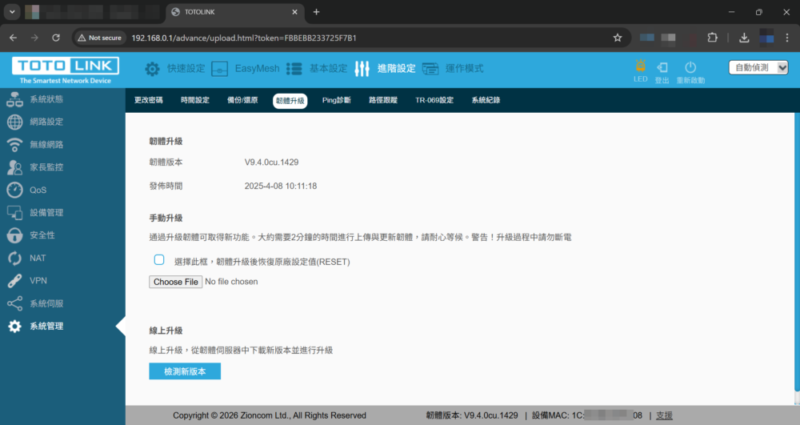
記錄一下原出廠的韌體版本號: V9.4.0cu.1429 (2025-4-08 10:11:18)
這個版本可能在原廠韌體下載網頁被拿掉了,但這個版本可以進入救援模式,
其他版本不確定


原廠網頁介面升級(無法使用)

這是最簡單的刷機方式,適用於路由器正常運作且能進入原廠管理介面的情況。
以前可以(這也是我為何這麼推薦的原因),但這步已經被封掉了。

使用 TOTOLINK 網頁救援模式

事前準備:

  • 下載 OpenWRT sysupgrade 映像檔(安裝用)或 OEM 原廠韌體(還原用)
  • 一條乙太網路線

詳細步驟:

  1. 從 OpenWRT 韌體下載 *-sysupgrade.bin 映像檔

撰寫文的時候的正式版是 24.10.5

https://downloads.openwrt.org/releases/24.10.5/targets/mediatek/filogic/openwrt-24.10.5-mediatek-filogic-totolink_x6000r-squashfs-sysupgrade.bin

檔名為 openwrt-24.10.5-mediatek-filogic-totolink_x6000r-squashfs-sysupgrade.bin

這個版本在 TOTOLINK X6000R 實測 Wi-Fi 不正常,等待新版本修復。

請改用 SNAPSHOT 版本

https://downloads.openwrt.org/snapshots//targets/mediatek/filogic/openwrt-mediatek-filogic-totolink_x6000r-squashfs-sysupgrade.bin

檔名為 openwrt-mediatek-filogic-totolink_x6000r-squashfs-sysupgrade.bin

注意是要下載 -sysupgrade.bin 而不是另外一個

  1. 設定電腦網路

    • IP 位址:192.168.1.10(或任意 192.168.1.2-254)
    • 子網路遮罩:255.255.255.0
    • 閘道:192.168.1.1
  2. 單接網路線到該路由器任意 LAN 孔

  3. 持續的 ping 查看路由器存活

Windows 可以用 命令提示字元 (cmd) 打上 ping

ping -t 192.168.1.1

Mac/Linux 的 Terminal

ping 192.168.1.1
  1. 進入恢復模式 (Recovery Mode)

    • 設定電腦 IP: 192.168.1.100
    • 子網路遮罩 NetMask: 255.255.255.0

打開 ping 持續 ping 192.168.1.1

Windows 使用 ping -t,Mac/Linux 使用 ping

ping -t 192.168.1.1
ping 192.168.1.1

步驟如下:

  1. 拔除電源(斷電),
  2. 用迴紋針按住 Reset 鍵不放並插電,
  3. 看到 LED 藍紅閃爍後,整個 LAN 綠色 LED 燈亮起(大約 6 秒後)
  4. 釋放 RESET 按鈕

如果成功的話,會進入恢復模式 (Recovery Mode)
ping 原本不通的,變成會通

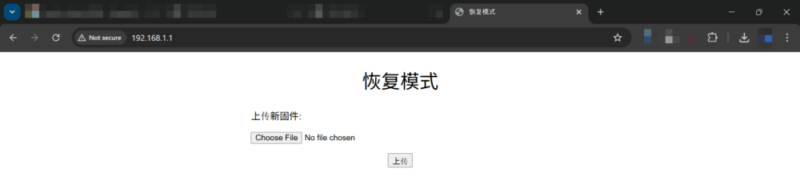
  1. 瀏覽網頁 http://192.168.1.1
    只有一個醜醜的網頁介面(甚至是簡體字的…但毋須在意,之後就刷機刷掉了)

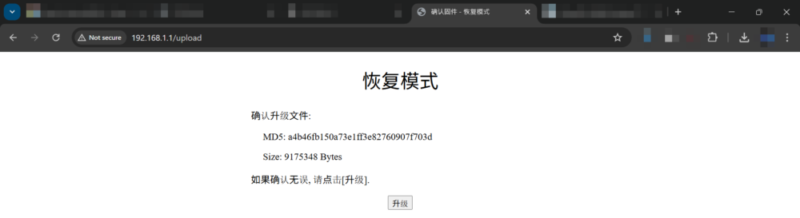
  1. 上傳 OpenWRT sysupgrade 映像檔

  1. 等待約 5 分鐘左右,路由器將自動重啟

  1. 重啟後以 http://192.168.1.1 存取 OpenWRT(使用者為 root,無密碼)

使用 SNAPSHOT 韌體注意事項

SNAPSHOT 韌體他預設預覽版是沒有安裝 luci 網頁管理介面的,
(只開了一個 ssh port 而已)
所以瀏覽 http://192.168.1.1完全沒有反應
我們用以下步驟來安裝 luci 網頁管理介面,來修正這件事情

記得 WAN 插入現有網路,讓路由器可以上網。

使用 ssh 登入

ssh [email protected]

預設沒有密碼,會直接登入

記錄一下

BusyBox v1.37.0 (2026-01-02 17:07:02 UTC) built-in shell (ash)

  _______                     ________        __
 |       |.-----.-----.-----.|  |  |  |.----.|  |_
 |   -   ||  _  |  -__|     ||  |  |  ||   _||   _|
 |_______||   __|_____|__|__||________||__|  |____|
          |__| W I R E L E S S   F R E E D O M
 -----------------------------------------------------
 OpenWrt SNAPSHOT, r32804-ac8b5526bc
 -----------------------------------------------------

 OpenWrt recently switched to the "apk" package manager!

 OPKG Command           APK Equivalent      Description
 ------------------------------------------------------------------
 opkg install <pkg>     apk add <pkg>       Install a package
 opkg remove <pkg>      apk del <pkg>       Remove a package
 opkg upgrade           apk upgrade         Upgrade all packages
 opkg files <pkg>       apk info -L <pkg>   List package contents
 opkg list-installed    apk info            List installed packages
 opkg update            apk update          Update package lists
 opkg search <pkg>      apk search <pkg>    Search for packages
 ------------------------------------------------------------------

For more information visit:
https://openwrt.org/docs/guide-user/additional-software/opkg-to-apk-cheatsheet

可以看到我使用了 SNAPSHOT, r32804-ac8b5526bc 版本的韌體。
他有提示到,這個版本已經從 opkg 套件管理程式,改成 apk 指令了

我們用以下指令安裝 luci 網路管理介面

apk update && \
apk add luci

如果是之前 opkg 版本的話,可以這樣

opkg update && \
opkg install luci

意思是相同的。

裝完就能使用瀏覽器瀏覽 http://192.168.1.1 存取 OpenWRT(使用者為 root,無密碼)摟!

參考資料

[DevOps] 如何用 Webhook API 發訊息到 Microsoft Teams (使用 Workflows)

看到標題你一定想說,這麼簡單的東西,為何要寫一篇文章,
想當然爾,這篇文章一定是伴隨著怒氣寫出來的
沒事一個簡單的事情,它一定要搞得超複雜它才開心 Orz

需求很稀鬆平常,就是我有各種系統通知要串接 Microsoft Teams
簡單來說就是讓機器發訊息到 Teams 的指定群組

前前後後花了好長時間找文件,最後終於找到了
避免大家走彎路,就分享給大家

舊方式 Incoming webhooks (準備棄用)

有全網搜尋過就知道,以前舊的方式是使用 Incoming webhooks,

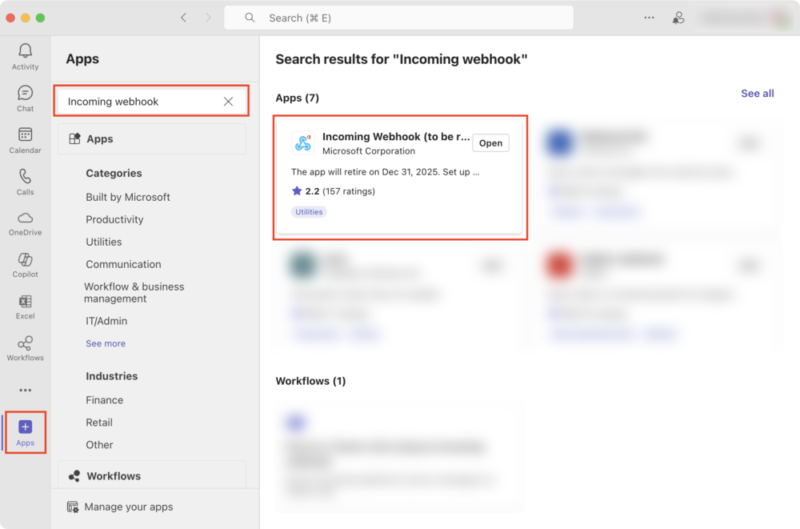
在 Teams 的左側欄的左下角有個 Apps 按下去,
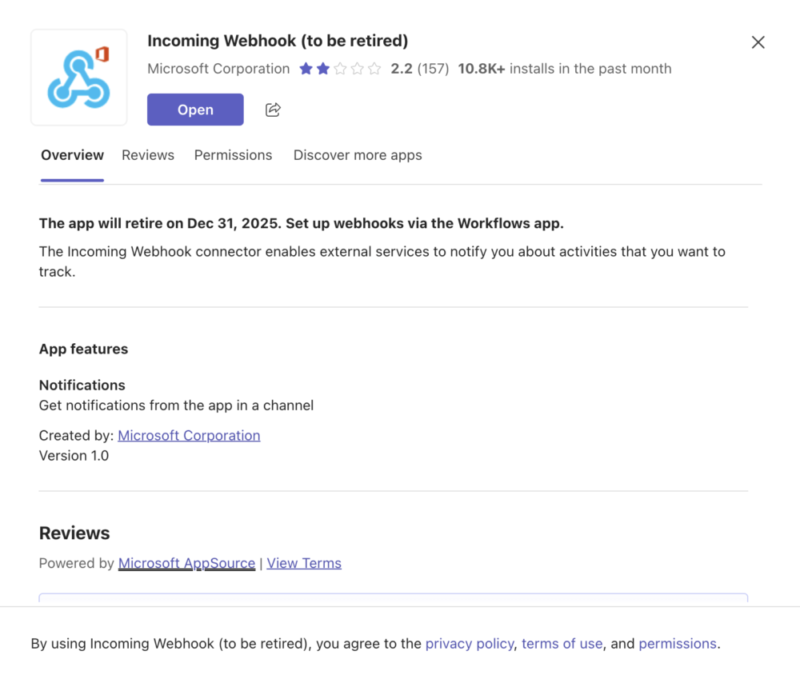
然後搜尋「Incoming Webhook

會看到這個 Incoming Webhook (to be retired)

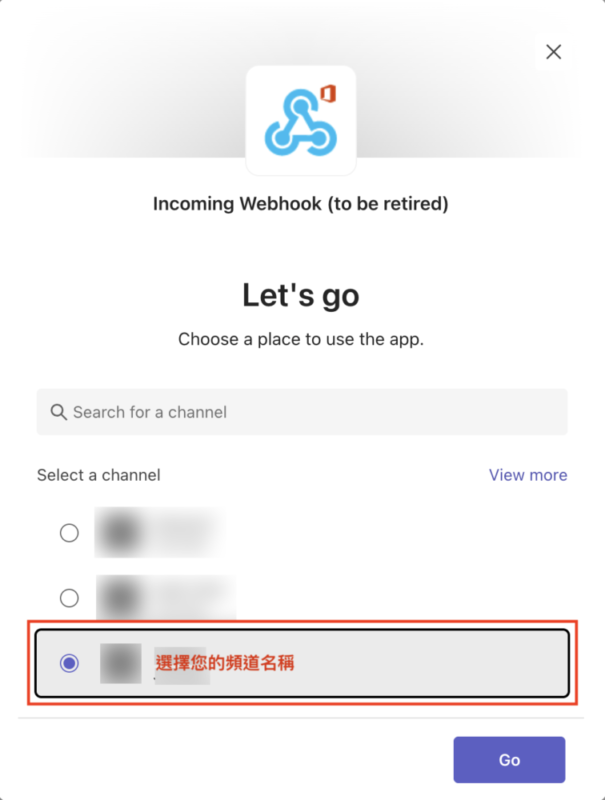
按照步驟,選擇你的頻道名稱

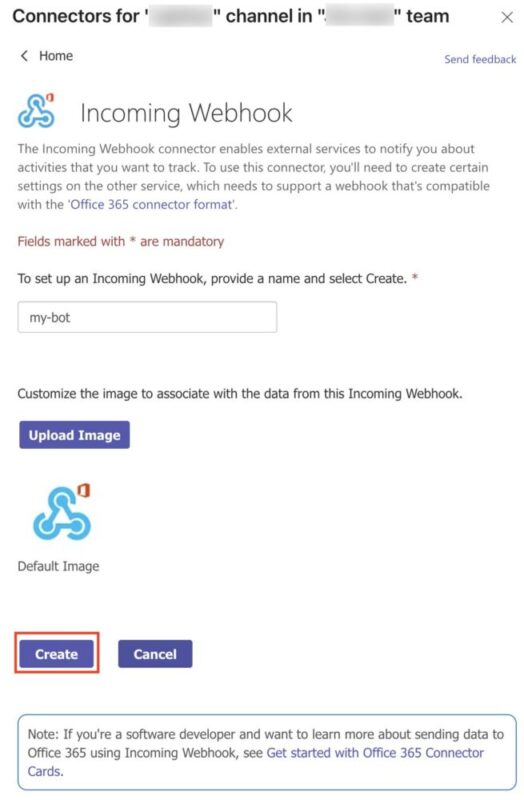
按下 Create

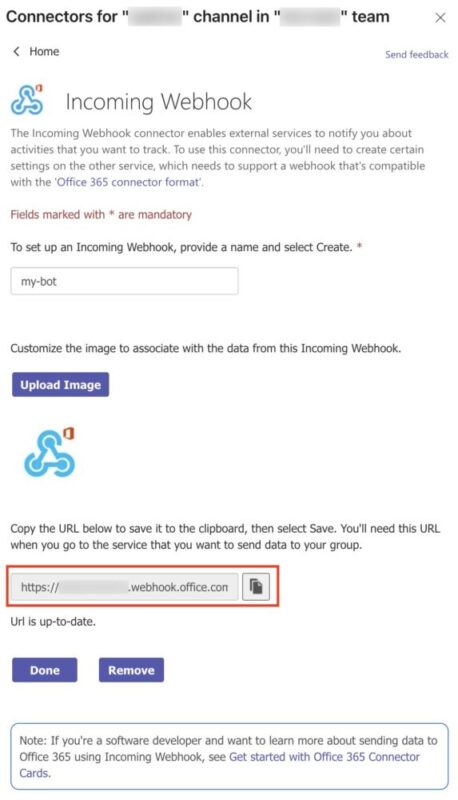
然後你就會得到一個 Webhook URL

可能類似長這樣

https://xxxxxxxx.webhook.office.com/webhookb2/6dxxxxxx-xxxx-xxxx-xxxx-xxxxxxxxxxxx@xxxxxxxx-xxxx-xxxx-xxxx-xxxxxxxxx3f4/IncomingWebhook/bf0xxxxxxxxxxxxxxxxxxxxxxxxxxx54/40xxxxxx-xxxx-xxxx-xxxx-xxxxxxxxx3de/V2xx-xxxxxxxxxxxxxxxxxx_xxxxxxxxxxxxxxx_xxxxBF

(這個就是 API 需要打的網址,網址每個人都不一樣)

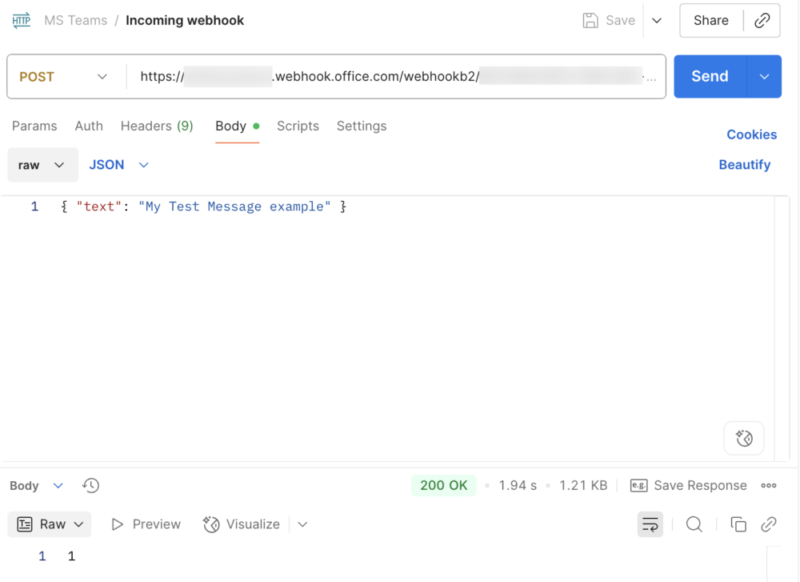
呼叫它最簡單的方式就是,打一個 POST 到這個 URL,
內容帶入這個 JSON

{ "text": "My Test Message example" }

正常會回 200 OK

習慣看 curl 的朋友,也附上 curl 的版本

curl --location 'https://xxxxxxxx.webhook.office.com/webhookb2/6dxxxxxx-xxxx-xxxx-xxxx-xxxxxxxxxxxx@xxxxxxxx-xxxx-xxxx-xxxx-xxxxxxxxx3f4/IncomingWebhook/bf0xxxxxxxxxxxxxxxxxxxxxxxxxxx54/40xxxxxx-xxxx-xxxx-xxxx-xxxxxxxxx3de/V2xx-xxxxxxxxxxxxxxxxxx_xxxxxxxxxxxxxxx_xxxxBF' 
--data '{ "text": "My Test Message example" }'

結案

但以上這段已經準備要 Deprecated (棄用) 了

新方式,使用 Workflows

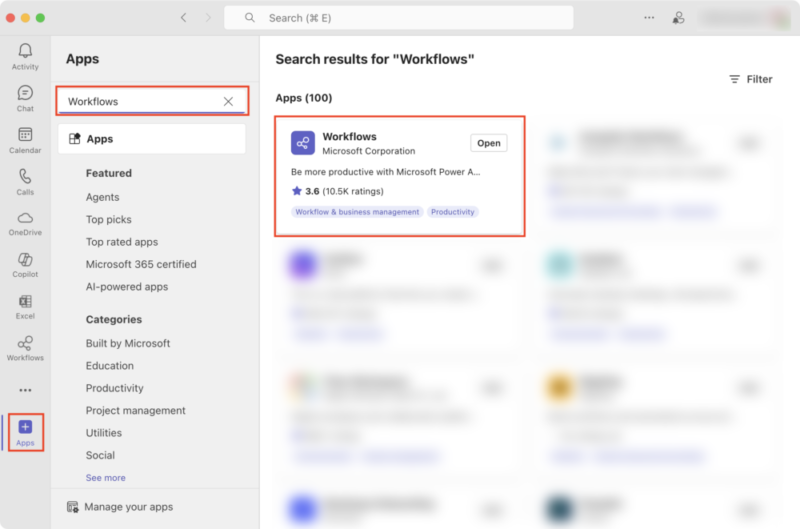
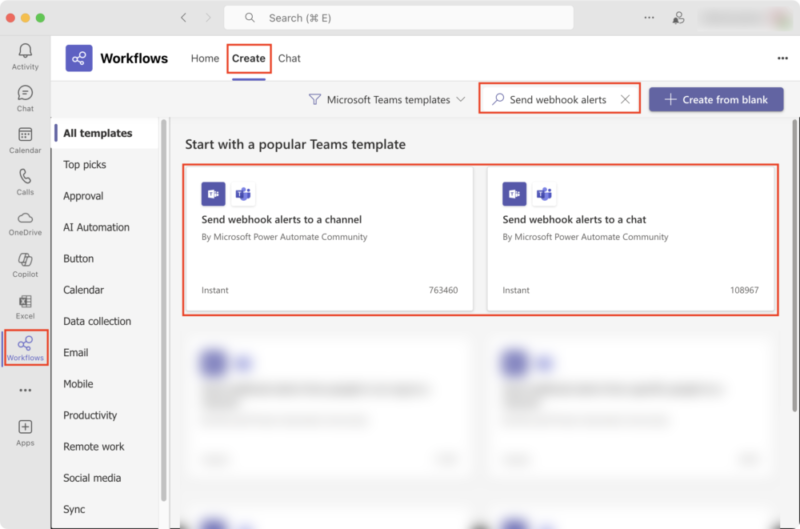
在 Teams 的左側欄的左下角有個 Apps 按鈕,按下去,
然後搜尋「Workflows

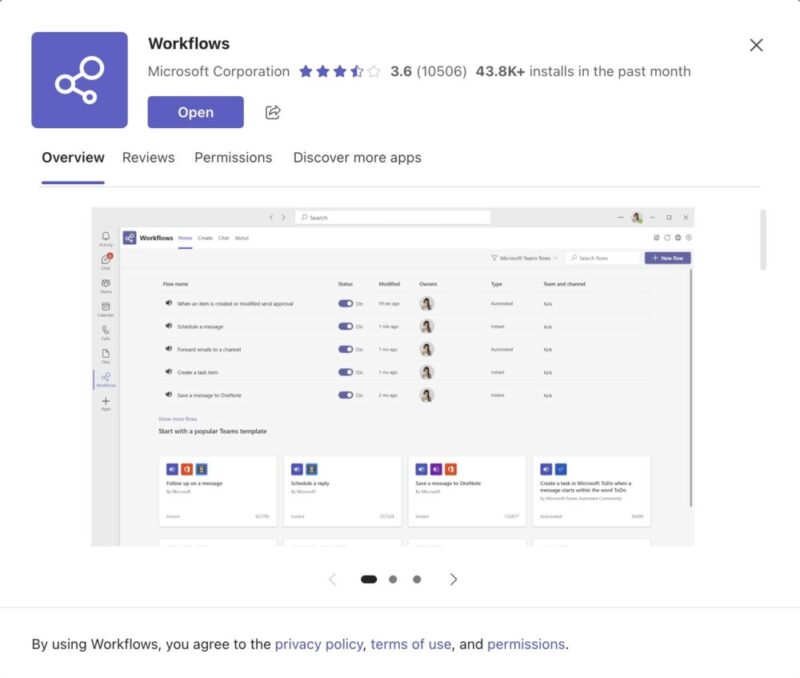
可能會很多個都叫 Workflows,找到確定是 Microsoft Corporation 才對哦!

把它加進去 Teams 中

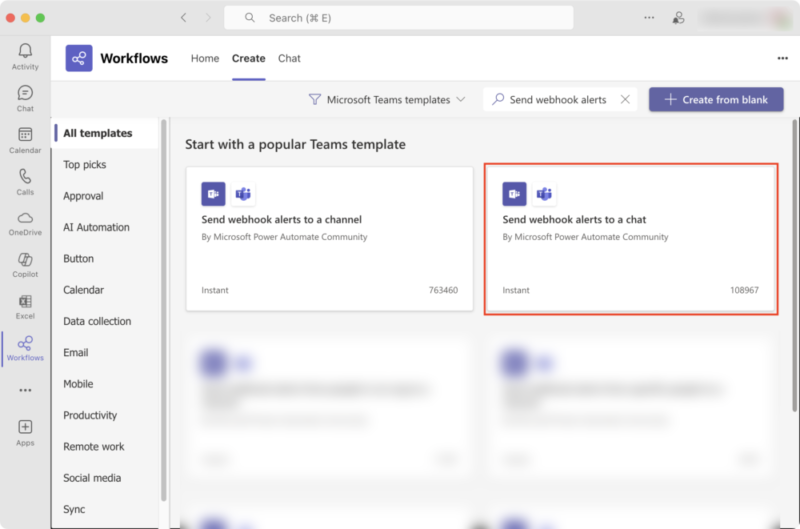
然後在左側標籤,按下 Workflows 的標籤

在上方找到 Create 標籤

等等會用到 Send webhook alerts to a channel 或者 Send webhook alerts to a chat 等等分開說明

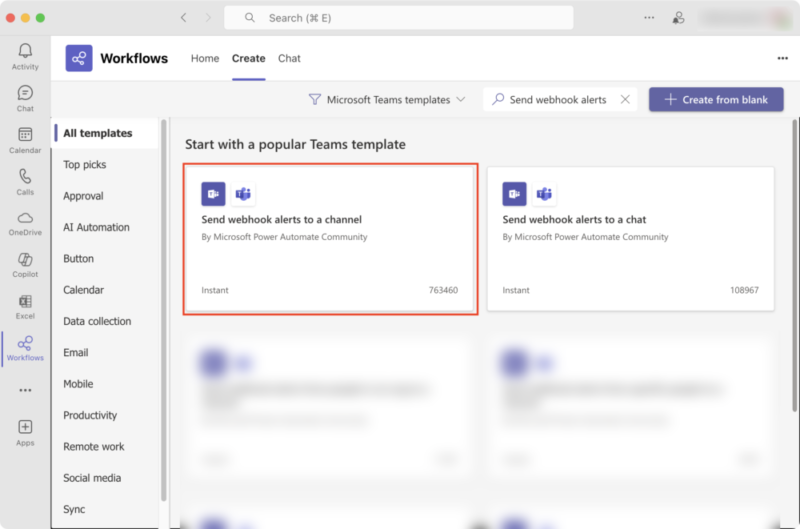
Send webhook alerts to a channel(收到 webhook 要求時發佈在頻道中)

搜尋「Send webhook alerts to a channel
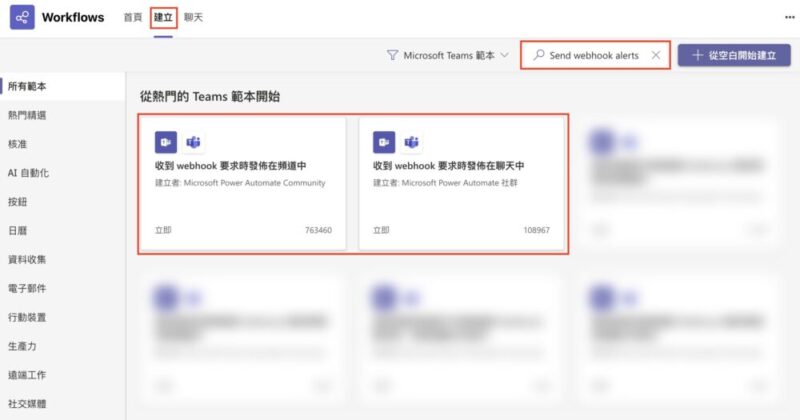
中文名稱「收到 webhook 要求時發佈在頻道中」

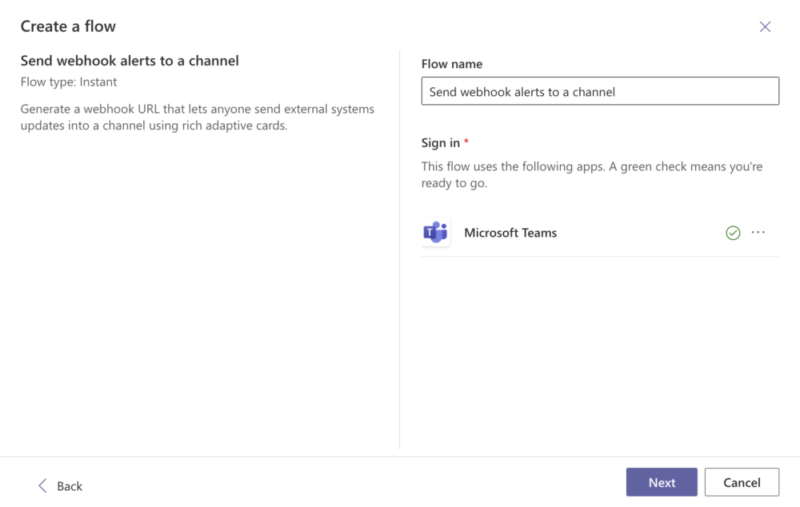
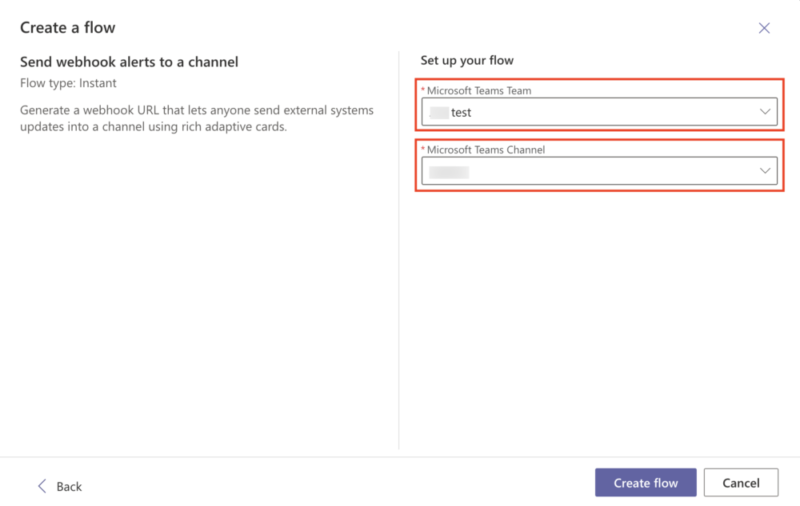
根據提示,選擇你的 Teams 與 Channel

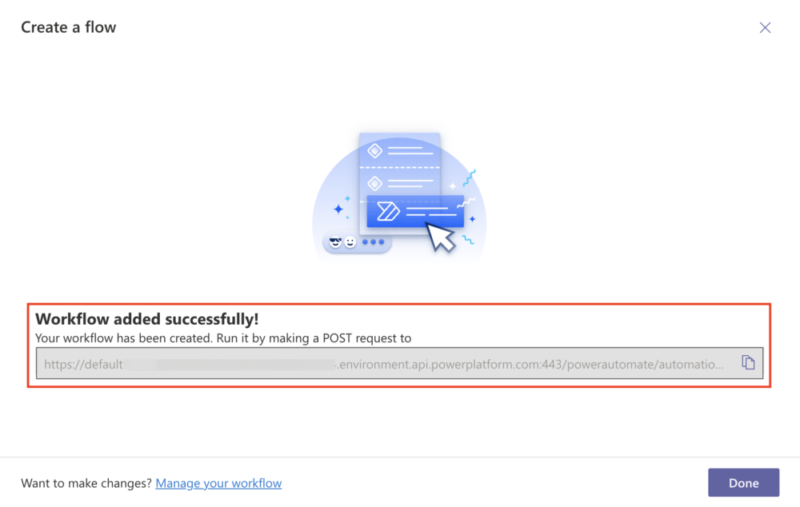
最後會出現一個網址

Send webhook alerts to a chat(收到 webhook 要求時發佈在聊天中)

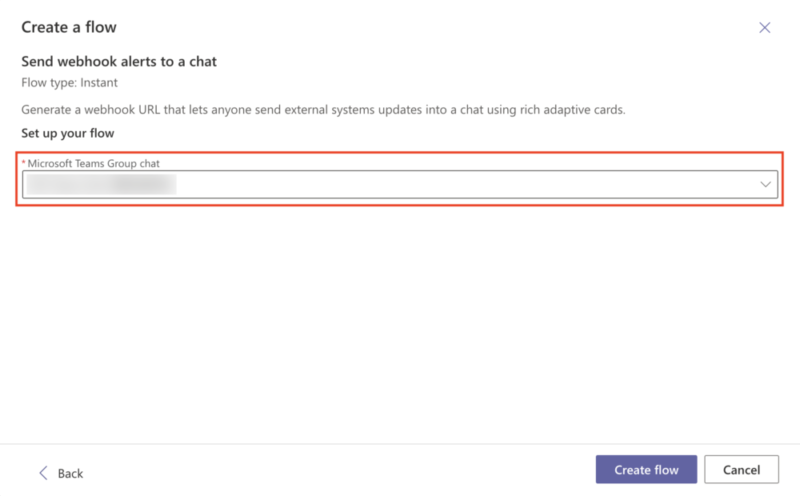
搜尋「Send webhook alerts to a chat
中文名稱「收到 webhook 要求時發佈在聊天中」

設定你想要丟訊息的群組名稱

不管這二種方式,最後會出現一個網址,像這樣

https://defaultxxxxxxxxxxxxxxxxxxxxxxxxxxxab0.xx.environment.api.powerplatform.com:443/powerautomate/automations/direct/workflows/2aaxxxxxxxxxxxxxxxxxxxxxxxxxx77d/triggers/manual/paths/invoke/?api-version=1&sp=%2Ftriggers%2Fmanual%2Frun&sv=1.0&sig=kmcxxxxxxxxxxxxxxxxxxxxxxxxxxxxxxxxxxxxxFBU

(這個就是 API 需要打的網址,網址每個人都不一樣)

重點來了!!!

他的介面沒有交代你怎麼使用這個 API
在微軟的網站翻找超級久,終於找到他的 API 用法

API 文件在這裡(淚~~)

https://learn.microsoft.com/en-us/connectors/teams/?tabs=text1%2Cdotnet&cf_lbyyhhwhyjj5l3rs65cb3w=j09h5ro1lgi6jiaolddgf#microsoft-teams-webhook

等等直接上範例說明

Workflows 發訊息到 Teams 簡單範例

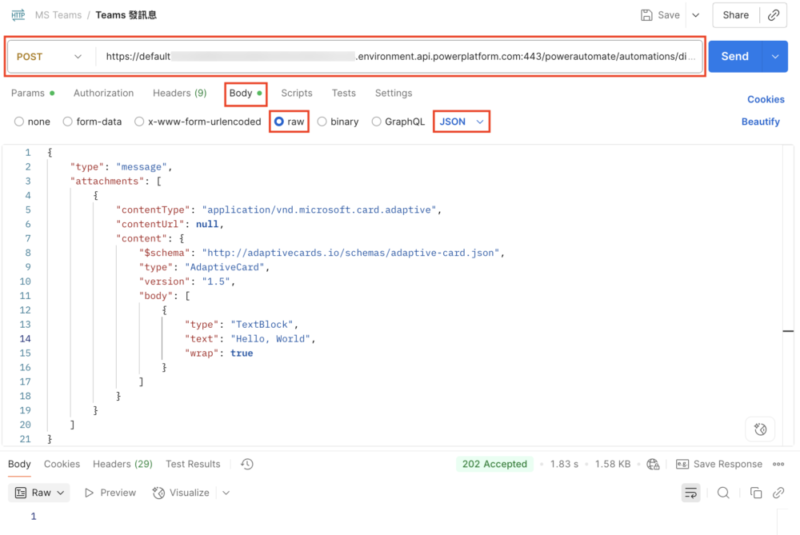
打 POST 到你剛剛產生的網址

https://defaultxxxxxxxxxxxxxxxxxxxxxxxxxxxab0.xx.environment.api.powerplatform.com:443/powerautomate/automations/direct/workflows/2aaxxxxxxxxxxxxxxxxxxxxxxxxxx77d/triggers/manual/paths/invoke/?api-version=1&sp=%2Ftriggers%2Fmanual%2Frun&sv=1.0&sig=kmcxxxxxxxxxxxxxxxxxxxxxxxxxxxxxxxxxxxxxFBU

Body 的部分選 Raw (JSON)
然後打上以下內容

{
  "type": "message",
  "attachments": [
    {
      "contentType": "application/vnd.microsoft.card.adaptive",
      "contentUrl": null,
      "content": {
        "$schema": "http://adaptivecards.io/schemas/adaptive-card.json",
        "type": "AdaptiveCard",
        "version": "1.5",
        "body": [
          {
            "type": "TextBlock",
            "text": "Hello, World",
            "wrap": true
          }
        ]
      }
    }
  ]
}

這就是最簡單的範例了
(別問我傳個文字訊息為何要搞這麼複雜…)

回應會是 202 Accepted 內容為空白
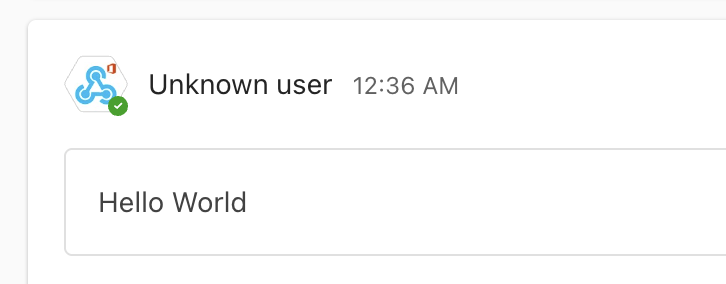
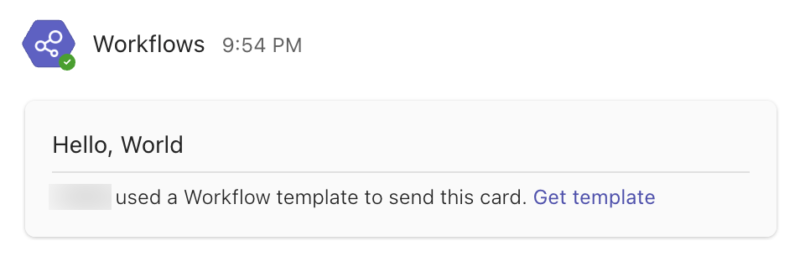
再檢查一下你的 Channel,應該就會看到訊息了

怕只看 curl 的朋友看不懂,這邊附上 curl 的版本

curl --location 'https://defaultxxxxxxxxxxxxxxxxxxxxxxxxxxxab0.xx.environment.api.powerplatform.com:443/powerautomate/automations/direct/workflows/2aaxxxxxxxxxxxxxxxxxxxxxxxxxx77d/triggers/manual/paths/invoke/?api-version=1&sp=%2Ftriggers%2Fmanual%2Frun&sv=1.0&sig=kmcxxxxxxxxxxxxxxxxxxxxxxxxxxxxxxxxxxxxxFBU' 
--header 'Content-Type: application/json' 
--data '{
    "type": "message",
    "attachments": [
        {
            "contentType": "application/vnd.microsoft.card.adaptive",
            "contentUrl": null,
            "content": {
                "$schema": "http://adaptivecards.io/schemas/adaptive-card.json",
                "type": "AdaptiveCard",
                "version": "1.5",
                "body": [
                    {
                        "type": "TextBlock",
                        "text": "Hello, World",
                        "wrap": true
                    }
                ]
            }
        }
    ]
}'

訊息長這樣

這個 JSON 格式在這裡是有講究的

  • "type": "message"
  • "contentType": "application/vnd.microsoft.card.adaptive"
  • "contentUrl": null

這些值都是固定的
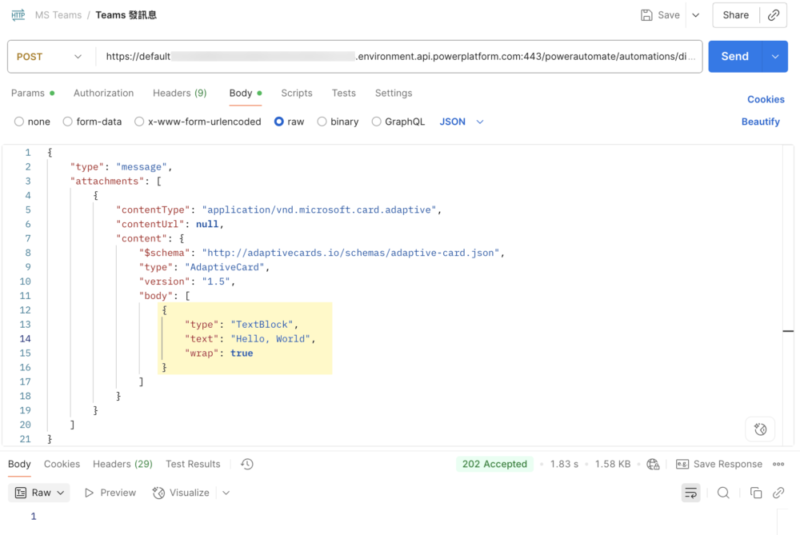
你能改的地方只有 body 這裡。
它是為了可以做特殊客製卡片訊息,放了很多保留參數在上面。

Workflows 發訊息到 Teams 複雜範例

放一個稍微複雜的範例

{
  "type": "message",
  "attachments": [
    {
      "contentType": "application/vnd.microsoft.card.adaptive",
      "contentUrl": null,
      "content": {
        "$schema": "http://adaptivecards.io/schemas/adaptive-card.json",
        "type": "AdaptiveCard",
        "version": "1.5",
        "body": [
          {
            "type": "TextBlock",
            "size": "Medium",
            "weight": "Bolder",
            "text": "This is my title"
          },
          {
            "type": "ColumnSet",
            "columns": [
              {
                "type": "Column",
                "items": [
                  {
                    "type": "TextBlock",
                    "weight": "Bolder",
                    "text": "Matt Hidinger",
                    "wrap": true
                  },
                  {
                    "type": "TextBlock",
                    "spacing": "None",
                    "text": "Created 2025-08-25 21:03",
                    "isSubtle": true,
                    "wrap": true
                  }
                ],
                "width": "stretch"
              }
            ]
          },
          {
            "type": "TextBlock",
            "text": "This is desc",
            "wrap": true
          }
        ]
      }
    }
  ]
}{
  "type": "message",
  "attachments": [
    {
      "contentType": "application/vnd.microsoft.card.adaptive",
      "contentUrl": null,
      "content": {
        "$schema": "http://adaptivecards.io/schemas/adaptive-card.json",
        "type": "AdaptiveCard",
        "version": "1.5",
        "body": [
          {
            "type": "TextBlock",
            "size": "Medium",
            "weight": "Bolder",
            "text": "This is Alert Title"
          },
          {
            "type": "ColumnSet",
            "columns": [
              {
                "type": "Column",
                "items": [
                  {
                    "type": "Image",
                    "style": "person",
                    "url": "https://pbs.twimg.com/profile_images/3647943215/d7f12830b3c17a5a9e4afcc370e3a37e_400x400.jpeg",
                    "size": "small"
                  }
                ],
                "width": "auto"
              },
              {
                "type": "Column",
                "items": [
                  {
                    "type": "TextBlock",
                    "weight": "Bolder",
                    "text": "Matt Hidinger",
                    "wrap": true
                  },
                  {
                    "type": "TextBlock",
                    "spacing": "None",
                    "text": "Created 2025-08-25 21:03",
                    "isSubtle": true,
                    "wrap": true
                  }
                ],
                "width": "stretch"
              }
            ]
          },
          {
            "type": "TextBlock",
            "text": "Lorem Ipsum is simply dummy text of the printing and typesetting industry. Lorem Ipsum has been the industry's standard dummy text ever since the 1500s, when an unknown printer took a galley of type and scrambled it to make a type specimen book.",
            "wrap": true
          }
        ]
      }
    }
  ]
}

這個可以做一個類似文章的小卡片

附上 curl 的版本

curl --location 'https://defaultxxxxxxxxxxxxxxxxxxxxxxxxxxxab0.xx.environment.api.powerplatform.com:443/powerautomate/automations/direct/workflows/2aaxxxxxxxxxxxxxxxxxxxxxxxxxx77d/triggers/manual/paths/invoke/?api-version=1&sp=%2Ftriggers%2Fmanual%2Frun&sv=1.0&sig=kmcxxxxxxxxxxxxxxxxxxxxxxxxxxxxxxxxxxxxxFBU' 
--data '{
    "type": "message",
    "attachments": [
        {
            "contentType": "application/vnd.microsoft.card.adaptive",
            "contentUrl": null,
            "content": {
                "$schema": "http://adaptivecards.io/schemas/adaptive-card.json",
                "type": "AdaptiveCard",
                "version": "1.5",
                "body": [
                    {
                        "type": "TextBlock",
                        "size": "Medium",
                        "weight": "Bolder",
                        "text": "This is Alert Title"
                    },
                    {
                        "type": "ColumnSet",
                        "columns": [
                            {
                                "type": "Column",
                                "items": [
                                    {
                                        "type": "Image",
                                        "style": "person",
                                        "url": "https://pbs.twimg.com/profile_images/3647943215/d7f12830b3c17a5a9e4afcc370e3a37e_400x400.jpeg",
                                        "size": "small"
                                    }
                                ],
                                "width": "auto"
                            },
                            {
                                "type": "Column",
                                "items": [
                                    {
                                        "type": "TextBlock",
                                        "weight": "Bolder",
                                        "text": "Matt Hidinger",
                                        "wrap": true
                                    },
                                    {
                                        "type": "TextBlock",
                                        "spacing": "None",
                                        "text": "Created 2025-08-25 21:03",
                                        "isSubtle": true,
                                        "wrap": true
                                    }
                                ],
                                "width": "stretch"
                            }
                        ]
                    },
                    {
                        "type": "TextBlock",
                        "text": "Lorem Ipsum is simply dummy text of the printing and typesetting industry. Lorem Ipsum has been the industry'''s standard dummy text ever since the 1500s, when an unknown printer took a galley of type and scrambled it to make a type specimen book.",
                        "wrap": true
                    }
                ]
            }
        }
    ]
}'

卡片大概就是這樣使用

它有做一個卡片編輯器可以使用
https://adaptivecards.io/designer

你可以編輯成你喜歡的樣子之後,再拿來使用

取代 attachments[0].content 的部分就好

這樣就可以發送你自訂的訊息了

根據實測,這個 JSON 架構不要亂改
他的欄位是根據他文件定義的 JSON 架構去做的
如果你改了 JSON 架構,一樣會回應 202 Accepted
只是你在設定 Workflows 的時候會選不到指定欄位,這部分我暫時無解

另外它文件有提到小限制,
封包最大大約 28 KB,超過大小會回應 Request Entity too large.

整個測試最謎的地方就在這裡,
除非 JSON 格式錯誤,或者權限不足等問題,
不然他都會回應 202 Accepted

至少,看完整篇你會避掉一些雷,
有些方向不對的文件,就不要參考了
應該…是新版最簡單發訊息的方法,分享給大家。

相關資料

卡片編輯器
https://adaptivecards.io/designer

各種卡片範例
https://adaptivecards.io/samples/

參考資料

[DevOps] 用 Ansible 來控制 IBM AIX

在現在的 Web 基礎架構中,自動化管理是提升維運效率的不可或缺的一環。透過 Ansible,企業能夠執行自動化部署、設定檔管理及例行維護,提高作業效率,減少人為錯誤,從而達成更高的系統穩定性和靈活性。嗯,到這裡你可能都聽過,也甚至使用過,畢竟每次談論 DevOps 都是在一些比較現代的 Linux 系統中實現。
那麼 IBM AIX 呢?IBM AIX 是基於 UNIX 的高效能作業系統,專為企業伺服器和關鍵任務設計。具備卓越的穩定性、安全性與可擴展性。就是因為他只讓開發者安裝必要的套件,所以穩定。😂
就讓我們來看看 IBM AIX 要如何串接 Ansible 達成自動化維運吧!

IBM AIX 做為目標機 (Managed node) 環境準備

因為 IBM AIX 於 1986 年推出,基於 UNIX System V 發展,擁有專屬管理工具,如 PowerVM。
Linux 於 1991 年推出,稱為 Unix-Like (類 UNIX) 系統,其開源性與靈活性在各領域廣泛應用。
AIX 的歷史發展是比 Linux 還要早的大型主機,跟 Linux 有不少的差異,
例如 AIX 預設是 KornShell (ksh) 而不是 bash。
所以執行指令上也需要注意

AIX 使用的 CPU 架構也不同,是 PowerPC(非 Apple 早期使用的 PowerPC),也不是 Linux 常用的 x86 架構,故很多編譯都要另外處理。

使用 ansible 的 ssh 指令雖然可以操作,但只能使用 ansible.builtin.raw 模組,
會有大多數的元件無法使用,所以我們需要安裝 python 3 來完整支援 ansible,等下會介紹到。

另外,如果你要使用到 ansible.posix.synchronize 這個模組,
因為 ansible.posix.synchronize 背後是使用 rsync 這個指令,這個指令在 AIX 上預設也是沒有安裝的,後面一步一步詳述。

註1:ansible 目標機 (Managed node) 最低要求需要一個 python
註2:歸功於 ansible.builtin.raw 模組,ansible 可以透過 ssh 來自動化操控網通設備

在 AIX 安裝 python

因為 AIX 本身沒有預裝套件管理程式,他有一個自己的套件程式叫做 installp
我找到 aixtools 這個網站,他有搜集各種 AIX 常用的套件,
而且是原生 *.I 的檔案,而不是一堆 rpm,
因為 AIX 本身也沒有類似 yum 的程式,光用 rpm 的安裝方式,它沒辦法幫我們處理一大堆 dependency 的問題,故目前可行的做法是還是用 installp 指令。
當然另外一條思路是安裝 dnf 這種套件管理程式,安裝較耗空間,這個就留給大家測試了。

下載來源:
http://www.aixtools.net/index.php/python3
(後期測試該網站壞掉,不過截稿時檔案還能下載,有需要的朋友請趕快留檔。)

檔案下載:
http://download.aixtools.net/tools/aixtools.python.py39.3.9.10.0.I

檔名:aixtools.python.py39.3.9.10.0.I

安裝指令

installp -acXd . aixtools.python.py39

(該指令需要 root 權限)

執行大概會像這樣

+-----------------------------------------------------------------------------+
                    Pre-installation Verification...
+-----------------------------------------------------------------------------+
Verifying selections...done
Verifying requisites...done
Results...

SUCCESSES
---------
  Filesets listed in this section passed pre-installation verification
  and will be installed.

  Selected Filesets
  -----------------
  aixtools.python.py39.adt 3.9.10.0            # python py39 ADT files
  aixtools.python.py39.man.en_US 3.9.10.0      # python py39 man pages
  aixtools.python.py39.rte 3.9.10.0            # python py39 23-Feb-2022

  << End of Success Section >>

+-----------------------------------------------------------------------------+
                   BUILDDATE Verification ...
+-----------------------------------------------------------------------------+
Verifying build dates...done
FILESET STATISTICS
------------------
    3  Selected to be installed, of which:
        3  Passed pre-installation verification
  ----
    3  Total to be installed

+-----------------------------------------------------------------------------+
                         Installing Software...
+-----------------------------------------------------------------------------+

installp:  APPLYING software for:
        aixtools.python.py39.rte 3.9.10.0
        aixtools.python.py39.man.en_US 3.9.10.0
        aixtools.python.py39.adt 3.9.10.0

Finished processing all filesets.  (Total time:  32 secs).

+-----------------------------------------------------------------------------+
                                Summaries:
+-----------------------------------------------------------------------------+

Installation Summary
--------------------
Name                        Level           Part        Event       Result
-------------------------------------------------------------------------------
aixtools.python.py39.rte    3.9.10.0         USR         APPLY       SUCCESS
aixtools.python.py39.man.en 3.9.10.0         USR         APPLY       SUCCESS
aixtools.python.py39.adt    3.9.10.0         USR         APPLY       SUCCESS

有看到 SUCCESS 就代表安裝成功了
這個套件預設會裝在 /opt/bin/python3.9

測試 python

跟之前一樣,我們可以嘗試印出 python 版本

/opt/bin/python3.9 --version

如果沒問題的話,會印出 python 版本

AIX 安裝 rsync

一樣是從 aixtools 下載

下載來源:
http://www.aixtools.net/index.php/rsync
(後期測試該網站壞掉,不過截稿時檔案還能下載,有需要的朋友請趕快留檔。)

檔案下載:
http://download.aixtools.net/tools/aixtools.samba.rsync.3.1.3.0.I

檔名: aixtools.samba.rsync.3.1.3.0.I

安裝指令

installp -acXvd . aixtools.samba.rsync

(該指令需要 root 權限)

執行大概會像這樣

+-----------------------------------------------------------------------------+
                    Pre-installation Verification...
+-----------------------------------------------------------------------------+
Verifying selections...done
Verifying requisites...done
Results...

SUCCESSES
---------
  Filesets listed in this section passed pre-installation verification
  and will be installed.

  Selected Filesets
  -----------------
  aixtools.samba.rsync.man.en_US 3.1.3.0      # samba rsync man pages
  aixtools.samba.rsync.rte 3.1.3.0            # samba rsync 06-Feb-2020

  << End of Success Section >>

+-----------------------------------------------------------------------------+
                   BUILDDATE Verification ...
+-----------------------------------------------------------------------------+
Verifying build dates...done
FILESET STATISTICS
------------------
    2  Selected to be installed, of which:
        2  Passed pre-installation verification
  ----
    2  Total to be installed

+-----------------------------------------------------------------------------+
                         Installing Software...
+-----------------------------------------------------------------------------+

installp:  APPLYING software for:
        aixtools.samba.rsync.rte 3.1.3.0
        aixtools.samba.rsync.man.en_US 3.1.3.0

Finished processing all filesets.  (Total time:  1 secs).

+-----------------------------------------------------------------------------+
                                Summaries:
+-----------------------------------------------------------------------------+

Installation Summary
--------------------
Name                        Level           Part        Event       Result
-------------------------------------------------------------------------------
aixtools.samba.rsync.rte    3.1.3.0         USR         APPLY       SUCCESS
aixtools.samba.rsync.man.en 3.1.3.0         USR         APPLY       SUCCESS

有看到 SUCCESS 就代表安裝成功了

預設會安裝路徑在 /opt/bin/rsync

測試 rsync

可以直接執行 /opt/bin/rsync 來測試是否安裝成功
成功會看到使用說明

AIX 安裝 OpenSSL 與 OpenSSH

後來發現,AIX 上面的 ssh 太舊,
新版的加密演算法與 ciphers 不支援,所以著手更新 ssh。
這段特別把 OpenSSL 與 OpenSSH 寫在一起,就是因為 OpenSSH 相依 OpenSSL,
所以要裝一個相配合的版本。

安裝 OpenSSL

這裡從 IBM 官網來下載

安裝文件
https://www.ibm.com/support/pages/downloading-and-installing-or-upgrading-openssl-and-openssh

下載來源
https://www.ibm.com/resources/mrs/assets?source=aixbp&S_PKG=openssl
(該網站需要登入,但帳號可以免費註冊,註冊後登入就可下載)

請根據你對應的 AIX 版本來選擇

這邊用
OpenSSL 1.1.1 for AIX 6.1, 7.1, 7.2 & 7.3
VRMF: 1.1.2.2400 (1.1.1x with no weak ciphers support)
做為範例

檔名:openssl-1.1.2.2400.tar.Z

首先我們把它解壓縮
(註:這邊雖然也是 tar 指令,但跟 Linux 的指令用法不同)

zcat openssl-1.1.2.2400.tar.Z | tar -xvf -

執行結果

x openssl-1.1.2.2400
x openssl-1.1.2.2400/openssl.base, 70546432 bytes, 137786 media blocks.
x openssl-1.1.2.2400/openssl.license, 31744 bytes, 62 media blocks.
x openssl-1.1.2.2400/openssl.man.en_US, 5326848 bytes, 10404 media blocks.

得到 openssl-1.1.2.2400 資料夾

我們切換資料夾,用 installp 來安裝

cd openssl-1.1.2.2400
installp -qaXFY -d . openssl.base openssl.license openssl.man.en_US

執行結果

+-----------------------------------------------------------------------------+
                    Pre-installation Verification...
+-----------------------------------------------------------------------------+
Verifying selections...done
Verifying requisites...done
Results...

SUCCESSES
---------
  Filesets listed in this section passed pre-installation verification
  and will be installed.

  Selected Filesets
  -----------------
  openssl.base 1.1.2.2400                     # Open Secure Socket Layer
  openssl.license 1.1.2.2400                  # Open Secure Socket License
  openssl.man.en_US 1.1.2.2400                # Open Secure Socket Layer

  << End of Success Section >>

+-----------------------------------------------------------------------------+
                   BUILDDATE Verification ...
+-----------------------------------------------------------------------------+
Verifying build dates...done
FILESET STATISTICS
------------------
    3  Selected to be installed, of which:
        3  Passed pre-installation verification
  ----
    3  Total to be installed

+-----------------------------------------------------------------------------+
                         Installing Software...
+-----------------------------------------------------------------------------+

installp:  APPLYING software for:
        openssl.man.en_US 1.1.2.2400

. . . . . << Copyright notice for openssl.man.en_US >> . . . . . . .
 Licensed Materials - Property of IBM

 5765G6281
   Copyright International Business Machines Corp. 2011, 2024.

 All rights reserved.
 US Government Users Restricted Rights - Use, duplication or disclosure
 restricted by GSA ADP Schedule Contract with IBM Corp.
. . . . . << End of copyright notice for openssl.man.en_US >>. . . .

Filesets processed:  1 of 3  (Total time:  32 secs).

installp:  APPLYING software for:
        openssl.license 1.1.2.2400

. . . . . << Copyright notice for openssl.license >> . . . . . . .
 Licensed Materials - Property of IBM

 5765G6281
   Copyright International Business Machines Corp. 2011, 2024.

 All rights reserved.
 US Government Users Restricted Rights - Use, duplication or disclosure
 restricted by GSA ADP Schedule Contract with IBM Corp.
. . . . . << End of copyright notice for openssl.license >>. . . .

Filesets processed:  2 of 3  (Total time:  32 secs).

installp:  APPLYING software for:
        openssl.base 1.1.2.2400

. . . . . << Copyright notice for openssl.base >> . . . . . . .
 Licensed Materials - Property of IBM

 5765G6281
   Copyright International Business Machines Corp. 2011, 2024.
   Copyright Baltimore Technologies Ltd. 2004.
   Copyright KISA (Korea Information Security Agency), 2007.
   Copyright Ben Laurie ([email protected]), 2008.
   Copyright Richard Levitte <[email protected]), 2004.
   Copyright The OpenSSL Project. 1998-2008
   Copyright The OpenTSA Project. 2002
   Copyright Andy Polyakov <[email protected]>, 2008
   Copyright Sun Microsystems, Inc. 2002.

 All rights reserved.
 US Government Users Restricted Rights - Use, duplication or disclosure
 restricted by GSA ADP Schedule Contract with IBM Corp.
. . . . . << End of copyright notice for openssl.base >>. . . .

Successfully updated the Kernel Authorization Table.
Successfully updated the Kernel Role Table.
Successfully updated the Kernel Command Table.
Successfully updated the Kernel Device Table.
Successfully updated the Kernel Object Domain Table.
Successfully updated the Kernel Domains Table.
Successfully updated the Kernel Authorization Table.
Successfully updated the Kernel Role Table.
Successfully updated the Kernel Command Table.
Successfully updated the Kernel Device Table.
Successfully updated the Kernel Object Domain Table.
Successfully updated the Kernel Domains Table.
Finished processing all filesets.  (Total time:  40 secs).

+-----------------------------------------------------------------------------+
                                Summaries:
+-----------------------------------------------------------------------------+

Installation Summary
--------------------
Name                        Level           Part        Event       Result
-------------------------------------------------------------------------------
openssl.man.en_US           1.1.2.2400      USR         APPLY       SUCCESS
openssl.license             1.1.2.2400      USR         APPLY       SUCCESS
openssl.base                1.1.2.2400      USR         APPLY       SUCCESS
openssl.base                1.1.2.2400      ROOT        APPLY       SUCCESS

接下來接續安裝 OpenSSH

安裝 OpenSSH

一樣是從 IBM 網站下載

下載位置
https://www.ibm.com/resources/mrs/assets?source=aixbp&S_PKG=openssh
(該網站需要登入,但帳號可以免費註冊,註冊後登入就可下載)

找到跟 OpenSSL 對應的版本
OpenSSH 9.2 (compiled with Openssl 1.1.2)
VRMF: 9.2.112.2400
來下載

檔名:OpenSSH_9.2.112.2400.tar.Z

一樣用 tar 指令解壓縮

zcat OpenSSH_9.2.112.2400.tar.Z | tar -xvf -

(註:這邊雖然也是 tar 指令,但跟 Linux 的指令用法不同)

得到 OpenSSH_9.2.112.2400 資料夾

安裝

cd OpenSSH_9.2.112.2400
installp -qaXFY -d . openssh.base openssh.license openssh.man.en_US openssh.msg.en_US

記錄一下執行結果

+-----------------------------------------------------------------------------+
                    Pre-installation Verification...
+-----------------------------------------------------------------------------+
Verifying selections...done
Verifying requisites...done
Results...

SUCCESSES
---------
  Filesets listed in this section passed pre-installation verification
  and will be installed.

  Selected Filesets
  -----------------
  openssh.base.client 9.2.112.2400            # Open Secure Shell Commands
  openssh.base.server 9.2.112.2400            # Open Secure Shell Server
  openssh.license 9.2.112.2400                # Open Secure Shell License
  openssh.man.en_US 9.2.112.2400              # Open Secure Shell Documentat...
  openssh.msg.en_US 9.2.112.2400              # Open Secure Shell Messages -...

  << End of Success Section >>

+-----------------------------------------------------------------------------+
                   BUILDDATE Verification ...
+-----------------------------------------------------------------------------+
Verifying build dates...done
FILESET STATISTICS
------------------
    5  Selected to be installed, of which:
        5  Passed pre-installation verification
  ----
    5  Total to be installed

+-----------------------------------------------------------------------------+
                         Installing Software...
+-----------------------------------------------------------------------------+

installp:  APPLYING software for:
        openssh.license 9.2.112.2400

. . . . . << Copyright notice for openssh.license >> . . . . . . .
 Licensed Materials - Property of IBM

 5765E6111
   Copyright International Business Machines Corp. 2001, 2024.

 All rights reserved.
 US Government Users Restricted Rights - Use, duplication or disclosure
 restricted by GSA ADP Schedule Contract with IBM Corp.
. . . . . << End of copyright notice for openssh.license >>. . . .

Filesets processed:  1 of 5  (Total time:  1 secs).

installp:  APPLYING software for:
        openssh.base.server 9.2.112.2400
        openssh.base.client 9.2.112.2400

. . . . . << Copyright notice for openssh.base >> . . . . . . .
 Licensed Materials - Property of IBM

 5765E6111
   Copyright International Business Machines Corp. 2011, 2024.
   Copyright Per Allansson, 2001.
   Copyright AppGate Network Security AB, 2004-2009.
   Copyright Gary S. Brown, 1986.
   Copyright The Regents of the University of California, 1983, 1990, 1992, 1993, 1995.
   Copyright Aaron Campbell. 1999
   Copyright CORE SDI S.A., Buenos Aires, Argentina. 1998
   Copyright Gert Doering, 2001.
   Copyright Jason Downs, 1996.
   Copyright Markus Friedl. 1999, 2000, 2001, 2002
   Copyright Free Software Foundation, Inc., 1992, 1993, 1994, 1995, 1996, 1997, 1998, 1999, 2000, 2001, 2002.
   Copyright Dr Brian Gladman <[email protected]>, Worcester, UK, 2001
   Copyright g10 Code GmbH, 2006, 2007.
   Copyright Wesley Griffin, 2003.
   Copyright Andreas Jellinghaus, 2006.
   Copyright Daniel Kouril, 2002.
   Copyright Ben Lindstrom, 2000, 2001, 2003.
   Copyright Andre Lucas, 2000.
   Copyright David Mazieres <[email protected]>  1995, 1996
   Copyright Damien Miller. 1999-2003
   Copyright Massachusetts Institute of Technology, 1987 - 2001.
   Copyright The NetBSD Foundation, Inc., 1997, 1998.
   Copyright Nils Nordman, 2002.
   Copyright The OpenBSD project, 2004.
   Copyright Niels Provos. 1995
   Copyright Theo de Raadt. 1999
   Copyright Tim Rice, 2002.
   Copyright Jakob Schlyter, 2003.
   Copyright Dug Song. 1995
   Copyright Kevin Steves. 1995
   Copyright Peter Stuge <[email protected]>, 2003
   Copyright Todd C. Miller, 1998.
   Copyright Darren Tucker 2004.
   Copyright Simon Wilkinson, 2001, 2003.
   Copyright Tatu Ylonen <[email protected]>, Espoo, Finland, 1995

 All rights reserved.
 US Government Users Restricted Rights - Use, duplication or disclosure
 restricted by GSA ADP Schedule Contract with IBM Corp.

 Licensed Materials - Property of IBM

 5765E6111
   Copyright International Business Machines Corp. 2011, 2024.
   Copyright Per Allansson, 2001.
   Copyright Gary S. Brown, 1986.
   Copyright The Regents of the University of California, 1983, 1990, 1992, 1993, 1995.
   Copyright Aaron Campbell. 1999
   Copyright CORE SDI S.A., Buenos Aires, Argentina. 1998
   Copyright Gert Doering, 2001.
   Copyright Jason Downs, 1996.
   Copyright Markus Friedl. 1999, 2000, 2001, 2002
   Copyright Free Software Foundation, Inc., 1992, 1993, 1994, 1995, 1996, 1997, 1998, 1999, 2000, 2001, 2002.
   Copyright Dr Brian Gladman <[email protected]>, Worcester, UK, 2001
   Copyright Wesley Griffin, 2003.
   Copyright Daniel Kouril, 2002.
   Copyright Ben Lindstrom, 2000, 2001, 2003.
   Copyright Andre Lucas, 2000.
   Copyright David Mazieres <[email protected]>  1995, 1996
   Copyright Damien Miller. 1999-2003
   Copyright Massachusetts Institute of Technology, 1987 - 2001.
   Copyright Nils Nordman, 2002.
   Copyright The OpenBSD project, 2004.
   Copyright Niels Provos. 1995
   Copyright Theo de Raadt. 1999
   Copyright Tim Rice, 2002.
   Copyright Jakob Schlyter, 2003.
   Copyright Dug Song. 1995
   Copyright Kevin Steves. 1995
   Copyright Peter Stuge <[email protected]>, 2003
   Copyright Todd C. Miller, 1998.
   Copyright Darren Tucker 2004.
   Copyright Simon Wilkinson, 2001, 2003.
   Copyright Tatu Ylonen <[email protected]>, Espoo, Finland, 1995

 All rights reserved.
 US Government Users Restricted Rights - Use, duplication or disclosure
 restricted by GSA ADP Schedule Contract with IBM Corp.
. . . . . << End of copyright notice for openssh.base >>. . . .

Generating rsa key...
Generating dsa key...
Generating ecdsa key...
Generating ed25519 key...
Successfully updated the Kernel Authorization Table.
Successfully updated the Kernel Role Table.
Successfully updated the Kernel Command Table.
Successfully updated the Kernel Device Table.
Successfully updated the Kernel Object Domain Table.
Successfully updated the Kernel Domains Table.
Successfully updated the Kernel Authorization Table.
Successfully updated the Kernel Role Table.
Successfully updated the Kernel Command Table.
Successfully updated the Kernel Device Table.
Successfully updated the Kernel Object Domain Table.
Successfully updated the Kernel Domains Table.
0513-071 The sshd Subsystem has been added.
0513-004 The Subsystem or Group, ssh, is currently inoperative.
0513-059 The sshd Subsystem has been started. Subsystem PID is 22413564.
Successfully updated the Kernel Authorization Table.
Successfully updated the Kernel Role Table.
Successfully updated the Kernel Command Table.
Successfully updated the Kernel Device Table.
Successfully updated the Kernel Object Domain Table.
Successfully updated the Kernel Domains Table.
Successfully updated the Kernel Authorization Table.
Successfully updated the Kernel Role Table.
Successfully updated the Kernel Command Table.
Successfully updated the Kernel Device Table.
Successfully updated the Kernel Object Domain Table.
Successfully updated the Kernel Domains Table.
Filesets processed:  3 of 5  (Total time:  7 secs).

installp:  APPLYING software for:
        openssh.msg.en_US 9.2.112.2400

. . . . . << Copyright notice for openssh.msg.en_US >> . . . . . . .
 Licensed Materials - Property of IBM

 5765E6111
   Copyright International Business Machines Corp. 2011, 2024.

 All rights reserved.
 US Government Users Restricted Rights - Use, duplication or disclosure
 restricted by GSA ADP Schedule Contract with IBM Corp.
. . . . . << End of copyright notice for openssh.msg.en_US >>. . . .

Filesets processed:  4 of 5  (Total time:  7 secs).

installp:  APPLYING software for:
        openssh.man.en_US 9.2.112.2400

. . . . . << Copyright notice for openssh.man.en_US >> . . . . . . .
 Licensed Materials - Property of IBM

 5765E6111
   Copyright International Business Machines Corp. 2011, 2024.
   Copyright Aaron Campbell. 1999
   Copyright Markus Friedl. 1999, 2000, 2001, 2002
   Copyright David Mazieres <[email protected]>  1995, 1996
   Copyright Damien Miller. 2001, 2002
   Copyright Theo de Raadt. 1999
   Copyright Tatu Ylonen <[email protected]>, Espoo, Finland, 1995

 All rights reserved.
 US Government Users Restricted Rights - Use, duplication or disclosure
 restricted by GSA ADP Schedule Contract with IBM Corp.
. . . . . << End of copyright notice for openssh.man.en_US >>. . . .

Finished processing all filesets.  (Total time:  8 secs).

+-----------------------------------------------------------------------------+
                                Summaries:
+-----------------------------------------------------------------------------+

Installation Summary
--------------------
Name                        Level           Part        Event       Result
-------------------------------------------------------------------------------
openssh.license             9.2.112.2400    USR         APPLY       SUCCESS
openssh.base.server         9.2.112.2400    USR         APPLY       SUCCESS
openssh.base.client         9.2.112.2400    USR         APPLY       SUCCESS
openssh.base.server         9.2.112.2400    ROOT        APPLY       SUCCESS
openssh.base.client         9.2.112.2400    ROOT        APPLY       SUCCESS
openssh.msg.en_US           9.2.112.2400    USR         APPLY       SUCCESS
openssh.man.en_US           9.2.112.2400    USR         APPLY       SUCCESS

測試 OpenSSH

我們用以下指令來測試 sshd 服務

/usr/sbin/sshd -d -e

取得 sshd 的狀態

lssrc -s sshd

如有必要,重啟 sshd 服務

stopsrc -s sshd;startsrc -s sshd

安裝 Bash

恩對,你沒看錯 bash 也是可以另外裝的
一樣從 aixtools 網站下載

下載來源
http://www.aixtools.net/index.php/bash
(後期測試該網站壞掉,不過截稿時檔案還能下載,有需要的朋友請趕快留檔。)

檔案
http://download.aixtools.net/tools/gnu/aixtools.gnu.bash.5.0.18.0.I

檔名:aixtools.gnu.bash.5.0.18.0.I

安裝指令

installp -acXvd . aixtools.gnu.bash

記錄一下執行結果

+-----------------------------------------------------------------------------+
                    Pre-installation Verification...
+-----------------------------------------------------------------------------+
Verifying selections...done
Verifying requisites...done
Results...

SUCCESSES
---------
  Filesets listed in this section passed pre-installation verification
  and will be installed.

  Selected Filesets
  -----------------
  aixtools.gnu.bash.man.en_US 5.0.18.0        # gnu bash man pages
  aixtools.gnu.bash.rte 5.0.18.0              # gnu bash 15-Oct-2020
  aixtools.gnu.bash.share 5.0.18.0            # gnu bash universal files

  << End of Success Section >>

+-----------------------------------------------------------------------------+
                   BUILDDATE Verification ...
+-----------------------------------------------------------------------------+
Verifying build dates...done
FILESET STATISTICS
------------------
    3  Selected to be installed, of which:
        3  Passed pre-installation verification
  ----
    3  Total to be installed

+-----------------------------------------------------------------------------+
                         Installing Software...
+-----------------------------------------------------------------------------+

installp:  APPLYING software for:
        aixtools.gnu.bash.share 5.0.18.0
        aixtools.gnu.bash.rte 5.0.18.0
        aixtools.gnu.bash.man.en_US 5.0.18.0

Finished processing all filesets.  (Total time:  1 secs).

+-----------------------------------------------------------------------------+
                                Summaries:
+-----------------------------------------------------------------------------+

Installation Summary
--------------------
Name                        Level           Part        Event       Result
-------------------------------------------------------------------------------
aixtools.gnu.bash.share     5.0.18.0        USR         APPLY       SUCCESS
aixtools.gnu.bash.rte       5.0.18.0        USR         APPLY       SUCCESS
aixtools.gnu.bash.man.en_US 5.0.18.0        USR         APPLY       SUCCESS

如找不到 bash 可以用以下指令尋找

find / -name bash 2>/dev/null

這樣我們就萬事具備了

撰寫 ansible playbook 腳本

設定完成後,終於可以來寫 ansible playbook 了

這邊給一個範例,印出 oslevel,查看系統版本
在 Control node 這邊建立 playbook.ymlinventory 二個檔案

playbook.yml

- name: print os version
  hosts: aix
  gather_facts: no
  tasks:
    - name: print os version
      ansible.builtin.command: "oslevel"
      register: out
    - name: output
      ansible.builtin.debug:
        msg: 
          - "{{ out.stdout_lines }}"

inventory

[aix]
192.168.1.2 ansible_user=myuser ansible_ssh_private_key_file=./server_key ansible_connection=ssh ansible_port=22 ansible_python_interpreter=/opt/bin/python3.9     

這邊假設 AIX 的主機是 192.168.1.2 你可以改成你的主機

然後執行 ansible playbook

export ANSIBLE_HOST_KEY_CHECKING=False && \
ansible-playbook -vvv -i inventory playbook.yml'

解釋一下指令,因為 python 不是預設安裝路徑,需給定 python 路徑,這是重點之一。

ansible_python_interpreter=/opt/bin/python3.9

這邊提供其他範例,這個是利用 ansible.posix.synchronize 模組來複製檔案

- name: copy files
  hosts: aix
  gather_facts: no
  tasks:
    - name: copy files
      ansible.posix.synchronize:
        src: /local/dir
        dest: /remote/dir
        recursive: true
        checksum: true
        rsync_path: /opt/bin/rsync
        rsync_opts:
        - "--no-motd"
        - "--exclude=.git"

這邊一樣因為 rsync 不是預設路徑,使用 rsync_path 參數來指定遠端 rsync 的路徑

rsync_path: /opt/bin/rsync

這邊有特別忽略 .git 資料夾,避免不該傳上去的檔案傳上去,
其他做法就跟使用 linux 差不多了

ansible 模組的差異

這邊列出一些常用的 ansible 指令

  • ansible.builtin.command
  • ansible.builtin.shell
  • ansible.builtin.copy
  • ansible.posix.synchronize

根據官方文件,
ansible.builtin.command 預設會過濾一些特殊字元(例如:大於、小於、星號…等),較安全
如果有特殊符號需求,請改用 ansible.builtin.shell

ansible.builtin.copyansible.posix.synchronize 雖然都是複製檔案,但也有點不同。
ansible.builtin.copy 是基於 scp 指令來實作的,它是一個一個檔案複製(包含 checksum)
ansible.posix.synchronize 是基於 rsync 指令來實作的,因為連線有壓縮,複製速度較快

同樣複製多層資料夾,約 500MB 的檔案,實際使用差異可以到 3 小時的差別。

祝設定愉快

[Kubernetes] Helm chart 的匯出匯入 (helm export import) 與離線安裝 (docker offline install)

Kubernetes (K8s) 已成為容器編排和管理的標準,Helm 作為 Kubernetes 的設定檔的套件管理器,可以簡化應用程式在 Kubernetes 叢集上的部署和設定檔的管理。然而,在某些場景下,我們可能需要在離線的 Kubernetes 環境中安裝或升級 Helm chart。本文將介紹如何使用 Helm 匯出和匯入 Chart 並進行離線安裝的步驟,給自己一個筆記也給想學習 K8s 的朋友一個指引。

Helm Chart 的安裝步驟與常用操作

我們就以 Flannel CNI 為例,講述一下 Helm Chart 的安裝步驟

文件裡安裝方式

$ helm repo add flannel https://flannel-io.github.io/flannel/

首先,先列出已下載的 Repo 有哪些,確定目標

$ helm repo list

你就會得到類似以下的列表

$ helm repo list
NAME                            URL
flannel                         https://flannel-io.github.io/flannel/

然後搜尋(列出)repo 裡面的內容

$ helm search repo flannel

列出一下當時寫文的搜尋結果

$ helm search repo flannel
NAME            CHART VERSION   APP VERSION     DESCRIPTION
flannel/flannel v0.25.1         v0.25.1         Install Flannel Network Plugin.

Step1. 〔有網路的下載主機〕下載相關檔案

helm 的匯出 (export) 是用 helm pull 的方式
它會在你當下的資料夾上面儲存一個 .tgz 檔案(就是 .tar.gz 啦)

$ helm pull <倉庫名稱>/<套件名稱>

例如

$ helm pull flannel/flannel --version v0.25.1

helm 的指令的設計跟別人比較不一樣
git pull 是從遠端 repository 倉庫拉取,更新本地 repository 整個線圖
docker pull 也是從 registry 倉庫拉取,更新本地的 image 版本
但 helm pull 是從遠端倉庫下載檔案回來,
它不是用 export 這個關鍵字而是用 pull 這是我覺得比較特別的地方

然後你就會得到一個 flannel.tgz 檔案,這個就是下載的內容了
但要注意,Helm 只儲存「設定檔模板」,也就是 Deployment, Service…等內容模板,
並沒有實際的 docker image,所以光只有 Helm Chart 沒有 image 是沒辦法在離線環境部署的。

Step2. 〔有網路的下載主機〕找尋 image

這個時候可以用兩種思路來找尋 image

  1. 實際找一個有網路的 K8s 叢集部署起來,再觀察會用到的 image
    這方式比較直接但也比較麻煩,但是需要有一個有網路的 K8s 叢集

  2. 拆開 Helm Chart 與 Values 找尋有關 image 記載的片段(這方式較推薦,以下也主要講這點)
    記載 image 的地方通常記載在 Deployment, DaemonSet 的地方
    而通常都會被拉成 Values 參數,這時候搜尋就可以了,也比較不會有遺漏

我們用 helm show values 匯出 values.yaml 設定檔,來找尋有關 image 的片段

# helm show values flannel/flannel > flannel-values.yaml

我們用 vi 打開該檔案 flannel-values.yaml

# vi flannel-values.yaml

在一般模式下打斜線 / 做搜尋,搜尋 image 關鍵字
就會找到類似的片段

flannel:
  image:
    repository: docker.io/flannel/flannel
    tag: v0.25.1
  image_cni:
    repository: docker.io/flannel/flannel-cni-plugin
    tag: v1.4.0-flannel1

然後稍加整理,就可以整理出

  • docker.io/flannel/flannel:v0.25.1
  • docker.io/flannel/flannel-cni-plugin:v1.4.0-flannel1

這二個 image

Step3. 〔有網路的下載主機〕下載 image

找到了 image 的 repository 跟 tag,就可以下載這個 image 了

$ docker pull flannel/flannel:v0.25.1
$ docker pull flannel/flannel-cni-plugin:v1.4.0-flannel1

註: docker.io 是 Docker Hub 的預設會帶的網址,所以可以省略

然後再用 docker savegzip 將 image 壓縮並儲存成 tar.gz 檔案

$ docker save flannel/flannel:v0.25.1 | gzip > image_flannel-v0.25.1.tar.gz
$ docker save flannel/flannel-cni-plugin:v1.4.0-flannel1 | gzip > image_flannel-cni-plugin-v1.4.0-flannel1.tar.gz

這樣就完成下載 image 的步驟了。
我是個人習慣會把 image 前面加上 image_ 的前綴,
避免跟其他備份檔,或者 Helm chart 搞混(因為結尾都是 .tar.gz

Step4. 〔無網路的目標主機〕載入 image

來到無網路的目標主機,這時候就可以將剛剛下載的 flannel.tgzimage_flannel-v0.25.1.tar.gzimage_flannel-cni-plugin-v1.4.0-flannel1.tar.gz 拷貝到目標主機上

4a. 有 Registry 的做法

我們先將 image 載入目標主機,我這邊是建議建一個私有的 Registry 來存放這些 image,這樣比較好管理
你可以用 Harbor, Nexus, Gitlab…等等來建立一個私有的 Registry

這邊假設 192.168.1.2 是你的私有 Registry 的 IP,請依照你的環境自行替換

$ docker load -i image_flannel-v0.25.1.tar.gz
$ docker tag flannel/flannel:v0.25.1 192.168.1.2/library/flannel:v0.25.1
$ docker push 192.168.1.2/library/flannel:v0.25.1

$ docker load -i image_flannel-cni-plugin-v1.4.0-flannel1.tar.gz
$ docker tag flannel/flannel-cni-plugin:v1.4.0-flannel1 192.168.1.2/library/flannel-cni-plugin:v1.4.0-flannel1
$ docker push 192.168.1.2/library/flannel-cni-plugin:v1.4.0-flannel1

這樣就把 image 推送到私有的 Registry 了。

替換掉 values 的內容

找尋 flannel-values.yaml 找到上次的片段

flannel:
  image:
    repository: docker.io/flannel/flannel
    tag: v0.25.1
  image_cni:
    repository: docker.io/flannel/flannel-cni-plugin
    tag: v1.4.0-flannel1

將它換成私有的 Registry

flannel:
  image:
    repository: 192.168.1.2/library/flannel
    tag: v0.25.1
  image_cni:
    repository: 192.168.1.2/library/flannel-cni-plugin
    tag: v1.4.0-flannel1

未來 K8s 在部署的時候就會從私有的 Registry 拉取 image 了。

4b. 無 Registry 的做法

如果沒有 Registry 的話,那就要辛苦一點,就只能用 docker load 來載入 image 了

注意,這個動作要在「所有」K8s 叢集的 node 節點上都要做,
因為 K8s 是會自動分配 Pod 到節點上的,所以要確保每個節點都有相同的 image
如果你有六台節點,那就要在六台伺服器主機上都要做這個動作

$ docker load -i image_flannel-v0.25.1.tar.gz
$ docker load -i image_flannel-cni-plugin-v1.4.0-flannel1.tar.gz

個人還是建議做一台私有 Registry 主機,這樣比較好管理

Step5. 〔無網路的目標主機〕安裝 Helm Chart

最後就是安裝 Helm Chart 了

以 Flannel 為例,在線版本的安裝指令是

$ helm install flannel --set podCidr="10.244.0.0/16" --namespace kube-flannel flannel/flannel

我們小小修改一下,改成離線安裝,指定離線 Helm chart 檔案的位置

$ helm install flannel \
--set podCidr="10.244.0.0/16" \
--set flannel.image.repository="docker.io/flannel/flannel" \
--set flannel.image.tag="v0.25.1" \
--set flannel.image_cni.repository="docker.io/flannel/flannel-cni-plugin" \
--set flannel.image_cni.tag="v1.4.0-flannel1" \
--namespace kube-flannel flannel.tgz

這樣可讀性比較差
推薦直接用剛剛修改好的 values.yaml

$ helm install flannel -n kube-flannel flannel.tgz -f flannel-values.yaml

沒意外的話,這樣就安裝成功了

希望這篇文章對你有幫助,謝謝你的閱讀。

使用 LibreNMS 實現 HTTP Health check 健康度檢查,網站監控

監控,是一個很老牙卻也很樸實的問題。網站的健康度已成為維持業務連續性的必要條件。
本文將探討如何使用 LibreNMS 這一強大的網路監控工具來實現網站HTTP 的 Health check 健康度檢查。LibreNMS 不僅在 SNMP 提供豐富的功能,還支援廣泛的設備,但在 HTTP 健康度卻比較少著墨,故整理一個較完整的筆記分享給大家。

背後的實現原理

先說結論,LibreNMS 是使用 Nagios plugins 來實現健康度監控的。
Nagios plugins 是一個很老牌的開源監控服務的程式, 2002 年首次發佈,GPLv2 授權釋出,
它提供了很多的監控服務,例如 HTTP, FTP, SSH, SMTP, POP3, SNMP, DNS, Disk, CPU, Memory…等等,而
LibreNMS 就是使用這些服務來實現健康度監控的。
所以你要先了解 Nagios plugins 的使用方法,才能在 LibreNMS 上面設定,
很剛好的,我們拉取的 jarischaefer/docker-librenms docker image 直接把 Nagios plugins 給包進去了,
我們可以直接拿它來做健康度監控。

我們就舉一些例子來看看怎麼實現 Health check 吧!

建立健康度監控的操作步驟

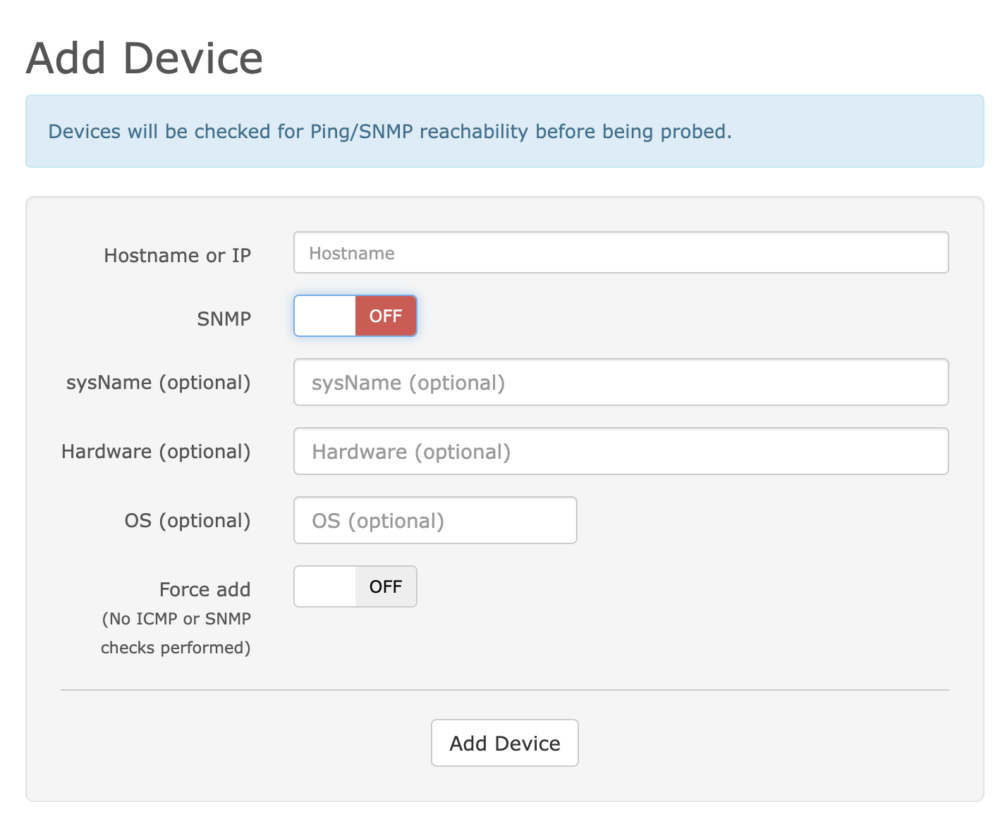
Step1. 先建立 Device

LibreNMS 的健康度測試是一個一個 Services 要掛在 Device 上面
所以我們要先建立 Device

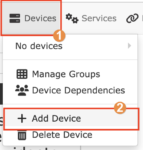
Devices > Add Devices

  • Hostname or IP: 打入一個監控的網址或 IP
  • SNMP: OFF

如果 SNMP 設定是 OFF,會改用 ping 來做測試
如果 SNMP 設定 ON,需要提供 SNMP Version, Community 等資訊

SNMP (Simple Network Management Protocol) 可以視你的情況打開,它會依照協定規範發送 CPU, RAM…等資訊,這部分就不細講了

如果你只需要一個 Device,然後把所有 HTTP 健康度測試,你甚至 IP 用 localhost 都可以。

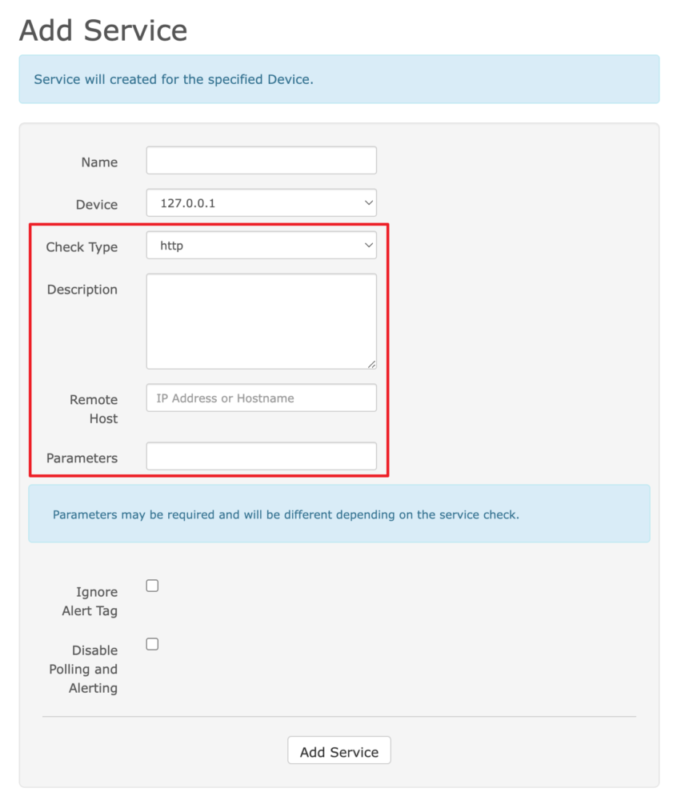
再建立 Service

這邊就是 Nagios plugins 的重頭戲

Services > Add Services

  • Name: 取一個名字
  • Device: 選擇剛剛加入的裝置
  • Check Type: http
  • Description: (可留空)
  • Remote Host: 打入要檢測的網址
  • Parameters: 參數說明,後詳

這邊我覺得就是 LibreNMS 設計不好的地方,出現了一個謎樣的 Parameters 欄位
這個參數格式還要參照另外一個文件知道怎麼使用,很不直覺
(有看到一個討論串,其中之一的作者說要重寫這個部分,可以參與實作

我把文件先放上來
https://nagios-plugins.org/doc/man/check_http.html

列一些比較常用或重要的參數:

  • -p 8080 :設定 連接埠 (port) 號,例如 8080
  • -S :使用 SSL 加密協定 (https) ,若只是 http 不用加此參數
  • --sni:使用 Server Name Indication (SNI) 伺服器名稱指示
    開啟後它才可以正確辨別第二階層的 DNS 位址,例如主域名是 example.com 底下有二個子域名 blogmyhome
    沒有開啟 sni 的時候,blog.example.commyhome.example.com 都會被視為一個 example.com
    而造成不如預期的結果,如果第二層域名,要打開這個選項,個人建議不管有沒有第二層域名,直接打開該選項
  • -u /example/path :如果你有參數需要寫這裡
  • -s "testString" :設定 Response 的關鍵字檢測,有出現該關鍵字才算正確,例如有出現 testString 關鍵字才算正確
  • -f follow :跟隨轉址 (Follow redirect),假設有一個首頁直接呼叫它,會回應 302 Redirect,它會繼續轉址直到停止控制時才會做前者的關鍵字檢測
  • -e 403 :原始 HTTP 封包的關鍵字檢測,例如有個 Endpoint 永遠不會回 200 OK,
    而是回應 403 forbidden,你就可以加 -e 403 設定檢測規則
  • -v:使用 verbose 模式,可以看到更多的訊息,可以看到原始的 HTTP 封包

手動測試步驟

剛剛有提過, LibreNMS 是透過 Nagios plugins 來實現 HTTP 健康度監控的
它安裝在 container 裡面的 /usr/lib/nagios/plugins (可能會依版本不同而路徑不同)
如果你要手動測試,你可以參照以下步驟

  1. 用 docker ps 或者 docker-compose ps 找到你該容器 ID
# docker ps
% docker ps
CONTAINER ID   IMAGE                              COMMAND                  CREATED        STATUS                PORTS                                                                                                                             NAMES
b6064b0ae371   jarischaefer/docker-librenms       "/sbin/my_init"          34 hours ago   Up 34 hours           443/tcp, 0.0.0.0:9001->80/tcp, :::9001->80/tcp                                                                                    librenms-web-1
f7e81da94af5   mariadb:10.5                       "docker-entrypoint.s…"   34 hours ago   Up 34 hours           3306/tcp                                                                                                                          librenms_database

以這個範例來說就是,該 container ID 為 b6064b0ae371

  1. 進入該容器
# docker exec -it b6064b0ae371 /bin/bash

進入容器後,切到 /usr/lib/nagios/plugins 目錄

# cd /usr/lib/nagios/plugins

然後你就會找到 ./check_http 你可以對他做測試
例如以下的幾個實例可以快速進入狀況

附註:在容器內找不到 ./check_http 程式?

如果在容器內找不到 ./check_http 程式
可以找尋看看 /opt/librenms/config.php 這個設定檔

可能會找到這段

$config['nagios_plugins'] = "/usr/lib/nagios/plugins";

這邊就有記載著 nagios_plugins 它的路徑

或者你的 nagios_plugins 沒有安裝,可能要參考文件手動安裝

舉一些範例

我把 LibreNMS 設定參數與測試指令放在一起做對照

檢測 http 連結

檢測 http 連結,例如 http://192.168.1.1:8080/hello ,其中須包含 Hello 字樣

  • Remote Host: 192.168.1.1
  • Parameters: -p 8080 -f follow -s "Hello" -u "/hello"
測試指令

這裡列出前述方法的測試指令與執行結果,供大家參考

./check_http -H 192.168.1.1 -p 8080 -s "Hello" -u "/hello" -f follow
HTTP OK: HTTP/1.1 200 OK - 235 bytes in 0.025 second response time |time=0.024936s;;;0.000000;10.000000 size=235B;;;0
參數說明
  • -H 192.168.1.1:指定 Host name 為 192.168.1.1
  • -p 8080 :設定 連接埠 (port) 號,為 8080
  • -u /hello :指定 Path 為 /hello
  • -f follow :跟隨轉址 (Follow redirect)
  • -s "hello" :有出現 hello 關鍵字才算成功

檢測 https 連結

檢測 https 連結,例如 https://google.com/ ,其中須包含 Google 字樣

  • Remote Host: google.com
  • Parameters: -S --sni -f follow -u "/" -s "Google"
測試指令

這裡列出前述方法的測試指令與執行結果,供大家參考

./check_http -H google.com -S --sni -f follow -u "/" -s "Google"
HTTP OK: HTTP/1.1 200 OK - 21613 bytes in 0.555 second response time |time=0.555301s;;;0.000000;10.000000 size=21613B;;;0
參數說明
  • -H google.com:指定 Host name 為 google.com
  • -S :使用 SSL 加密協定 (https)
  • --sni:使用 Server Name Indication (SNI) 伺服器名稱指示
  • -f follow :跟隨轉址 (Follow redirect)
  • -u / :指定 Path 為 / (在這個範例可省略)
  • -s "Google" :有出現 Google 關鍵字才算成功

檢查 POST API (x-www-form-urlencoded)

這個範例可能比較少用,但還是附上來

檢查 POST API,例如 POST 到 https://httpbin.org/post ,參數為 aaa=bbb (x-www-form-urlencoded) ,其中須包含 origin 字樣

  • Remote Host: httpbin.org
  • Parameters: -S --sni -f follow -u "/post" -P "aaa=bbb" -s "origin"
測試指令
./check_http -H httpbin.org -S --sni -f follow -u "/post" -P "aaa=bbb" -s "origin"
HTTP OK: HTTP/1.1 200 OK - 662 bytes in 3.446 second response time |time=3.446157s;;;0.000000;10.000000 size=662B;;;0
參數說明
  • -H httpbin.org:指定 Host name 為 httpbin.org
  • -S :使用 SSL 加密協定 (https)
  • --sni:使用 Server Name Indication (SNI) 伺服器名稱指示
  • -f follow :跟隨轉址 (Follow redirect)
  • -u /post :指定 Path 為 /post
  • -P "aaa=bbb" :設定 POST 參數,aaa=bbb (x-www-form-urlencoded)
  • -s "origin" :有出現 origin 關鍵字才算成功

檢查 POST API (json)

檢查 POST API,例如 POST 到 https://httpbin.org/post ,參數為 {"aaa":"bbb"} (application/json) ,其中須包含 origin 字樣

  • Remote Host: httpbin.org
  • Parameters: -S --sni -f follow -u "/post" -T "Content-Type:application/json" -P "{\"aaa\": \"bbb\"}" -s "origin"
測試指令
./check_http -H httpbin.org -S --sni -f follow -u "/post" -T "Content-Type:application/json" -P "{\"aaa\": \"bbb\"}" -s "origin"
HTTP OK: HTTP/1.1 200 OK - 676 bytes in 1.333 second response time |time=1.332586s;;;0.000000;10.000000 size=676B;;;0
參數說明
  • -H httpbin.org:指定 Host name 為 httpbin.org
  • -S :使用 SSL 加密協定 (https)
  • --sni:使用 Server Name Indication (SNI) 伺服器名稱指示
  • -f follow :跟隨轉址 (Follow redirect)
  • -u /post :指定 Path 為 /post
  • -T "Content-Type:application/json" :設定 POST 參數的 Content-Type 為 application/json
  • -P "{\"aaa\": \"bbb\"}" :設定 POST 參數,{"aaa": "bbb"} (application/json)
  • -s "origin" :有出現 origin 關鍵字才算成功

檢查 HTTP 狀態碼

在有些時候,別的團隊沒有特別做出 health check API,但我們還是可以做檢查
例如我們可以找一個 API 可能會回應 404 not found
我們就拿這個方式來檢查

註: 404 不等於網路接不上,404 是網路「有接上」,但是沒有這個頁面
如果是網路接不上,會是 timeout,而這就是我們要檢查的

檢查 HTTP 狀態碼,例如 https://httpbin.org/status/404 ,狀態碼為 404

  • Remote Host: httpbin.org
  • Parameters: -S --sni -f follow -u "/status/404" -e 404
測試指令

這裡列出前述方法的測試指令與執行結果,供大家參考

./check_http -H httpbin.org -S --sni -f follow -u "/status/404" -e 404
HTTP OK: Status line output matched "404" - 238 bytes in 2.494 second response time |time=2.493861s;;;0.000000;10.000000 size=238B;;;0
參數說明
  • -H httpbin.org:指定 Host name 為 httpbin.org
  • -S :使用 SSL 加密協定 (https)
  • --sni:使用 Server Name Indication (SNI) 伺服器名稱指示
  • -f follow :跟隨轉址 (Follow redirect)
  • -u /status/404 :指定 Path 為 /status/404
  • -e 404 :狀態碼有出現 404 關鍵字才算成功

檢查 SSL 憑證期限

檢查 SSL 憑證是否有到期,例如 https://example.com/ 的憑證期限

  • Remote Host: example.com
  • Parameters: --sni -S -C 30,10
測試指令

這裡列出前述方法的測試指令與執行結果,供大家參考

./check_http -H example.com --sni -S -C 30,10
OK - Certificate 'www.example.org' will expire on Sat Mar  1 23:59:59 2025 +0000.
參數說明
  • -H example.com:指定 Host name 為 example.com
  • --sni:使用 Server Name Indication (SNI) 伺服器名稱指示
  • -S :使用 SSL 加密協定 (https) 
  • -C 30,10 :設定過期時限通知,30 天標黃色,10 天標紅色

個人小結

這邊做一個小總結與加上一點個人建議
關於 HTTP 健康度測量這部分,我覺得 LibreNMS 設定上比較沒那麼直覺,
可能等待有緣人來修改這段的程式碼

個人可以給出一些設定上的小建議

  • 測試指令原本寫 -H 的地方,在 LibreNMS 中就寫在 Remote Host 的地方
  • 使用 -u 參數指令後續的路徑
  • 建議不管有沒有第二層子網域都加上 --sni 參數,避免網域被合併而測不到的情境
  • 建議可以加上 -f follow 參數,自動做頁面轉導,避免頁面需要轉導跳出 301 moved permanently 造成不預期的情境
  • 有 https 請加上 -S 參數
  • 如果回應不是 200 OK,使用 -e 參數指定 Response 應看到的 http status code
    例如 -e 404 代表瀏覽該頁面應該要看到 404 not found
    (網路不通等待到 timeout 跟看到 404 有所不同,前者網路不通,後者網路有通但無此頁面)
  • 如果有特定的關鍵字,可以使用 -s 參數指定,例如 -s "Hello" 代表要看到 Hello 字樣才算成功
  • 如果要測試語法,可以用 ./check_http -v 使用 verbose 模式,可以看到更多的訊息,還可以看到原始的 HTTP 封包

希望這篇文章能有所幫助,祝大家設定愉快!

參考資料

Kubernetes (K8s) 地端伺服器建置實錄 – RedHat 篇

在當今的雲端時代,Kubernetes(簡稱 K8s)作為 Open source 的 container (容器) 編排平台,已經成為許多企業和開發者的首選。它為應用程式的部署、擴展和管理提供了一個強大且靈活的解決方案。
本篇文章將詳細介紹如何在地端 (On-premise, self-host) 伺服器上搭建 Kubernetes 環境,我們將介紹所有必要的步驟,包括環境設置、安裝必要的套件、建立節點與部署應用程式。這將是一個完整的實錄,讓讀者能夠透過這篇文章深入瞭解 K8s 的建置與運作。


為何會再次寫這篇文章?

後來發現 RedHat ( RHEL / RockyLinux ) 的指令跟 Ubuntu 有一些差異,
遇到的情況也略為不同,我覺得蠻值得再寫一次的。

當然,還是推薦使用 虛擬機 (Virtual machine, VM) 來建置,
你可以用你喜歡的虛擬機程式來架設,例如 VMWare Workstation, VirtualBox 都可以,我是使用 Promox VE 裡面的 VM 功能來完成。

如果有看過前一篇的話,這個方式安裝方式為 Bare-metal (裸金屬、裸機)的安裝方式。
這個也叫做 Vanilla Kubernetes (翻譯:單純的 Kubernetes 安裝)。

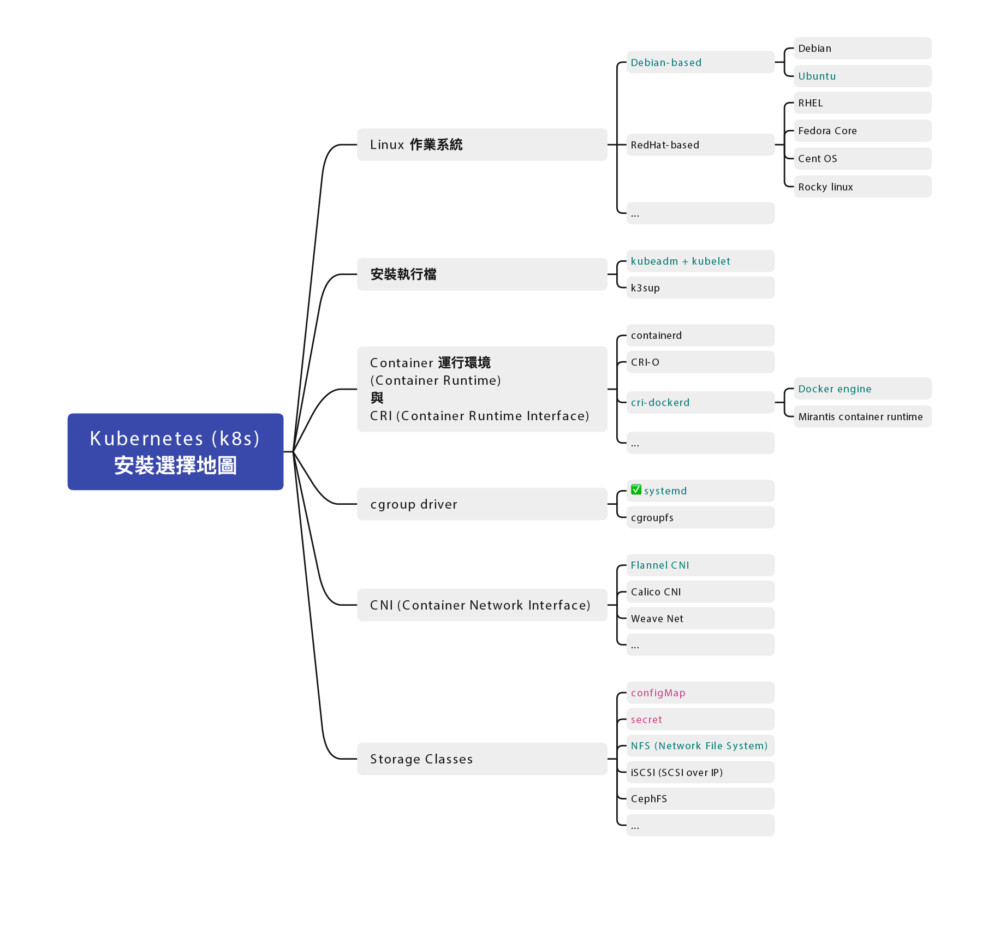
安裝地圖

Docker 跟 Kubernetes (K8s) 發展至今,百家爭鳴,門派也很多,
安裝部署方式也不盡相同,為了避免初學者混肴,
先幫你預先選好各種所需要的元件:

示範的作業系統

  • RockyLinux 9.2 對應到 RHEL (Redhat Enterprise Linux) 9.2

    服務們

  • kubelet

  • Container 運行環境 (Container Runtime):docker

  • cgroup drivers: 確認為 systemd (cgroup drivers v2)

  • CRI (Container Runtime Interface):使用 cri-dockerd

  • CNI (Container Network Interface):使用 Flannel

指令們

  • kubectl
  • kubeadm

這篇主要關注在如何架設 Kubernetes 叢集,
除此之外,你還需要一個配合的共用儲存空間,叢集都可以存取到的儲存空間(檔案伺服器)
可以用 TrueNAS 架設一個。

虛擬機硬體建置

這邊是我 虛擬機 (VM) 的硬體部分建置設定

  • 2 CPU
  • 4GB Ram
  • 8GB Disk 以上,建議 10GB 較穩定

註1:經過測試,不要用 Proxmox VE 裡的 LXC Container 功能架設,
會有非常多的問題,包含權限切不乾淨等。

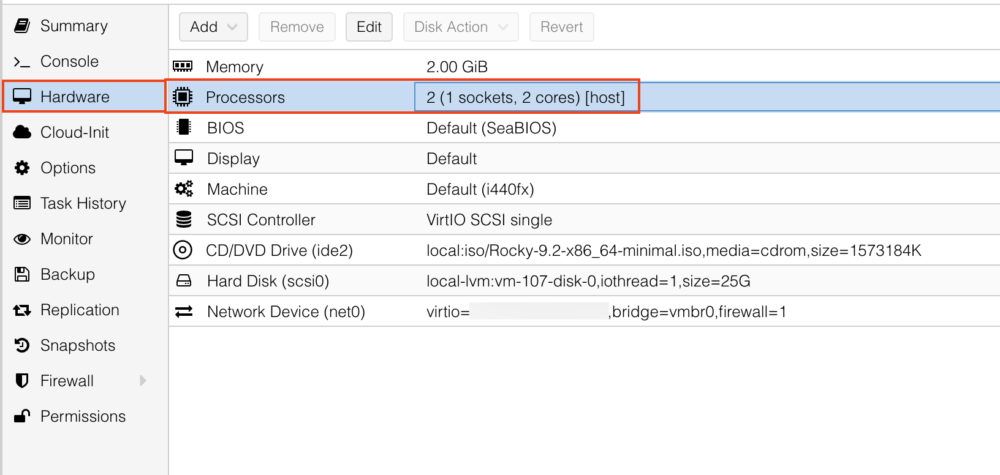
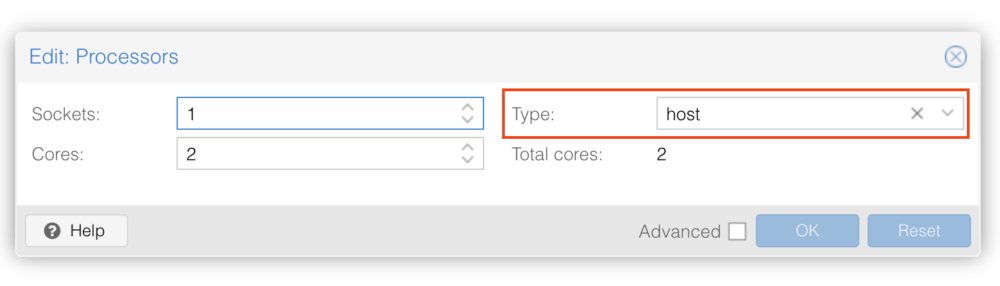
註2:使用 Proxmox VE 預設參數會遇到 Kernel panic 問題,
進入虛擬機 Hardware > Processors 選項,將 Type 改為 host 就會正常。

到時候要建立三台 VM,一台 Control Node 跟二台 Worker Node ,這是最小叢集的配置。
可以先安裝一個母版,到時候用複製 VM 的方式來達成。

虛擬機作業系統 – RockyLinux

示範使用的 RedHat 版本為社群版的 RockyLinux 9.2
使用 minimal 最小安裝

安裝細節就不贅述。

<每台都做> 關掉 swap

這步驟不分角色,三台都要做

https://kubernetes.io/docs/setup/production-environment/tools/kubeadm/install-kubeadm/

根據 kubeadm 的安裝文件,他有特別指示

MUST disable swap in order for the kubelet to work properly.

必須要關掉 swap 才能正確運作。
(K8s 新版 1.28 更新後,可以在有限制的情況下使用 swap,個人還是建議把它關掉)

所以我們用以下步驟永久關閉 Swap

  1. sed 指令找尋 swap 片段,並加上註解
sudo sed -i '/ swap /s/^/#/g' /etc/fstab
  1. 然後重新載入磁區
sudo mount -a

暫時關閉 swap 可以用 swapoff 指令

sudo swapoff -a

⭐️ 後記:調整 vm.swappiness 的值為零只能降低 swap 使用優先權,並不能完全關閉 swap 故移除該指令

sudo sysctl -w vm.swappiness=0

⭐️ 注意:如果您把 swap 磁區完全刪除的話,注意 GRUB 開機參數中是否殘留 swap 參數。

可用 grubby 指令來查看目前的開機參數

sudo grubby --info DEFAULT

可能會得到類似的結果(這邊以 RockyLinux 9.5 為例)

index=0
kernel="/boot/vmlinuz-5.14.0-503.14.1.el9_5.x86_64"
args="ro crashkernel=1G-4G:192M,4G-64G:256M,64G-:512M resume=/dev/mapper/rl_rk8--ctrl-swap 
rd.lvm.lv=rl_rk8-ctrl/root rd.lvm.lv=rl_rk8-ctrl/swap"
root="/dev/mapper/rl_rk8--ctrl-root"
initrd="/boot/initramfs-5.14.0-503.14.1.el9_5.x86_64.img"
title="Rocky Linux (5.14.0-503.14.1.el9_5.x86_64) 9.5 (Blue Onyx)"
id="11732e333bc94575b1636210b0a72f03-5.14.0-503.14.1.el9_5.x86_64"

這邊看到 resume=/dev/mapper/rl_rk8--ctrl-swaprd.lvm.lv=rl_rk8-ctrl/swap 就是殘留的 swap 參數,( swap 磁區名稱有可能跟我的不同,請依照實際情況調整)

一樣使用 grubby 指令移除

sudo grubby --update-kernel=ALL --remove-args="resume=/dev/mapper/rl_rk8--ctrl-swap rd.lvm.lv=rl_rk8-ctrl/swap"

雖然要移除前後這二個 swap 指令,但 
rd.lvm.lv=rl_rk8-ctrl/root 這個參數是要保留的,
如果誤刪除會「無法開機」要注意。

如果來不及移除該參數,已經進入救援模式 (rescue mode) 的話,也不要著急,
重新開機,在 GRUB 開機選單中,按 e 做臨時開機參數修改,找到上述二個參數刪除後,
按下 F10 繼續開機,就可以執行上述的 grubby 指令了。

確認 swap

可以用以下指令查看 swap

free

或者

cat /proc/swaps

應該要找不到 swap 才正確

<每台都做> 安裝 Docker

Docker 不分角色,三台都要裝

安裝文件:
https://docs.docker.com/engine/install/centos/
https://docs.docker.com/engine/install/rhel/

小弟整理的一鍵安裝指令
(科技發展迅速,整理的安裝文件有可能會過時,如果有更新版,請參考官方文件)

sudo yum install -y yum-utils && \
sudo yum-config-manager --add-repo https://download.docker.com/linux/rhel/docker-ce.repo && \
sudo yum install -y docker-ce docker-ce-cli containerd.io docker-buildx-plugin docker-compose-plugin

(這個部分的指令跟 Ubuntu 不一樣)

修改 daemon.json 讓跳開預設網段
(如果沒有該檔案請自行新增之)

sudo vi /etc/docker/daemon.json

內容為

{
  "log-driver": "json-file",
  "log-opts": {
    "tag": "{{.Name}}",
    "max-size": "2m",
    "max-file": "2"
  }
}

設定預設開機啟動,並立即啟動

sudo systemctl enable --now docker

驗證 Docker

可用 systemctl 指令查看是否有正常執行

sudo systemctl status docker

看看是否有 Running

可以用 docker ps 查看目前所有運行中的 container

docker ps

是否能夠正常顯示列表,若是初次安裝,列表是空的很正常。

Docker 版本

留下當時截稿的 Docker 版本給大家參考

# docker version
Client: Docker Engine - Community
 Version:           24.0.6
 API version:       1.43
 Go version:        go1.20.7
 Git commit:        ed223bc
 Built:             Mon Sep  4 12:33:18 2023
 OS/Arch:           linux/amd64
 Context:           default

Server: Docker Engine - Community
 Engine:
  Version:          24.0.6
  API version:      1.43 (minimum version 1.12)
  Go version:       go1.20.7
  Git commit:       1a79695
  Built:            Mon Sep  4 12:31:49 2023
  OS/Arch:          linux/amd64
  Experimental:     false
 containerd:
  Version:          1.6.24
  GitCommit:        61f9fd88f79f081d64d6fa3bb1a0dc71ec870523
 runc:
  Version:          1.1.9
  GitCommit:        v1.1.9-0-gccaecfc
 docker-init:
  Version:          0.19.0
  GitCommit:        de40ad0

<每台都做> 安裝 kubeletkubeadmkubectl 三兄弟

安裝文件:
https://kubernetes.io/docs/setup/production-environment/tools/kubeadm/install-kubeadm/

小弟整理的安裝指令

sudo setenforce 0 && \
sudo sed -i 's/^SELINUX=enforcing$/SELINUX=permissive/' /etc/selinux/config && \
cat <<EOF | sudo tee /etc/yum.repos.d/kubernetes.repo
[kubernetes]
name=Kubernetes
baseurl=https://pkgs.k8s.io/core:/stable:/v1.28/rpm/
enabled=1
gpgcheck=1
gpgkey=https://pkgs.k8s.io/core:/stable:/v1.28/rpm/repodata/repomd.xml.key
exclude=kubelet kubeadm kubectl cri-tools kubernetes-cni
EOF && \
sudo yum install -y yum-plugin-versionlock && \
sudo yum install -y kubelet-1.28.2 kubeadm-1.28.2 kubectl-1.28.2 --disableexcludes=kubernetes && \
sudo yum versionlock kubectl kubeadm kubelet && \
sudo systemctl enable --now kubelet

(科技發展迅速,整理的安裝文件有可能會過時,如果有更新版,請參考官方文件)

(這個部分跟 Ubuntu 不一樣)

目前安裝的版本是 kubelet v1.28.2

⭐️ 後記:因為有遇到雷,
不小心升級了 kubelet & kubeadm & kubectl 但 image 沒有升級,
所以一鍵安裝指令有小修改,加上 yum-plugin-versionlock 套件,與使用 yum versionlock 的擴充指令來鎖住版本(跟官網不一樣)

sudo yum install -y yum-plugin-versionlock && \
sudo yum install -y kubelet-1.28.2 kubeadm-1.28.2 kubectl-1.28.2
sudo yum versionlock kubectl kubeadm kubelet

解除版本鎖定也很簡單

sudo yum versionlock delete kubelet-1.28.2 kubeadm-1.28.2 kubectl-1.28.2

就跟以前一樣了。

<每台都做> 手動編譯安裝 Container Runtime Interface (CRI) – cri-dockerd

這步驟不分角色,三台都要裝

https://kubernetes.io/docs/setup/production-environment/container-runtimes/

我們用 Docker Engine 推薦的 cri-dockerd

說明文件:
https://kubernetes.io/docs/tasks/administer-cluster/migrating-from-dockershim/migrate-dockershim-dockerd/#what-is-cri-dockerd

用 rpm 檔案安裝

若是 RHEL 7.9 (CentOS 7-2009) 可以使用 cri-dockerd-0.3.6.20231018204925.877dc6a4-0.el7.x86_64.rpm若是 RHEL 8.8 (RockyLinux 8.8) 可以使用 cri-dockerd-0.3.6.20231018204925.877dc6a4-0.el8.x86_64.rpm

wget https://github.com/Mirantis/cri-dockerd/releases/download/v0.3.6/cri-dockerd-0.3.6.20231018204925.877dc6a4-0.el8.x86_64.rpm
sudo rpm -ivh cri-dockerd-0.3.6.20231018204925.877dc6a4-0.el8.x86_64.rpm

若是 RHEL 9.2 (RockyLinux 9.2) 沒有對應的 rpm 可以裝
所以用手動編譯的方式進行

從官網手動安裝 Golang

若是 RHEL 9.4 (RockyLinux 9.4) 一樣沒有對應的 rpm 可以裝
然後新版 cri-dockerd 又要求新版 Golang(1.22.0 以上)才能編譯
但 RHEL 9.4 的 golang 套件沒這麼新,才到 go1.21.13 而已,但官網最新版是 1.23.2
所以我們需要岔題一下手動安裝 Golang

到 Golang 的官網下載最新版本的 Golang 例如 1.23.2

wget https://go.dev/dl/go1.23.2.linux-amd64.tar.gz

解壓縮 go1.23.2.linux-amd64.tar.gz 檔案,會得到 go 資料夾,把他搬到對應位置

tar zxvf go1.23.2.linux-amd64.tar.gz
sudo mv go /usr/lib/golang

然後建立捷徑

sudo ln -s /usr/lib/golang/bin/go /usr/bin/go

使用 go version 來確認版本

go version

執行紀錄

$ go version
go version go1.23.2 linux/amd64

手動編譯安裝 cri-dockerd

若是 RHEL 9.2 (RockyLinux 9.2), RHEL 9.4 (RockyLinux 9.4) 沒有對應的 rpm 可以裝
所以用手動編譯的方式進行

以下是官方文件提供的步驟
https://github.com/mirantis/cri-dockerd#build-and-install

先安裝必要套件

sudo yum install -y make go

如果 yum 給的 golang 版本不夠新,需要手動安裝 golang,步驟在上方

git clone 最新的版本

git clone https://github.com/Mirantis/cri-dockerd.git

編譯它 (compile)

cd cri-dockerd && \
make cri-dockerd

安裝

cd cri-dockerd && \
mkdir -p /usr/local/bin && \
install -o root -g root -m 0755 cri-dockerd /usr/local/bin/cri-dockerd && \
install packaging/systemd/* /etc/systemd/system && \
sed -i -e 's,/usr/bin/cri-dockerd,/usr/local/bin/cri-dockerd,' /etc/systemd/system/cri-docker.service

然後請 systemctl 重新載入 daemon
最後啟動服務

sudo systemctl daemon-reload && \
sudo systemctl enable --now cri-docker

如果是服務更新版本,需要重啟服務

sudo systemctl restart cri-docker

驗證 cri-docker

可用 systemctl 指令確認是否有正常運行

sudo systemctl status cri-docker

確認有 Running

確認版本號

cri-dockerd --version

執行結果

$ cri-dockerd --version
cri-dockerd 0.3.12-16-gebd9de06 (ebd9de06)

裝完就會有 unix:///var/run/cri-dockerd.sock


這邊補充,其實有網友發了 Pull request,但一直沒過
https://github.com/Mirantis/cri-dockerd/pull/394
也有網友詢問 RHEL 9.4 與 Ubuntu 24.04 的做法
RHEL 9.4
https://github.com/Mirantis/cri-dockerd/issues/368
Ubuntu 24.04
https://github.com/Mirantis/cri-dockerd/issues/361

複製虛擬機 (VM)

這邊步驟就是將單純的將 虛擬機 (VM) 複製二份成三台,並全部啟動。
以下分別闡述複製完要做的事情

重新產生 Machine-id

用以下指令重新產生 Machine-id

sudo rm /etc/machine-id && \
sudo systemd-machine-id-setup

修改 Hostname (主機名稱)

sudo vi /etc/hostname

分別改成對應的主機名稱

重新設定 ssh,產生全新的 known-host

sudo rm -f /etc/ssh/ssh_host_* && sudo ssh-keygen -A

(這個部分的指令跟 Ubuntu 不一樣)

確認 Machine-id

sudo cat /sys/class/dmi/id/product_uuid

確認 Hostname

hostname

確認網卡 Mac address 位址

ip link

如果是有 DHCP 的話,可以用路由器 dhcp static lease (固定分配 IP)

然後可以用 dhclient 指令重新取 DHCP 的 IP

sudo dhclient -r

用 verbose 來看細節

sudo dhclient -v

註:RockyLinux 9.2 預設沒有安裝 dhclient 指令
需要另外用 yum 安裝

sudo yum install -y dhcp-client

<每台都做> 設定主機對應

叢集的三台機器做出來,還不知道彼此,
這邊用 /etc/hosts 檔案來讓主機們各自找到彼此

sudo vi /etc/hosts

根據每台主機的 IP 位址與主機名稱

192.168.1.100   k8s-ctrl
192.168.1.101   k8s-node1
192.168.1.102   k8s-node2

IP 位址在前,主機名稱在後,用 tab 分隔。

先整理好內容,再各自寫在每一台上面,每一台主機都會看到同一份資料。

確認 cgroup drivers 為 systemd

(這整個段落可以跳過,因為 cgroup drivers 預設已經是 systemd 了)

https://stackoverflow.com/questions/45708175/kubelet-failed-with-kubelet-cgroup-driver-cgroupfs-is-different-from-docker-c

直接講結論,目前最新使用的是 systemd (cgroup Version: 2)

查看 docker 的 cgroup

docker info | grep -i cgroup

執行結果

# docker info | grep -i cgroup

 Cgroup Driver: systemd
 Cgroup Version: 2
  cgroupns

查看 kubelet 的 cgroup

sudo cat /var/lib/kubelet/config.yaml | grep cgroup

執行結果

$ sudo cat /var/lib/kubelet/config.yaml | grep cgroup

cgroupDriver: systemd

可以確認是否為 systemd (cgroup Version: 2)

如果 docker 不為 systemd

可以在 daemon.json手動加上

sudo vi /etc/docker/daemon.json

這個段落

 "exec-opts": [
    "native.cgroupdriver=systemd"
  ],

重啟 docker

sudo systemctl restart docker

如果 kubelet 不為 systemd 就手動修改之

sudo vi /var/lib/kubelet/config.yaml

重啟 kubelet

sudo systemctl restart kubelet

<每台都做> 設定網路雜項值

根據文件:
https://kubernetes.io/docs/setup/production-environment/container-runtimes/#forwarding-ipv4-and-letting-iptables-see-bridged-traffic

這邊設定網路連線轉發 IPv4 位址並讓 iptables 查看橋接器的流量

用文件提供的指令操作,等等一句一句解釋:

cat <<EOF | sudo tee /etc/modules-load.d/k8s.conf
overlay
br_netfilter
EOF

請 Kubernetes (K8s) 引用載入 br_netfilteroverlay 二個核心模組

sudo modprobe overlay && \
sudo modprobe br_netfilter

啟用 br_netfilteroverlay 二個核心模組

cat <<EOF | sudo tee /etc/sysctl.d/k8s.conf
net.bridge.bridge-nf-call-iptables  = 1
net.bridge.bridge-nf-call-ip6tables = 1
net.ipv4.ip_forward                 = 1
EOF

設定轉發 IPv4 位址,讓 iptables 查看橋接器的流量

sudo sysctl --system

再不起重新啟動電腦情況下,套用設定值

檢查驗證

檢查 br_netfilteroverlay 二個核心模組有沒有被正確載入可以用以下二個指令

lsmod | grep br_netfilter && \
lsmod | grep overlay

檢查

  • net.bridge.bridge-nf-call-iptables
  • net.bridge.bridge-nf-call-ip6tables
  • net.ipv4.ip_forward 

這幾個系統變數是否有設定為 1,可以用 sysctl 指令來檢查:

sysctl net.bridge.bridge-nf-call-iptables net.bridge.bridge-nf-call-ip6tables net.ipv4.ip_forward

設定 Control plane node(控制平台) (舊名 Master node)

終於要來設定 Control plane (控制平台) 了,如果有其他教學看到 Master node 的話,
別擔心,指的是同一件事情。

利用 kubeadm init 指令來初始化,並代入這些參數:

sudo kubeadm init \
    --kubernetes-version 1.28.2 \
    --control-plane-endpoint=192.168.1.100 \
    --apiserver-advertise-address=192.168.1.100 \
    --node-name k8s-ctrl \
    --apiserver-bind-port=6443 \
    --pod-network-cidr=10.244.0.0/16 \
    --cri-socket unix:///var/run/cri-dockerd.sock

參數說明

  • control-plane-endpoint
    指明 Control plane (控制平台) 是哪個網址,這邊設定好目前這台 IP 位址即可,假設為 192.168.1.100
    (這設定值可省略)
  • apiserver-advertise-address
    指明 API server 的廣播地址,預設就是 Control plane (控制平台) IP 位址,假設為 192.168.1.100
    (這設定值可省略)
  • node-name
    指明 Control plane (控制平台) 的名字,這裡跟主機名稱一致即可。
  • apiserver-bind-port
    指明 Kubernetes API server 的連接埠 (port) 號,預設是 6443,可以依需求變更。
  • pod-network-cidr
    指明 pod 內部網路使用的網段,這邊因為配合 Flannel CNI,請保留 10.244.0.0/16 請不要修改
  • cri-socket
    指明使用的 CRI 使用 unix:///var/run/cri-dockerd.sock 這設定值 請不要修改

記錄一下運作的樣子

# kubeadm init \
    --control-plane-endpoint=192.168.1.100 \
    --apiserver-advertise-address=192.168.1.100 \
    --node-name k8s-ctrl \
    --apiserver-bind-port=6443 \
    --pod-network-cidr=10.244.0.0/16 \
    --cri-socket unix:///var/run/cri-dockerd.sock

[[init] Using Kubernetes version: v1.28.2
[preflight] Running pre-flight checks
        [WARNING Firewalld]: firewalld is active, please ensure ports [6443 10250] are open or your cluster may not function correctly
        [WARNING Service-Kubelet]: kubelet service is not enabled, please run 'systemctl enable kubelet.service'
[preflight] Pulling images required for setting up a Kubernetes cluster
[preflight] This might take a minute or two, depending on the speed of your internet connection
[preflight] You can also perform this action in beforehand using 'kubeadm config images pull'
W1019 08:18:09.599064    3875 checks.go:835] detected that the sandbox image "registry.k8s.io/pause:3.6" of the container runtime is inconsistent with that used by kubeadm. It is recommended that using "registry.k8s.io/pause:3.9" as the CRI sandbox image.
[certs] Using certificateDir folder "/etc/kubernetes/pki"
[certs] Generating "ca" certificate and key
[certs] Generating "apiserver" certificate and key
[certs] apiserver serving cert is signed for DNS names [kubernetes kubernetes.default kubernetes.default.svc kubernetes.default.svc.cluster.local rk8-ctrl] and IPs [10.96.0.1 192.168.1.100]
[certs] Generating "apiserver-kubelet-client" certificate and key
[certs] Generating "front-proxy-ca" certificate and key
[certs] Generating "front-proxy-client" certificate and key
[certs] Generating "etcd/ca" certificate and key
[certs] Generating "etcd/server" certificate and key
[certs] etcd/server serving cert is signed for DNS names [localhost rk8-ctrl] and IPs [192.168.1.100 127.0.0.1 ::1]
[certs] Generating "etcd/peer" certificate and key
[certs] etcd/peer serving cert is signed for DNS names [localhost rk8-ctrl] and IPs [192.168.1.100 127.0.0.1 ::1]
[certs] Generating "etcd/healthcheck-client" certificate and key
[certs] Generating "apiserver-etcd-client" certificate and key
[certs] Generating "sa" key and public key
[kubeconfig] Using kubeconfig folder "/etc/kubernetes"
[kubeconfig] Writing "admin.conf" kubeconfig file
[kubeconfig] Writing "kubelet.conf" kubeconfig file
[kubeconfig] Writing "controller-manager.conf" kubeconfig file
[kubeconfig] Writing "scheduler.conf" kubeconfig file
[etcd] Creating static Pod manifest for local etcd in "/etc/kubernetes/manifests"
[control-plane] Using manifest folder "/etc/kubernetes/manifests"
[control-plane] Creating static Pod manifest for "kube-apiserver"
[control-plane] Creating static Pod manifest for "kube-controller-manager"
[control-plane] Creating static Pod manifest for "kube-scheduler"
[kubelet-start] Writing kubelet environment file with flags to file "/var/lib/kubelet/kubeadm-flags.env"
[kubelet-start] Writing kubelet configuration to file "/var/lib/kubelet/config.yaml"
[kubelet-start] Starting the kubelet
[wait-control-plane] Waiting for the kubelet to boot up the control plane as static Pods from directory "/etc/kubernetes/manifests". This can take up to 4m0s
[apiclient] All control plane components are healthy after 6.504831 seconds
[upload-config] Storing the configuration used in ConfigMap "kubeadm-config" in the "kube-system" Namespace
[kubelet] Creating a ConfigMap "kubelet-config" in namespace kube-system with the configuration for the kubelets in the cluster
[upload-certs] Skipping phase. Please see --upload-certs
[mark-control-plane] Marking the node rk8-ctrl as control-plane by adding the labels: [node-role.kubernetes.io/control-plane node.kubernetes.io/exclude-from-external-load-balancers]
[mark-control-plane] Marking the node rk8-ctrl as control-plane by adding the taints [node-role.kubernetes.io/control-plane:NoSchedule]
[bootstrap-token] Using token: ktwf96.9mhdqldhpu3ema54
[bootstrap-token] Configuring bootstrap tokens, cluster-info ConfigMap, RBAC Roles
[bootstrap-token] Configured RBAC rules to allow Node Bootstrap tokens to get nodes
[bootstrap-token] Configured RBAC rules to allow Node Bootstrap tokens to post CSRs in order for nodes to get long term certificate credentials
[bootstrap-token] Configured RBAC rules to allow the csrapprover controller automatically approve CSRs from a Node Bootstrap Token
[bootstrap-token] Configured RBAC rules to allow certificate rotation for all node client certificates in the cluster
[bootstrap-token] Creating the "cluster-info" ConfigMap in the "kube-public" namespace
[kubelet-finalize] Updating "/etc/kubernetes/kubelet.conf" to point to a rotatable kubelet client certificate and key
[addons] Applied essential addon: CoreDNS
[addons] Applied essential addon: kube-proxy

Your Kubernetes control-plane has initialized successfully!

To start using your cluster, you need to run the following as a regular user:

  mkdir -p $HOME/.kube
  sudo cp -i /etc/kubernetes/admin.conf $HOME/.kube/config
  sudo chown $(id -u):$(id -g) $HOME/.kube/config

Alternatively, if you are the root user, you can run:

  export KUBECONFIG=/etc/kubernetes/admin.conf

You should now deploy a pod network to the cluster.
Run "kubectl apply -f [podnetwork].yaml" with one of the options listed at:
  https://kubernetes.io/docs/concepts/cluster-administration/addons/

You can now join any number of control-plane nodes by copying certificate authorities
and service account keys on each node and then running the following as root:

  kubeadm join 192.168.1.100:6443 --token cxxxxs.c4xxxxxxxxxxxxd0 \
        --discovery-token-ca-cert-hash sha256:103d7xxxxxxxxxxxxxxxxxxxxxxxxxxxxxxxxxxxxxxxxxxxxxxxxxxxxxx5b1b6 \
        --control-plane

Then you can join any number of worker nodes by running the following on each as root:

kubeadm join 192.168.1.100:6443 --token cxxxxs.c4xxxxxxxxxxxxd0 \
        --discovery-token-ca-cert-hash sha256:103d7xxxxxxxxxxxxxxxxxxxxxxxxxxxxxxxxxxxxxxxxxxxxxxxxxxxxxx5b1b6

開立防火牆 (TCP 6443, TCP 10250)

你會注意到這次有一些警告需要處理

警告訊息: firewalld 有啟動,請記得開 6443, 10250 連接埠 (port)

[WARNING Firewalld]: firewalld is active, please ensure ports [6443 10250] are open or your cluster may not function correctly

我們就來做開防火牆這件事情

sudo firewall-cmd --permanent --zone=public --add-port=6443/tcp && \
sudo firewall-cmd --permanent --zone=public --add-port=10250/tcp

如果前述 Kubernetes API server 的連接埠 (port) 號有修改的話(也就是 --apiserver-bind-port 參數),
這邊也要同步修改。

記得重新載入它

sudo firewall-cmd --reload

確認防火牆

sudo firewall-cmd --list-all-zones

執行 kubelet 服務

有收到一個警告消息:kubelet 服務沒有啟動

[WARNING Service-Kubelet]: kubelet service is not enabled, please run 'systemctl enable kubelet.service'

執行它即可消除

sudo systemctl enable kubelet.service && \
sudo systemctl start kubelet.service

設定 kubectrl 連結

如果沒意外的話,完成之後會看到

Your Kubernetes control-plane has initialized successfully!

別太高興,設定還沒完,先把 kubeadm join 語句先存起來備用

kubeadm join 192.168.1.100:6443 --token cxxxxs.c4xxxxxxxxxxxxd0 \
        --discovery-token-ca-cert-hash sha256:103d7xxxxxxxxxxxxxxxxxxxxxxxxxxxxxxxxxxxxxxxxxxxxxxxxxxxxxx5b1b6

然後依照步驟,
若是 root 使用者,

.bash_profile 或者 .zsh_profile 設定環境變數

export KUBECONFIG=/etc/kubernetes/admin.conf

若是一般使用者,請依照指令依序設定

mkdir -p $HOME/.kube && \
sudo cp -i /etc/kubernetes/admin.conf $HOME/.kube/config && \
sudo chown $(id -u):$(id -g) $HOME/.kube/config

註:加入 token 是有期限的,如果隔太久沒有整個步驟做完,
或者忘記了、被洗掉了,可以用指令重新生成加入指令

kubeadm token create --print-join-command

\<Control plane 做> 安裝 Helm 套件管理程式

Helm 是 Kubernetes (K8s) 所使用的套件管理程式,
類似 apt-get 可以方便我們安裝元件,免去一點設定的雷

Helm 只要裝在 Control plane (舊名 Master node) 就可以了

安裝文件
https://helm.sh/docs/intro/install/

從執行檔直接複製

wget https://get.helm.sh/helm-v3.13.1-linux-amd64.tar.gz
tar zxvf helm-v3.13.1-linux-amd64.tar.gz
cp linux-amd64/helm /usr/local/bin/helm

(科技發展迅速,整理的安裝文件有可能會過時,如果有更新版,請參考官方文件)

也可從 Script 安裝

curl -fsSL -o get_helm.sh https://raw.githubusercontent.com/helm/helm/main/scripts/get-helm-3 && \
chmod 700 get_helm.sh && \
./get_helm.sh

(科技發展迅速,整理的安裝文件有可能會過時,如果有更新版,請參考官方文件)

二者效果相同,擇一安裝即可。

\<Control plane 做> 安裝 Flannel CNI

https://github.com/flannel-io/flannel

使用 Helm 安裝 Flannel,將之安裝在 kube-flannel 的 namespace,可用小弟整理之一鍵安裝指令

Flannel 只要在 Control plane (舊名 Master node) 上面下指令,就會部署到整個叢集。

可以使用以下整理之指令一鍵安裝

kubectl create ns kube-flannel && \
kubectl label --overwrite ns kube-flannel pod-security.kubernetes.io/enforce=privileged && \
helm repo add flannel https://flannel-io.github.io/flannel/ && \
helm install flannel --set podCidr="10.244.0.0/16" --namespace kube-flannel flannel/flannel

(科技發展迅速,整理的安裝文件有可能會過時,如果有更新版,請參考官方文件)

指令意思大致為:

  1. 建立一個 namespace (命名空間)名叫 kube-flannel
  2. 給定 kube-flannel 特權的權限
  3. 加入 repo 網址
  4. 用 helm 安裝 Flannel

設定 Worker node

這下終於可以設定 Worker node 了

還記得剛剛留下來的指令

kubeadm join 192.168.1.100:6443 --token cxxxxs.c4xxxxxxxxxxxxd0 \
    --discovery-token-ca-cert-hash sha256:103d7xxxxxxxxxxxxxxxxxxxxxxxxxxxxxxxxxxxxxxxxxxxxxxxxxxxxxx5b1b6

什麼?忘記了?

可以用指令重新生成加入指令

kubeadm token create --print-join-command

出現 kubeadm join 指令之後,加上指明 cri-socket 就可以執行了

意指加上這行

--cri-socket unix:///var/run/cri-dockerd.sock

變成這樣

sudo kubeadm join 192.168.1.100:6443 
    --token cxxxxs.c4xxxxxxxxxxxxd0 \
    --discovery-token-ca-cert-hash sha256:103d7xxxxxxxxxxxxxxxxxxxxxxxxxxxxxxxxxxxxxxxxxxxxxxxxxxxxxx5b1b6 \
    --cri-socket unix:///var/run/cri-dockerd.sock

記錄一下運作情形

$ kubeadm join 192.168.1.100:6443 
    --token cxxxxs.c4xxxxxxxxxxxxd0 \
    --discovery-token-ca-cert-hash sha256:103d7xxxxxxxxxxxxxxxxxxxxxxxxxxxxxxxxxxxxxxxxxxxxxxxxxxxxxx5b1b6 \
    --cri-socket unix:///var/run/cri-dockerd.sock

[preflight] Running pre-flight checks
[preflight] Reading configuration from the cluster...
[preflight] FYI: You can look at this config file with 'kubectl -n kube-system get cm kubeadm-config -o yaml'
[kubelet-start] Writing kubelet configuration to file "/var/lib/kubelet/config.yaml"
[kubelet-start] Writing kubelet environment file with flags to file "/var/lib/kubelet/kubeadm-flags.env"
[kubelet-start] Starting the kubelet
[kubelet-start] Waiting for the kubelet to perform the TLS Bootstrap...

This node has joined the cluster:
* Certificate signing request was sent to apiserver and a response was received.
* The Kubelet was informed of the new secure connection details.

Run 'kubectl get nodes' on the control-plane to see this node join the cluster.

這樣就加入叢集了

Troubleshoting

若你看到

[preflight] Running pre-flight checks

然後卡住的話,可以加上 -v=5 得到更 verbose 的內容

$ kubeadm join 192.168.1.100:6443 
    --token cxxxxs.c4xxxxxxxxxxxxd0 \
    --discovery-token-ca-cert-hash sha256:103d7xxxxxxxxxxxxxxxxxxxxxxxxxxxxxxxxxxxxxxxxxxxxxxxxxxxxxx5b1b6 \
    --cri-socket unix:///var/run/cri-dockerd.sock -v=5

I1019 08:29:40.569229    2362 join.go:412] [preflight] found NodeName empty; using OS hostname as NodeName
[preflight] Running pre-flight checks
I1019 08:29:40.569740    2362 preflight.go:93] [preflight] Running general checks
I1019 08:29:40.569938    2362 checks.go:280] validating the existence of file /etc/kubernetes/kubelet.conf
I1019 08:29:40.570190    2362 checks.go:280] validating the existence of file /etc/kubernetes/bootstrap-kubelet.conf
I1019 08:29:40.570330    2362 checks.go:104] validating the container runtime
I1019 08:29:40.628420    2362 checks.go:639] validating whether swap is enabled or not
I1019 08:29:40.628538    2362 checks.go:370] validating the presence of executable crictl
I1019 08:29:40.628603    2362 checks.go:370] validating the presence of executable conntrack
I1019 08:29:40.628770    2362 checks.go:370] validating the presence of executable ip
I1019 08:29:40.628809    2362 checks.go:370] validating the presence of executable iptables
I1019 08:29:40.628865    2362 checks.go:370] validating the presence of executable mount
I1019 08:29:40.628925    2362 checks.go:370] validating the presence of executable nsenter
I1019 08:29:40.628980    2362 checks.go:370] validating the presence of executable ebtables
I1019 08:29:40.629025    2362 checks.go:370] validating the presence of executable ethtool
I1019 08:29:40.629060    2362 checks.go:370] validating the presence of executable socat
I1019 08:29:40.629099    2362 checks.go:370] validating the presence of executable tc
I1019 08:29:40.629150    2362 checks.go:370] validating the presence of executable touch
I1019 08:29:40.629212    2362 checks.go:516] running all checks
I1019 08:29:40.639498    2362 checks.go:401] checking whether the given node name is valid and reachable using net.LookupHost
I1019 08:29:40.639703    2362 checks.go:605] validating kubelet version
I1019 08:29:40.704380    2362 checks.go:130] validating if the "kubelet" service is enabled and active
I1019 08:29:40.721619    2362 checks.go:203] validating availability of port 10250
I1019 08:29:40.722091    2362 checks.go:280] validating the existence of file /etc/kubernetes/pki/ca.crt
I1019 08:29:40.722136    2362 checks.go:430] validating if the connectivity type is via proxy or direct
I1019 08:29:40.722196    2362 checks.go:329] validating the contents of file /proc/sys/net/bridge/bridge-nf-call-iptables
I1019 08:29:40.722316    2362 checks.go:329] validating the contents of file /proc/sys/net/ipv4/ip_forward
I1019 08:29:40.722358    2362 join.go:529] [preflight] Discovering cluster-info
I1019 08:29:40.722412    2362 token.go:80] [discovery] Created cluster-info discovery client, requesting info from "192.168.1.100:6443"
I1019 08:29:40.723841    2362 token.go:217] [discovery] Failed to request cluster-info, will try again: Get "https://192.168.1.100:6443/api/v1/namespaces/kube-public/configmaps/cluster-info?timeout=10s": dial tcp 192.168.1.100:6443: connect: no route to host

你會看到類似問題字眼

[discovery] Failed to request cluster-info, will try again: Get "https://192.168.1.100:6443/api/v1/namespaces/kube-public/configmaps/cluster-info?timeout=10s": dial tcp 192.168.1.100:6443: connect: no route to host

就是找不到 192.168.1.100:6443,除了 ping 會通之外,可能檢查防火牆有沒有正確開啟。

查看 kubelet Log

另外這二個指令,對於 kubelet 的啟動不了的問題,也會有一些方向

查看 kubelet 狀態

systemctl status kubelet

查看 kubelet 的 Log

journalctl -xeu kubelet

最後,一個小小經驗談,
--control-plane-endpoint--apiserver-advertise-address 的 IP 可以再次確認是否有打錯字,這也會造成錯誤

重設整個叢集

如果整個叢集有其他問題,做爛了,可以用以下方法重新設定

進到每一台 node 裡面,利用 kubeadm reset 重置,記得代入 cri-socket

如下:

kubeadm reset -f --cri-socket unix:///var/run/cri-dockerd.sock

記錄一下運作情形

$ kubeadm reset -f --cri-socket unix:///var/run/cri-dockerd.sock

[preflight] Running pre-flight checks
W1019 08:24:38.813576    2256 removeetcdmember.go:106] [reset] No kubeadm config, using etcd pod spec to get data directory
[reset] Deleted contents of the etcd data directory: /var/lib/etcd
[reset] Stopping the kubelet service
[reset] Unmounting mounted directories in "/var/lib/kubelet"
[reset] Deleting contents of directories: [/etc/kubernetes/manifests /var/lib/kubelet /etc/kubernetes/pki]
[reset] Deleting files: [/etc/kubernetes/admin.conf /etc/kubernetes/kubelet.conf /etc/kubernetes/bootstrap-kubelet.conf /etc/kubernetes/controller-manager.conf /etc/kubernetes/scheduler.conf]

The reset process does not clean CNI configuration. To do so, you must remove /etc/cni/net.d

The reset process does not reset or clean up iptables rules or IPVS tables.
If you wish to reset iptables, you must do so manually by using the "iptables" command.

If your cluster was setup to utilize IPVS, run ipvsadm --clear (or similar)
to reset your system's IPVS tables.

The reset process does not clean your kubeconfig files and you must remove them manually.
Please, check the contents of the $HOME/.kube/config file.

它會提示你,有些防火牆規則並不會完全刪掉

可以刪掉 cni 資料夾來重置

rm -rf /etc/cni/net.d

對應文件:
https://kubernetes.io/docs/reference/setup-tools/kubeadm/kubeadm-reset/

\<Control plane 做> 測試檢查叢集

測試 Kubernetes 是否正常運作,
在 Control plane (控制平台) 裡可以用二個指令觀察一下:

取得所有的 Pods

kubectl get pods 指令取得 Pod,加上 -A 代表包含所有 namespace (命名空間)

以下指令就是取得所有的 Pods

$ kubectl get pods -A

取得所有的 pods

$ kubectl get pods -A

NAMESPACE      NAME                               READY   STATUS    RESTARTS   AGE
kube-flannel   kube-flannel-ds-8rtvc              1/1     Running   0          30s
kube-flannel   kube-flannel-ds-9w2vw              1/1     Running   0          30s
kube-flannel   kube-flannel-ds-jdndp              1/1     Running   0          30s
kube-system    coredns-5d78c9869d-df989           1/1     Running   0          4m20s
kube-system    coredns-5d78c9869d-s8ftg           1/1     Running   0          4m19s
kube-system    etcd-k8s-ctrl                      1/1     Running   0          4m35s
kube-system    kube-apiserver-k8s-ctrl            1/1     Running   0          4m33s
kube-system    kube-controller-manager-k8s-ctrl   1/1     Running   0          4m35s
kube-system    kube-proxy-2qrjj                   1/1     Running   0          4m19s
kube-system    kube-proxy-bpk94                   1/1     Running   0          3m51s
kube-system    kube-proxy-mgrjn                   1/1     Running   0          3m57s
kube-system    kube-scheduler-k8s-ctrl            1/1     Running   0          4m36s

你應該要看到:

  • kube-flannel 的若干個 Pod 為 Running
    (若是 Pending 或者 CrashLoopBackOff 可能要除錯)
  • kube-system (K8s 核心元件) 的二個 coredns 的 Pod 為 Running
    (若是 Pending 或者 CrashLoopBackOff 可能要除錯)
  • kube-system (K8s 核心元件) 的 etcdRunning
  • kube-system (K8s 核心元件) 的 kube-controller-manager 的 Pod 為 Running
  • kube-system (K8s 核心元件) 的 kube-apiserver 的 Pod 為 Running
  • kube-system (K8s 核心元件) 的 kube-scheduler 的 Pod 為 Running
  • kube-system (K8s 核心元件) 的若干個 kube-proxy 的 Pod 為 Running

當然,放在 kube-system 裡面的 Pod 屬於系統保留的,請勿更動修改。

取得所有 nodes (主機節點)

你可以用 kubectl get nodes -A 指令來取得所有運作的 nodes

$ kubectl get nodes -A

NAME        STATUS   ROLES           AGE     VERSION
k8s-ctrl    Ready    control-plane   4m40s   v1.28.2
k8s-node1   Ready    <none>          3m59s   v1.28.2
k8s-node2   Ready    <none>          3m53s   v1.28.2

你應該要看到你的叢集,三台都是 Ready

Trobleshoting

若你可能看到這樣的錯誤

# kubectl get node -A

E1019 08:31:28.269393    5101 memcache.go:265] couldn't get current server API group list: Get "http://localhost:8080/api?timeout=32s": dial tcp [::1]:8080: connect: connection refused
E1019 08:31:28.270061    5101 memcache.go:265] couldn't get current server API group list: Get "http://localhost:8080/api?timeout=32s": dial tcp [::1]:8080: connect: connection refused
E1019 08:31:28.271897    5101 memcache.go:265] couldn't get current server API group list: Get "http://localhost:8080/api?timeout=32s": dial tcp [::1]:8080: connect: connection refused
E1019 08:31:28.272478    5101 memcache.go:265] couldn't get current server API group list: Get "http://localhost:8080/api?timeout=32s": dial tcp [::1]:8080: connect: connection refused
E1019 08:31:28.273617    5101 memcache.go:265] couldn't get current server API group list: Get "http://localhost:8080/api?timeout=32s": dial tcp [::1]:8080: connect: connection refused
The connection to the server localhost:8080 was refused - did you specify the right host or port?

有可能是

  1. 真的連不上,檢查防火牆 control panel 有沒有開
  2. 沒有設定好 kubectl 連線 config
  3. kubelet 沒有正確啟動

可以用以下指令查看每台 kubelet 的細節 log

journalctl -f -u kubelet

最後貼一下所有看得到的 images

control panel

# docker image ls
REPOSITORY                                TAG       IMAGE ID       CREATED         SIZE
flannel/flannel                           v0.22.3   e23f7ca36333   4 weeks ago     70.2MB
registry.k8s.io/kube-apiserver            v1.28.2   cdcab12b2dd1   5 weeks ago     126MB
registry.k8s.io/kube-controller-manager   v1.28.2   55f13c92defb   5 weeks ago     122MB
registry.k8s.io/kube-proxy                v1.28.2   c120fed2beb8   5 weeks ago     73.1MB
registry.k8s.io/kube-scheduler            v1.28.2   7a5d9d67a13f   5 weeks ago     60.1MB
flannel/flannel-cni-plugin                v1.2.0    a55d1bad692b   2 months ago    8.04MB
registry.k8s.io/etcd                      3.5.9-0   73deb9a3f702   5 months ago    294MB
registry.k8s.io/coredns/coredns           v1.10.1   ead0a4a53df8   8 months ago    53.6MB
registry.k8s.io/pause                     3.9       e6f181688397   12 months ago   744kB
registry.k8s.io/pause                     3.6       6270bb605e12   2 years ago     683kB

worker node

# docker image ls
REPOSITORY                   TAG       IMAGE ID       CREATED        SIZE
flannel/flannel              v0.22.3   e23f7ca36333   4 weeks ago    70.2MB
registry.k8s.io/kube-proxy   v1.28.2   c120fed2beb8   5 weeks ago    73.1MB
flannel/flannel-cni-plugin   v1.2.0    a55d1bad692b   2 months ago   8.04MB
registry.k8s.io/pause        3.6       6270bb605e12   2 years ago    683kB

先預祝大家設定順利!

參考資料

5 分鐘快速上手 Linux tmux 終端機分割畫面指令

用 Terminal 在多視窗切換,不免俗的提到 screen 指令,
因為 screen 指令在 Red Hat RHEL 中把它 deprecated 掉了
所以改學一下 tmux 指令,如果學過 screen 指令的話,可以 5 分鐘快速上手
但可能要背一下指令,因為指令 操作 & 快捷鍵 略為不同

tmux 它比 screen 更強,值得一學

安裝

這邊分成五個系統講

Red hat 系列的 Linux (RHEL / Rocky Linux) 使用 yum 指令

$ yum install -y tmux

Debian / Ubuntu 系列的 Linux 使用 apt 指令

$ apt install -y tmux

Alpine Linux 用對應的 apk 指令

$ apk add -y tmux

最後 macOS 使用 homebrew 來裝

$ brew install -y tmux

如果你要極致一點,連在 Android 裡面的 Termux app 也要用的話

$ pkg install -y tmux

基本操作

打入 tmux 之後
底下會出現一個綠色的 bar 就成功進入指令了

tmux 的起頭快捷鍵都是 ctrl + b,等等會慢慢介紹

分割視窗

水平分割視窗

ctrl + b + %

(百分比符號 % 有 shift 記得要按)

垂直分割視窗

ctrl + b + "

(雙引號 " 有 shift 記得要按)

然後分割視窗了之後用

ctrl + b + 方向鍵

可以自由切換各個正在使用的視窗

detach (暫時卸離) / attach (重新接回)

detach / attach 這個我不知道中文叫什麼
暫且翻譯成 detach (暫時卸離) 跟 attach (重新接回) 好了

ctrl + b + d

就會把整組視窗 detach
暫時卸離,暫丟在背景,綠色 bar 消失

再次打 tmux 指令之後,你會發現又起了一個新的 session
你可以打點東西區分其不同

再次按 ctrl + b + d

detach 暫丟在背景

(如果是使用 screen 指令的朋友,它的作用跟 ctrl + a + d 是一樣的)

這時背景有二個 session

tmux ls 指令查看所有 session

$ tmux ls

(如果是使用 screen 指令的朋友,它的作用跟 screen -r 是一樣的)

用以下指令接回第一個 session

$ tmux attach-session -t 0

指令太長不好打,通常會縮寫變成

tmux a -t 0  

數字請自行變通,
接回第二個 session 就是 tmux a -t 1 以此類推

(如果是使用 screen 指令的朋友,它的作用跟 screen -r 數字 是一樣的)

關閉當前視窗 (window) 或 面板 (pane)

最後關閉當前的視窗 (window) / 面板 (pane)
可以用萬用的快捷鍵

ctrl + d

或者 exit 指令

$ exit

離開或者登出

基礎就這樣子,如果想要更華麗更完整的點的話可以繼續看

其他補充

tmux 它其實有 session / window / pane 的概念

tmux 剛執行的時候會建立一個 session,建立一個 window
執行分割畫面之後,變成一個 window 二個 pane

你可以用

ctrl + b + w

打開視窗預覽頁,切來切去

其他可以參考 tmux 的 cheat sheet 有更完整的用法

參考資料

用 OpenWRT 設定 VLAN 進行網路隔離 – 以 ASUS RT-AC58U 為例

在當今的數位時代,設定一個安全且專屬的家用網路變得越來越重要。透過使用開源軟體 OpenWRT,我們可以輕鬆地為家中的網路設備建立專屬的虛擬局域網(VLAN),以提供更高程度的安全性與隔離性。

在本篇文章中,我們將透過一個實作範例,詳細介紹如何設定 OpenWRT,將一台路由器切割成兩個 VLAN 區域,並讓這兩個區域互不影響。每個 VLAN 區域都會分到不同的 IP 網段,而且皆有對應的 Wifi 無線網路(2.4G 和 5G)可供使用。最後,我們也會確保每一個 VLAN 區域都能夠對外上網。

這篇文章適合具有基礎網路知識,且對於設定 VLAN 有興趣的讀者。我們將會帶領你逐步了解 VLAN 的基本概念,並實際操作如何在 OpenWRT 中進行設定。

我們用一些筆者自身有用過的機種來做設定範例,詳細探討其中設定值的差異,供大家學習。希望透過本篇文章,你可以瞭解如何透過 OpenWRT 來打造一個安全、專屬的家用網路環境。

那麼,就讓我們開始吧!


設定 VLAN 進行網路隔離 系列文:


範例環境說明

假設你的對外網路有一個光世代的盒子(小烏龜),
你透過 DHCP 配發 IP 的方式來上網

我們把一台路由器分成二個 VLAN 區域:

  • VLAN100 網段 192.168.10.0/24
  • VLAN200 網段 192.168.20.0/24

接孔對應:

  • 指定第一埠為 VLAN100
  • 指定第二埠為 VLAN200

示意圖如下

等效網路拓墣如下

等於是你在小烏龜這邊裝了一台 Switch,
底下各裝一台 Wifi Router 路由器,各自設定獨立的 IP 位址與網段,
實現完全隔離的網路。

而我們全部都在一台路由器就完成了這件事情,
一般的家用路由器沒辦法做到這樣的功能,
但 OpenWRT 可以,這也是它厲害的地方。

我們把範例情境做複雜一點,
假設我們家用區域很大,是個三層樓透天厝,ADSL 主線在一樓,
想要二樓與三樓都延伸以上雙 VLAN 的情境。要怎麼做?

  • 指定第四埠為 VLAN100VLAN200 的 trunk port
  • 多新增一台設定類似的路由器,我們暫稱它為子機
  • 多拉一條網路線,來連接母機與子機

示意圖變成如下:

等效網路拓墣如下

原本我們應該需要二台路由器、二條網路線、二台 Switch hub 來延伸這個完全隔離的網路,歸功於 VLAN 與 trunk port 的功能,我們使用二台路由器,一條網路線就可以做到一樣的事情了。


我們用華碩 ASUS RT-AC58U 來實作這個範例,
有因為硬體特性與原廠驅動設計問題,而步驟有一點點不同,
尤其這台較特別,需要另外說說

這次使用的版本為 OpenWrt 22.03.5 20134-515225c1e 供參考。

設定步驟

Step0. 觀察原有設定值

在開始設定之前,我們先觀察一下原有路由器的設定值,
據經驗,這部分不同機器還是會有些微差異,也記錄一下。

RT-AC58U 原有的設定值是這樣子

Network > Interface 頁面,Interfaces 頁籤

Network > Interface 頁面,Devices 頁籤

Network > Switch 的頁面

Network > Wireless 頁面

快速整理一下:

  • 有 Network > Switch 的頁面
  • 只有 eth1, eth2 二個 eth
  • 有一個 Bridge 介面
    • 預設綁定 VLAN 1 給 LAN 使用
    • 預設綁定 VLAN 2 給 WAN 使用
      (這段網頁管理介面沒有顯示,預設是隱藏的,這也是這台特別之處)

Step1. 修改原有 bridge 介面

到 Network > Switch 頁面

設定 VLAN ID,剛剛有提到這台 VLAN 2 是保留給 wan 使用的,而且它 預設在網頁管理介面是隱藏的
這部分我們等一下再來處理

VLAN ID CPU (eth0) LAN 1 LAN 2 LAN 3 LAN 4
100 t u off u t
200 t off u off t

到這邊只能按下「Save」存檔,不可按 Save & Apply,不然 會直接斷線!
然後到 Network > Interfaces 頁面,選擇預設的 lan 裝置

General Settings 部分

  • Protocol: Static address
  • IPv4 address: 192.168.10.1 (Edit)
  • IPv4 netmask: 255.255.255.0
  • Device: Switch VLAN: "eth0.100"

記得將 Device 調整為 Software VLAN: "eth0.100"
不然會整個連管理介面都連不上。

按 Save and Apply 套用設定

因為有修改路由器 IP,這個時候要更換瀏覽的網址。
http://192.168.1.1/ 要換成 http://192.168.10.1/ 然後重新登入。

Step 3. 設定第二個 VLAN

我們在 Network > Interfaces 的頁面中

按「Add New Interface…」按鈕,新增第二個介面

  • Name: lan200
  • Protocol: Static address
  • Device: Software VLAN: "eth0.200"

然後接續設定設定值

General Settings 區域

  • Protocol: Static address
  • IPv4 address: 192.168.20.1
  • IPv4 netmask: 255.255.255.0
  • Device: Switch VLAN: "eth0.200"

到 DHCP Server 頁籤,設定 DHCP 伺服器
(只有主要的那台路由器需要開,其他台必須關掉此設定值)

原本會顯示 No DHCP Server configured for this interface

按「Set up DHCP Server」按鈕啟動 DHCP 伺服器

DHCP Server > General Setup

  • Start: 2
  • Limit: 254

這邊設定的是 DHCP 伺服器發放 IP 位址的開始與結束區段,依需求修改
預設給 100 – 150,它可以是 2 – 254

Step4. 防火牆設定

(主要那台路由器需要設定,子機可以不用設定)

到 Network > Firewall 頁面

來到 Firewall – Zone Settings 頁面, General Settings 頁籤

依樣畫葫蘆,按 Add 新增一個區域

  • Name: lan200 (名字可以自己取)

  • Input: accept

  • Output: accept

  • Forward: accept

  • Covered networks: lan200 (Switch VLAN: "eth0.200")

Covered networks 為應用網路區域,這邊選擇前面設定的 lan200

  • Allow forward to destination zones:
    wanwan (Ethernet Adapter: "eth1") wan6 (Ethernet Adapter: "eth1")

轉送 (forward) 區域,這邊選擇 wan, wan6 即可。

第二個 VLAN 能不能正確上網就看這個設定了。

設定 Wi-Fi

這邊設定 Wi-Fi 步驟就相對簡單

這台它有二個頻段 2.4GHz 與 5GHz

分別設定為

  • SSID: OpenWRT_lan100

  • 設定您的密碼

  • 對應 VLAN100

  • SSID: OpenWRT_lan200

  • 設定您的密碼

  • 對應 VLAN200

  • SSID: OpenWRT_lan100_5G

  • 設定您的密碼

  • 對應 VLAN100

  • SSID: OpenWRT_lan200_5G

  • 設定您的密碼

  • 對應 VLAN200

這邊應該很直覺,注意不要選錯即可。


Wi-Fi 設定步驟如下:

到 Network > Wireless 頁面

在 radio0.network1 區域,修改原有的 2.4GHz Wi-Fi

General Setup

  • Operating frequency
  • Mode: N
  • Channel: 1 (2412 Mhz)
  • Width: 20 MHz

Interface Configuration
General Setup

  • Mode: Access Point
  • ESSID: OpenWRT_lan100
  • Network: lan (Switch VLAN: "eth0.100")

Interface Configuration
Wireless Security

  • Encryption: WPA2-PSK/WPA3-SAE Mixed Mode (strong security)
  • Key: (Your password)

這邊記得設定你的 Wi-Fi SSID 與密碼,注意不要選錯 vlan 介面


在 radio0.network1 區域,新增一個 2.4GHz 的 Wi-Fi

General Setup

  • Operating frequency
  • Mode: N
  • Channel: 1 (2412 Mhz)
  • Width: 20 MHz

Interface Configuration
General Setup

  • Mode: Access Point
  • ESSID: OpenWRT_lan200
  • Network: lan200 (Switch VLAN: "eth0.200")

Interface Configuration
Wireless Security

  • Encryption: WPA2-PSK/WPA3-SAE Mixed Mode (strong security)
  • Key: (Your password)

這邊記得設定你的 Wi-Fi SSID 與密碼,注意不要選錯 vlan 介面


在 radio1.network1 區域,新增一個 5GHz 的 Wi-Fi

General Setup

  • Operating frequency
  • Mode: AC
  • Channel: 36 (5180 Mhz)
  • Width: 80 MHz

Interface Configuration
General Setup

  • Mode: Access Point
  • ESSID: OpenWRT_lan100_5G
  • Network: lan (Switch VLAN: "eth0.100")

Interface Configuration
Wireless Security

  • Encryption: WPA2-PSK/WPA3-SAE Mixed Mode (strong security)
  • Key: (Your password)

這邊記得設定你的 Wi-Fi SSID 與密碼,注意不要選錯 vlan 介面


在 radio1.network1 區域,新增一個 5GHz 的 Wi-Fi

General Setup

  • Operating frequency
  • Mode: AC
  • Channel: 36 (5180 Mhz)
  • Width: 80 MHz

Interface Configuration
General Setup

  • Mode: Access Point
  • ESSID: OpenWRT_lan200_5G
  • Network: lan200 (Switch VLAN: "eth0.200")

Interface Configuration
Wireless Security

  • Encryption: WPA2-PSK/WPA3-SAE Mixed Mode (strong security)
  • Key: (Your password)

這邊記得設定你的 Wi-Fi SSID 與密碼,注意不要選錯 vlan 介面

Step 5. 修正 WAN 上網介面

這步驟算是 RT-AC58U 特有的步驟,
你會發現整個設定完畢卻無法辦法對外上網,這是正常的
因為剛剛有提到
這台 VLAN 2 是保留給 wan 使用的,而且它 預設在網頁管理介面是隱藏的
所以我們現在要來修正這件事情

使用 ssh 指令連線到路由器:

$ ssh [email protected]

(註:ssh 指令在 Windows powershell 有內建,或者用 putty 都可以)

我們需要直接修改 /etc/config/network 這個檔案

vi /etc/config/network

要比對一下設定檔,如果沒有這個段落的話,要手動加上這段

# this is the VLAN mapping for the internet port
config switch_vlan
    option device 'switch0'
    option vlan '1'
    option vid '2'
    option ports '0t 5'

然後重啟網路服務

$ /etc/init.d/network restart

然後測試,應該就可以連上網路了。

Step6. 連接第二台路由器(子機)

我們來實作示意圖上的第二台路由器

第二台(甚至以上)的路由器,設定跟前面非常類似,
唯有幾個需要確認:

  • DHCP Server 為關
  • 有線網路的對應網段與 VLAN 號碼,都要正確
  • Wi-Fi 帳號、密碼、對應網段與 VLAN 號碼,都要正確

然後將 trunk port 與 trunk port 用網路線,連接在一起,這樣就完成了。


文字介面設定參考

我保留了當初右上角系統透過介面自動產生的指令,供大家參考。
如果需要其他文章的話,才知道大概在講什麼。

基本上它就是用 uci 指令來做操作而已,所屬的設定檔案都已經列在註解上了,

# /etc/config/dhcp
uci del dhcp.lan.ra_slaac
uci set dhcp.lan.start='2'
uci set dhcp.lan.limit='254'
uci set dhcp.lan200=dhcp
uci set dhcp.lan200.interface='lan200'
uci set dhcp.lan200.start='100'
uci set dhcp.lan200.limit='150'
uci set dhcp.lan200.leasetime='12h'
uci set dhcp.lan200.start='2'
uci set dhcp.lan200.limit='254'

# /etc/config/firewall
uci add firewall zone # =cfg0edc81
uci set firewall.@zone[-1].name='lan200'
uci set firewall.@zone[-1].input='ACCEPT'
uci set firewall.@zone[-1].output='ACCEPT'
uci set firewall.@zone[-1].forward='ACCEPT'
uci add_list firewall.@zone[-1].network='lan200'
uci add firewall forwarding # =cfg0fad58
uci set firewall.@forwarding[-1].src='lan200'
uci set firewall.@forwarding[-1].dest='wan'

# /etc/config/network
uci add network switch_vlan # =cfg0b1ec7
uci set network.@switch_vlan[-1].device='switch0'
uci set network.@switch_vlan[-1].vlan='2'
uci set network.cfg0a1ec7.ports='0t 4 2 1t'
uci set network.cfg0a1ec7.vid='100'
uci set network.@switch_vlan[-1].ports='0t 3 1t'
uci set network.@switch_vlan[-1].vid='200'
uci set network.lan.device='eth0.100'
uci set network.lan.ipaddr='192.168.10.1'
uci set network.lan200=interface
uci set network.lan200.proto='static'
uci set network.lan200.device='eth0.200'
uci set network.lan200.ipaddr='192.168.20.1'
uci set network.lan200.netmask='255.255.255.0'
uci set network.lan200.type='bridge'

# /etc/config/wireless
uci set wireless.radio0.cell_density='0'
uci set wireless.default_radio0.ssid='OpenWrt_lan100'
uci set wireless.default_radio0.encryption='sae-mixed'
uci set wireless.default_radio0.key='YOUR_PASSWD'
uci del wireless.radio0.disabled
uci set wireless.wifinet2=wifi-iface
uci set wireless.wifinet2.device='radio0'
uci set wireless.wifinet2.mode='ap'
uci set wireless.wifinet2.ssid='OpenWrt_lan200'
uci set wireless.wifinet2.encryption='sae-mixed'
uci set wireless.wifinet2.key='YOUR_PASSWD'
uci set wireless.wifinet2.network='lan200'
uci set wireless.radio1.cell_density='0'
uci set wireless.default_radio1.ssid='OpenWrt_lan100_5G'
uci set wireless.default_radio1.encryption='sae-mixed'
uci set wireless.default_radio1.key='YOUR_PASSWD'
uci del wireless.radio1.disabled
uci set wireless.wifinet3=wifi-iface
uci set wireless.wifinet3.device='radio1'
uci set wireless.wifinet3.mode='ap'
uci set wireless.wifinet3.ssid='OpenWrt_lan200_5G'
uci set wireless.wifinet3.encryption='sae-mixed'
uci set wireless.wifinet3.key='YOUR_PASSWD'
uci set wireless.wifinet3.network='lan200'

用 OpenWRT 設定 VLAN 進行網路隔離 – 以 TOTOLINK-X5000R 為例

在當今的數位時代,設定一個安全且專屬的家用網路變得越來越重要。透過使用開源軟體 OpenWRT,我們可以輕鬆地為家中的網路設備建立專屬的虛擬局域網(VLAN),以提供更高程度的安全性與隔離性。

在本篇文章中,我們將透過一個實作範例,詳細介紹如何設定 OpenWRT,將一台路由器切割成兩個 VLAN 區域,並讓這兩個區域互不影響。每個 VLAN 區域都會分到不同的 IP 網段,而且皆有對應的 Wifi 無線網路(2.4G 和 5G)可供使用。最後,我們也會確保每一個 VLAN 區域都能夠對外上網。

這篇文章適合具有基礎網路知識,且對於設定 VLAN 有興趣的讀者。我們將會帶領你逐步了解 VLAN 的基本概念,並實際操作如何在 OpenWRT 中進行設定。

我們用一些筆者自身有用過的機種來做設定範例,詳細探討其中設定值的差異,供大家學習。希望透過本篇文章,你可以瞭解如何透過 OpenWRT 來打造一個安全、專屬的家用網路環境。

那麼,就讓我們開始吧!


設定 VLAN 進行網路隔離 系列文:


範例環境說明

假設你的對外網路有一個光世代的盒子(小烏龜),
你透過 DHCP 配發 IP 的方式來上網

我們把一台路由器分成二個 VLAN 區域:

  • VLAN100 網段 192.168.10.0/24
  • VLAN200 網段 192.168.20.0/24

接孔對應:

  • 指定第一埠為 VLAN100
  • 指定第二埠為 VLAN200

示意圖如下:

等效網路拓墣如下:

等於是你在小烏龜這邊裝了一台 Switch,
底下各裝一台 Wifi Router 路由器,各自設定獨立的 IP 位址與網段,
實現完全隔離的網路。

而我們全部都在一台路由器就完成了這件事情,
一般的家用路由器沒辦法做到這樣的功能,
但 OpenWRT 可以,這也是它厲害的地方。

我們把範例情境做複雜一點,
假設我們家用區域很大,是個三層樓透天厝,ADSL 主線在一樓,
想要二樓與三樓都延伸以上雙 VLAN 的情境。要怎麼做?

  • 指定第四埠為 VLAN100VLAN200 的 trunk port
  • 多新增一台設定類似的路由器,我們暫稱它為子機
  • 多拉一條網路線,來連接母機與子機

示意圖變成如下:

等效網路拓墣如下:

看到這邊大家可能開始霧煞煞,可以先上下對照等效網路拓墣來看,
原本我們應該需要二台路由器、二條網路線、二台 Switch hub 來延伸這個完全隔離的網路,歸功於 VLAN 與 trunk port 的功能,我們使用二台路由器,一條網路線就可以做到一樣的事情了。


以下為設定步驟,這邊使用 TOTOLINK-X5000R 刷入 OpenWRT 來實作以下的步驟,
有可能會因為硬體特性與原廠驅動設計問題,而步驟有一點點不同,
如果有比較特別的部份,可能另外寫一篇文章來解釋。

使用的版本為 OpenWRT 22.03.3 r20028-43d71ad93e 供參考。

設定步驟

Step0. 觀察原有設定值

在開始設定之前,我們先觀察一下原有路由器的設定值,
據經驗,這部分不同機器還是會有些微差異,也記錄一下。

TOTOLINK-X5000R 原有的設定值是這樣子

Network > Interface 頁面,Interfaces 頁籤

Network > Interface 頁面,Devices 頁籤

br-lan 按下 「Configure…」按鈕的內容,

Bridge device: br-lan 視窗,General device options 頁籤

Bridge device: br-lan 視窗,Bridge VLAN filtering 頁籤

也附上 X5000R 的產品背面圖

我們快速整理一下:

  • 沒有 Network > Switch 的頁面
  • eth1, eth2, eth3, eth4, eth5 ,對應到 5 個 Port
  • 有一個 Bridge 介面,
    • 綁定 eth1, eth2, eth3, eth4 為 LAN 的 Interface (介面)
  • 綁定 wan 為 WAN 的 Interface (介面)

接下來我們開始一步一步調整成我們要的範例情境。

Step1. 將原有 bridge 介面改為 VLAN 模式

先到 Network > Interface 頁面,選到 Devices 頁籤,

選到 br-lan 按下 「Configure…」按鈕,

直接到 Bridge VLAN filtering 頁籤,來做 VLAN 設定調整

勾選 Enable VLAN filtering

按下 Add 打入 VLAN ID,(例如:VLAN ID: 100 )
勾選 untagged 就是要應用上去的介面,畫面上會顯示一個 u
如果要走 trunk,再選擇 tagged

如有 CPU 的 Port 一律都選 trunk,這樣介面才看得到

複習一下範例情境:

  • VLAN ID: 100 應用在 Port 1, Port 3
  • VLAN ID: 200 應用在 Port 2
  • Port 4 走 VLAN ID: 100 與 VLAN ID: 200 的 trunk

所以變成這樣

VLAN ID lan1 lan2 lan3 lan4
100 u u t
200 u t

按了存檔 Save 了之後 不要馬上 Apply,不然 會直接斷線!
很重要講三次

到 Network > Interface 頁面 Interfaces 頁籤,

選擇預設的 LAN 按「Edit」按鈕

Interfaces » lan 的 General Settings 頁籤,

將 Device 調整為 Software VLAN: "br-lan.100"

再存檔 Apply

解釋:因為原本的單純的 bridge 介面,改跑成 VLAN 模式了,
以範例來說,原有的介面變成二個軟體 VLAN 介面
但路由器 IP 設定與 DHCP 設定沒有對應綁過去

原本的 bridge 介面不應該掛任何東西才正確

這邊的設定較重要,也是有沒有設定成功的關鍵。

註:先從本身連接的 VLAN 網段開始設定會比較順,
如果做錯了就整台重置吧。

Step2. 更換路由器 IP

為了符合範例的需求,我們更換一下目前連接路由器的 IP,

到 Network > Interface 頁面

General Settings 部分

  • IPv4 address: 192.168.10.1
  • IPv4 netmask: 255.255.255.0

將原本的 192.168.1.1 修改成 192.168.10.1

按 Save and Apply 套用設定,這個時候要更換瀏覽的網址。

http://192.168.1.1/ 要換成 http://192.168.10.1/ 然後重新登入。
這步應該對大家來說不困難。

Step3. 設定第二個 VLAN

我們依樣畫葫蘆在 Network > Interfaces 頁籤中,

按「Add New Interface…」按鈕,新增第二個介面

  • Name: LAN200
  • Protocol: Static address
  • Device: Software VLAN: "br-lan.200"

你就可以接續設定

General Settings

  • IPv4 address: 192.168.20.1
  • IPv4 netmask: 255.255.255.0

到 DHCP Server 頁籤,設定 DHCP 伺服器
(只有主要的那台路由器需要開,其他台必須關掉此設定值)

原本會顯示 No DHCP Server configured for this interface

按「Set up DHCP Server」按鈕啟動 DHCP 伺服器

DHCP Server > General Setup

  • Start: 2
  • Limit: 254

這邊設定的是 DHCP 伺服器發放 IP 位址的開始與結束區段,依需求修改
預設給 100 – 150,它可以是 2 – 254

還是重申:只有主要的那台路由器需要開,其他台必須關掉此設定值

Step4. 防火牆設定

(主要那台路由器需要設定,子機可以不用設定)

到 Network > Firewall 頁面

來到 Firewall – Zone Settings 頁面, General Settings 頁籤

依樣畫葫蘆,按 Add 新增一個區域

Firewall – Zone Settings 頁面, General Settings 頁籤

  • Name: lan200 (名字可以自己取)

  • Input: accept

  • Output: accept

  • Forward: accept

  • Covered networks: lan200 (Software VLAN: "br-lan.200")

Covered networks 為應用網路區域,這邊選擇前面設定的 lan200

  • Allow forward to destination zones: wan, wan6

轉送 (forward) 區域,這邊選擇 wan, wan6 即可。

第二個 VLAN 能不能正確上網就看這個設定了。

設定 Wi-Fi

這邊設定 Wi-Fi 步驟就相對簡單

這台它有二個頻段 2.4GHz 與 5GHz

分別設定為

  • SSID: OpenWRT_lan100

  • 設定您的密碼

  • 對應 VLAN100

  • SSID: OpenWRT_lan200

  • 設定您的密碼

  • 對應 VLAN200

  • SSID: OpenWRT_lan100_5G

  • 設定您的密碼

  • 對應 VLAN100

  • SSID: OpenWRT_lan200_5G

  • 設定您的密碼

  • 對應 VLAN200

這邊應該很直覺,注意不要選錯即可。

Step5. 連接第二台路由器(子機)

我們來實作示意圖上的第二台路由器

第二台(甚至以上)的路由器,設定跟前面非常類似,
唯有幾個需要確認:

  • DHCP Server 為關
  • 有線網路的對應網段與 VLAN 號碼,都要正確
  • Wi-Fi 帳號、密碼、對應網段與 VLAN 號碼,都要正確

然後將 trunk port 與 trunk port 用網路線,連接在一起,這樣就完成了。


文字介面設定參考

我保留了當初右上角系統透過介面自動產生的指令,供大家參考。
如果需要其他文章的話,才知道大概在講什麼。

基本上它就是用 uci 指令來做操作而已,所屬的設定檔案都已經列在註解上了,
這邊就不多做解釋,圖形介面都設定好了。

# /etc/config/dhcp
uci del dhcp.lan.ra_slaac
# /etc/config/network
uci add network bridge-vlan # =cfg07a1b0
uci set network.@bridge-vlan[-1].device='br-lan'
uci set network.@bridge-vlan[-1].vlan='100'
uci add_list network.@bridge-vlan[-1].ports='lan1'
uci add_list network.@bridge-vlan[-1].ports='lan3'
uci add_list network.@bridge-vlan[-1].ports='lan4:t'
uci add network bridge-vlan # =cfg08a1b0
uci set network.@bridge-vlan[-1].device='br-lan'
uci set network.@bridge-vlan[-1].vlan='200'
uci add_list network.@bridge-vlan[-1].ports='lan2'
uci add_list network.@bridge-vlan[-1].ports='lan4:t'
uci set network.lan.device='br-lan.100'

# /etc/config/dhcp
uci set dhcp.lan.start='2'
uci set dhcp.lan.limit='254'
uci set dhcp.lan200=dhcp
uci set dhcp.lan200.interface='lan200'
uci set dhcp.lan200.start='100'
uci set dhcp.lan200.limit='150'
uci set dhcp.lan200.leasetime='12h'
uci set dhcp.lan200.start='2'
uci set dhcp.lan200.limit='254'
# /etc/config/network
uci set network.lan.ipaddr='192.168.10.1'
uci set network.lan200=interface
uci set network.lan200.proto='static'
uci set network.lan200.device='br-lan.200'
uci set network.lan200.ipaddr='192.168.20.1'
uci set network.lan200.netmask='255.255.255.0'

# /etc/config/firewall
uci add firewall zone # =cfg0edc81
uci set firewall.@zone[-1].name='lan200'
uci set firewall.@zone[-1].input='ACCEPT'
uci set firewall.@zone[-1].output='ACCEPT'
uci set firewall.@zone[-1].forward='REJECT'
uci add_list firewall.@zone[-1].network='lan200'
uci add firewall forwarding # =cfg0fad58
uci set firewall.@forwarding[-1].src='lan200'
uci set firewall.@forwarding[-1].dest='wan'

# /etc/config/wireless
uci del wireless.radio0.disabled
uci set wireless.wifinet2=wifi-iface
uci set wireless.wifinet2.device='radio0'
uci set wireless.wifinet2.mode='ap'
uci set wireless.wifinet2.ssid='OpenWrt_lan200'
uci set wireless.wifinet2.encryption='sae-mixed'
uci set wireless.wifinet2.key='YOUR_PASSWD'
uci set wireless.wifinet2.network='lan200'
uci set wireless.radio0.cell_density='0'
uci set wireless.default_radio0.ssid='OpenWrt_lan100'
uci set wireless.default_radio0.encryption='sae-mixed'
uci set wireless.default_radio0.key='YOUR_PASSWD'
uci del wireless.radio1.disabled
uci set wireless.wifinet3=wifi-iface
uci set wireless.wifinet3.device='radio1'
uci set wireless.wifinet3.mode='ap'
uci set wireless.wifinet3.ssid='OpenWrt_lan200_5G'
uci set wireless.wifinet3.encryption='sae-mixed'
uci set wireless.wifinet3.key='YOUR_PASSWD'
uci set wireless.wifinet3.network='lan200'
uci set wireless.radio1.cell_density='0'
uci set wireless.default_radio1.ssid='OpenWrt_lan100_5G'
uci set wireless.default_radio1.encryption='sae-mixed'
uci set wireless.default_radio1.key='YOUR_PASSWD'

以上就是這次的內容,希望對大家有幫助。